


TeresaDemel
Community Manager
Community Manager
March 10, 2021
Question

Multi-Frame Rendering is here! (AKA The multithreading you’ve been asking for)

  • March 10, 2021
  • 147 replies
  • 167361 views

Multi-frame Rendering is here for After Effects beta users. Right now, you will have access to Multi-Frame Rendering for export only. Keep your eye on this forum, as we will be rolling out new features until we launch.


Internally, we have been testing a representative sample of projects with a suite of hardware configurations, and we are excited to finally put this feature in your hands and get your feedback. Test your unique projects on your own hardware so we can ensure that our performance updates benefit all of our customers and meet speed and quality metrics before we launch.


Beta testing of Multi-Frame Rendering will last a little longer than some of our other features because we currently do not support Multi-Frame Rendering in Preview, Motion Graphics templates, Dynamic Link, Adobe Media Encoder and AERender Command Line Interface.


Check out the blog and FAQ post to learn the following:

  • What is Multi-Frame Rendering?
  • What factors influence performance?
  • Which effects have been optimized for Multi-Frame Rendering?


Start Testing!
We want to hear from you! Share your thoughts and ideas in this forum.

  • How much faster is Multi-Frame Rendering compared to Single-Frame Rendering with your comps on your machine?
  • Does our benchmark project perform at the expected speed on your system?
  • If you run into specific speed or quality issues with your project, share your project with us at mfrbeta@adobe.com.


Test Your Comps
Test your comps in Multi-Frame Render mode vs. Single-Frame Render

  • Use Ae Render Queue to export your comp in Multi-Frame mode.
  • Purge both the disk and memory cache, then
  • Use Ae Render Queue to export your project in Single-Frame mode. Note: Use the same output module for Single-Frame and Multi-Frame mode. Go to Preferences -> Memory and Performance -> Enable Multi-Frame Rendering (beta) and uncheck the box to use Single-Frame Rendering Mode


Leave a comment and the following information in this forum:

  • Your hardware specs: # cores in your CPU, GB of memory, GPU model and amount of VRAM
  • Single-Frame render speed (Use “Render Time” noted in your status bar)
  • Multi-Frame render speed


If you detect any problems with render speed or quality, submit your projects

  • Open your After Effects project
  • File -> Dependencies -> Collect Files -> Collect -> Save As (Name Your Folder)
  • After Effects will store your .aep file, footage, and text report (file log)
  • Zip up your project and send it to us at mfrbeta@adobe.com (or send a link to it hosted on your creative cloud storage if it’s too large to email).


Share the following information in your comment:

  • Your hardware specs: # cores in your CPU, GB of memory, GPU model and amount of VRAM
  • Single-Frame render speed (Use “Render Time” noted in your status bar)
  • Multi-Frame render speed
  • Mercury CPU or GPU Mode used


Test our benchmark project and see how your hardware compares
We would love to know how your hardware compares to the results we have gathered from our test suite:
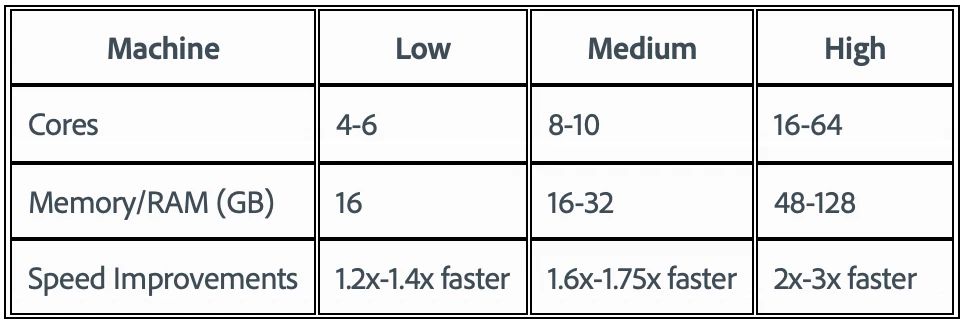
 

To test the benchmark project on your machine:

  • Download the benchmark project
  • Use Ae Render Queue to export the benchmark project in Multi-Frame mode.
  • Purge both the disk and memory cache, then
  • Go to Preferences -> Memory and Performance -> Enable Multi-Frame Rendering (beta) and uncheck the box to use Single-Frame Rendering Mode
  • Use Ae Render Queue to export the benchmark project in Single-Frame mode. Note: Use the same output module for Single-Frame and Multi-Frame mode.


Share the following information in this forum:

  • Your hardware specs: # cores in your CPU, GB of memory, GPU model and amount of VRAM
  • Single-Frame render speed
  • Multi-Frame render speed

147 replies

Participant
March 16, 2021

Processor: Intel(R) Core(TM) i7-6800K CPU @ 3.40GHz (12 CPUs)
Memory: 65536MB RAM
Graphics Card: NVIDIA GeForce GTX 1080
---------------------------------------------------
Rendering to JPG String.

(Beta) Multi-frame - 16mins 47secs
(AE 2021) Single-frame - 28mins 13secs


Any tips on how to improve PC specs to speed this up would be appreciated.

Inspiring
March 16, 2021

Is your CPU hitting 100% across all cores/threads when running the MF test?

Is this CUDA or Software?

AARP
Participant
March 16, 2021

It works very well

CPU: AMD Ryzen 9 3900X

RAM:  64 GB Dual-Channel 1600 MHz

NVIDIA GeForce RTX 2060 SUPER 4GB

931GB Western Digital WDC WDS100T2B0C-00PXH0

Single: 14:20

Multi-Frame: 6:51


NK Films
Participant
March 16, 2021


A very welcomed update Adobe - Game changer! Thank you so much for working on this, literally very excited for the future of After Effects.


Here's my specs and results:


Specs

Mac Pro 2019

Processor - 2.7 GHz 24-Core Intel Xeon W

Memory - 512 GB 2933 MHz DDR4

Graphics - AMD Radeon Pro Vega II Duo 32 GB 


Results (exported as prores 422)


Multiframe - software only - 4min 50 secs

Multiframe - Mercury enabled - 3min 55 secs

Single frame (mercury enabled) - 13min 12 seconds


HUGE improvement. 


Rene Andritsch
Community Expert
Community Expert
March 16, 2021

AE Benchmark Project on a MacBook Pro (15 Inch, 2018) MacOS Catalina 10.15.7:

  • 2,9 GHz Intel Core i9 (6 cores)
  • 32 GB 2400 MHz DDR4
  • Radeon Pro 560X 4096 MB
  • Intel UHD Graphics 630 1536 MB


Render Times rendered as Lossless:

  • Single Frame (Mercury Software): 24 min 14 sec
  • Multi Frame (Mercury Software): 20 min 23 sec
  • Multi Frame (Metal): 17 min 27 sec
Participant
March 15, 2021

Only used half of my available cores.


Specs:

AMD Threadripper 3990x: 64 core 128 thread

256 GB memory 

Nvidia RTX 3090 with 24 GB VRAM


Single-Frame rendering speed:   14 min,  54 sec

Multi-Frame rendering speed: 4 min, 38 sec


I noticed with multi-frame rendering only 64 of the available 128 threads were being used (the primary and secondary threads of the second processor group)

Participant
March 16, 2021

I just updated to the new beta version through adobe CC, also changed the output format, adjusted my computer's memory speed, and closed down all other running programs, the culmination of which sped up both render times.  


New Single-Frame: 11 min, 11 sec

New Multi-Frame: 3 min, 55 sec


The process is still only using half of my processor cores, but it's not an insignificant change in render times.

Jenkmeister
March 16, 2021

Re: half your processor cores. Neither AE itself, nor MFR have yet enabled support for processor groups but it is on the backlog to see if we can get it working for MFR. We'd love to see 128 cores rendering 🙂 

Inspiring
March 15, 2021

Windows 10

Threadripper 3960x  24 Core / 48 Thread

128 GB DDR4 Ram

 Nvidia 2080ti 11GB


Out of curiosity I opened a "real world" project on some down time.


Standard mix of comps / precomps with effects. Some H264 video files layered in with blending modes, text, track mattes etc. 


6second 18frame comp 1920 x 1080 24p 16bit Mercury on. 

Single Frame 5min 1s -- CPU usage ~ 50-60% GPU 8%. 

Ram Usage - 84%


Multi Frame -- 4Min 59s. CPU usage 65-80% Ram climbs to 85% GPU 10-12%. 

It spends a long time at 0% (2 min) before it starts rendering....so actual render time was probably closer to 3 min if there is a way to get the spin up time down. 


Some of the effects I was using ( not necesarily all of these this is just from the project report) I'm sure many of these are yet to be supported! 


Onwards and upwards. 


Effect: CC Particle World
Effect: Checkbox Control
Effect: Color Control
Effect: Curves
Effect: Displacement Map
Effect: Fill
Effect: Find Edges
Effect: Fractal Noise
Effect: Gradient Ramp
Effect: Invert
Effect: Lumetri Color
Effect: Mosaic
Effect: Motion Tile
Effect: Noise
Effect: Point Control
Effect: Set Matte
Effect: Slider Control
Effect: Solid Composite
Effect: Stereo Mixer
Effect: Tint
Effect: Transform
Effect: Vegas
Effect: Warp Stabilizer


Jenkmeister
March 16, 2021

The startup time is something we are working on eliminating currently. Probably another 6-8 weeks of work before we have something to show (this is a deep architectural change to make), but we know it's gotta go! 🙂 


If you look at the effect in the effect control window it should show which effects are not yet MFR supported (yellow warning icon). Or if you enable logging and view the log file, it will show you after the render is completed which effects are and aren't MFR supported yet. Lumitri and Warp Stabilizer stand out as 2 of those off the top of my head.

AW Mograph
Participant
March 15, 2021

Super excited about this option!

  • Hardware:
    • Ryzen 7 3700X, 8 core, 16 threads
    • 64 GB DDR4, 3600
    • RTX 2080, 8GB
  • Single-Frame render speed:  16 minutes 43 seconds
  • Multi-Frame render speed:  9 minutes 28 seconds
mayahi
Participating Frequently
March 15, 2021

AMD Ryzen 7 5800X 8-Core Processor 3.80 GHz
64gb RAM at 3200mhz
3060ti
windows 10 64 bit

Single: 11:22
Multi: 7:18

Participant
March 15, 2021

-Win 10

-AMD Ryzen Threadripper 299WX 32- core - 3.0 GHz

-64 GB Ram

- Single 20:09 Mercury GPU

- Multi 11:40 Mecury GPU

- Multi 11:25 CUDA GPU

RTX 3090

hehenno
Participant
March 15, 2021

iMac Pro

Intel Xeon W 3 GHz 10-core

64GB ram

Vega 64X


The benchmark scene rendered like this:


Single-Frame render: 18 minutes 5 seconds

Multi-Frame render: 11 minutes 37 seconds