



New OpenColorIO Display Transform effect in After Effects
Introduction:
After Effects introduced a native ACES workflow in our 23.2 release (details here).
Since then, we have received feedback and users’ requests for having support for baking in display view transform, available for display path under composition/footage view, for export path. Further, there are requests for assigning display view transform as input color space to an imported media.
To cater to these requests, we have included the following in the Beta build.
- Introduced OCIO Display Transform as an effect under the Color Correction category.
- Added display view transform in the color space list at import in Interpret Footage.
- Added display view transform in the color space list at export in Output Module Settings.
OCIO Display Transform effect:
The After Effects Beta build now includes one more effect based on the OpenColorIO library under Color Correction category.
The purpose of this effect is to apply the display view transform or its inverse to a composition.
The interface for the effect is as shown:
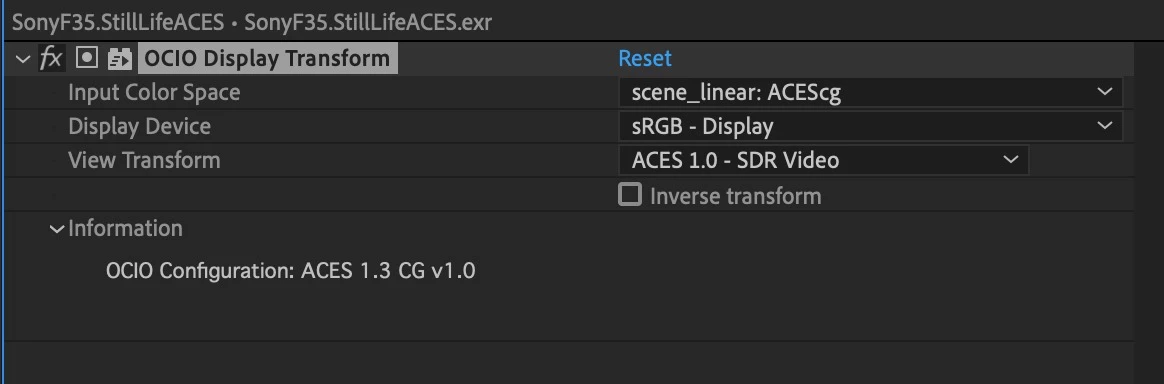
The effect includes the following parameters:
- Input Color Space - To select the input color space for the transform.
- Display Device - To select from the available display devices. This list is dynamic and is populated from the selected OCIO Configuration.
- View Transform - To select view transforms available for a selected display. This list is also dynamic, and depends on the selected OCIO Configuration file and selected display device.
- Inverse Transform - This allows you to inverse the transform (e.g., for import workflow).
- Information - The Information section will provide details such as the OCIO configuration selected. This section will provide error information also e.g., if you change the OCIO Configuration at Project Settings and if that makes the current effect invalid.
OCIO Display Transform in Interpret Footage:
In the Interpret Footage color tab, there is a ‘Show all’ checkbox to list all color spaces from the OCIO Configuration file.
In the Beta build checking ‘Show all’ will list the display view transform at the end as well.
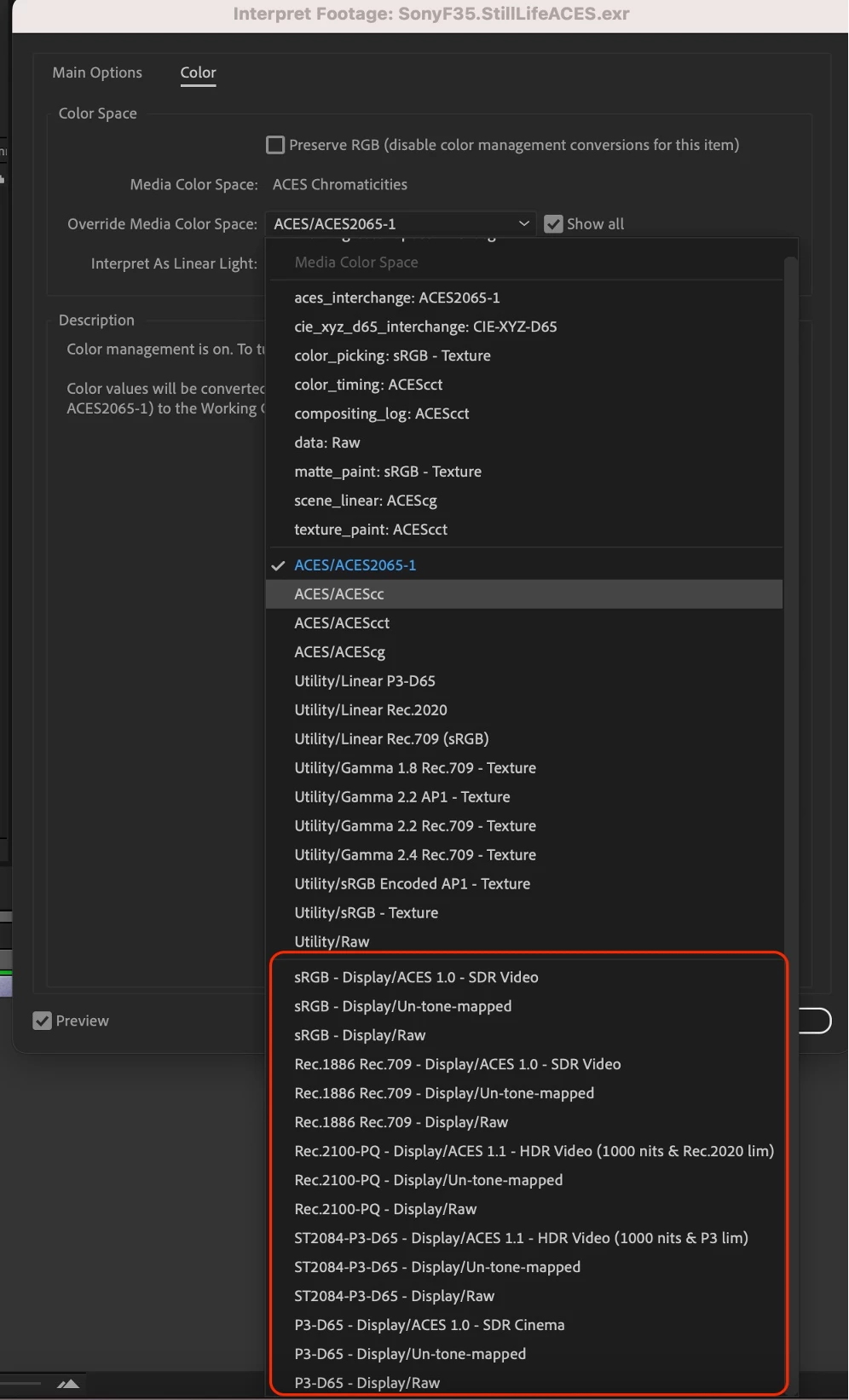
You can either assign a display view color space to the imported media, or use the OCIO Display Transform effect to convert to working color space.
OCIO Display Transform in Output Module Settings
In the Output Module Settings color tab, there is a checkbox ‘Show all’ to list all color spaces from the OCIO Configuration file.
In the Beta build checking ‘Show all’ will list the display view transform at the end as well.
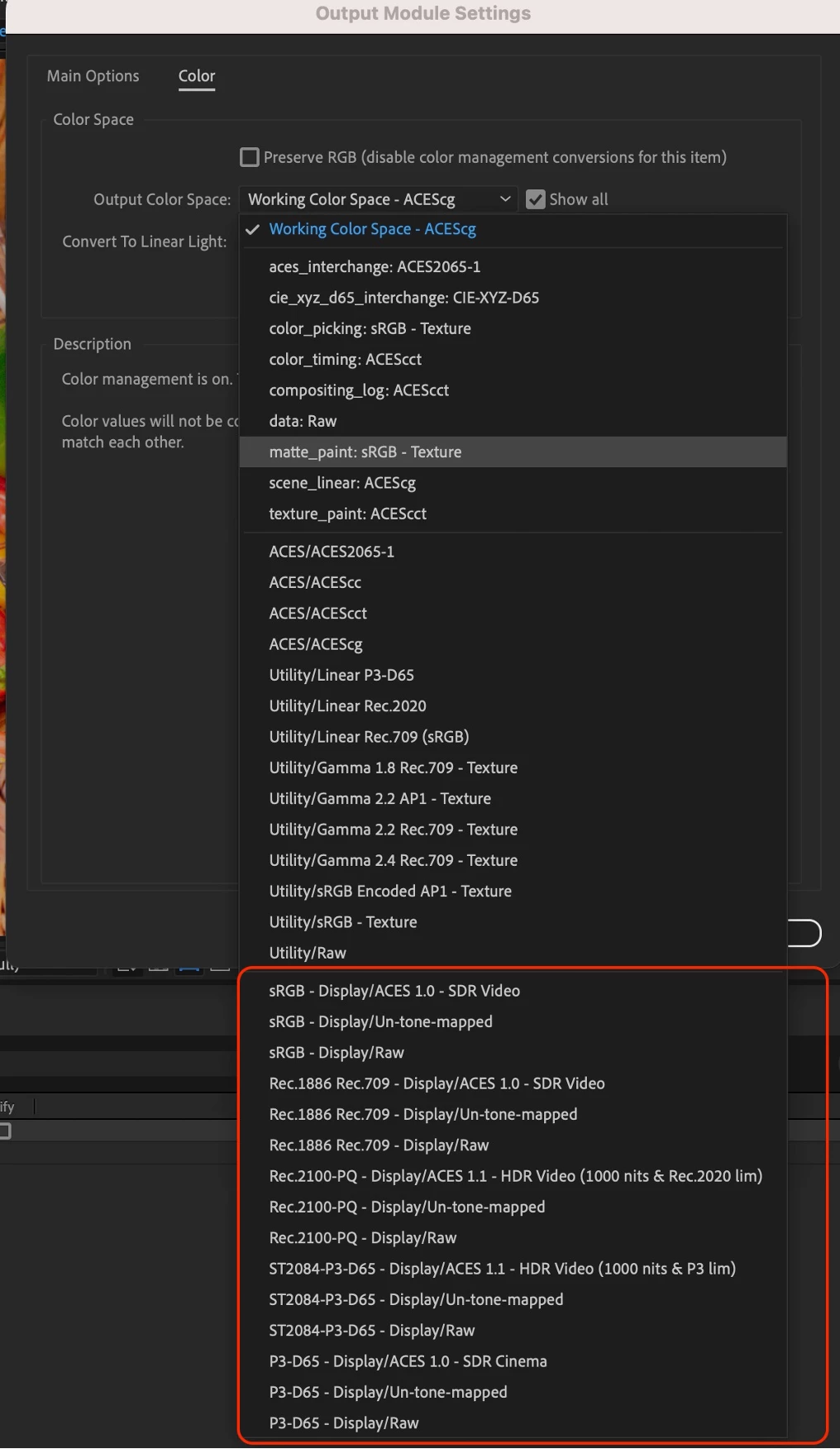
You can either select a display view color, or use the OCIO Display Transform effect to convert from working color space.
 AdChoices