Participating Frequently
November 22, 2021
Answered

Bridge 2022 Ver 12 not recognizing Folders on External HD

  • November 22, 2021
  • 3 replies
  • 6641 views

I keep my images in folders on my external Hard Drives. Adobe Bridge 2022, Version 12.0.0.234 shows theexternal Hard Drives, but will not show the folders on the hard drives. I run an iMac with Monterey 12.0.1

Bridge 2021 works fine.

Has anyone else had this issue or know of a fix?

Thank you!

Correct answer gary_sc

Hi, @octone75, if your now on Ventura, things are a bit different.


Please try this: 

Go into the System Preferences and select the Privacy & Security tab on the left. Note that there are two options on the right you'll need to deal with: "Files and Folders," and "Full Disk Access."
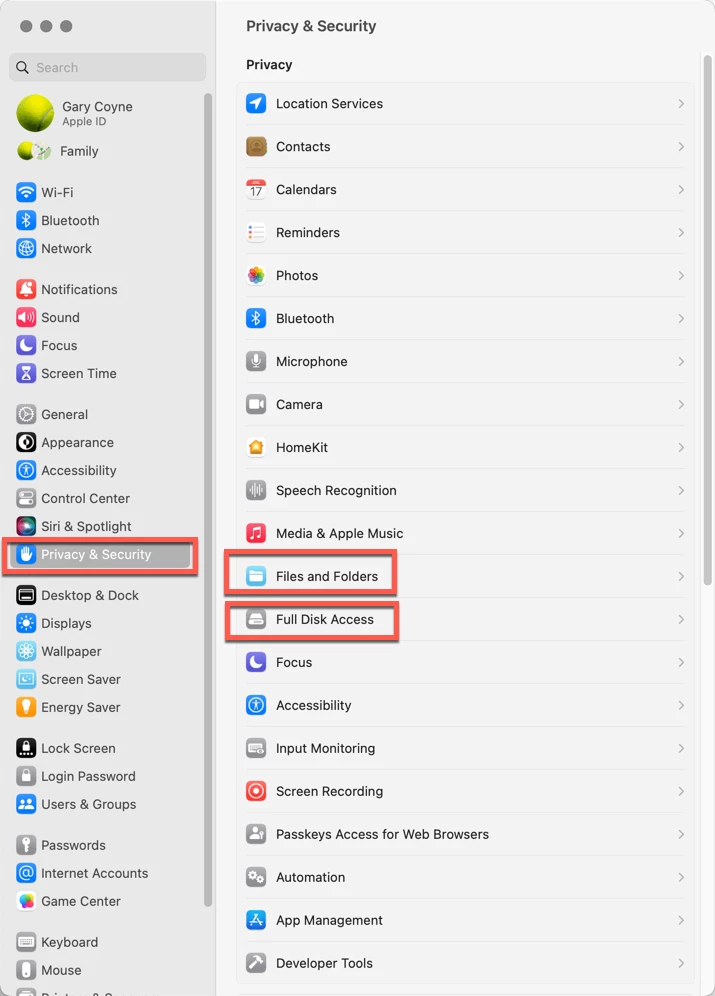
 

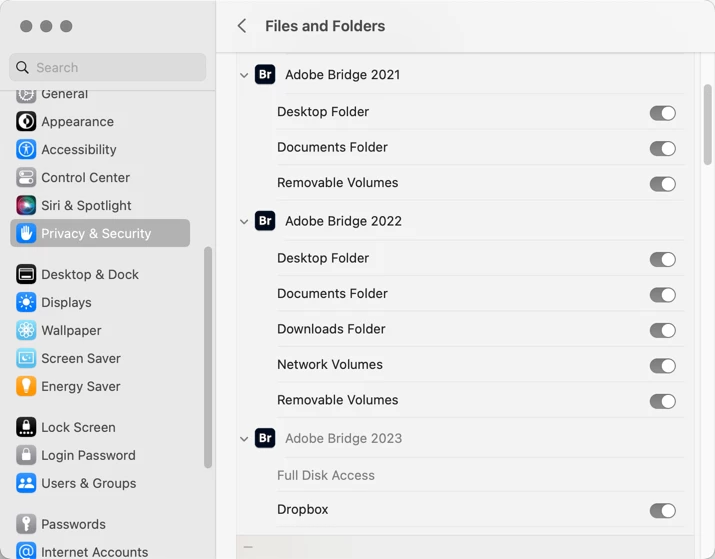
First, going into Files and Folders, note that in various years of different releases of Adobe Bridge, different needs are needed. I do not know why this is, but it's always better to check and make sure that just because you did it for one release, you may or may not need it for a subsequent release.


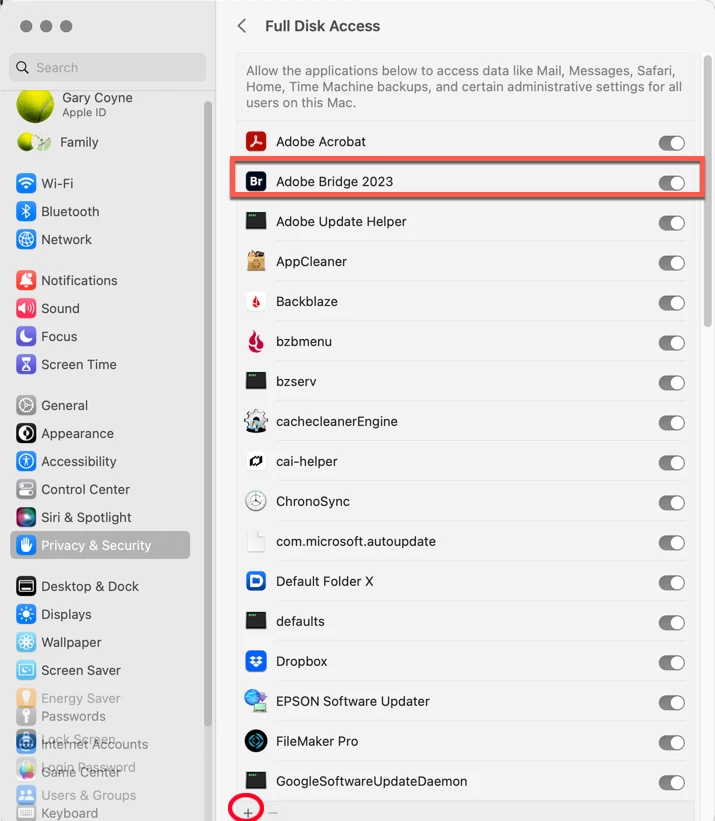
Lastly, go into the Full Disk Access option. If you do not see your application in the list, click on the "+" symbol at the very bottom of the window. This will bring up a standard Finder window. Navigate to your Applications Folder, find Adobe Bridge, and add it to the list (You will need to add your Administrator's password to do this.). Then you can "switch" it to the "ON" position. 
 

This should solve your problem.

Please let us know if that works or not.

3 replies

SPL72
Participating Frequently
February 2, 2024

UPDATE:  So I uninstalled the Latest version of Bridge 14.01 . And reinstallled v 13. Now everything works as expected


Phew..

SPL72
Participating Frequently
February 2, 2024

NONE of what I tried bewlow works... Adobve completely dropped the ball on this one. I PAY TOO MUCH MONEY to have this happen.   I cannot even see my external HDD's from Bridge.  Stop blaming APPLE. FGix it please Adobe.  We shouldnt haver to start changing permissions and preferences just to use bridge. 

gary_sc
Community Expert
Community Expert
November 23, 2021

When you updated your system, you need to update the permissions for the applications on your hard drive. So it's back to the Security and Privacy tab in your system prefs.


Go to your System Preferences and select Security and Privacy (found in the top section). Now click on the Privacy setting (last tab). Now click on the lock on the bottom left and provide your Administrator code. Now select the Full Disk Access option and click on the "+" symbol. This will bring up the standard Mac Open window and let you add any application you want or need to have full access. Look for Bridge, select it, it will now appear in that window and make sure it's checked. Next, go to the Files and Folders option and do the same thing as above (although there's nothing to check, just add. Close everything down and see if that makes it all work.

Please let me know

[Note: these images are from an older OS, the process is the same.]


Participant
April 27, 2022

That Works! Thanks for the clearly described solution.

Much appreciated.

