Participant
November 10, 2021
Answered

Bridge does not list contents of external hard disk

  • November 10, 2021
  • 2 replies
  • 2178 views

Bridge 2022 installed. Everything works. Only my external hard drive appears in the menu, but Bridge does not show me the contents. Worked fine with 2021 version. Did I forget a hook somewhere?

This topic has been closed for replies.
Correct answer gary_sc

This is not the fault of Adobe or anyone, this is Apple making sure that applications that have not been given permission to access areas of your computer cannot access those areas of your computer.


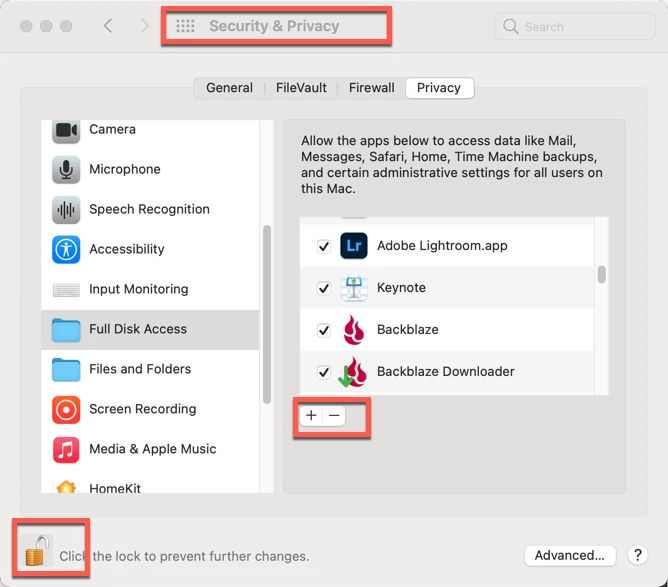
Go to your System Preferences and select Security & Privacy. Click on the Privacy Tab, then scroll down till you see Full Disk Access.


Then unlock the lock in the bottom left with your system authorization PW. Finally click on the “+” to bring up an Open window and select LRC and any other applications that needs or may need open access to various areas of your computer. 


But wait, there’s more…


Now click on the next folder down, Files and Folders. You’ll see many applications grayed out because these are applications that already got permission from the first part.
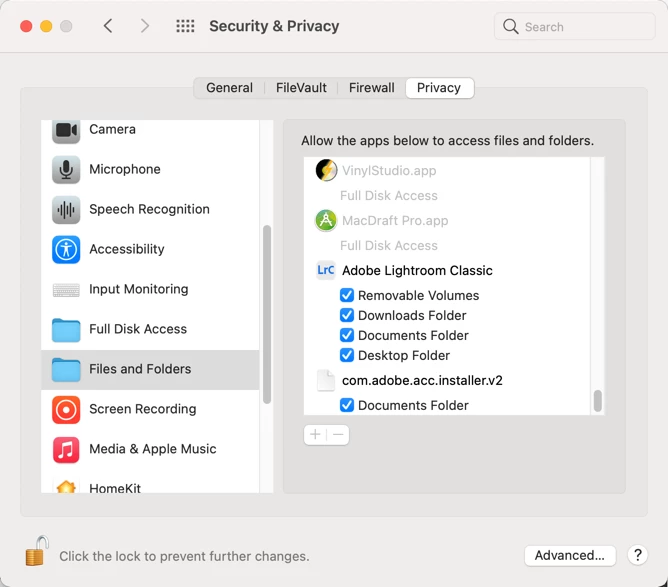


But as you scroll down you may see other applications that have sub-categories to OK. If that lock is still open, you can do this at any time.


Close everything up and you should be good to go.

2 replies

Participant
March 11, 2024

You are a God !!

gary_sc
Community Expert
gary_scCommunity ExpertCorrect answer
Community Expert
November 10, 2021

This is not the fault of Adobe or anyone, this is Apple making sure that applications that have not been given permission to access areas of your computer cannot access those areas of your computer.


Go to your System Preferences and select Security & Privacy. Click on the Privacy Tab, then scroll down till you see Full Disk Access.


Then unlock the lock in the bottom left with your system authorization PW. Finally click on the “+” to bring up an Open window and select LRC and any other applications that needs or may need open access to various areas of your computer. 


But wait, there’s more…


Now click on the next folder down, Files and Folders. You’ll see many applications grayed out because these are applications that already got permission from the first part.


But as you scroll down you may see other applications that have sub-categories to OK. If that lock is still open, you can do this at any time.


Close everything up and you should be good to go.

pwdnAuthor
Participant
November 11, 2021

Thank you very much. Everything is on top.

Keep going on.
