Participating Frequently
March 18, 2024
Question

basic help - location of synched files via browser/app

  • March 18, 2024
  • 2 replies
  • 545 views

I have looked and looked and it seems that it should be easy enough to see my synched files on the browswer AND on the Cloud Storage app on my mac, but I only see them locally in the finder. I hate asking basic questions on "community" forums, so thank you for any help you can offer - places to point me to.


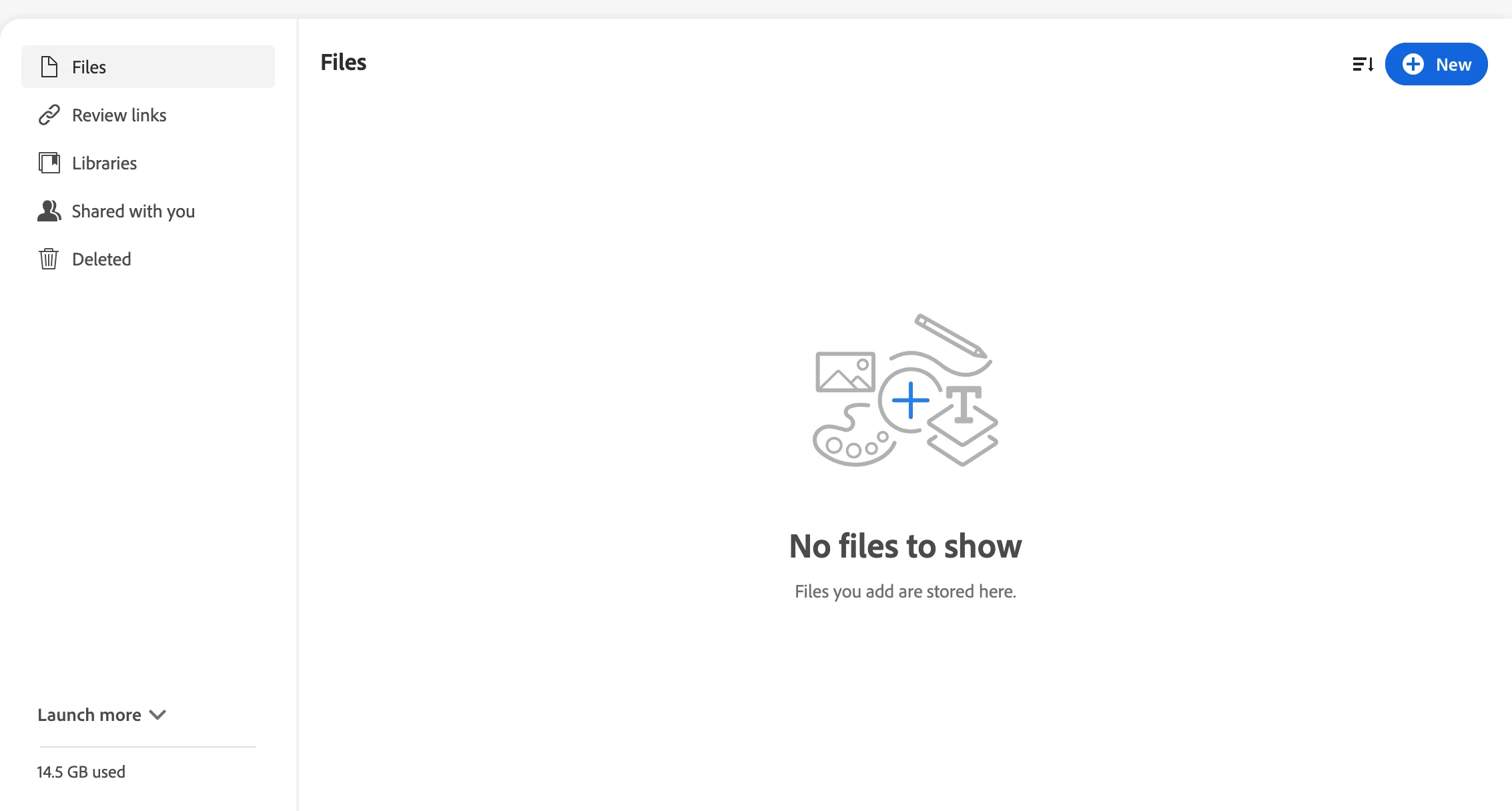
I know my cloud files are synched because I just unpaused synching and I see all local files have a green check (synched) and I see that my cloud storage went up to 14.5 G from 8 (probably that's the number when I stopped synching a while ago). I just want to be sure that I can get all files back if my machine dies - there's something going on with it that IT says means my Mac could die at any minute and of course as a work laptop they won't replace it until it does die and I just need to be sure everything is in all of my cloud storage available (this and OneDrive).

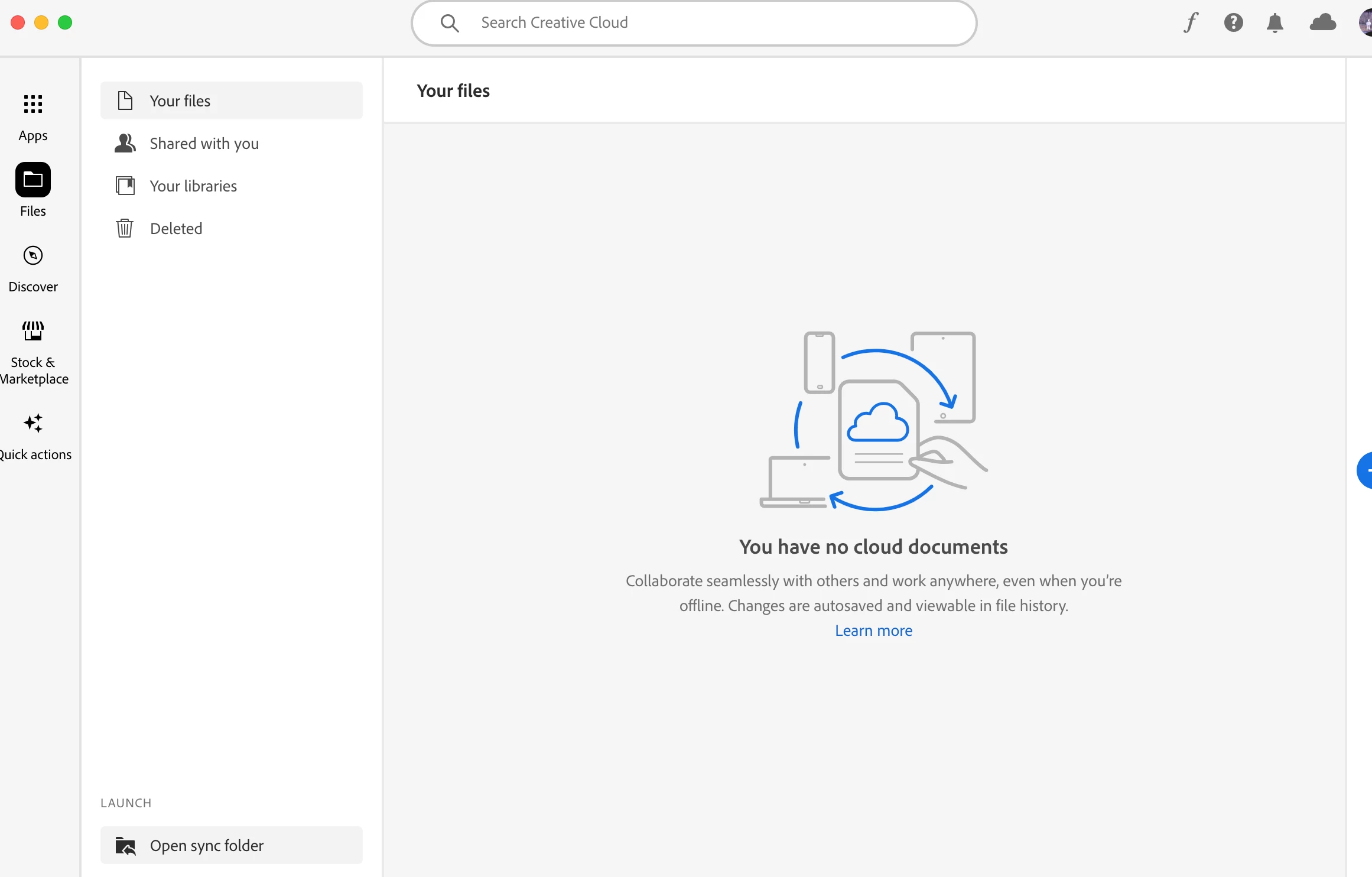
I wanted to be assured that all was accessible - in the cloud and able to come back to a new laptop if necessary - so I looked for my files on the browser access AND the cloud app and you can see in the screenshots that there's nothing there - but you can see that 14.5G of SOMETHING is in the cloud! 🙂 Are they only accessible via local file OR a browser/the app but not both? 

When my Mac dies, will it be as simple as hitting "open synch folder" in the bottom left corner of the cloud app and it'll create a new, local synch folder in my finder? If so, then I guess I'm all good, but it's odd that no files can be seen, rght?


Can anyone help me with this? Thank you!
This topic has been closed for replies.

2 replies

Participating Frequently
March 26, 2024

I cannot chat with anyone at Adobe because they think my administrator can answer this Adobe issue.
I was advised to message via "X," which I hate, but I did do so and they were stumped and wrote:
"Hi Amy, Could you please provide me with your registered email address so I can look into this for you? ^CS"
I gave my address and they replied:
"Thank you for providing the email. I will check with the team internally and get back to you. ^CS"
Then a generic bot/person asked how I was doing and it has been days and I've messaged three more times asking for help with an additional screen shot showing that the issue persists. 

SO CAN ANYONE ACTUALLY HELP ME? Please?

kglad
Community Expert
Community Expert
March 26, 2024

@Amy26928709di00 


can you contact your admin?

Participating Frequently
April 1, 2024

Not that it is helping ME to reply to this ... but I CAN contact my admin. I was with the IT department. They couldn't figure out why ADOBE has an issue, so they just suggested that I store all my data on OneDrive. It's an ADOBE issue, nothing to do with anything my admin/IT team can do. 
I have been ignored by those at @AdobeCare promising help from the platform formally known as Twitter, even when they promised to look into it. So, yeah. Great going Adobe!
Thanks for trying to help me, Community Expert. If only an actual Adobe Expert could do so.
Whatever. Hopefully this exchange will help someone else in the future.

kglad
Community Expert
Community Expert
March 18, 2024

1. your local cc sync folder will stop syncing 


for enterprise and teams, https://helpx.adobe.com/enterprise/kb/eol-cc-synced-files-for-business-plans.html


for individual subscribers, https://helpx.adobe.com/creative-cloud/kb/eol-creative-cloud-synced-files.html


2. use a browser. there are several tabs and link to check:


https://assets.adobe.com

https://lightroom.adobe.com

https://documentcloud.adobe.com

https://spark.adobe.com

Participating Frequently
March 18, 2024

Thank you. Your first link informed me that this feature no longer will be available beginning in October.
I still don't know why I cannot see my files right now. Is this because it's past Feb. 1, when it seems it was taken away from personal users? I have an Enterprise account, so I don't think that applies to me.


So ... again, why do I see that 14.5 GB of my storage has been synched, but I have NO files to see in my account - either on the browser or the cloud app?

kglad
Community Expert
Community Expert
March 18, 2024

did you use a browser and follow #2?