Owen 01
Inspiring
December 8, 2020
Answered

equidistant circles

  • December 8, 2020
  • 5 replies
  • 1202 views

How can I create the circles in this image so that they are equidistant from each other and are alligned along invisible concentric circles?
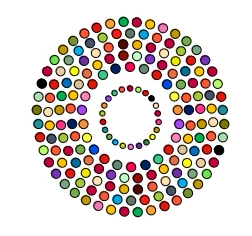

 

This topic has been closed for replies.
Correct answer pixxxelschubser


@pixxxelschubser  wrote:


… Have you tried to expand appearance? …


5 replies

pixxxelschubser
Community Expert
pixxxelschubserCommunity ExpertCorrect answer
Community Expert
December 9, 2020


@pixxxelschubser  wrote:


… Have you tried to expand appearance? …


pixxxelschubser
Community Expert
Community Expert
December 9, 2020

Are these circles paths?

Or scatter brushes?

Or effects?


Have you tried to expand appearance?


Sorry. To little informations.

Owen 01
Owen 01Author
Inspiring
December 9, 2020

My goal is to implement this image in Illustrator. It was produced manually in Microsoft Office by a colleague.

The Illustrator version must have independent circles that can be colored, and the result can be animated in Animator including moving each circle independently.

Following recommendations in threads above, I used scatter brush to create the following.There are 4 concentric invisible paths, each holding visible circles created by scatter brush.

However, I cannot work out how to give a color to each circle, nor can I move one circle without moving all of the circles on the path. Suggestions for adjusting the scatter brush implementation, or suggestions of other approaches?

pixxxelschubser
Community Expert
Community Expert
December 8, 2020

May be the script Vary Hues / Randomize Colors by John Wundes could help a little.

Owen 01
Owen 01Author
Inspiring
December 9, 2020

John's script will not work because I cannot isolate a circle to color it. Or to move it independent of all circles on the path.

Inspiring
December 8, 2020

Mirror Me from Astute Graphics: https://astutegraphics.com/plugins/mirrorme


Or use Transform again 

I used a star as a guide and used my center point of the star as the rotation anchor and the points of my star as equal distance guides.

1. With the circle selected click on the anchor.

2. Grab the shape and rotate it to the point you want. Rotated the circle as a copy  (Opt drag or Alt-drag)

3. Do not deselect the copy. Just go to Object> Transform and Choose Transform Again (Command-D or Ctrl+D)

4. Do this as many times as you need to complete the shape.

Owen 01
Owen 01Author
Inspiring
December 8, 2020

I used https://community.adobe.com/t5/illustrator/radial-pattern-copy/m-p/11239581?page=1

and was able to produce this.

But I need to color each circle with a variety of colors, and have the circles independent so that they can be animated outside of Illustrator. Suggestions?

Myra Ferguson
Community Expert
Community Expert
December 8, 2020

There are a few different approaches from this thread that might help: https://community.adobe.com/t5/illustrator/radial-pattern-copy/m-p/11239581?page=1