Inspiring
February 25, 2018
Answered

Text stroke aligned to inside

  • February 25, 2018
  • 1 reply
  • 7958 views

Hello,

When I set a stroke to live text, the stroke is aligned to the centre of the edge of the fill, by default. It is not possible to align stroke to the inside. Is it possible to mask the portion of the stroke that is on the outside of the fill while keeping the text live?

Offseting the Path of the stroke should work but in this case, there appears to be a glitch with the font and the offset stroke doesn't quite follow the contour of the text. Creating outlines is not an option here as I would like to keep the text live (also, outlines do not always follow the original type but may approximate it). I have tried using opacity masks with multiple strokes of different sizes applied to the text but have not been successful in achieving what I want. Basically, I want to apply stroke aligned to the inside of live text!

This is for CS4.

Thanks.

    Correct answer Monika Gause

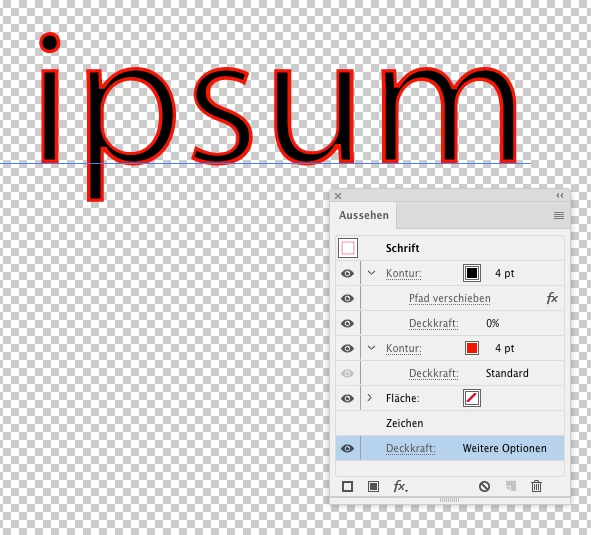
    You can apply a second stroke, offset path to the outside, set its opacity to 0 and make the text object a knockout group. Then hope that the offset path to the outside does not create the glitch.

    1 reply

    Monika Gause
    Community Expert
    Monika GauseCommunity ExpertCorrect answer
    Community Expert
    February 25, 2018

    You can apply a second stroke, offset path to the outside, set its opacity to 0 and make the text object a knockout group. Then hope that the offset path to the outside does not create the glitch.

    sPretzelAuthor
    Inspiring
    February 25, 2018

    Monika, you're my saviour! Thank you very much.

    Before writing my post, I was doing what you said but for two things: I was knocking out the top layer stroke instead of the overall text/characters, and I was not setting the opacity of the top layer stroke to zero.

    Obviously, there is something that I have misunderstood about masking and type/characters and will have to do some reading!

    Thanks again.

    You must have encountered this issue before. I wonder why the font is misbehaving to begin with (font or Illustrator's stroke applied to the font). Not all fonts misbehave that way. Though I have to say Illustrator is not short on such "almost unnoticeable" bugs.

    Monika Gause
    Community Expert
    Community Expert
    February 25, 2018

    sPretzel  schrieb

    You must have encountered this issue before. I wonder why the font is misbehaving to begin with (font or Illustrator's stroke applied to the font). Not all fonts misbehave that way.

    Can you show an example of misbehaving?