sarai53562771
Known Participant
December 4, 2017
Resuelto

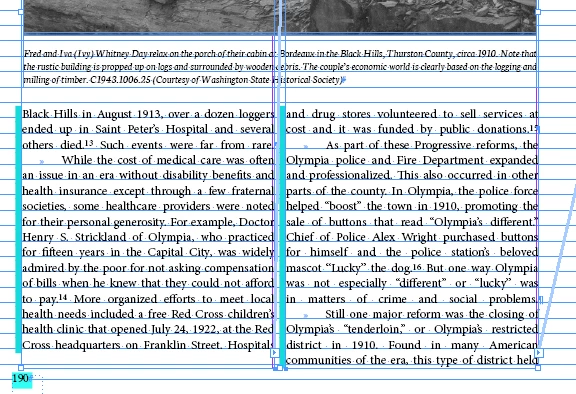
"align to baseline grid" gives uneven number of lines on some pages.

  • December 4, 2017
  • 6 respuestas
  • 4208 visualizaciones

I am successfully using "align to baseline grid" and it works fine on most pages.

On some pages, however, it insists on leaving one line of one column empty. Does anyone know how I have created this problem?

Este tema ha sido cerrado para respuestas.
Mejor respuesta de Barb Binder

Sara: did you understand the answer to this question? It's in the thread, but I'm wondering if it was as clear to you (a newer user) as it was to the rest of us. Here's a visual recap—and this has nothing to do with the baseline grid, as per Jongware. It's off in my screen shots.

1.) there is room for one more line in column 1, but the text isn't using it. As Vinny said, when Keep Lines Together is activated, and at Start/End of Paragraph is set to 2 lines, this will happen. (Single lines of a paragraph that are separated from the others in the same paragraph are called Widows and Orphans, but InDesign doesn't use that terminology here, for whatever reason.)
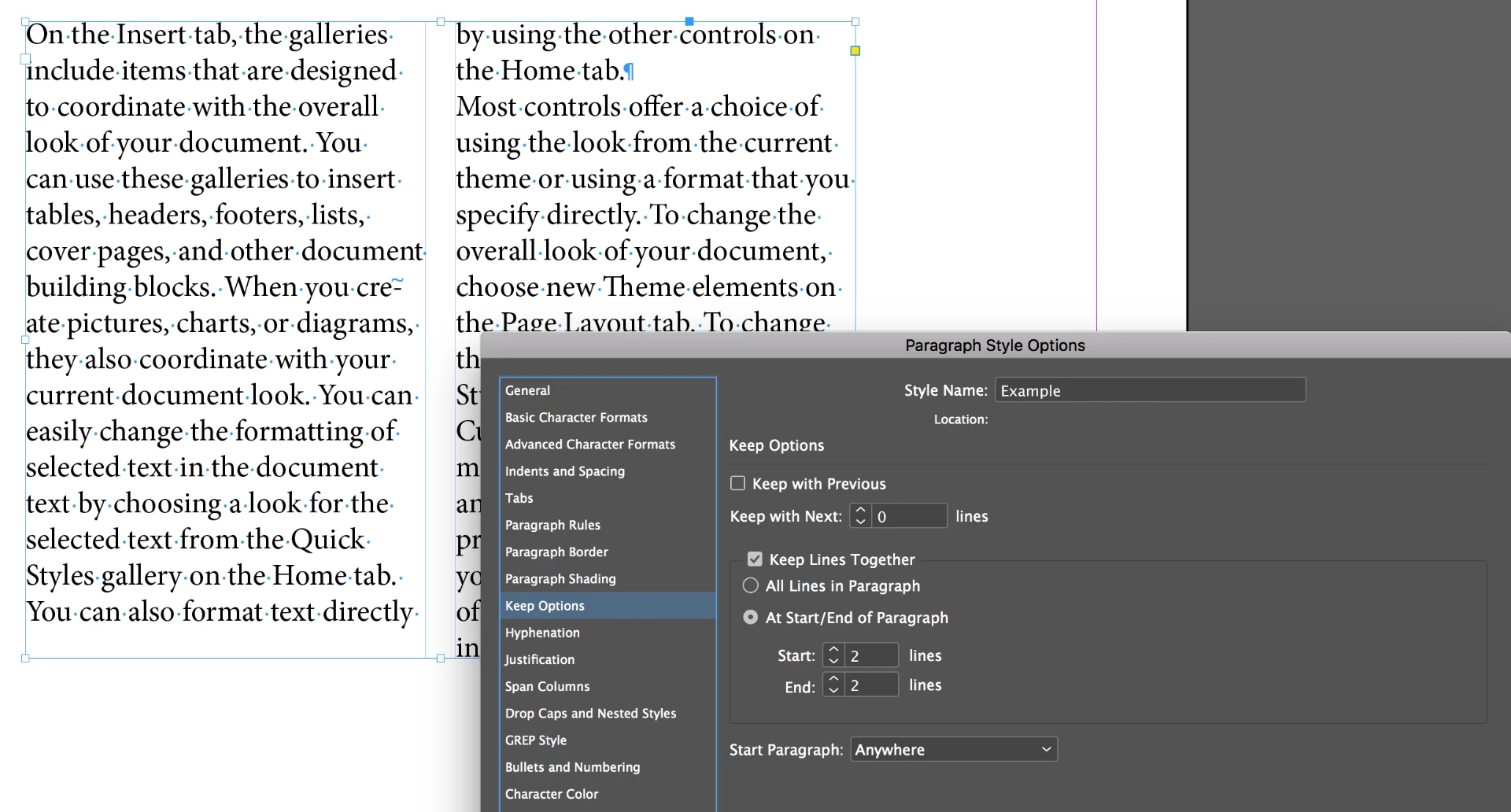
2.) So, if you are OK with single lines (see "the Home tab." at the top of column 2?) you can turn this off. Or better yet, keep it on and copyfit—which means rewriting the text to fit the space.
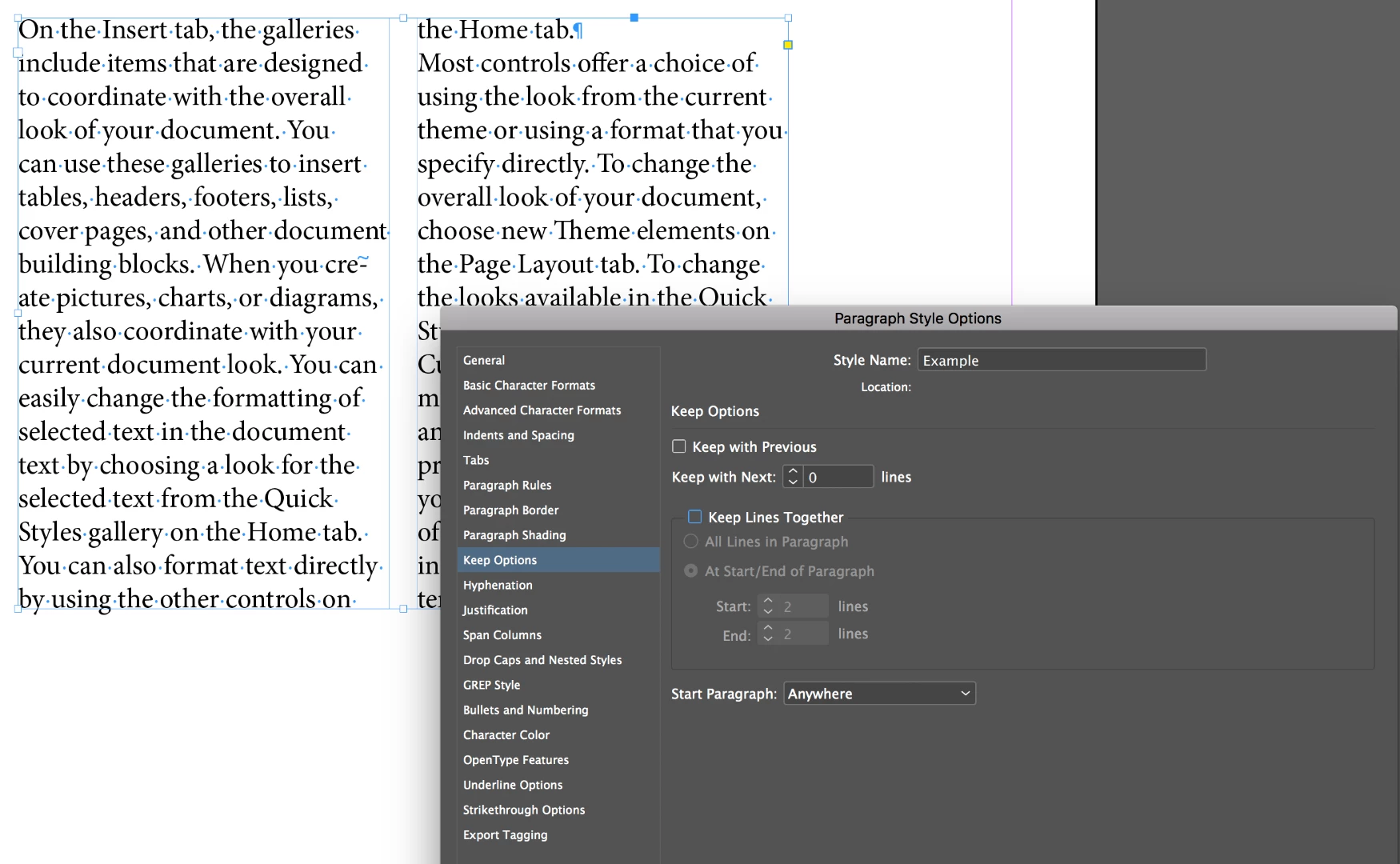
3.) As per Bob's comment, add or delete a few words until the text flows back into the space. InDesign lets it because there are still two lines together at the top of the next column. I also mentioned tracking (adjusting the letter spacing) but only if it's too subtle to be observed. It's consider cheating by many. Copyfitting by adjusting the content is the correct way.
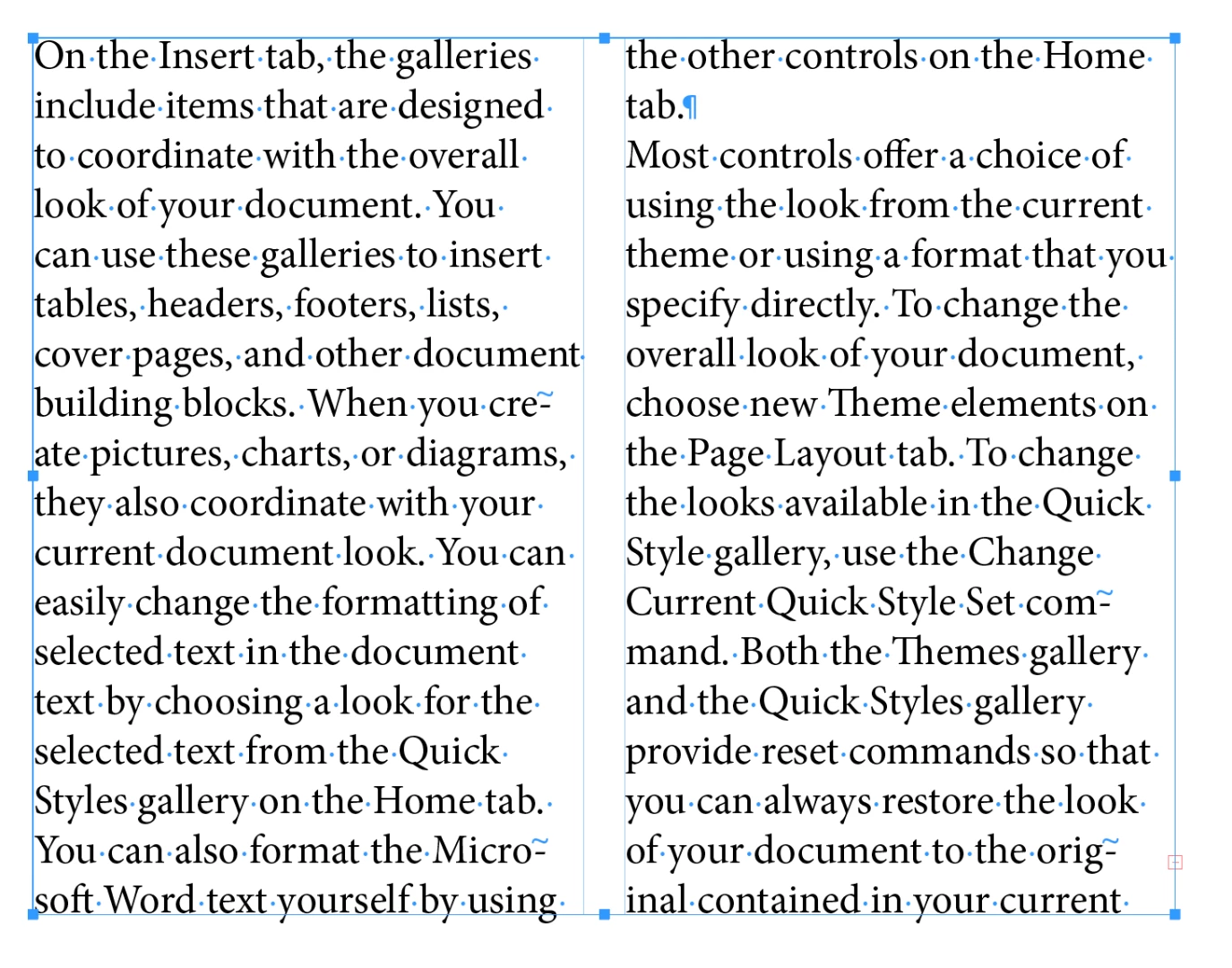
I'll point out that it's also not good practice to end a paragraph with a word all by itself like in my last screen shot ("tab."), but that's a topic for another day.

Sara, when my students enroll in an InDesign class, they expect to learn the software. They have no idea that when they log into my classroom on the first morning that we won't just be talking about InDesign features—there are all sorts of rules they need to learn about setting type and designing pages as well. And there's a learning curve on both. If you are interested in page design/typography resources, just let us know.

~Barb

6 respuestas

Barb Binder
Community Expert
Barb BinderCommunity ExpertRespuesta
Community Expert
December 4, 2017

Sara: did you understand the answer to this question? It's in the thread, but I'm wondering if it was as clear to you (a newer user) as it was to the rest of us. Here's a visual recap—and this has nothing to do with the baseline grid, as per Jongware. It's off in my screen shots.

1.) there is room for one more line in column 1, but the text isn't using it. As Vinny said, when Keep Lines Together is activated, and at Start/End of Paragraph is set to 2 lines, this will happen. (Single lines of a paragraph that are separated from the others in the same paragraph are called Widows and Orphans, but InDesign doesn't use that terminology here, for whatever reason.)

2.) So, if you are OK with single lines (see "the Home tab." at the top of column 2?) you can turn this off. Or better yet, keep it on and copyfit—which means rewriting the text to fit the space.

3.) As per Bob's comment, add or delete a few words until the text flows back into the space. InDesign lets it because there are still two lines together at the top of the next column. I also mentioned tracking (adjusting the letter spacing) but only if it's too subtle to be observed. It's consider cheating by many. Copyfitting by adjusting the content is the correct way.

I'll point out that it's also not good practice to end a paragraph with a word all by itself like in my last screen shot ("tab."), but that's a topic for another day.

Sara, when my students enroll in an InDesign class, they expect to learn the software. They have no idea that when they log into my classroom on the first morning that we won't just be talking about InDesign features—there are all sorts of rules they need to learn about setting type and designing pages as well. And there's a learning curve on both. If you are interested in page design/typography resources, just let us know.

~Barb

~Barb at Rocky Mountain Training
sarai53562771
Known Participant
December 4, 2017

Yes, I do have Keep Lines Together activated, and Start/End of Paragraph set to 2 lines.I would like to keep it as-is and manually adjust but I am not ''allowed' to.

I am looking now at a page with 2 columns and the left column is short one line. I do not understand why because the second column continues with 5 lines of text continuing the same paragraph. 5 is greater than 2 and so why is it insisting on putting an extra line in the 2nd column?

About fully justifying, aren't most books fully justified? If not, what do you suggest? I am doing a non-profit project and found this advice somewhere!

About one word on a line, I have been manually fixing those by using the Horizontal Scale. What is a better method? 

Jongware
Community Expert
Community Expert
December 4, 2017

No, most books are not really "fully justified". Open a book with "fully justified" text and look at the last line of each paragraph: it's flush left.

I am only guessing, based on the two or three full paragraphs and the atrocious word spacing I see (... sorry), but it really really looks like you are justifying all lines. That is an option in InDesign because ... well, I could do without, but it makes the set of justification options complete. You can use Full Justification for special effects (mostly one-liners) – but never, ever use it for a main body text!

What you want is called "Left Justified" in InDesign (and not to be confused with "Left Align"). It means that every wrapping line gets properly justified, except for the very last line. (You can also select "Right Justified" and "Center Justified", but trust me on this one: those are for special effects as well, and not intended for main body text either.)

You will find that the word spacing improves immediately: it will be smaller, overall, and more even from one line to the next. The reason for this is because as it is, you give InDesign no choice at all to explore alternative line break points. It must fill up every line, and to do so, it must distribute about the same number of words over each line, whether or not that leads to ugly spacing (mostly too wide but I am sure you can spot a few "too narrow" as well).

With the proper justification setting, InDesign can optimally distribute spacing along the lines as needed per line, and what's left "dangling" comes at a new line, without having to fill this up as well.

I would gladly refer to the online help – but it only lists the available options, without going into detail what to use as what point. I guess you're better off with a Lynda course such as this one:

How to set perfectly justified type

(mind you, I've not watched it, but the blurb sounds good and Lynda has frequently been advised by others).

Jongware
Community Expert
Community Expert
December 4, 2017

(Unrelated)

Is it pure coincidence that all of the paragraphs visible here are fully justified? Or are you mistakingly using "Full Justification" on everything?

Barb Binder
Community Expert
Community Expert
December 4, 2017

I agree with Bob that it is not necessary, but, if vertical justification is important to you, try copyfitting: add a word or two to the sentence that ends in footnote 15. Or *ever so slightly* increase the tracking on that paragraph so that it wraps to an additional line. Either technique allows you to keep two lines together in the second column, while still allowing the first column to reach the bottom margin.

~Barb

~Barb at Rocky Mountain Training
BobLevine
Community Expert
Community Expert
December 4, 2017

As already pointed out, this has nothing to do with baseline grid.

I've never really understood the fascination with having every column the exact same length, either.

Obi-wan Kenobi
Legend
December 4, 2017

... Humm! Not sure somebody answered to the question!

(^/)

BobLevine
Community Expert
Community Expert
December 4, 2017

What answer would you like?

1. Delete some content

2. Add some conent

vinny38
Legend
December 4, 2017

Hi

This is typical and normal behavior while using Keep options to keep the last 2 lines of a paragraph together in order to avoid widows.

Jongware
Community Expert
Community Expert
December 4, 2017

Even more so, this has nothing to do with "Align to Baseline".

Derek Cross
Community Expert
Community Expert
December 4, 2017

Try pulling down or up (it's not clear which page is the one in question) the text frame.