Participating Frequently
August 15, 2012
Answered

Data Merge Shifting Records off the page...?

  • August 15, 2012
  • 12 replies
  • 31004 views

I am trying to do a data merge to create a member directory, finished size 5.5x8.5

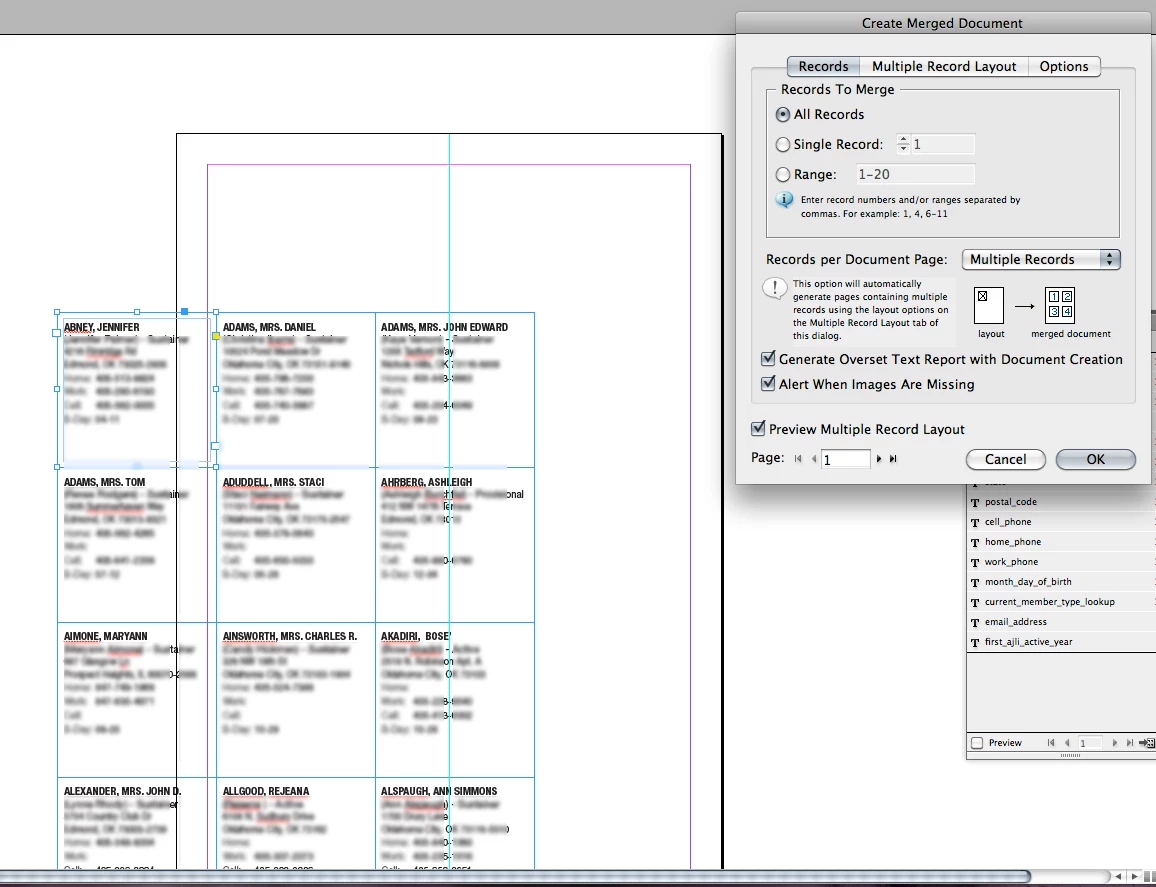
I am doing multiple records (each sized 1.5x.1.5 inches) per document page, and when I  Preview the multiple record layout, it shifts all of the records down about 1 inch, and over to the left about 2. It does not seem to be lining up with anything. My margins for the data merge are set to .3 all around.

I have tried using a data source that is a CSV (comma delinated) and also a Text (tab delinated) file.

I have tried creating a new file and reseting the needed info from scratch, to help ensure there wasn't any possible file corruption.

Here's a picture of what's happening. Can anyone give me a clue why this shift is happening?

I am using CS6, and have never had this happen to me before with any previous work.
This topic has been closed for replies.
Correct answer SJRiegel

It seems to be connected to the preview, so that if it was previewed even once it didn't run correctly. The only way I was able to get correct behavior out of the file was to create a brand new file, copy the text block into it, set up a new data-merge info and run without preview.

Any attempts to create a new file and preview before running resulted in offset records.

12 replies

Participant
May 21, 2024

All content should be within the margin. The margin of the document and the margin set in the Multiple record layout tab should be the same.

Robert at ID-Tasker
Legend
May 21, 2024
quote

All content should be within the margin. The margin of the document and the margin set in the Multiple record layout tab should be the same.


By @swapnap84107218


https://community.adobe.com/t5/indesign-discussions/data-merge-shifting-records-off-the-page/m-p/4366185#M15525


Participant
July 23, 2023

Try lock the data field first. 

Participant
December 8, 2016

if you lock the initial item in place on the page the records flow from that. It works even if you hit the preview button or change page size.

Participant
October 23, 2019

This worked for me just now! Thank you, quick and easy fix!

Participant
June 10, 2016

Have tried EVERYTHING suggested on this thread. TWICE. Plus suggestions from other sites! STILL NOT WORKING!!
I have done this before with no issues. I am thinking it really has to do with a recent update to Windows 10, because I have never had this issue prior to today!

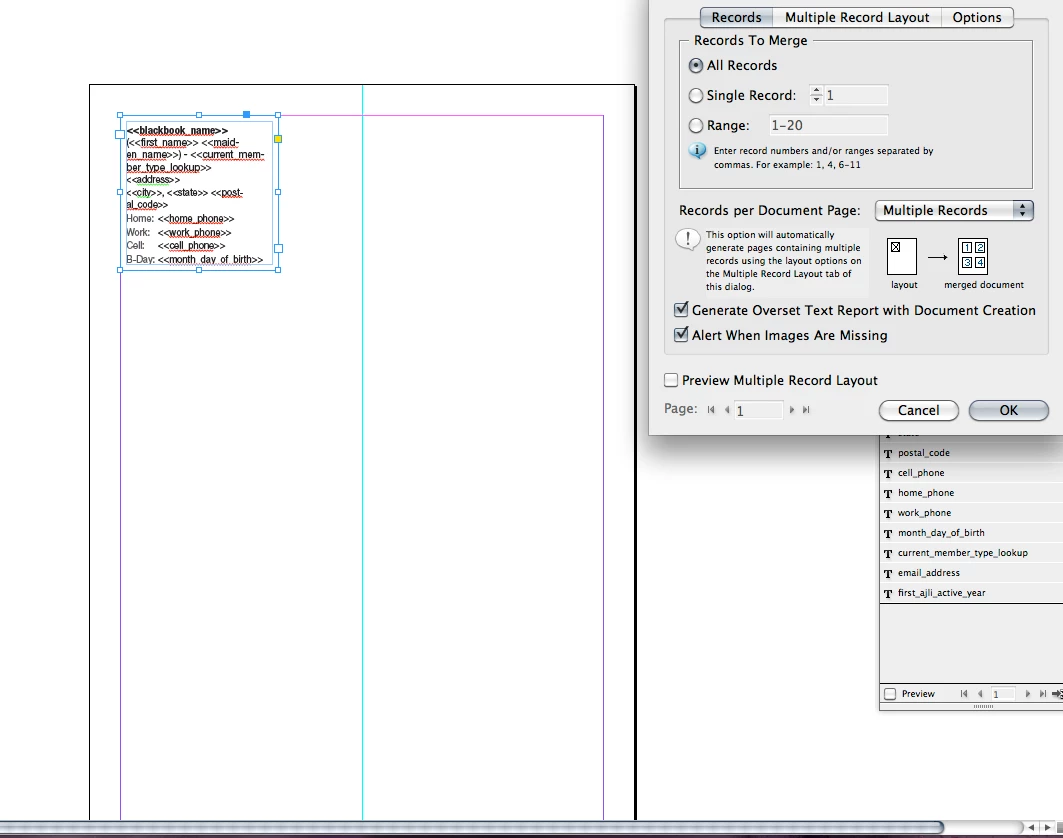
Below are 2 screen shots. 1 is what I see in the multiple records preview (which I have tried to create the merged doc without hitting preview - didn't work - but wanted you to be able to see what the goal is, and that I have all of the settings done correctly in dialog box.

2nd screen shot is the result!!!!

It's MORE than just offset on the page, it's created - somehow- 6 pages PER page!?! Not even sure how it's possible. 

Anyone have any other suggestions, aside from entering them all manually??

Legend
June 10, 2016

Can you show your template page without the preview?   And let us know if you are setting up your fields on the master page or the document page.

My best guess for fixing this is to leave your circles and green field on the Master Page, but move your merge field to page one. 

Right now, everything that is on the page is being duplicated and moved to your margin settings.

Participating Frequently
December 15, 2015

Struggling with this too, but what seems to be working now is to choose all of my page setup options (under Document Setup and Margins and Columns) BEFORE creating the document. So basically setting my InDesign default document settings to the merge project I'm working on.

Adobe Employee
December 16, 2015

What version of InDesign are you on? InDesign CC 2015.2 that was released couple of week ago has the fix for the shifting problem. Let me know if you still see the problem with CC 2015.2

Participating Frequently
December 17, 2015

I was using 2014.2. I guess I should check that creative cloud icon for updates ...

msidedrive
Participating Frequently
November 17, 2015

Has anyone actually been able to get a response from Adobe on how to fix this? I read through this entire thread and tried everyone's suggestions and nothing is working.

Legend
November 17, 2015

Please start a new thread, and include screen shots of your template, Data Merge dialogs and result. 

That way, the users here have a better chance of addressing your specific problem.

Participant
September 10, 2015

I was having the same problems with this. The solution is to just work in Portrait mode, that's what the offset is basing itself off of for preview mode. Took me a minute to realize that. Then all of your 0 margin calculations will line up perfect.

Evolution Multimedia
Participating Frequently
September 10, 2015

Do you mean "normal" vs. "preview" mode? I'm not sure I see an option for a "portrait" mode... Assuming this is the case, that's sloppy of Adobe to have the "preview" mode of the layout affecting the calculations, is it not?

Participant
September 14, 2015

No I mean portrait, not landscape. So you have to work sideways.

Assume, you have 8 badges on a sheet, in landscape mode trying to use Multi-Record data. I noticed the offset seemed very odd, and then I realized it was off because it was trying to start at a position that would be portrait based.

So I turned my art 90 degrees clockwise into portrait mode and worked sideways, it fixed the problem. Preview shows correctly from that point. And you can calculate the margins and spacing properly.

Participant
June 10, 2014

So I noticed that no one put a clear cut answer on here, or I missed it if they did..

So here's my two cents since I had the same issue recently:

When you start a new document Facing Pages will be checked (see below)

Un-check this, set up your document and you should be good to go. Hope this helps someone in the future.

Jeremy AB
Known Participant
July 9, 2014

I'm glad I found this thread. I've done multiple records many times. Most of the time it's postcards. But the last time I was pulling my hair out because of the offsetting. I managed to get it close enough to print, but today my new job is 9 postcards per sheet and it was offsetting way up off the page.

I started over with a new document and this time it was offsetting way off the right of the page. It's got to be a bug... it happens in CS5.5 and CS6.

The Facing Pages option didn't make a difference for me, but doing the settings blindly (no preview) did work. I put in guides so I could see that my addresses were in the correct spot and made sure to measure the space needed for rows, columns and margins so I put in the correct information before creating

I don't know what is the circumstance to cause this. Could it be my odd page size? It's 18.25x12.25 inches.

In the past, my post cards have been 4-up but to keep costs down we need to use larger sheets and do them 9-up.

Thanks again!

Participating Frequently
July 15, 2014

I'm having trouble also with multiple record merge on a large document (12 x 18"). I'm going to keep working on it. I've tried new documents, facing pages off,  no master items, no margins. I will report back after more experimentation.

Participant
May 30, 2013

I had a similar issue trying to print on Avery 5160 labels. (3 columns of 10 labels).  I fixed it by creating a new document and in the Page set up window for the new document (before it is opened), I made a custom size 8.5 x 11 instead of choosing it from the list, and I set up the margins and made 3 columns in the same window. Once the document opened, I drew a new text box, opened data source, and place fields in the new text box.  I went to Data merge and under the Multiple Record Layout tab, I put in exactly the same margin and column measurements that I used on the original page set up.  I clicked the preview box and it came up perfect! 

**These were the same measurements I used in the document that didn't work. The only difference was that in the failed attempt, I set up the margins and columns after I opened a standard 8.5 x 11 page.

I am using CS6.

Jenni

DaveBryant
Known Participant
November 17, 2012

For what it's worth - here's what I dicovered ... the hard way :/

I was having the same problem with the previewed and final text frames being off-set. After many hours of searching for answers and testing theories I remembered I started out the document with a landscape format - then changed to portrait. InDesign and/or the data merge utility still thought I was in landscape. I created a new document wich solved the problem!

I'm using CS6 ...

Dave

everwestwebdesign
Participant
August 6, 2020

I have been struggling with this issue on more than one occasion and this is what worked for me! It was always random (it seemed) and no matter what I did, nothing worked. I am so glad I continued to read this thread! Thanks so much!

Participant
May 11, 2023

This thread is very old but I was also struggling with a similar issue in 2023. What I figured out, after none of these suggestions worked for me, is that my frames on the template overset the margins of the layout. It was blankspace and I had to redesign the objects to fit in the margins properly as resizing them distorted it, but once I had all of the frames happily within the borders the data merge no longer shifted.