Participating Frequently
April 20, 2017
Answered

Divide frame into multiple frames?

  • April 20, 2017
  • 8 replies
  • 13378 views

I'm trying to divide my page into multiple frames to create a sort of collage of frames for a promotional poster. I know the has to be a way to do - I've seen it done before.. but I can't figure out how to for the life of me.

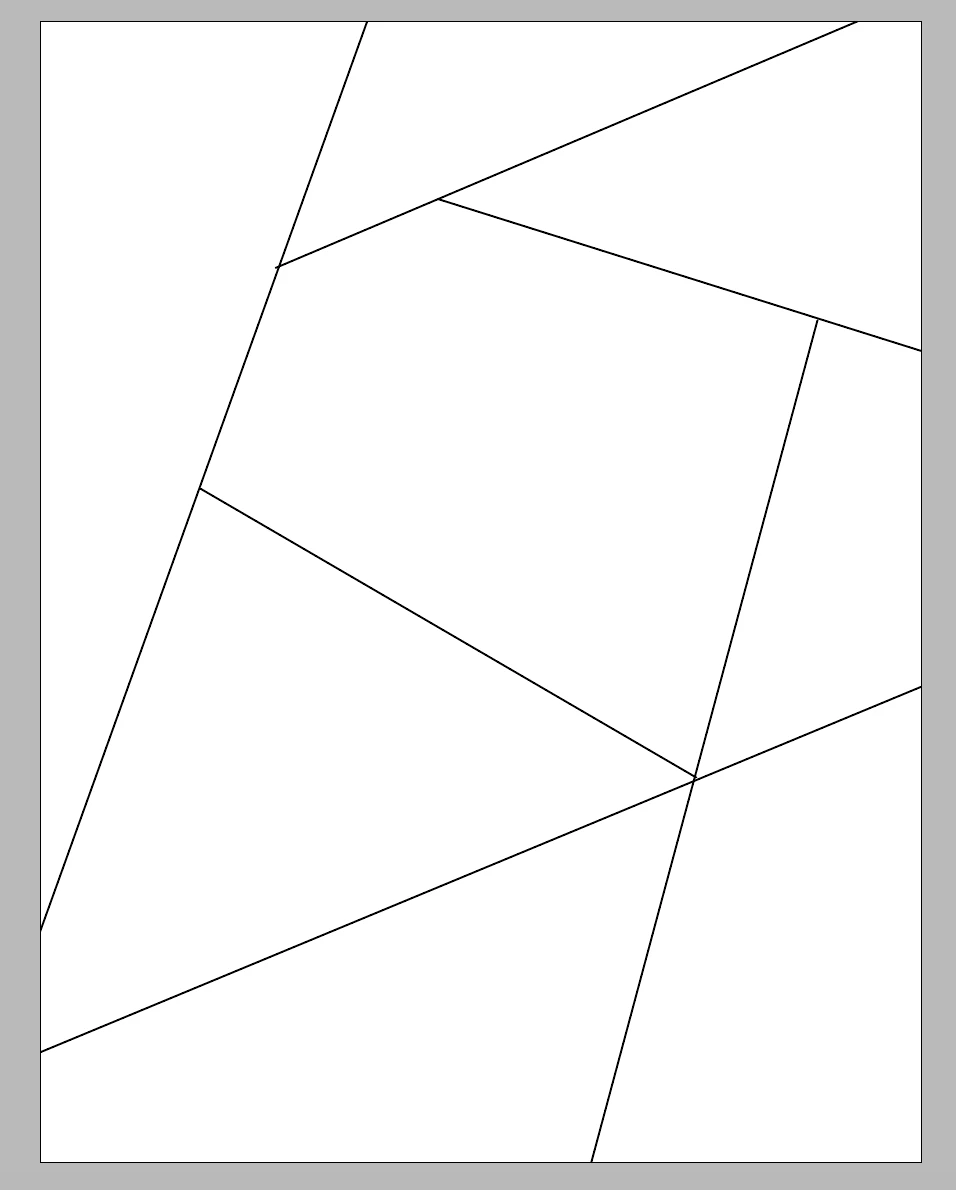
Here's a poorly drawn image of what i'm trying to do - with the white space being turned into frames for pictures and the black lines invisible.
Thanks in advance!
    This topic has been closed for replies.
    Correct answer Scott Falkner

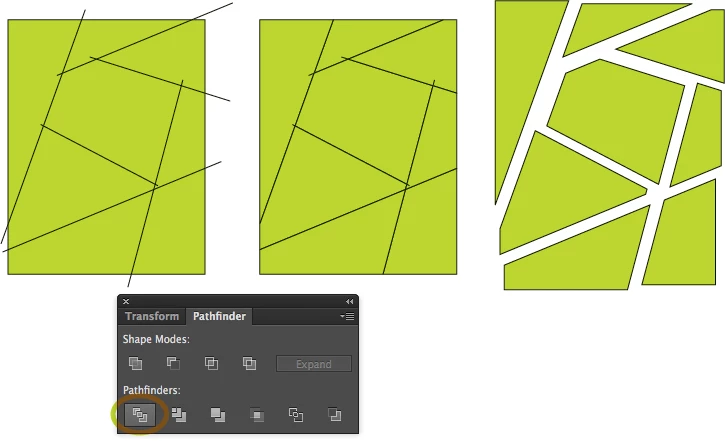
    This is best done in Illustrator. Draw the rectangle, then draw the lines over top of it. Select everything, open the Pathfinder panel, then click Divide (Bottom left button).

    I added a little overlap to ensure the frames were properly separated. Clicking with the pen tool removed the extraneous points. Then copy and paste into InDesign.

    8 replies

    Mike Witherell
    Community Expert
    Community Expert
    April 26, 2017

    Scott, love your Illy solution. I'm partial to "Divide Objects Below".

    Mike Witherell
    Obi-wan Kenobi
    Legend
    April 29, 2017

    Just to finish this thread … in 1 click, inside InDesign! 

    (^/)

    [script not for free!]

    Participating Frequently
    April 29, 2017

    Thank you so much! This is perfect! Obi-wan Kenobi

    kphotopage
    Legend
    April 26, 2017

    With Adobe there is always more than one way to skin a cat.

    Illustrator:

    Filled color rectangle.

    Line Tool, draw some overlapping Stroked lines.

    Live Paint, Fill paint.

    Expand Live Paint. Delete Grouped Strokes.

    If you want spaces between Shapes, Effect>Path>Offset paths is your friend here.

    Expand Appearances and copy and paste into your InD document.

    InDesign:

    Copy and Paste

    Use each close path as your Clipping Mask.

    Drag and drop your photos into.

    Resize/Rotate as you wish.

    One and Done.

    K

    winterm
    Legend
    April 21, 2017

    There's no Divide command in InDesign.

    As far as I can see, Obi's method is pretty much the same as mine, just illustrated. Maybe all the process could be fastened by the script, I dunno. Or maybe Obi will correct me.

    And about what lines you're talking? There's no lines left, whatever method you use.

    Obi-wan Kenobi
    Legend
    April 21, 2017

    … So easy to do it in InDesign! 

    … and so perfect!

    (^/)

    Participating Frequently
    April 21, 2017

    Obi-wan Kenobi

    How did you do this? Pathfinder > Divide in InDesign?

    Obi-wan Kenobi
    Legend
    April 21, 2017

    First, as you can't play Pathfinder with a line, play with a rectangle whose height equals the stroke weight!

    Then, after having created your "puzzle", draw the main rectangle! Select all the frames and play Pathfinder:

    Then, to finish: "Annuler le tracé transparent" [in French] (note its shortcut!)!

    Done!  What else? … Maybe a drink! 

    (^/)

    Participating Frequently
    April 21, 2017

    Thanks for all of your help!

    Scott Falkner's answer works great but how do I delete the lines when i'm done placing images?

    Danny Whitehead.
    Legend
    April 21, 2017

    I think it's easier to use stacking rather than Pathfinder operations here. Draw overlapping shapes, give them a stroke, and send them back and forward accordingly.

    winterm
    Legend
    April 21, 2017

    Sure, Illustrator is the right tool for this kind of job. But this is an InDesign forum, and what if you don't have Illy installed?

    You still can mimic almost the same workflow just in place. Two main differences:

    1. Instead of lines, use thin, lines-like rectangles. Place them over the "main" rectangle as you would place the lines in Illy. Select All, open the Pathfinder panel, click Subtract (subtracts the frontmost objects from the backmost object). You'll get a rectangle, divided into pieces. However, it's still the one object - a path, divided in segments.

    2. Select each segment one-by-one (with Direct Selection Tool, Alt+click on a anchor point). All anchor points of the segment will be selected. Cut it and Paste In Place. Now it's a separate path/object. Repeat this with every segment, except the last one.

    You're done.

    Another, completely different approach - using Document Grid with enabled Snap to Grid. Just draw several figures of desired shape, snap them to each other using Direct Selection Tool and Document Grid.

    Eternal Warrior
    Inspiring
    April 21, 2017

    FWIW they should allow the ability to use Pathfinder > Divide in InDesign also... there is no feasible reason why its not possible or should not be done.

    You can submit a feature request here:

    Feature Request/Bug Report Form

    Best,

    EW

    winterm
    Legend
    April 21, 2017

    Beware... Sometimes wishes come true

    You never know what they'll break fixing what's not broken...

    Scott Falkner
    Community Expert
    Scott FalknerCommunity ExpertCorrect answer
    Community Expert
    April 20, 2017

    This is best done in Illustrator. Draw the rectangle, then draw the lines over top of it. Select everything, open the Pathfinder panel, then click Divide (Bottom left button).

    I added a little overlap to ensure the frames were properly separated. Clicking with the pen tool removed the extraneous points. Then copy and paste into InDesign.