kol28429812
New Participant
June 5, 2018
Answered

How to curve text within a paragraph

  • June 5, 2018
  • 5 replies
  • 14585 views

Hello,

How can I curve a text within a paragraph as in the example?

thanks
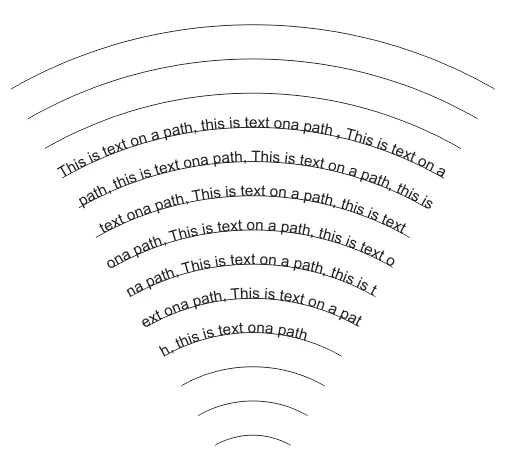

    Correct answer Laubender

    kol28429812  wrote

    … though I hoped there's a more elegant way.

    Hi kol28429812 ,

    hm. At least a bit of that task is scriptable easily: Activating the text on path and thread to one story.


    I wrote an ad-hoc ExtendScript (JavaScript) snippet that is working on selected objects.

    Important: Select the path segements in the order you like to see them threaded!

    Then run the script. If you are not satisfied with the result just undo it and start with a new selection.


    /**
    * @@@BUILDINFO@@@ AddTextPathsAndThreadToStory-SELECTION.jsx !Version! Tue Jun 05 2018 10:33:14 GMT+0200
    */
    
    ( function()
    {
    
    	
    	/*
    		Script by Uwe Laubender
    		
    		Posted at Adobe InDesign Forum:
    		
    		How to curve text within a paragraph
    		kol28429812 Jun 5, 2018 7:54 AM 
    		https://forums.adobe.com/message/10425153#10425153
    		
    		Script adds text path to selected item if no text path is there.
    		Script threads text path 1 of every selected item in order of selection if possible.
    		
    	*/
    	
    	app.scriptPreferences.userInteractionLevel = UserInteractionLevels.INTERACT_WITH_ALL;
    
    	app.doScript
    	(
    
    		addTextPathsAndThreadThem, 
    		ScriptLanguage.JAVASCRIPT, 
    		[],
    		UndoModes.ENTIRE_SCRIPT, 
    		"Add Text Paths to Selection and Thread them | SCRIPT"
    
    	);
    	
    	function addTextPathsAndThreadThem()
    	{
    	
    		// Do nothing, if:
    		if( app.documents.length == 0 ){ return };
    		if( app.selection.length == 0 ){ return };
    		
    		if( app.selection.length == 1 && app.selection[0].hasOwnProperty("baselineShift") ){ return };
    		if( app.selection.length == 1 && app.selection[0].constructor.name == "Cell" ){ return };
    		if( app.selection.length == 1 && app.selection[0].constructor.name == "Table" ){ return };
    		
    		if( app.selection.length == 1 && app.selection[0].textPaths.length > 0 ){ return };
    		if( app.selection.length == 1 && app.selection[0].textPaths.length == 0 )
    		{
    			app.selection[0].textPaths.add();
    			return
    		};
    
    		var sel = app.selection;
    		var selLength = sel.length;
    		var textPathsArray = [];
    		var e;
    		
    		for( var n=0; n<selLength; n++)
    		{
    			if(sel[n].textPaths.length == 0){ sel[n].textPaths.add() };
    		};
    		
    		for( var n=0; n<selLength-1; n++)
    		{
    			var thisTextPath = sel[n].textPaths[0];
    			var nextTextPath =  sel[n+1].textPaths[0];
    			
    			try
    			{
    			thisTextPath.nextTextFrame = nextTextPath;
    			}catch(e){ continue };
    		};
    
    	};
    }() )


    Regards,
    Uwe


    // EDIT: Repaired the damaged script code.

    What happened:

    The code in my answer was damaged last year by moving this thread from the old InDesign forum to this new one.


    NOTE: How to save the code to a script file, how to install the script file and how to use it from the Scripts panel in InDesign see: https://www.indiscripts.com/pages/help#hd0sb2


    Regards,
    Uwe Laubender

    ( ACP )

    5 replies

    MQubed
    Participating Frequently
    May 7, 2021

    Please confirm these steps might also be used to "flex" an entire block of text (a ripple effect rather than "straight" curve)?

    Thanks!

    Michelle

    Community Expert
    May 7, 2021

    Hi Michelle,

    if you first draw the graphic lines for that ripple effect and then, in a next step, select one by one using the Shift key in the order you want to flow the text, then you could run my script code from above:

    Text paths will be added to the selected graphic lines and the text paths will be threaded.

    Just in the order you selected the graphic lines.


    Regards,
    Uwe Laubender

    ( ACP )

    Community Expert
    March 23, 2021

    Hi Jack5D85,

    I looked into your document from InDesign CC 2019.


    In principle my script will work. Tested it on the concentric paths, the circles, on page 2.

    But to make it work I had to do some preparations. I decided to ungroup the group of circles and paths. And I selected the paths in the right order using the Layers panel.


    I selected them in a specific order: One by one, from the outer circle to the inner circle, adding circle by circle to my selection. And that's the deal here with my script. The user has to provide the selection order, my script will add text paths to the selected objects and thread them in selection order.


    Another step I needed:

    I added line breaks after every line of text so that every line of text sits in its own text path.

    To move the text to the threaded story of text paths: Copy it to the clipboard, select one of the threaded circles and open the Story Editor Window. Paste the text to that window. The result was this:


    As you can see one would rotate the outer circle to match the rotation angle of the other circles. And then rotate all the circles to get the text readable.


    Regards,
    Uwe Laubender

    ( ACP )

    Community Expert
    March 22, 2021

    Hi Jack,

    undo the script's action. Then do a screenshot of your selected objects, the path segments.

    Now run the script. Do another screenshot of the result and post the two screenshots.


    Or, even better, make the InDesign document available so that I can have a look.

    Move it to Dropbox or a similar service and post the download link.


    Thanks,
    Uwe Laubender

    ( ACP )

    Community Expert
    July 14, 2020

    FWIW: Repaired the script code in my answer above.


    Regards,
    Uwe Laubender

    ( ACP )

    New Participant
    March 22, 2021

    Hey laubender, Installed the script It only does nothing when I select it on another selected textbox.

    I only see some lines on the side of the textbox which are movable but that changes nothing.


    thanks in advance.

    Scott Falkner
    Community Expert
    June 5, 2018

    Just as in the example. I would draw the paths in Illustrator, that way I could use Blend to make the paths. Copy the paths, paste into InDesign then thread them. It’s tedious.

    Community Expert
    June 5, 2018

    Just to add what Scott said:
    You have to use the Text on Path Tool that's behind the Text Tool to do text on path with every imported path segment, then you can thread the single text paths to one single story.

    Regards,
    Uwe