ashimg23377171
Inspiring
November 13, 2018
Answered

how to select more than one object in a table

  • November 13, 2018
  • 2 replies
  • 758 views

Hello

I have a table comprising 100 rows in which I have an object (red circle) inline. Now i have created an object style of this red globe object. However, i am unable to select more than one of these red objects at a time in order to effect change in the attributes of all the objects in one fell swoop.
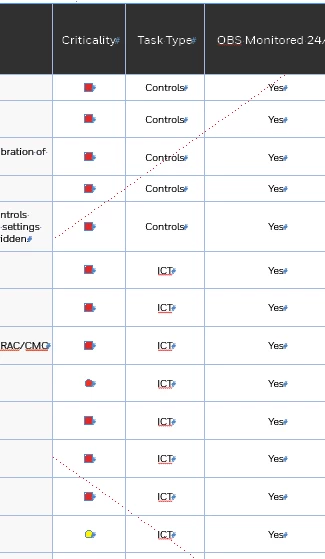
Also, what would be the best workflow to ensure that these red object get applied without me having to go over to each cell (100 rows) and pasting this object in the respective cell.

Any help on a better workflow to accomplish these tasks would be greatly appreciated.

Regards

    This topic has been closed for replies.
    Correct answer Scott Falkner
    1. Format one object as you want it and make that an Object Style. Do this with the object anchored in the text so that Anchored Object Options can be included in the style definition.
    2. Copy or Cut this object so it is on the clipboard.
    3. Select the range of the table you want to affect. In this case the Criticality column.
    4. Open Find/Change and search for ^a (Anchored Object Marker).
    5. Replace with ^c (Clipboard Contents , Formatted).
    6. Change all.

    All anchored objects in the selection will be replaced with the object on the clipboard.

    Another way to go is to use a character style applied to a bullet. I would go this way, if possible.

    2 replies

    Community Expert
    November 13, 2018

    Hi ashimg23377171 ,

    I would select the cell ( not the contents of the cell ) in the second row after the head and copy that cell.

    Then I would select all cells in the same column from the second to the last one and then do paste.

    But only if the contents of all cells in that row should be the same.

    Don't do this with the first cell just following the head.

    It could be formatted differently with its top stroke.

    Regrads,

    Uwe

    Scott Falkner
    Community Expert
    Scott FalknerCommunity ExpertCorrect answer
    Community Expert
    November 13, 2018
    1. Format one object as you want it and make that an Object Style. Do this with the object anchored in the text so that Anchored Object Options can be included in the style definition.
    2. Copy or Cut this object so it is on the clipboard.
    3. Select the range of the table you want to affect. In this case the Criticality column.
    4. Open Find/Change and search for ^a (Anchored Object Marker).
    5. Replace with ^c (Clipboard Contents , Formatted).
    6. Change all.

    All anchored objects in the selection will be replaced with the object on the clipboard.

    Another way to go is to use a character style applied to a bullet. I would go this way, if possible.

    ashimg23377171
    Inspiring
    November 14, 2018

    Hi Scott Falkner

    Thanks for weighing in. But I'm unable to get it to work.

    I created a style of the anchored object and then went to Find/Change, but couldn't get it to work. Screenprints follow:

    Any guidance on what I'm missing here would be greatly appreciated.

    Thanks

    Community Expert
    November 14, 2018

    Hi ashimg23377171 ,

    did you try my suggestions from reply 2 ?

    Regards,
    Uwe