


Léonard Roussel
Participant
April 19, 2021
Answered

InDesign Stuck in "Touch" Workspace on First Launch, Unable to Click or Use Shortcuts

  • April 19, 2021
  • 24 replies
  • 24761 views

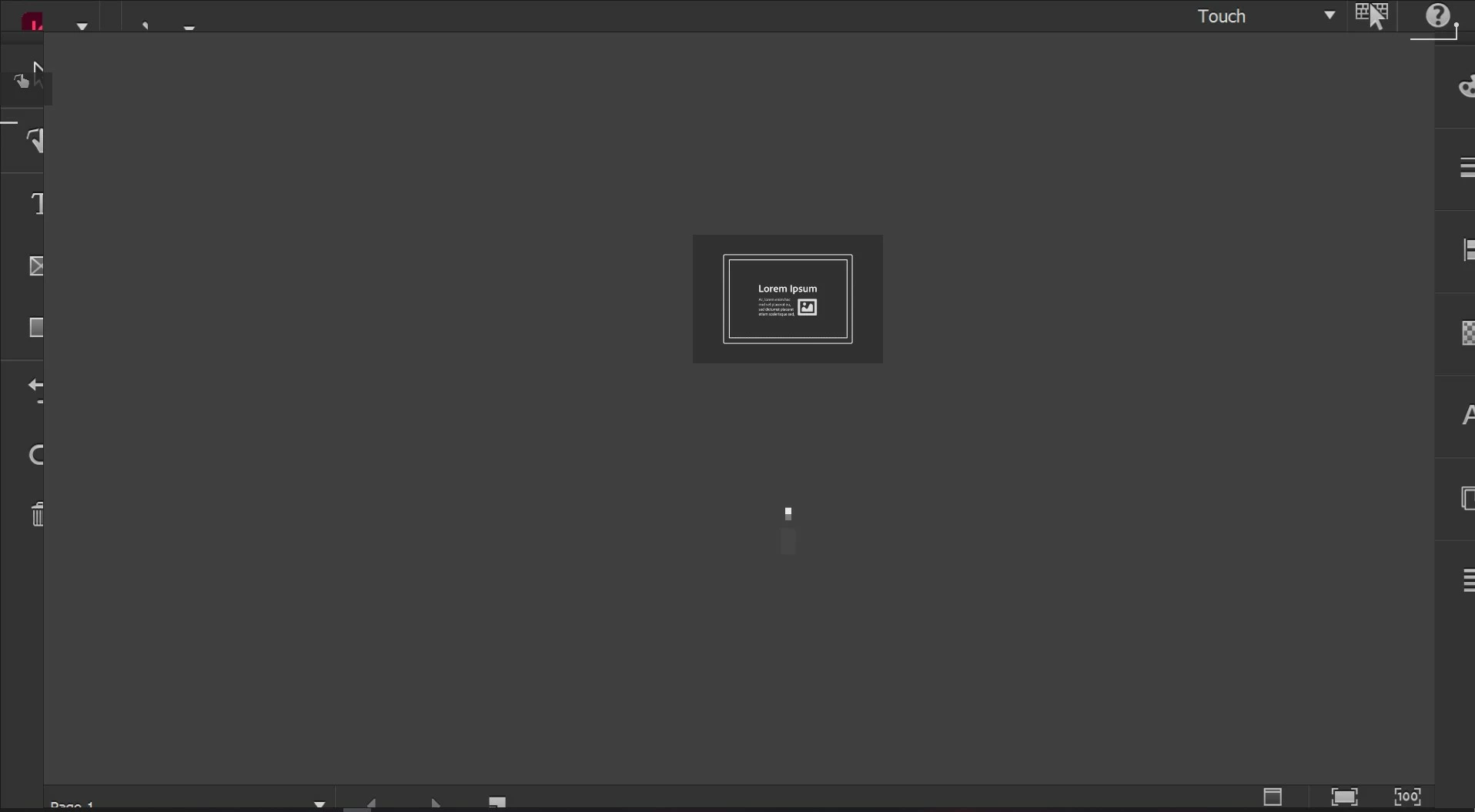
Hello. Brand new laptop (HP Zbook with touchscreen, Windows 10), just installed InDesign and open for the first time, I get this unfriendly "touch" screen (see screenshot) but cannot click (or touch) anything, or press any keyboard shortcut. I also tried what's described here without success (this is the first time I open InDesign on this computer). I'm running out of ideas, please help, thanks!
 

<Title renamed by moderator>

Correct answer Mike-Witherell

This worked for me on Windows 11:

  1. Right-click on the Start  menu and select Device Manager.
  2. In the Device Manager window that opens, select the arrow next to Human Interface Devices to expand it.
  3. Under Human Interface Devices, right-click on HID-compliant touch screen and select either Enable device or Disable device depending on which action is desired.
  4. If there are multiple HID-compliant touch screen devices listed, repeat the steps for each device.

24 replies

Mike-Witherell
Mike-WitherellCorrect answer
Inspiring
October 12, 2025

This worked for me on Windows 11:

  1. Right-click on the Start  menu and select Device Manager.
  2. In the Device Manager window that opens, select the arrow next to Human Interface Devices to expand it.
  3. Under Human Interface Devices, right-click on HID-compliant touch screen and select either Enable device or Disable device depending on which action is desired.
  4. If there are multiple HID-compliant touch screen devices listed, repeat the steps for each device.
Participant
July 29, 2025

Still happening in my 2025 version. And now, when I do the suggested solution of opening an existing file, it opens briefly then defaults back to the home interface an continues to be unresponsive. I'm using a large interactive display without any other screen. Does anyone have any suggestions???

Abhishek Rao
Community Manager
Community Manager
July 31, 2025

Hi @AlisonSpooner,


Thanks for sharing the update, and I'm really sorry you're still running into this issue.

Since you're using a large interactive display, I'd recommend temporarily disabling the touchscreen to see if that helps bypass the unresponsive Touch Workspace. You can follow the steps mentioned on this official Microsoft page to disable it:
https://adobe.ly/3IV2crW


Give it a try and let me know how it goes.

Abhishek 


Participant
July 31, 2025

The solution you suggested is unavailable to me as I am not the administrator on the computer. I did manage to work around the problem by removing the USB cable for the touch interface. 

Participant
May 6, 2025

May 2025 and this is still happening! Absolutely unbelievably terrible service Adobe. Mine is completely unresponsive even when opening an existing file. THere is no possible way to take it out of touch mode. So I have an expensive and useless piece of software and unable to do the work I desperately need to do. I'm so sick of Adobe loading stupid tech into their software. Acrobat used to be a simple useful tool. Now it is just bloated with unneccessary functions that make it virtually unusable.

gmendiastudio
Participant
June 29, 2025

july 2025. 

Community Manager
July 1, 2025

Hello @gmendiastudio,

Are you also having trouble dismissing the Touch Workspace in InDesign? If yes, kindly try the suggestions shared by Harshika (https://adobe.ly/3I2gTcf) and let us know if they help?

If the problem persists, please confirm the version of the OS/InDesign installed and provide a small screen recording of the problem so I can better assist you.

Looking forward to hearing from you.

Anubhav

OneHipSista
Participant
May 5, 2025

This just happened to me. I was able to get past it by swiping to the next gesture screen and clicking "Get Started." Not very intuitive.

Participating Frequently
May 6, 2025

I don't understand where to click?

Abhishek Rao
Community Manager
Community Manager
May 12, 2025

Hi @Rod35193707c7l0,


Thanks for reaching out! If you're stuck on the touch workspace screen and can't click anything, try closing the InDesign app completely and then reopen it by directly double-clicking any existing .indd file. That should help you get past the initial screen. Once the file is open, go to Edit > Preferences > Touch Workspace and uncheck the option that says "Switch to Touch Workspace when the keyboard is detached."


Let me know if that works or if you're still stuck. 

Abhishek 

aideno13530731
Participant
April 29, 2025

Hi, still experiencing this problem. None of the solutions listed here have worked.

Community Manager
April 29, 2025

Hello @aideno13530731,

Would you mind trying to manually reset InDesign's preferences and checking if it helps:


For macOS

• Close all Adobe applications.

• Go to the following locations

• ~/Library/Caches

• ~/Library/Application Support/Adobe

• ~/Library/Preferences

• Rename Adobe InDesign, com.adobe.indesign and Adobe InDesign 20 Settings folders to Adobe InDesign.old, com.adobe.indesign.old and Adobe InDesign 20 Settings.old

• Launch InDesign from the Creative Cloud.


Note: Location starting with this "~" sign indicates the User Library, which is hidden. So, you need to copy & paste the exact path in spotlight search or from Finder Menu > Go > Go to Folder > Paste the location in the dialog box like this:


For Windows

- Close all Adobe applications.

- Go to Location C:\Users\%USERPROFILE%\AppData\Roaming\Adobe

- Rename Adobe InDesign and Adobe InDesign 20 Settings folders to Adobe InDesign.old and Adobe InDesign 20 Settings.old

- Relaunch InDesign from Creative Cloud


Disclaimer: Please note that renaming preferences folders will remove all the custom settings, and InDesign will launch with default settings. You can also save a backup of the folders in case you want to. The location is mentioned above.


Looking forward to hearing from you.
Anubhav

aideno13530731
Participant
April 29, 2025

This worked, thank you!

Participating Frequently
February 20, 2025

I just wanted to give an update that I noticed at least one significant improvement has been made on this bug. Previously, if my Cintiq tablet was attached & turned on and I opened InDesign, it opened with the Touch interface even if it opened on a regular monitor. 

Today I forgot to turn off my tablet before opening InDesign, and InDesign opened normally anyway! It opened on my primary (laptop) monitor with the normal, non-touch interface. I'm using the Windows version of InDesign 20.1.

Progress!

Participant
March 14, 2025

Same thing happened to me on a touch-screen laptop and attached (non-touch screen) monitor. I had to close Indesign, than shut my laptop so it reopened on the external monitor. Then I could switch to Essentails workspace. Fngers corossed this doesn't happen on subsequent loads.

Version 20.0.2 x64

Participant
April 7, 2025

Same happened to me until I noticed that you had to go through the little tutorial (click next on the button) and then click Lets start (or something like it) After that you can use the cursor to switch Workspaces.

Holeycow
Known Participant
February 13, 2025

This is causing me some real frustration as well. Surely it's not hard to have an option in preferences to switch off the touch option.
Every file I open opens as the touch option.

Participant
January 29, 2025

Just a quick note that this is STILL happening in Jan 2025 on startup.

Participating Frequently
July 16, 2024

July 2024, just ran into this for the first time as well after reinstalling windows. Making it even more interesting is it is opening on a non-touch secondary display (though the primary laptop screen is a touchscreen). Opening an existing indd file did the trick. Still kind of an irritating bug.

HARSHIKA_VERMA
Community Manager
Community Manager
July 25, 2024

Hi @JPatGP


We understand it could be frustrating. However, the touch screen on Windows can be disabled by following the steps mentioned on this page by Microsoft:

https://adobe.ly/4bYUGoo


Please try and let us know if that solves the issue.


Thanks,

Harshika

Participating Frequently
July 25, 2024

lol. I appreciate your wanting to help, but I'd read the other comments in this thread before responding further. I think you might be missing the point.

Chris E OKC
Participant
May 22, 2024

May, 2024 and I too am still experiencing this on a new install. In the past, opening InDesign by double-clicking an existing .indd file has worked. However, that does not work this time. It *looks* like it's going to. I see the file in touch mode, then after a few seconds, the "tutorial" pops up, locking me out of anything other than closing InDesign via Task Manager. I've spent the last three hours trying the solutions mentioned in this discussion, in the discussion posted by the Adobe employees, and various combinations of the recommendations, but alas, here I am, still without a version of Adobe I can use for more than just staring at a locked touch tutorial screen. It's a bit silly that this issue has persisted for more than half a decade, and still has not been fixed.

HARSHIKA_VERMA
Community Manager
Community Manager
June 12, 2024

Hi there,

We understand it could be frustrating for you. Would you mind trying the steps suggested in this article: https://adobe.ly/45u0m8r and let us know if that helps?


Thanks,

Harshika