

Sheena Kaul
Community Manager
Community Manager
June 16, 2020
Question

Share the document for review – FAQ

  • June 16, 2020
  • 21 replies
  • 11392 views

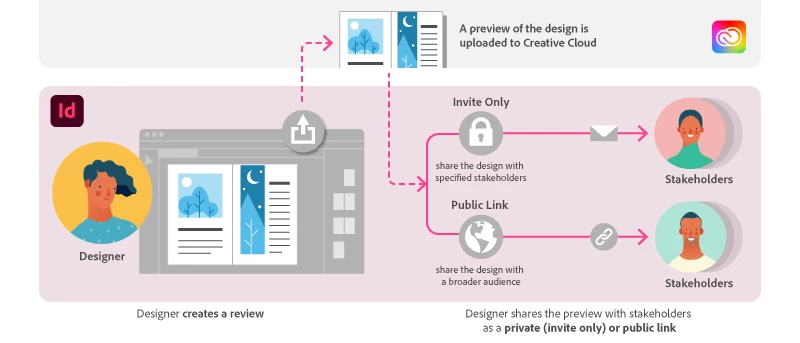
As a designer, you can now initiate the review process directly from InDesign by clicking the “Share” button in the application to send their designs for review. Refer the help document here to understand the detailed workflow for sharing designs with stakeholders.   


1. Does updating the document sent for review create conflict at the reviewer’s end? 

No, it doesn’t. You can continue to make changes to the documents without reviewers seeing them come through.  

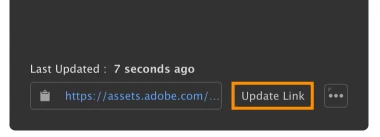
Once you’re ready for stakeholders to see the next iteration, you can push out the latest version of the document using the "Update linkbuttonStakeholders will be able to see these changes when they reopen or refresh the page.
 

2. Should I select the option “invite only” or “public” when sharing the document? 

You can choose these options based on the access level you want to provide to your document.

 

Invite only: Use this option to share the document with stakeholders using the Email address associated with their Adobe ID. 

Note: Stakeholders cannot reshare this link for review with anyone else. 

Public linkAny person with access to the URL can access the document. You can secure public links with a password that you share with stakeholders invited for review.  

For best practices on sharing documents see Best practices.


3. Where can I find the documents that I’ve sent for review?   

You can view and manage all published links on https://assets.adobe.com 

You can also locate shared documents using the Share for review dialog after clicking the More options icon at the lower-right corner and selecting Manage reviews on the web


4. I shared the document for review, but the reviewer hasn’t received the email yet. What should they do? 

It is possible that the reviewer’s mail application has flagged this URL as spam. Request them to check their spam/junk folder. You can also ask them to look for notifications in their Creative Cloud desktop application. 

We suggest sharing this link on best practices with stakeholders to avoid any confusion. 


5. Can I share the document with multiple reviewers 

Of course! You can invite multiple stakeholders by adding them using the invite only option. Alternatively, create a public link and secure it with a password and then share the link with reviewers. 
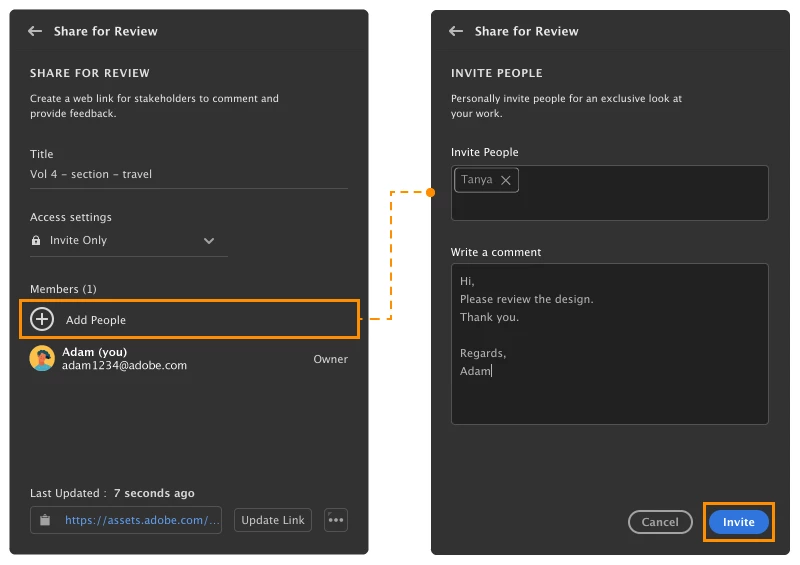
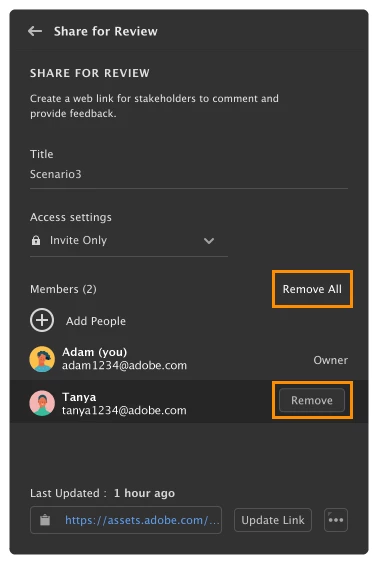
 Note: You can also remove a reviewer later if required.
 

6. Does sharing the document with multiple reviewers cause conflicts in reviewing the document online? 

Not at all. When you share the link with multiple reviewers, all the invitees receive the same version of the document that’s saved on the web for review.  

The link is always up to date with the latest comments.  

If the designer makes any changes to the document and updates the link, the reviewers working on the file must refresh the web page to view the latest changes. 


7. How can I create or delete new review?  

The options for creating and deleting a review can be found under the More options at the lower-right corner in the Share for Review panel. Find more info, see Share your documents online 


8. How secure is my shared document? 

 Adobe ensures the security of your data using processes to comply with industry-accepted standards, regulations, and certifications. See https://www.adobe.com/ca/security.html for more information. 


9. Can the reviewer review my document without creating an Adobe ID? 

Yes, the review is possible without signing in with Adobe ID. If you have created a public link, then the reviewer will not be prompted for any Adobe credentials and they can comment as a guest user. 

Note: Guest login is available only if Commenting for public users has been checked under public settings by the owner of the document.  


10. Why is the quality of the document sent for review not the same as the document opened in InDesign? 

The PDF uploaded for review is not a high-resolution PDF because the document is still a work in progress and this feature is just for collaboration purposes. Also, a small-sized PDF file is uploaded for review so as to make the review process easier for anyone who is on a low bandwidth connection.


To view the ‘Share for Review’ FAQ, see  InDesign Share for Review - FAQ.

This topic has been closed for replies.

21 replies

gp432
Participant
July 23, 2020

My team dreads the "Create and Adobe ID" (they are total conspiracy threorists). Anyway, my question: Is there a way to retrain the edit comments in the "Share for Review" feature? I need the ability to retain editorial comments for revision control (or is this a function under a different feature?).


Currently, I retain edits (either by saving PDF with comments, or exporting an .fdf), then export a "final" PDF copy from InDesign for print. Please advise - and thanks in advance for the help!

Sheena Kaul
Community Manager
Community Manager
July 27, 2020

If you mark the comments as resolved, you can later on filter them using the status filter and see them again.

Participant
July 23, 2020

Question: Is there a way to white label the review page so that it can look like the edits are coming from my agency? I know this is mostly built for internal review at this point, but what is the longterm plan?

anthallergan
Participant
July 10, 2020

Do my stakeholders need to have an Adobe ID? I've invited stakeholders via email and it's asking for a password.

Sheena Kaul
Community Manager
Community Manager
July 10, 2020

Hi there,


Yes. They need to have an Adobe ID. 


Please see Review the document - FAQ as this query has been addressed there. Feel free to to share the FAQ with your stakeholder as well. 


Regards,

Sheena

Known Participant
July 3, 2020

When I try this with sharing with access setting public, I get an error, "There was an error adding public access." What's up with that? 

Sheena Kaul
Community Manager
Community Manager
July 7, 2020

Hi there,


Are you still getting this error? 

Is this error related to a specific file or does this happen when you try to share other files as well?


Regards,

Sheena

Community Expert
June 25, 2020

Hi Mike,

tested this once:


If there is an update issued by the person who initiated the "Share for Review" process you could update the browser window with e.g. Ctrl + Shift + R on Firefox on Windows 10 to see the updated spreads.


FWIW: A reviewing person cannot know if:

[1] The InDesign document has changed.

[2] The InDesign document has lost connection with the review.

( Can happen if the document owner does a Save As to same name with InDesign. )


Regards,
Uwe Laubender

( ACP )

Participant
June 25, 2020

Is there a way to update the file in the document review? My team wants to see the changes they've suggested after it's marked as resolved.

JENinATX
Participating Frequently
September 15, 2022

click the share for review icon and click the update link button at the bottom. They may have to refresh their screen if they have the file open when you update the file.

Participant
June 23, 2020

Really love the idea of this but still seems to be a lot of work to do on it before its usable professionally.

- I cant see any of the 'scribbles' made with the pen tool on the document inside Indesign - so have no clear reference what the comment is refering to.

- Same issue as people below. 

- Not clear/easy to find how you review comments inside the program itself.

- If accidentally 'resolve' a comment doesnt seem to be a way to retrieve this or undo

- Needs ability to highlight text urgently to make this more useful. 

- Also doesnt seem to like public links with a password - they dont seem to work for people.


Hope this gets developed soon, realistically we wont be able to use it until issues are resolved.

Sheena Kaul
Community Manager
Community Manager
June 23, 2020

Thanks for all the feedback!


Please make sure you post them in the UserVoice as well.

Community Expert
June 22, 2020

Hi fabiennem59070700,

interesting question! Thanks for that.


What you can do:

Copy the link to the REVIEW to the clipboard, write your own invitation mail in English and insert the link from the clipboard.


Regards,
Uwe Laubender

( ACP )

Participating Frequently
June 22, 2020

Hello,

I use InDesign in German language. I will invite non German speaking persons for reviews, but the main eMail for this persons are in German, or? Can I translate only "write a comment" in English or can I send the whole email in English (with all standard text from adobe)?


Thanks in advance!

Community Expert
June 20, 2020

Hi KMAD,

there is no specific UI with "Share for REVIEW" to do that with selected pages.

Someone on the forum discovered that "Share for REVIEW" borrows the page range from Export to PDF (Print).

So if you specified dinstinct pages for export to PDF before, because you exported a PDF recently, "Share for REVIEW" adopts this page range.


Some think this is a bug.

I think, this is a hidden feature.


Let's see, if the developers also think this is a bug and will fix it with the next version.


I hope, sooner or later, we will get a user interface with "Share for REVIEW" where one can determine the pages ( or spreads ) that one would like to share.


Regards,
Uwe Laubender

( ACP )

Participant
July 10, 2020

Hello,

Monday morning I used the share for review feature, and was able to map comments to specific spreads. This is no longer working and is showing that all comments are unmapped.


When I review the comments in InDesign I'm able to see where they were pinned/mapped, but this is making it hard for the rest of the team to review the document collaboratively. If there are any fixes to this, please let me know.


Thanks,

Destiny

Sheena Kaul
Community Manager
Community Manager
July 10, 2020

That's strange. 


Generally, comments get unmapped when the particular object or element has been moved to a different page along with the annotation. 


Did you work on those comments?
