


muskoka lake
Inspiring
March 29, 2020
Answered

Table of Contents blank space between some items

  • March 29, 2020
  • 2 replies
  • 5671 views

I am trying to create a Table of Contents. I have applied Paragraph styles called Part Subheading, Chapter Heading and Interview Heading. Then I created TOC Entry styles for each of these. I've double checked or more likely, quadruple checked that these are all applied.

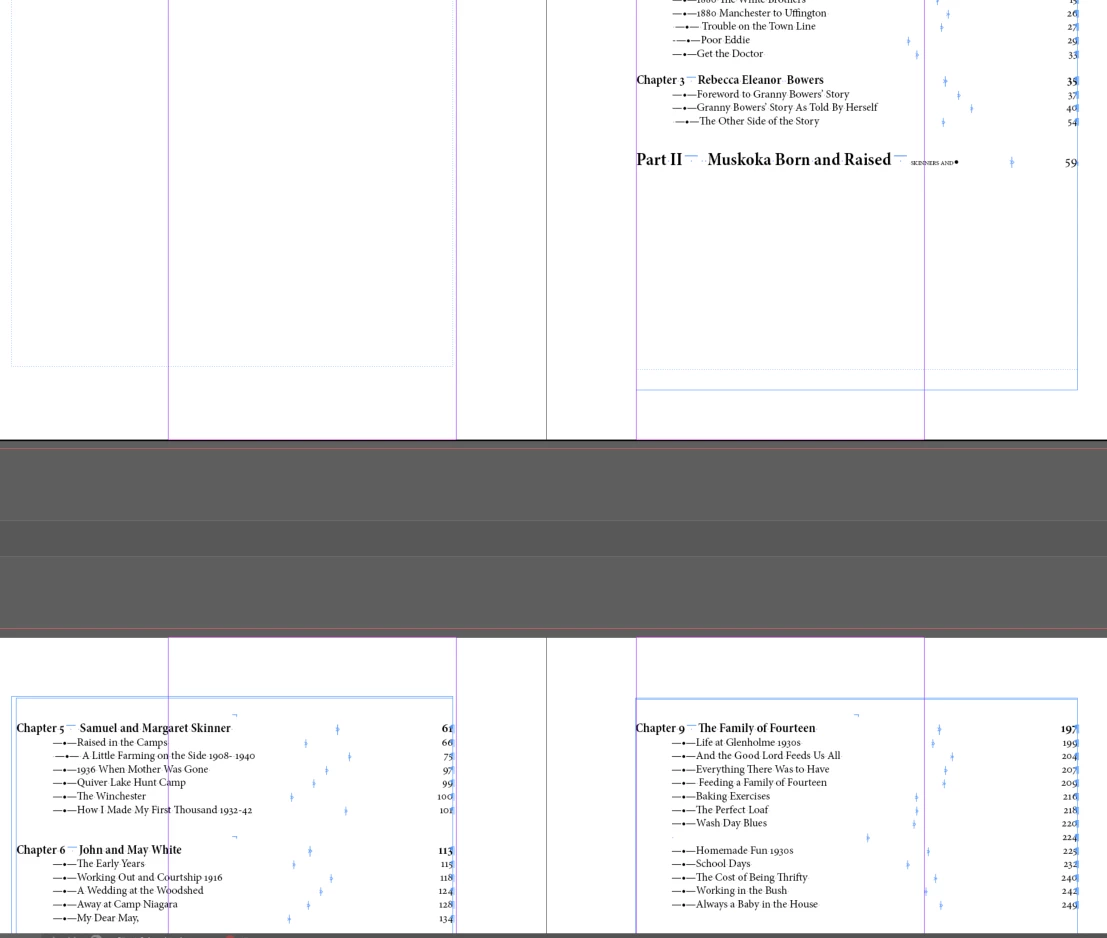
The problem that occurs in two places is that there is a large blank space after the Part  Subheading. I made sure that page is threaded with the rest. There is a page break on that page, but that is the same on the other Part pages that operate correctly with the designated space after occuring.

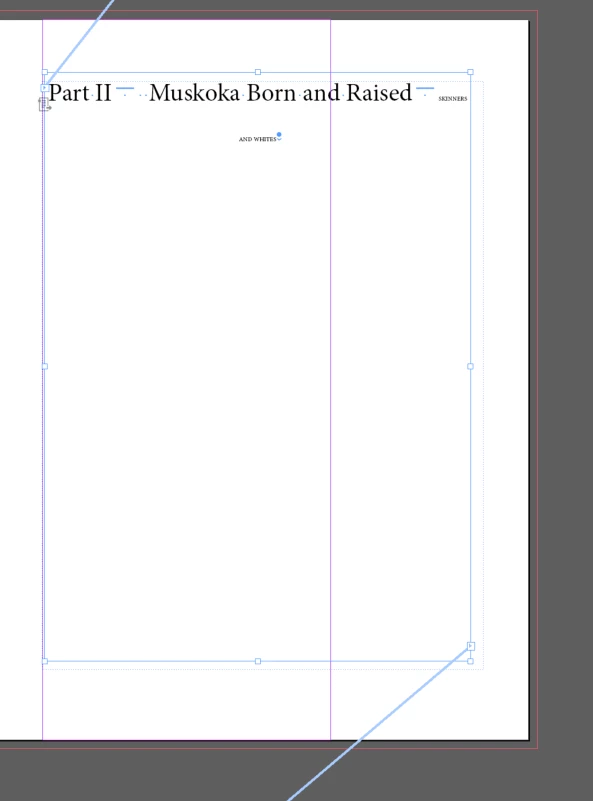
The Part II Muskoka Born and Raised should be followed immediately by Chapter % Samuel and Margaret Skinner. Instead there is a large blank space and the chapter is on the next pa

The first image shows is from the actual page where the Part page occurs in the text. The second shows the bottom of the TOC page with the blank and the top of the TOC page that formats correctly. the Table of Contents entry for that Part and shows the blank space before the TOC continues on the next page.

I've spent a week trying to solve this with no luck, so any help is appreciated.


This topic has been closed for replies.
Correct answer nigelfrench

Start by checking the Keep Options that are applied to the paragraph styles used in the TOC. Make sure Keep Lines Together is turned off.

Also, select the Remove Forced Line Break box in the Table of Contents dialog.

Regenerate the TOC. Does that fix it?

2 replies

Barb Binder
Community Expert
Community Expert
April 10, 2020

That is a manual page break character in the first screen shot. It forces everything after it to a new page.

Beyond that, I agree with Nigel's assessment that the toc chapter titles/toc subheads have (or had) keep settings on.


3. To regenerate the TOC does this mean delete the text of the existing TOC and then place a new one?

Regenerating the TOC means clicking in the TOC, the selecting Layout > Table of Contents. Be sure to enable the Replace Existing Table of Contents checkbox.


~Barb

~Barb at Rocky Mountain Training
muskoka lake
Inspiring
April 11, 2020

Thanks for your reply. I am so grateful to everyone who contributes to this site. I often find just what I need in the previous posts.

Yes, Nigel was right and I have marked his answer correct. The Keep Options on some chapter headings were not off. That solved the blank space. I understand now what Regenerate means too.


I did want the Part page to have only that text on the page so that is why I used a Type -Insert Break-Page Break. The problem is that I do not know how to set up the Part Page so the text is centred on the page horizontally and vertically..I can do it with Arrange for an Object but not text.


The Character style I appled to the Family Nmes (all caps) on the Part Page is also creating a problem in the Contents page. I understtod that the Paragraph Style had to be all one line in order for it to appear as a Header. I've got that to work, but then in the Table of Contents it has to break to another line.

The images below show

1 The Part page with Indents and Spacing on Paragraph Style

2 The Table of Contents where Character Styles info makes the title too long. Also does not Left Justify on all entries even though it is selected in TOC entry Paragraph Style.

3 The new TOC with proper Keep Options on Chapter Headings. I'm so thrilled with the improvement!


nigelfrenchCommunity ExpertCorrect answer
Community Expert
March 30, 2020

Start by checking the Keep Options that are applied to the paragraph styles used in the TOC. Make sure Keep Lines Together is turned off.

Also, select the Remove Forced Line Break box in the Table of Contents dialog.

Regenerate the TOC. Does that fix it?

muskoka lake
Inspiring
March 30, 2020

1. I have checked the box for Remove  Forced Line Breaks in the Table of Contents dialogue.

2. I am unclear about the Keep Option instruction.

Start by checking the Keep Options that are applied to the paragraph styles used in the TOC. Make sure Keep Lines Together is turned off.

I did this for set of Paragraph Styles for the TOC Entries. Should I also have done this on the Paragraph Styles that are used in the text?


3. To regenerate the TOC does this mean delete the text of the existing TOC and then place a new one?

The changes I have made so far have not removed the Forced Line Break symbol and the blank spaces.