Known Participant
November 30, 2018
Answered

Text jumps to next line

  • November 30, 2018
  • 2 replies
  • 6597 views

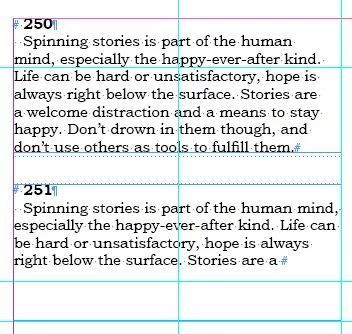
When I type text into a textbox, the words align in the box by themselves. Not by adjusting right or left or justifying, but by distributing themselves.

As soon as I type the word 'welcome' in the lower textbox (251), it changes the distribution of the text. Is there a way to turn it off?

Thanks

Lotti

    This topic has been closed for replies.
    Correct answer Mike Witherell

    InDesign sets type by means of the Paragraph Composer setting. As you type, the text flows and then reflows to a settled condition when your typing is complete. This is normal behavior.

    Make sure you are using Paragraph Styles to control your text. Don't merely manually dress the text from the top Control Panel only. It is the Paragraph Style that indents the paragraph by setting the First Line Indent amount. You do not indent either with multiple spaces nor a press of the tab key, as is done on a typewriter.

    The Paragraph Style should be set to Align Left. It should have Hyphenation set to 9,3,4,1, 1p6, off, off, off. The Justification settings should be Word Spacing at 80/100/120; the Letter Spacing at -5/0/5%; and the Glyph Scaling at 95/100/105%.

    If InDesign reflowing a paragraph somehow displeases you, you can edit the Paragraph style to use the Single Line Composer instead of the Paragraph Composer.


    2 replies

    Mike Witherell
    Community Expert
    Mike WitherellCommunity ExpertCorrect answer
    Community Expert
    November 30, 2018

    InDesign sets type by means of the Paragraph Composer setting. As you type, the text flows and then reflows to a settled condition when your typing is complete. This is normal behavior.

    Make sure you are using Paragraph Styles to control your text. Don't merely manually dress the text from the top Control Panel only. It is the Paragraph Style that indents the paragraph by setting the First Line Indent amount. You do not indent either with multiple spaces nor a press of the tab key, as is done on a typewriter.

    The Paragraph Style should be set to Align Left. It should have Hyphenation set to 9,3,4,1, 1p6, off, off, off. The Justification settings should be Word Spacing at 80/100/120; the Letter Spacing at -5/0/5%; and the Glyph Scaling at 95/100/105%.

    If InDesign reflowing a paragraph somehow displeases you, you can edit the Paragraph style to use the Single Line Composer instead of the Paragraph Composer.

    Mike Witherell
    HeyliseAuthor
    Known Participant
    December 1, 2018

    Bill, thanks a lot for your directions. I am still learning about many features in Indesign, and you gave me a few more I didn't find until now.

    But what Mike said, switching paragraph composer and single-line composer, did what I wanted. I can see why the default is paragraph composer, it is very useful. But I wanted the freedom to change it when I was not happy about it.

    Thanks both for your answers.

    Bill Silbert
    Community Expert
    Community Expert
    November 30, 2018

    In the Paragraph Panel pull-down menu see if "Balance Ragged Lines" is checked. If it is unchecked, check it. If it is checked, uncheck it. I've found that this feature can be unpredictable in its use.

    One other thing in regard to your screen shot. It is more efficient to use paragraph formatting to achieve the first line indent. Using the space bar as you have is not accurate. See screen shot to see how to set this up.