Inspiring
February 2, 2022
Answered

The wonderful odyssey of publishing to Apple Books (possible issue with hyperlinks creation)

  • February 2, 2022
  • 3 replies
  • 5618 views

Dear all,

I have a possibly interesting issue to show. 

I use InDesign to create my sheet music editions that I then publish here. I create the musical score in Avid Sibelius, export it to PDF, then write the text in Word, format it, then build everything in InDesign (17.x for today's example). Once ready, I export it to PDF for those services that need a PDF and to EPUB for—sigh—Apple Books. 

Leaving out the fact that most of the time any EPUB that I export is always containing images of more than 4 million pixels (which I normally solve by lowering resolution to 150ppi), the issue today was this one: 

Not understanding what this meant I asked Apple for help, they replied:     

You encountered this upload error because one of the links in your book is missing text, refers to a reference that doesn’t exist, or is not formatted correctly.
To resolve, the value of attribute “src” must be a URL.
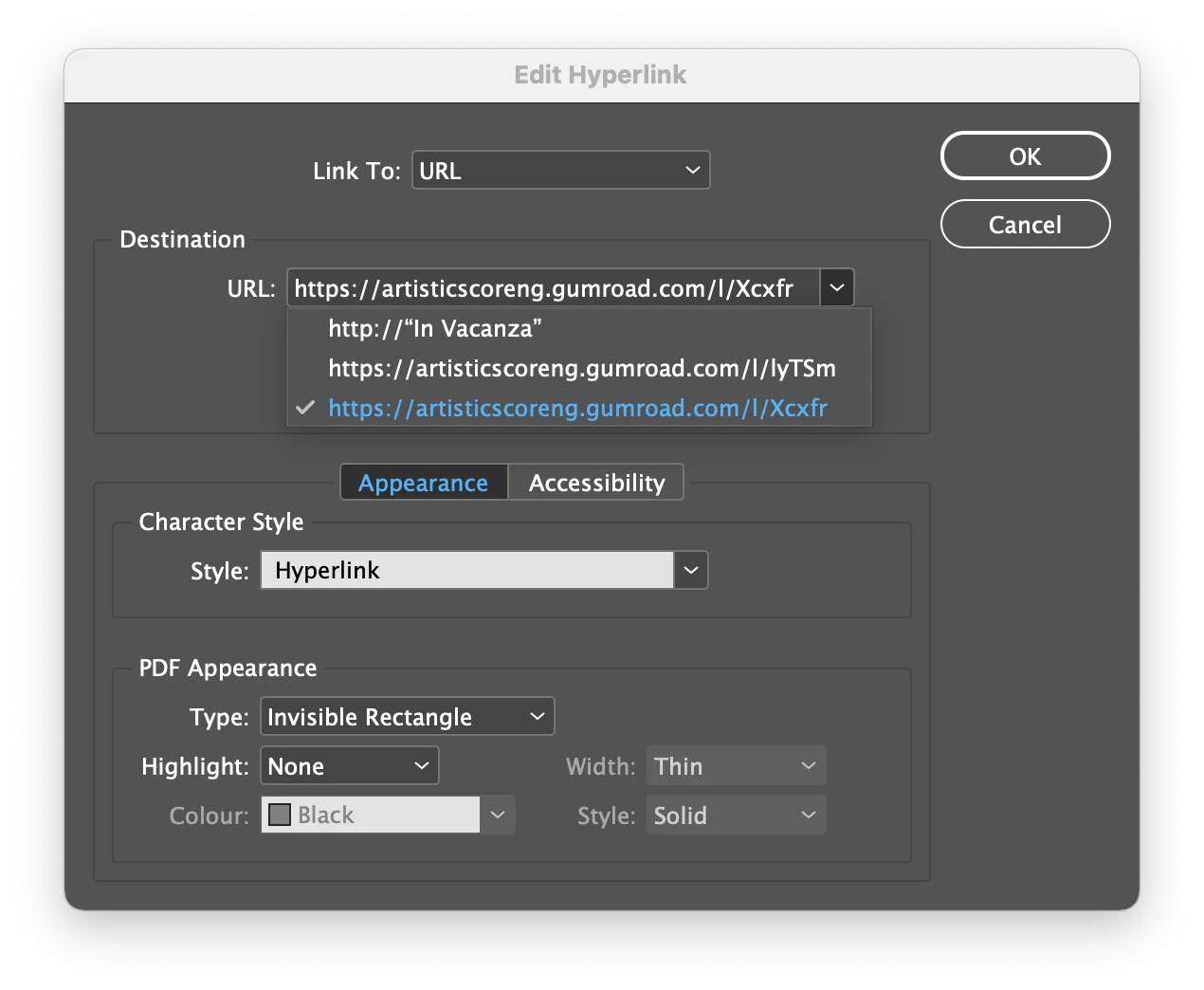
Not knowing what the "src" attribute was I dived into the INDD and found the only four pieces of text that contained URLs. After a lot of testing I found out that my accidental mistake was to select the region of text that was to become a hyperlink and choose the option "New Hyperlink from URL" (which looked the more logical to me). This created a link that looked like this: "http://<selectedText>" where selectedText would be the region of text. Even hitting Cmd-Z to undo, selecting again, choosing "New Hyperlink" and pasting in the correct URL, left me with this: 
The sheer fact that this URL was in this list made the EPUB validation check of authors.apple.com go crazy with error messages, while it made outright crash the iTunes Producer app on my Mac! 
Removing all links from the document, exporting to EPUB, and validating succeeded, but I need those links and if I try to create them again, that list appears as it was before. 
I wonder if any of you has any experience with publishing on Apple Books and would be so kind to share some of his knowledge. In any case, my questions are:
  1. How can I remove that faulty hyperlink short of recreating the INDD from scratch?
  2. What is the best way to create a hyperlink to a web URL starting from a selected region of text? 

Bottom line: for the curious, the only way I could publish this to Apple Books was the following ridiculous procedure:

  1. Export PDF from InDesign
  2. Open PDF in Acrobat and export each page as separate PDF
  3. Open Pages and create new Blank document
  4. Import each page, one by one, and resize it to fit the page, into the Pages document
  5. Forsake the idea of having bookmarks and ToC in such a Pages document without altering your original design
  6. Upload to Apple Books and enjoy! 


This topic has been closed for replies.
Correct answer rayek.elfin

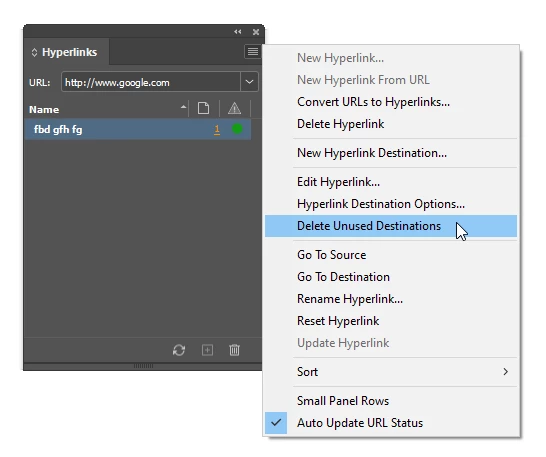
You are aware that unused hyperlinks may be deleted by opening the Hyperlinks panel, and selecting the Delete Unused Destinations menu entry in the panel menu? That should fix that problem. InDesign keeps the previously created URLs just in case those are referenced by other links later. So you need to clear these unused destinations.
Secondly, regarding your image resolution issues. I checked your books previews, and the resolution of those score page images is far too high: 4959 by 7017 px! Equivalent to an A4 sized sheet at 600ppi. WAY too much for digital devices. And the file format used (jpg) is also excacerbating matters: jpg is unsuitable for this type of black and white images. It unnecessarily adds to much heavier book file sizes. And may actually cause performance issues for ereaders.


The most effective approach is to check the what the max resolution is that you require for a given device. Let's say you'd like to support up to a max resolution of the ipad Pro 12.9": 2732 by 2048 px. 


Export your sheet music images as PNG file format. Then use an image editor to scale down the images to a max 2732 px height. I scaled one of your sheets down to 1931x2732. I then used Color Quantizer to optimize to 16 grey scale values (more is not required - still looks sharp). Alternatively use Photoshop to generate an optimized PNG image, but Photoshop isn't that great for this particular job. http://x128.ho.ua/color-quantizer.html


Result: a 108kb version, optimized for resolution and file size. Compare to your unoptimized version that clocks in at 1.59mb!


Alternatively, Sibelius exports directly to PNG, btw. Change the PPI export setting to one that results in the required resolution. Do not use monochrome, but anti-aliased when you do this.


(An even better approach is to rely on SVG images in this case. See bottom for more info)


Next, do not rely on InDesign for image conversions. I created a new InDesign document using the iPad Pro 12.9 inch document template. I dragged in the image, and it fit the page snugly.

To prevent InDesign from messing up your optimized image and reprocessing it, perform the next step:
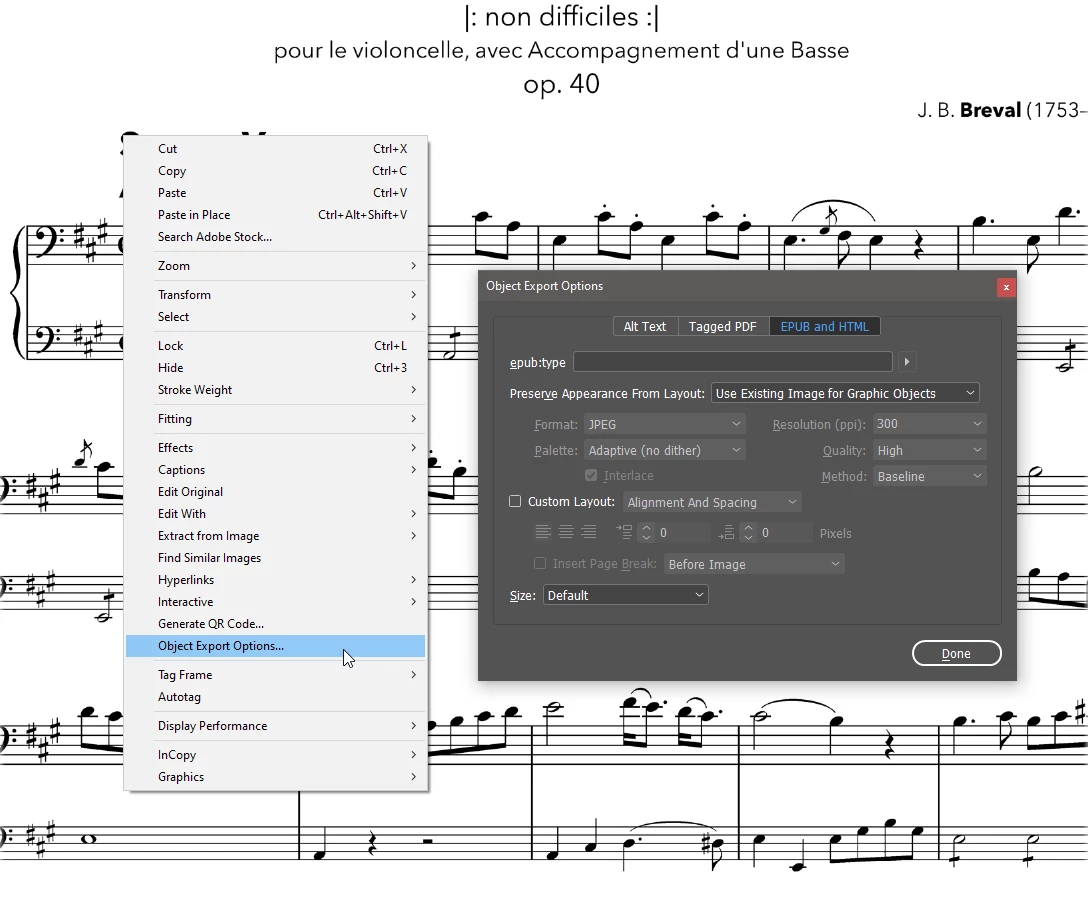
 

Select the image, and open the Object Export Options. Change the Preserve Appearance From Layout to Use Existing Image for Graphic Objects.

This tells InDesign to use your optimized asset when the epub is generated, rather than reprocess it and turning it into a trainwreck of a file.


Congrats, your book size just got reduced by a factor of 10 to 14, and performance is optimized greatly as well. It will work nicely on all iPad versions now.

And PNG retains the quality of such graphics like these far better than jpeg (jpeg is lossy and suitable for photos. PNG is lossless which means sharp-edged artwork and music notation is kept crisp looking).


Far smaller book sizes, much improved viewing performance experience, and a sharp looking result! What's not to like?


But we can do better. 🙂

epubs and InDesign also support SVG (Scalable Vector Graphic). This would be preferable over a PNG, because a SVG is a vector image, and even when the user zooms in, the notation remains absolutely crisp looking.

In my example I converted a PDF page exported from Sibelius to SVG using PhotoLine (Illustrator will also work for this step), which results in a ~533kb SVG. Still THREE TIMES smaller than your original jpg version, and with the added benefit of a supreme quality, even when the reader zooms in.

Make sure to tell InDesign to use YOUR SVG file via the same step as described above.


Please check out the attached epub. The first page is the PNG version. The second page contains the SVG version. Compare by zooming in. Even zoomed out the SVG renders much nicer. And still a factor 3 smaller book file size compared to your original.




3 replies

James Gifford—NitroPress
Legend
February 28, 2022

I'm not really sure that the depths of this long, specific topic is the place to put a more general argument, but here we are. Actually, it fits well (although it might be overlooked by many forum participants) in that it directly addresses the OP's situation, which started with a technical issue of hyperlinks but evolved into a general problem with the difficulties of trying to please every whim and quirk of every EPUBlishing platform.


The EPUB 3 standard is over a decade old... and no one, in real terms, has implemented it with any rigidity. Every reader, every tool, every publishing platform interprets and bends it to suit what is often the whim or idea of one developer. Consistency across any two readers or platforms is almost nonexistent. So I argue that to try and hew to narrow ideas of technical perfection at the file level is... not useful. I've compared it to the process of 'blueprinting' a car's engine when rebuilding it; it might make the builder feel good and give bragging rights at the concours, but it doesn't really make the car run any better.


EPUB is a victim like all those standards that have no real controlling body or enforcement, thrown into public use for the interpretation of individuals with specific niche needs. It became the central choice of the vast author/publisher world, whose chief goal was to make e-book publication easy for a non-technical, largely amateur user base. In making EPUB creation and management "easy," a myriad of developers has each gone their own way with almost every detail, emphasizing one aspect over others and creating a complete mess of only loosely compatible tools and formats.


Making it worse is that the e-book world — authors, publishers and readers — has been presented with too many formats from too many sources, and both tried to accommodate them all and gotten lost in petty squabbles about which one was "best" or should be used exclusively or — the opposite — should be simply converted at will to anything else as the situation dictated.


So even at the "professional" level, there are no really good, dependable tools or even standards; we have to choose to produce EPUB documents to an independent, internal standard (as for a corporate or technical library), or try to meet the varying demands of five or six primary publishing platforms (Kindle, iBook, etc.) It's a huge PITA.


My chosen goal, beginning a few years ago, was to promote a professional approach to EPUB development. This means, however autocratically, to get the field to grow up and put away childish things — to stop insisting books must be available in or convertible to MOBI and obsolete Kindle formats ("just because"), to stop using outdated processes and techniques (no matter how "easy" they have been for Word authors) and above all, to stop using a collection of freeware, jack-leg, idiosyncratic tools to create and manage EPUB (no matter how many otherwise sincere developers have mastered their process).


Writing, publishing and printing are three completely different processes—and it's the same for e-books. Writers should not be using "technical assembly" tools. Publishers should not be concerned with technical optimization of file formats. "Printing" to a specific e-book platform should not be obsessed with either of the above tasks or pointless optimization of submission files, only in getting a polished result on that platform.


InDesign does not create perfect EPUB files. So what? There is no better, more professional tool for creating publications, and while it's not the best writing tool, it's okay at writing and editing, and absolutely without peer for document organization, formatting and structuring. I've used it for at least four or five years to create both EPUB and Kindle documents, and other than the advanced techniques of CSS optimization I have documented and written about, it's suited every project from simple flowing text to a very complex textbook-like conversion. I'm working on yet another fairly complex book for dual-format publication when not ranting here. 🙂


My suggestion to the field is that Word is the proper tool for writers (in pretty much every field and subject) and can be used to directly create simple EPUB and Kindle books that are not much more than chapter headings and text formatting. For everything else, ID can handle it, and export directly to an acceptable, "press ready" EPUB. Yes, from there you can 'raise the hood' and tinker and streamline and optimize and compress... but only to satisfy some need to make the file structure "perfect" according to a standard no one follows closely anyway. There's no point. Even the most technically perfect, optimized EPUB is going to be subject to whatever reader the, uh, reader chooses... and the majority of them are the quirky, one-author, let's-try-this crap I mentioned above. The same for 'validation' tools; there's not much point in validating a structure if it already works in the final phase of EPUB reading or Kindle conversion.


I suggest that the professional approach is to focus first on the writing, second on the "publishing" aspects of editing, formatting and structure... and leave the "printing" to EPUB export and then any necessary import/conversion to a final platform format. There's simply no need to detour through the complex tools that can tinker with the guts of the file format. The only reason these tools and techniques exist are for that largely amateur/author "hand assembly" crowd, building EPUB documents like a Lego model, where many mistakes can be made in technical structure, cross-references, TOC etc. and need to be validated/fixed in a second step. Although glitches occur in Word and ID development, they can (and should be) fixed at the creation level, not in later rebuilding.


And when there are no glitches, EPUB from either Word or ID works perfectly in the only two "validators" needed: The Thorium Reader (the only one that conforms to my overall argument of a complete, professional approach, not random ideas of reader convenience), and Kindle Previewer. If an EPUB reads perfectly in Thorium, you're done. If an EPUB converts to Kindle perfectly, you're done. Whether or not that EPUB file is as technically, arbitrarily "perfect" and of the very smallest file size or not.


E-Book creation is where web authoring was ten or so years ago: still stuck in a mess of conflicting approaches, whims of individual tools and developers, and trying to please a large crowd of amateurs and users (and publishing platforms) who each have a method and think it's the perfect solution. My goal is to drag EPUBlication into the Dreamweaver era, with a defined methodology that is focused on professional development with consistent results... and not using a patchwork system of random, freeware and often outdated tools and format conversions to get there. Even if the results, the files, are not concours-perfect under the hood. Yet.


Part of this process that's immediately relevant here is to keep kicking Adobe to fix, expand and update the EPUB export process, to the point where ID exports never have glitches, complex demands like the OP's here can be accommodated, and — just maybe — a new tool, optimized for EPUB creation and management using a consistent, professional and standardized approach, a "Dreamweaver for EPUBlication," comes out of the Labs.


I think we also need an EPUB 4 standard that is the equivalent of HTML 5 — bringing years of misdirection and undefined aspects into a tight, modern, framework.


Still awake out there? Class dismissed. 🙂


Inspiring
March 2, 2022

One small last clarification: when I go to Object Export Options > Preserve Appearance From Layout > Use Existing Image for Graphic Objects > check "Apply to all SVGs", why is it not automatically applying to all SVGs in the document? Any other SVG I perform this action onto still has "Default" instead of "Use Existing Image..."

Is it a bug or does it mean that I should have thought about it at the very beginning of the book (this one is a 280 pages book on counterpoint for the SFCM conservatory!) as this setting applies only to "future" SVGs?

Is there a script that allows me to repeat this formula for every SVG in the book?

Inspiring
March 3, 2022

I have just now replaced ALL PDFs in this book with SVGs exported from Illustrator.

Since it is not working as intended in InDesign, I have checked the "Use Existing Image..." then "Embed Code" then "Apply to all SVGs" for every, single image. 

Hit export to EPUB and... what do I get? PNGs? Why? Why on Earth is this happening? Oh, and how to solve it? 🙂

rayek.elfin
rayek.elfinCorrect answer
Legend
February 3, 2022

You are aware that unused hyperlinks may be deleted by opening the Hyperlinks panel, and selecting the Delete Unused Destinations menu entry in the panel menu? That should fix that problem. InDesign keeps the previously created URLs just in case those are referenced by other links later. So you need to clear these unused destinations.

Secondly, regarding your image resolution issues. I checked your books previews, and the resolution of those score page images is far too high: 4959 by 7017 px! Equivalent to an A4 sized sheet at 600ppi. WAY too much for digital devices. And the file format used (jpg) is also excacerbating matters: jpg is unsuitable for this type of black and white images. It unnecessarily adds to much heavier book file sizes. And may actually cause performance issues for ereaders.


The most effective approach is to check the what the max resolution is that you require for a given device. Let's say you'd like to support up to a max resolution of the ipad Pro 12.9": 2732 by 2048 px. 


Export your sheet music images as PNG file format. Then use an image editor to scale down the images to a max 2732 px height. I scaled one of your sheets down to 1931x2732. I then used Color Quantizer to optimize to 16 grey scale values (more is not required - still looks sharp). Alternatively use Photoshop to generate an optimized PNG image, but Photoshop isn't that great for this particular job. http://x128.ho.ua/color-quantizer.html


Result: a 108kb version, optimized for resolution and file size. Compare to your unoptimized version that clocks in at 1.59mb!


Alternatively, Sibelius exports directly to PNG, btw. Change the PPI export setting to one that results in the required resolution. Do not use monochrome, but anti-aliased when you do this.


(An even better approach is to rely on SVG images in this case. See bottom for more info)


Next, do not rely on InDesign for image conversions. I created a new InDesign document using the iPad Pro 12.9 inch document template. I dragged in the image, and it fit the page snugly.

To prevent InDesign from messing up your optimized image and reprocessing it, perform the next step:


Select the image, and open the Object Export Options. Change the Preserve Appearance From Layout to Use Existing Image for Graphic Objects.

This tells InDesign to use your optimized asset when the epub is generated, rather than reprocess it and turning it into a trainwreck of a file.


Congrats, your book size just got reduced by a factor of 10 to 14, and performance is optimized greatly as well. It will work nicely on all iPad versions now.

And PNG retains the quality of such graphics like these far better than jpeg (jpeg is lossy and suitable for photos. PNG is lossless which means sharp-edged artwork and music notation is kept crisp looking).


Far smaller book sizes, much improved viewing performance experience, and a sharp looking result! What's not to like?


But we can do better. 🙂

epubs and InDesign also support SVG (Scalable Vector Graphic). This would be preferable over a PNG, because a SVG is a vector image, and even when the user zooms in, the notation remains absolutely crisp looking.

In my example I converted a PDF page exported from Sibelius to SVG using PhotoLine (Illustrator will also work for this step), which results in a ~533kb SVG. Still THREE TIMES smaller than your original jpg version, and with the added benefit of a supreme quality, even when the reader zooms in.

Make sure to tell InDesign to use YOUR SVG file via the same step as described above.


Please check out the attached epub. The first page is the PNG version. The second page contains the SVG version. Compare by zooming in. Even zoomed out the SVG renders much nicer. And still a factor 3 smaller book file size compared to your original.


Inspiring
February 12, 2022

Wow! First of all, please forgive my delay, I didn't get the notification for this message! 

Awesome set of advices! 

First thing, hyperlinks, thanks! I will now remove all those which are unused following your suggestions. 

Now for the rest, let's break it down:

  1. I normally export all my scores as PDFs from Sibelius because a) every provider, customer, publisher apart from Apple asks for it and, most importantly b) it exports as a single file. Exporting to PNG or SVG is possible but only if I export it page by page. You may say that in any case I have to place each image one by one in InDesign, but I wonder if there would be a script for it. 
  2. From what I see during the EPUB exporting process in InDesign, the Automatic process is to convert everything to PNG (sometimes I saw TIFF, but am not sure). It creates JPG/JPEG only if expressively selected. 
  3. What do you suggest to patch scale down a folder of PNG/SVGs? I'm on macOS 12.x — same question for optimising the color: is there an app, possibly in Adobe CC, to do this? Better if not Photoshop 🙂 
  4. For exporting PNGs I can set the dpi in Sibelius, but what is the mathematical formula to obtain that? Is it done by dividing one side of the resolution by the size of the printed page in inches? In my case I'm using 9x12in paper. I know there are tools online but I'd like to learn how to do this myself. If I export SVGs from Sibelius it defaults to 147.78dpi and it is not editable. Since Sibelius is not so good at handling SVG/PNG I would prefer, if possible, to export to PDF and then maybe use Illustrator to export to SVG/PNG. Do you think this would be a viable option? 
  5. I like very much your idea of using an iPad Pro template for this, but since it has to be good for print as well, I normally build the INDD and then work my way up from there. 
  6. For the Object Export Options: do I have to do this manually for each image in the book? It could grow up to a lot of time for this. Any automation possible? 


Thank you for all your help and advice! I really appreciate it!


James Gifford—NitroPress
Legend
February 12, 2022

Not to grumble, but I see that as another strike against Apple books. The ONLY format suitable for screen viewing and printing is a vector-based one like PDF. Forcing you to compromise with raster image resolution trying to accommodate both purposes is... outdated and limiting.


(I have a child in conservatory, and he gives me all the feedback I can stand about sheet music publishing these days...)

James Gifford—NitroPress
Legend
February 3, 2022

Honest answer? I avoid publishing to Apple Books and advise my clients similarly.


But I'm sure that's an unpopular position, surrounded here by Mac users. 🙂

Inspiring
February 3, 2022

I like Apple Books as a user, but as a vendor it is such an unbelievable pain.