
hannahp41290366
Inspiring
April 12, 2018
Answered

Thin gray lines around illustrator graphic placed in InDesign

  • April 12, 2018
  • 3 replies
  • 9295 views

I don't know what it is, there is no gray line in the Ai file, it is unselectable, and it won't go away. The lines are very thin and are on the top and bottom of the map—see below. They are visible on both pdf and when printed (I am designing a new card game set to be released really soon and has over 400 cards). I can't change the shape of the content frame the graphic is placed in as it would be so tedious and I would have to change every card individually or re-place all graphics if I edit the master page, which will then rewrite all the cards and cost me precious time I don't have (the shape is the central, large, wavy, white oval)
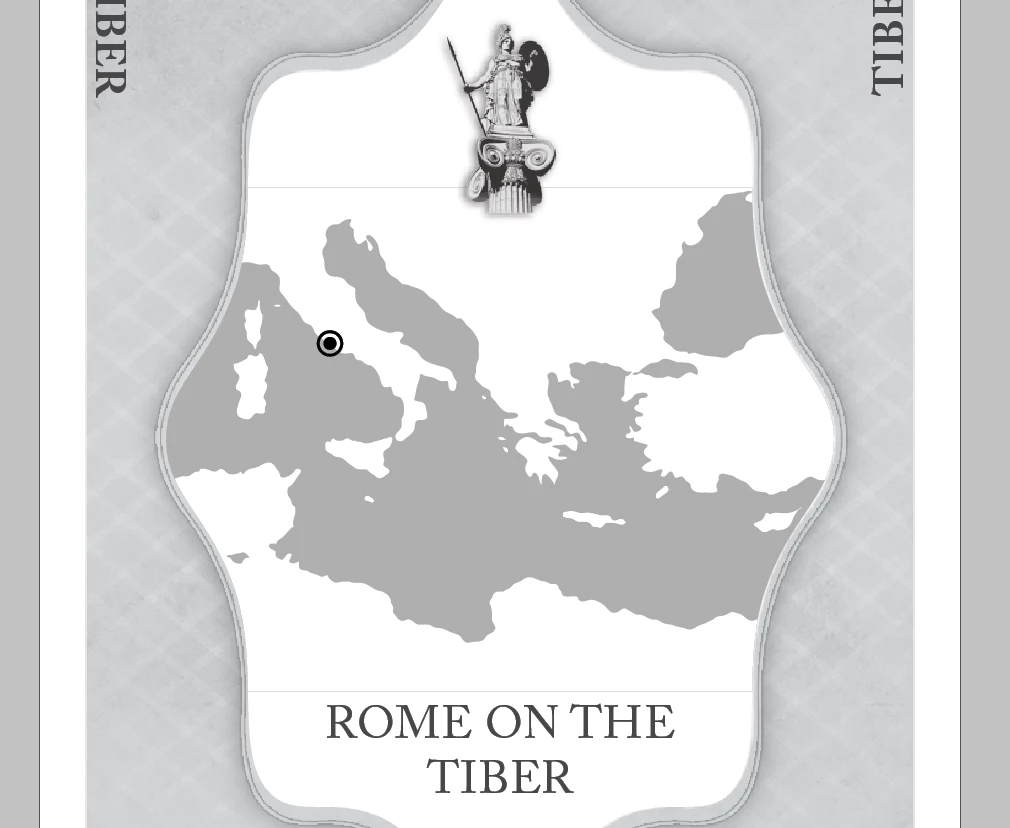
I have tried EVERYTHING I could think of but nothing has seemed to work:

• I changed the Illustrator's color mode

• I added a stroke to the clipping mask in Illustrator

• I made the clipping mask smaller than its Illustrator artboard

• I made the clipping mask bigger than its Illustrator artboard

• I got rid of the clipping mask entirely

• I exported it as a pdf in every version of Acrobat

• I exported it as a png

• I exported it as a jpg

• I set the content frame with a fill color

• I set the content frame without a fill color

Does anyone else have this problem????

Please help!

This topic has been closed for replies.
Correct answer hannahp41290366

So I found that if you print the exported pdf from Adobe Acrobat (which I hadn't tried before), without changing anything to any of the files themselves, the lines do not print. It's as it was said: just a display artifact. Thank you all for your help!

3 replies

hannahp41290366
hannahp41290366AuthorCorrect answer
Inspiring
April 25, 2018

So I found that if you print the exported pdf from Adobe Acrobat (which I hadn't tried before), without changing anything to any of the files themselves, the lines do not print. It's as it was said: just a display artifact. Thank you all for your help!

ds76421298
Inspiring
December 23, 2019

Just stumbled across this problem myself. It was really perplexing me, but after moving things around, deleting artboards, and so forth, I found that another artboard had been created underneath the artboard I was looking at. So what I was seeing as a thin horizontal line across one artboard was the bottom of that second artboard, layered underneath the first. 


This may or may not have been what happened to you, but perhaps worth a look if you run into it again. 


: DS

prestonyoo
Participant
January 30, 2020

Looks like this was the issue on my side, was seeing the same problems before and as you said, somehow an artboard was created overalying the original artboard. Thanks for your help!

Bill Silbert
Community Expert
Community Expert
April 12, 2018

The paths you've drawn in Illustrator for the coastline are they closed paths or open paths with a white fill? If they are open paths then I could see this happening as Illustrator is trying to, in effect, close the path and this line is being created. Try closing the paths in Illustrator for the coast lines and see if that helps.

hannahp41290366
Inspiring
April 12, 2018

Yes they are closed paths. This is what it looks like (in Illustrator) with the clipping mask released:

AnneMarie Concepcion
Community Expert
Community Expert
April 12, 2018

so it's the clipping mask that showing a stroke?

hammer0909
Community Expert
Community Expert
April 12, 2018

So you're creating the graphic in Illustrator, exporting to PDF, then dropping the PDF into InDesign? Do I have that correct?

I think what you're seeing is what Adobe used to refer to as an Atomic Region. This is generated when saving to a PDF 1.3 or lower which means it's flattening the file. I'd honestly place the .ai file into the InDesign document and I'm thinking that it will go away.

If it's important that you save as PDF, try changing the version of the PDF to 1.4 or higher. Now this isn't going to eliminate the core issue. If you're sending to a desktop printer, it's going to get flattened again. You can try to alleviate this by choosing "simulate overprint" in the print dialog box when printing.

I'd talk with your printer about these concerns to ensure that there are not problems. Commercial printers output to a higher resolution than your desktop printer so typically these lines will not be noticeable.

hannahp41290366
Inspiring
April 12, 2018

I'm placing the Ai graphic directly into InDesign.

hammer0909
Community Expert
Community Expert
April 12, 2018

And then you're making the PDF out of InDesign… Have you tried creating a PDF 1.4 or higher?