


Known Participant
August 6, 2023
Answered

Uncommon fractions / Glyphs

  • August 6, 2023
  • 4 replies
  • 3243 views

Hi,

I'm using quite a few fractions in a text, and I'd like to properly format them. I don't want to use the Proper Fraction script because it's no good --apparently-- if you change the font size, which I'm sure I'll eventually do. If I use the free version, then I'd have to redo all fractions manually, one by one.

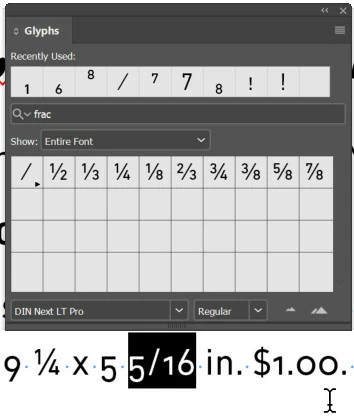
The font I'm using does have denominators and numerators and the "fraction" option is available in the Open Type panel. But if I use it, the slash is properly changed but the numbers are unchanged. See below:


Right before applying the "Fraction" option that appears when I select the fraction:
 

Right after applying the "Fraction" option:
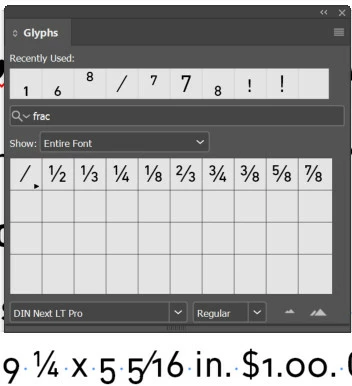
 

As you can see, the slash is fine, but the numbers are not. 


Now, if I select each number individually, I'm able to modify them to get the proper-looking fraction:
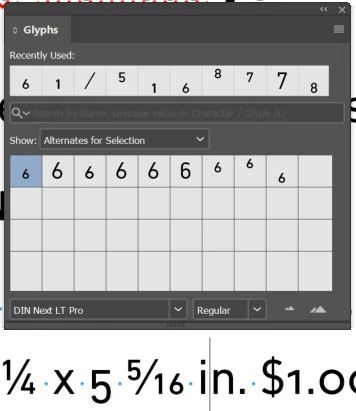
 

I tried to add the proper fraction to the glyph panel by double-clicking on it, but no luck. 

If I copy the proper fraction to the Search and Find box, when I replace an unformatted fraction, it only replaces the slah, the numbers are unchanged.


Now, is there any way to either create a brand new glyph for the fractions I need (5/16 and so on) or to "copy" the fraction that I properly formatted into the glyph panel?


Alternatively, is there any way to find&replace the unformatted fractions with the fraction I manually created?


Thanks!


Correct answer Scott Falkner

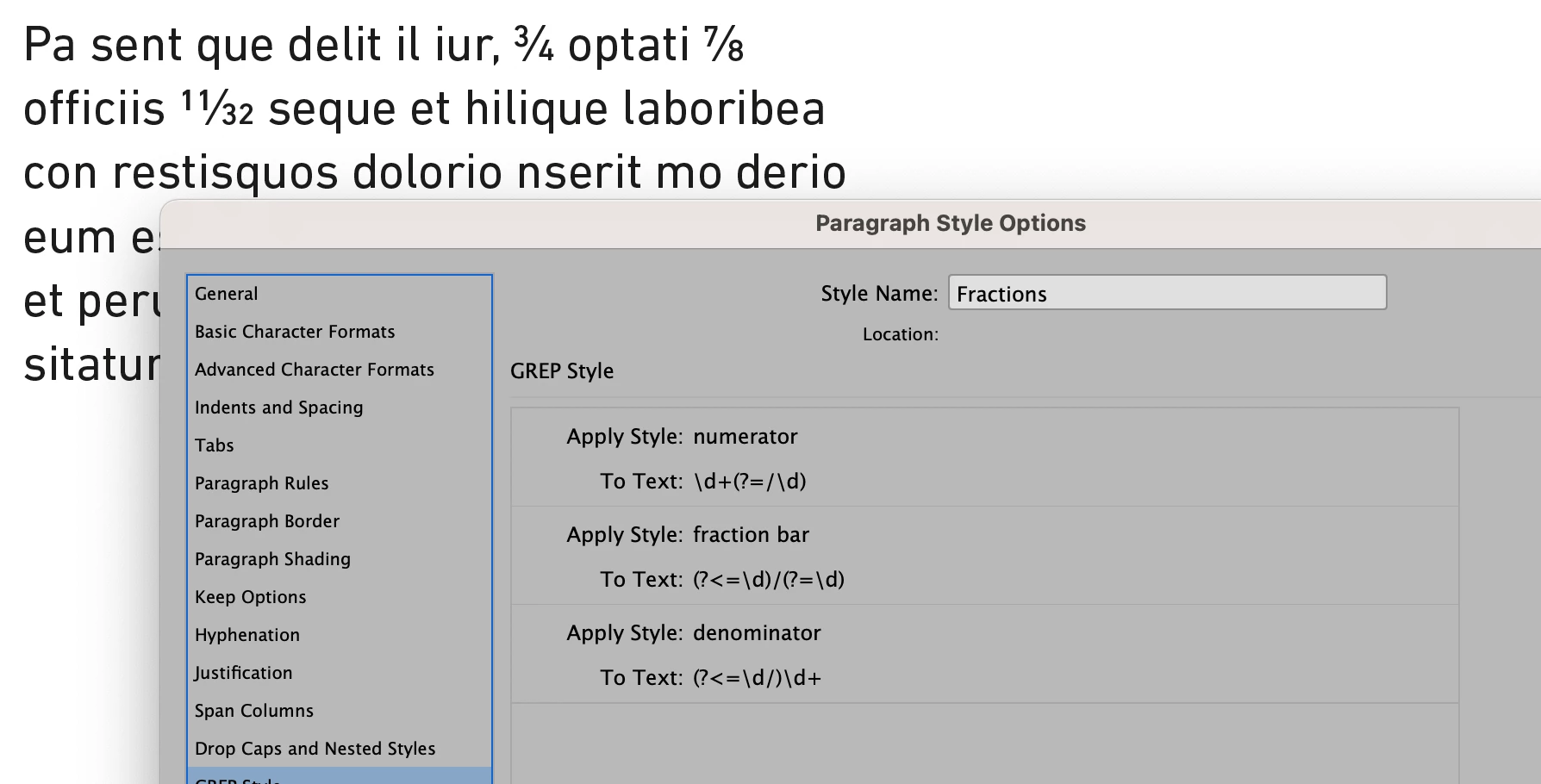
I was able to replicate what I think you want using three character styles and one paragraph style. This is using the font shown in your Glyphs panel.

Numerator: \d+(?=/\d)

Fraction bar: (?<=\d)/(?=\d)

Denominator: (?<=\d/)\d+


4 replies

Dave Creamer of IDEAS
Community Expert
Community Expert
August 7, 2023

A number of Adobe fonts support arbitrary fractions. You could pick a font that matches your desired font as close as possible, then create a character style that applies the font to the text.

For more info: https://creativepro.com/downloads/OTFractionsGuide.pdf


David Creamer: Community Expert (ACI and ACE 1995-2023)
Scott Falkner
Community Expert
Scott FalknerCommunity ExpertCorrect answer
Community Expert
August 6, 2023

I was able to replicate what I think you want using three character styles and one paragraph style. This is using the font shown in your Glyphs panel.

Numerator: \d+(?=/\d)

Fraction bar: (?<=\d)/(?=\d)

Denominator: (?<=\d/)\d+


Barb Binder
Community Expert
Community Expert
August 6, 2023

Nicely done, Scott!


~Barb

~Barb at Rocky Mountain Training
Community Expert
August 6, 2023

I was intrigued by your question, and did a few experiments to see if I could duplicate your issue.


I set a series of fractions using various OpenType fonts at InDesign's default type setting of 12/14.4 (auto) pt.


I could, kinda, depending on the OpenType font I used to express my fractions:


I thought I was onto something when I saw that the "Pro" typefaces gave me the expected fractionals but the "Std" faces did not, then I tried Adobe Fonts' Kari Display Pro cut and it didn't set the expected fractional either. So I'm making the assumption (and we all know the bromide associated there) that it varies by the individual type cut, and not necessarily as a function of InDesign itself.


Not that things couldn't be fixed the old fashioned way with a little extra attention. It took a little lovin' — I set the numerator as superscript, then apply -200/1000 em negative kerning between the numerator and the slash; set the denominator as subscript, then applying Baseline Shift of +4 pt and negative kerning between the slash and the denominator of -50/1000 em negative kerning. That's a lot of work, and I couldn't get it to set as a glyph either.


But I could place it in a CC Library and drag a text frame containing the fraction onto the document. From there it was just cut and paste to put the fraction wherever I wanted it in a text thread. I also found that I couldn't use InDesign's Find/Change functions to make the swap; the dialog box offers the capability to search for many character style attributes, but OpenType attributes aren't among them. But I could use the Find function to navigate to the errant fractions, then paste my expected fractionals from the clipboard to replace them.


I'm hopeful that maybe you could use this info to "mess things up until they work right" for you. It'll take a little work, but at least you can make it easier than correcting each fraction from scratch.


Hope this helps,


Randy


Known Participant
August 6, 2023

Thanks, Randy, much appreciated.

A lot of hard work, indeed. I have way too many uncommon fractions --and too many of them-- to do this manually. That's why it's a pity the Find/Change panel won't allow to use the manual fractions to replace the remaining ones. 

What I don't get is why a manually-designed fraction cannot be built into the Glyph panel. Not only that, I think it would be ideal to simply edit any existing fraction glyph to one's needs. Say, pick 3/8, edit it into 5/16, save it as a new glyph and then use it automatically in the text. Maybe it's doable, but I haven't found out how. 


Community Expert
August 6, 2023

Then it might just come down to picking a font cut that will give you the fractions you're looking for ... Making the assumption (there I go using that word again) that you're looking for a sans-serif font, I can recommend either Myriad Pro or Source Sans Pro, two Adobe font cuts, that might serve your needs. If you'd consider using a serifed font, Adobe offers a number of cuts with OpenType Pro features.


Good luck,


Randy

Barb Binder
Community Expert
Community Expert
August 6, 2023

Another approach is to add a GREP style to format fractions for you automatically. Add it to the paragraph style that contains the equations, and note that while it will correctly format 5/16, it will also match dates that are typed in using the same number slash number sequence, like today's date of 8/6 if they are included in the same paragraph style.

https://www.rockymountaintraining.com/adobe-indesign-cs4cs5-got-fractions/


~Barb

~Barb at Rocky Mountain Training
Known Participant
August 6, 2023

Hi Barb,

Thanks for the tips!

I did what you say in your guide, but no luck. First, when I type any fraction at all, they're not automatically formatted, not even the common ones such as 1/2 or 4/8. But if I select them, they're easily formatted as proper fractions. However, if it's an uncommon fraction, such as 5/16, only the slash is properly formatted, the numbers remain unchanged.


If I select any uncommon fraction and I apply the new character style I created following your guide, I get the same result: the slash is formatted, the numbers are not. 

My guess is, the GREP style only formats the fractions that are currently in the Glyph panel, that is, the common ones. Any other fraction is unchanged. 

Barb Binder
Community Expert
Community Expert
August 6, 2023

This is entirely dependent on the glyphs included in the font you use.


You can assign Alternatives for Selection for common fractions if they are included in the font. Examples:


–OR–

As per the end of the blog post, for uncommon fractions with the GREP style, you must font with numerators and denominators. I am showing my Glyphs panel with the filter set to numbers. Minion Pro and Garamond Pro have them, Cabin Sketch does not.


~Barb


~Barb at Rocky Mountain Training