


Participant
May 1, 2018
Answered

'Why does an illustrator import change the exposure of a photoshop image in indesign?

  • May 1, 2018
  • 2 replies
  • 832 views

When I place an illustrator file into an indesign document with a photoshop image, the image exposure changes (lightens). I've tried different image files including PDF with the same result. What's up?
    This topic has been closed for replies.
    Correct answer rob day

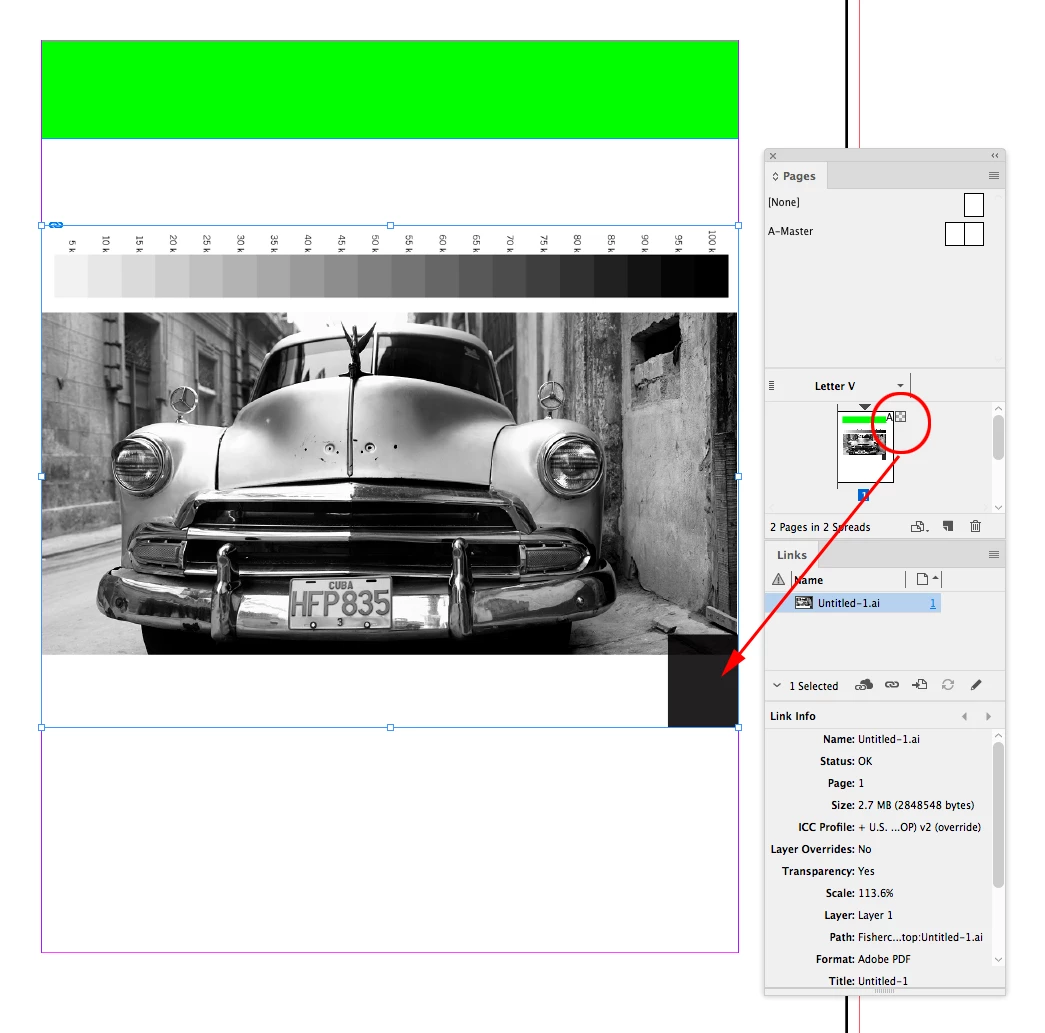
    Here I'm placing an Illustrator file that includes a transparent object—my pages panel shows a transparency icon. The InDesign document's Transparency Blend Space is set to RGB with Overprint Preview turned Off

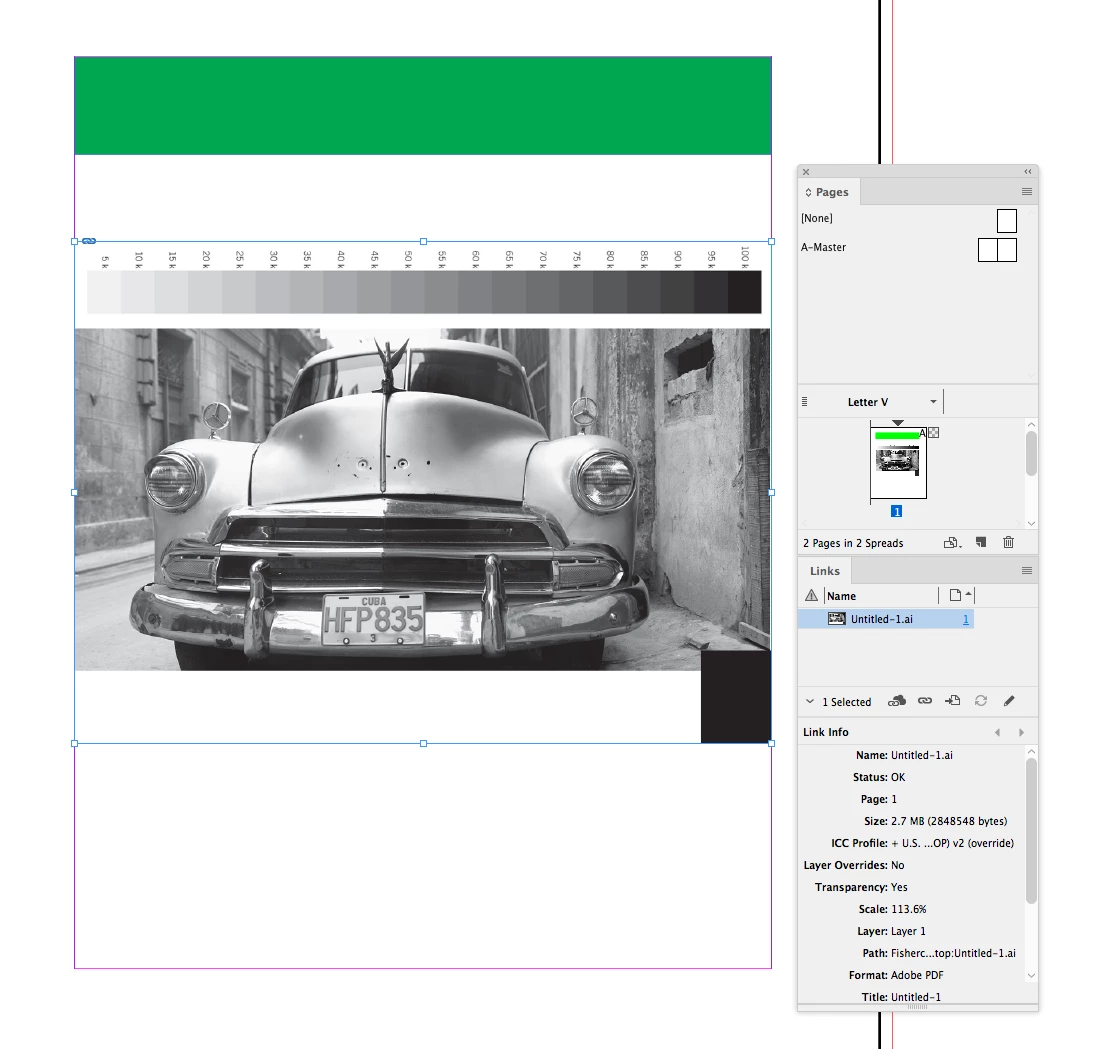
    The page with the Transparency Blend Space set to CMYK. Both the RGB green fill and the grayscale photo are affected:

    2 replies

    rob day
    Community Expert
    Community Expert
    May 1, 2018

    When I place an illustrator file into an indesign document with a photoshop image, the image exposure changes (lightens). I've tried different image files including PDF with the same result. What's up?

    When you place an object that contains transparency anywhere on a spread, the document's Transparency Blend Space affects the entire spread's preview. If the blend space is the default CMYK then any RGB or grayscale objects will be previewed in the document's CMYK space.

    Willi Adelberger
    Community Expert
    Community Expert
    May 1, 2018

    Please, provide us with a lot more information:

    • What color settings and color management settings do you have in InDesign and Illustrator?
    • What is the color space of the image, of the AI file and in InDesign?
    • How is the image imported in Illustrator? Embedded or linked?
    • File Type of the image?
    • Illustrator Version?
    • InDesign Version?
    • And more information would help to help.
    Good_DAuthor
    Participant
    May 1, 2018

    All the Adobe programs I'm working with are 2017 versions.

    The photoshop image (tif) is greyscale. The imported illustrator (ai) file is greyscale and linked.

    I tried several work arounds and found a solution. If I selected and copied all the illustrator elements and pasted them directly into the indesign document the image wasn't altered.

    rob day
    Community Expert
    Community Expert
    May 1, 2018

    Try setting your Transparency Blend Space to RGB. Your placed illustrator file likely contains a transparent object.