katander
Participant
October 17, 2019
Question

File size shrunk from 22bm to 3.8 in lightroom with no cropping
  • October 17, 2019
  • 7 replies
  • 422 views

My DNG file is 22 mb but in lightroom, the pixel size is only 3360x2240 which translates to 3.8mb.  I have zero cropping.  What's going on?  How can I go from 22mb to 3.8?

    This topic has been closed for replies.

    7 replies

    elie_dinur
    Participating Frequently
    October 18, 2019

    >> My DNG file is 22 mb but in lightroom, the pixel size is only 3360x2240...

    This does not compute. 3360x2240 is only 7.5 MP. An uncompressed 14 bit Raw/DNG would be 12.5 MB, but DNGs are compressed. I have old, archived 8 MP DNG files that are 6 MB and 21 MP files that make for 20-24 MB DNGs, while 24 MPs are about 26-30 MB. Maybe you have the original Raws embedded in the DNGs which would around double their sizes.

    ManiacJoe
    Inspiring
    October 17, 2019

    If part of the problem is a change in pixel dimensions, where no cropping has occurred, is there the possibility that you are dealing with Smart Previews instead of the original images or that some mobile upload/download is involved?


    Conrad_C
    Community Expert
    Community Expert
    October 17, 2019

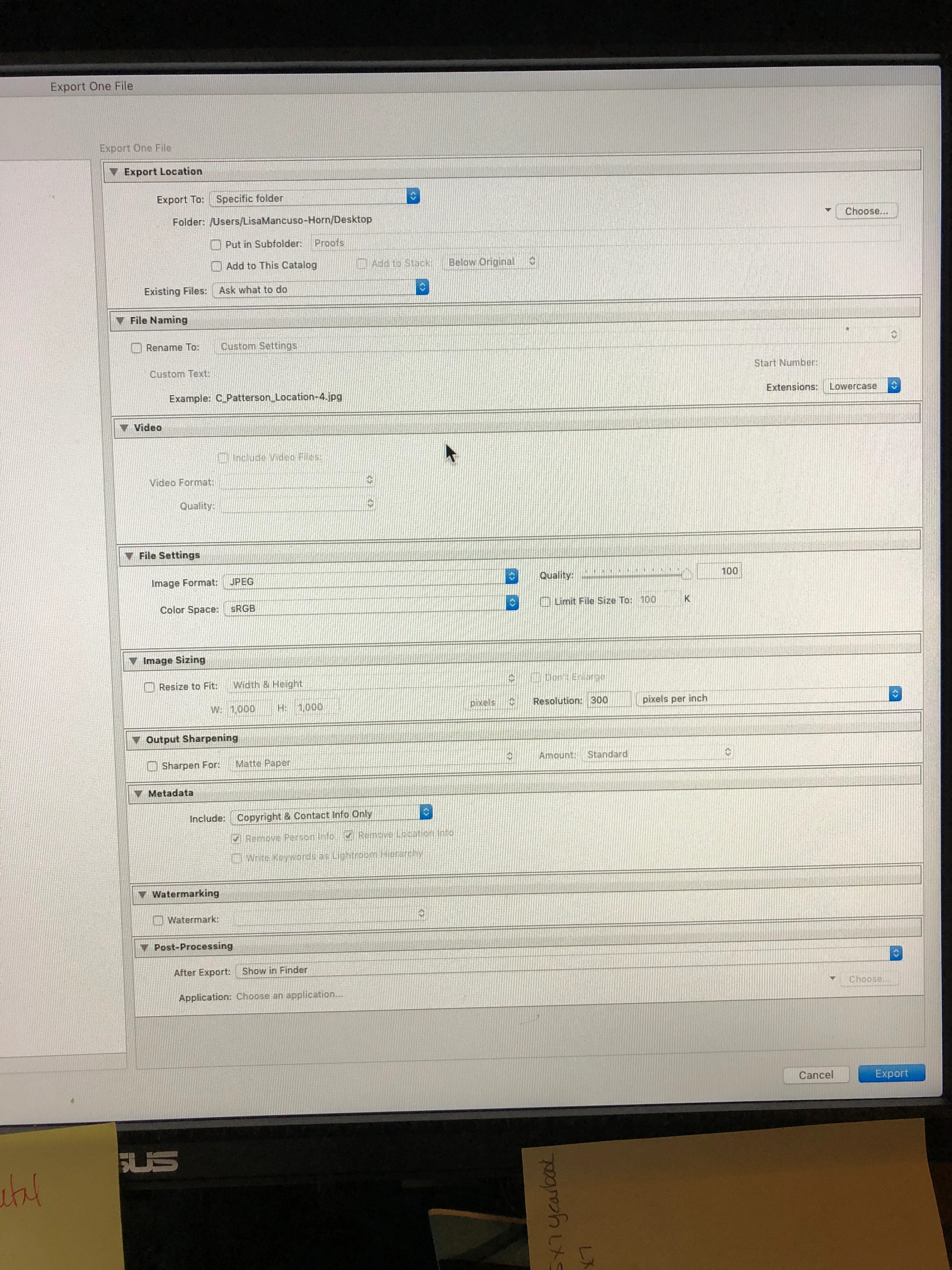
    OK. Your pictures show that you exported as JPEG, so that explains everything. The entire point of JPEG is to crunch an image down to a smaller size. It does this by trying to throw out as much non-visible image data as possible (which limits future editing).


    Be aware that you made an unconscious choice to use the DNG file size (22MB) as your reference. But 22MB is only the file size when that image is in raw (DNG) format and unedited. You must expect the file size to change, up or down, depending on what is done with the file, which features you used, and which format you used.


    For example, the file size should increase beyond 22MB as soon as you save it in Photoshop or TIFF format, because of reasons such as bit depth and number of channels. The file size should increase again as you add layers and masks, if you switch to a higher bit depth, or a color mode with more channels, etc. When you're done editing, the file size won't change if you leave it in Photoshop or TIFF format, but will go down in a copy you export in a highly compressed format like JPEG.


    There is no "true" file size for an image, but you can see the current uncompressed file size in Image > Image Size. Which probably won't match the current size on your desktop because of all of the variables already listed and more.

    JohanElzenga
    Community Expert
    Community Expert
    October 17, 2019

    Sounds like you export as jpeg. JPEG is a highly (and 'lossy') compressed format, that is why JPEG files can be much smaller than DNG files, even if they have the same number of pixels.

    -- Johan W. Elzenga
    katander
    katanderAuthor
    Participant
    October 17, 2019

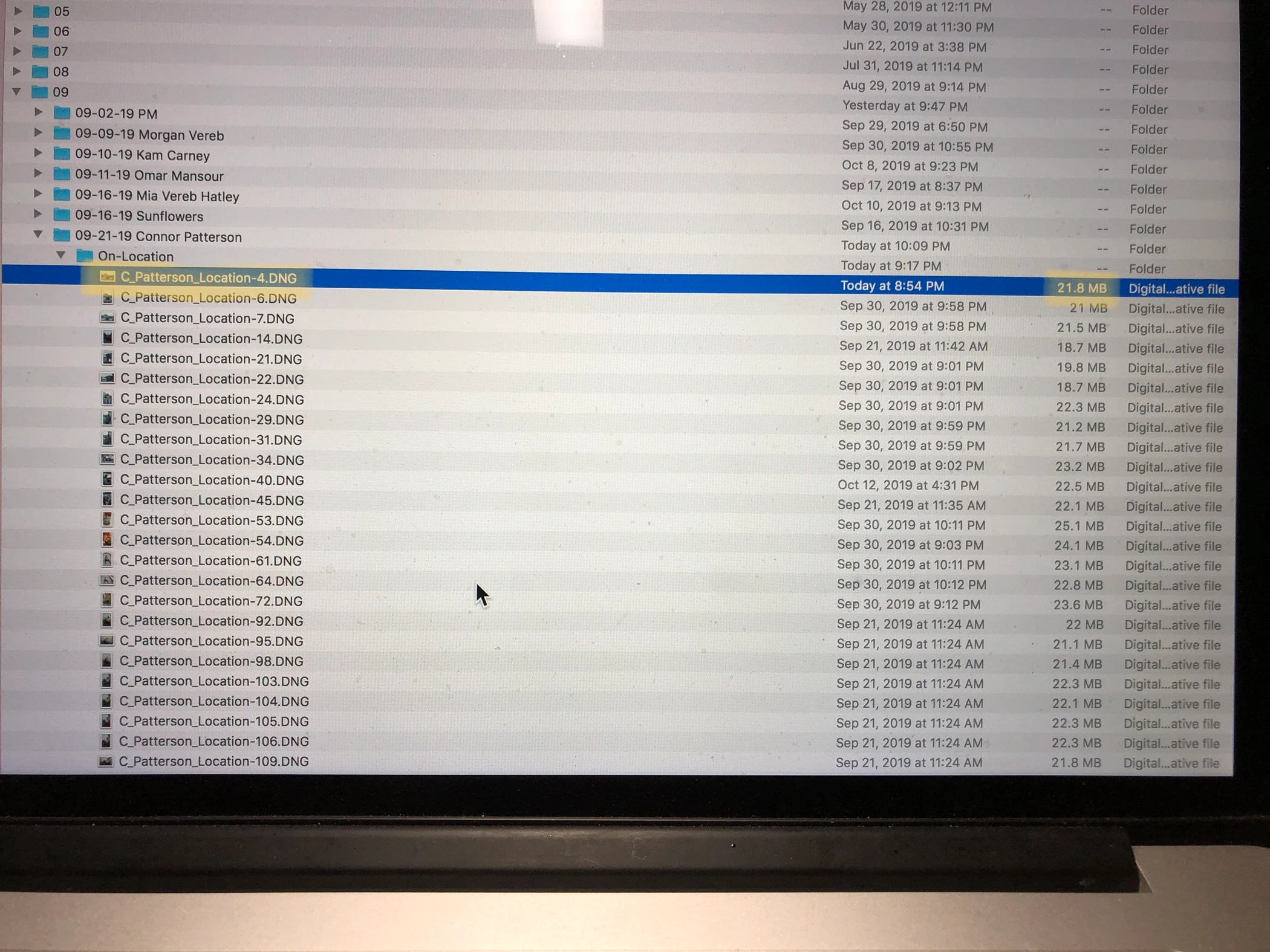
     In finder, the file size is 22 MB. When I export from Lightroom with no cropping and no resizing whatsoever, it shows up back in finder at 3.2 MB. 

    cmgap
    Community Expert
    Community Expert
    October 17, 2019
    Please post a screen shot of your export dialog box settings. It's likely that there is a setting that is reducing the size of your export.
    katander
    katanderAuthor
    Participant
    October 17, 2019
    silly question, but how do I attach the image in this thread?
    Conrad_C
    Community Expert
    Community Expert
    October 17, 2019

    Where do you see 3.8MB? In the program, or after export to a different format that might be compressed?

    Tony_See
    Inspiring
    October 17, 2019

    Post a screen shot thanks!! Its a visual world of yours and mine . . .