James261772764r0m
Known Participant
September 22, 2022
Question

Imported Image folders not showing up in folders.

  • September 22, 2022
  • 11 replies
  • 3395 views

Lightroom Classic version 11.5

MacBook Pro M1 Max macOS Monterey version 12.5.1


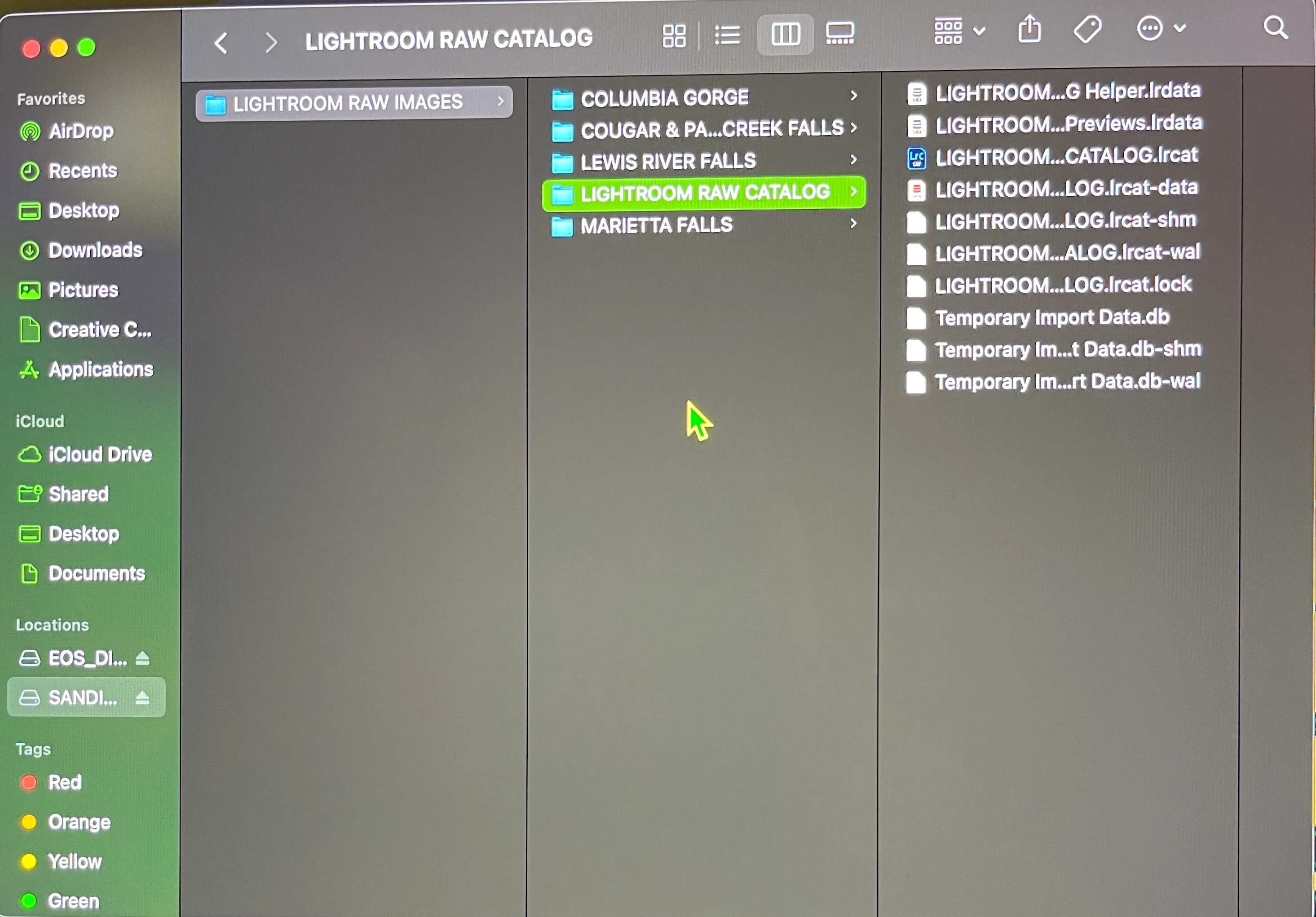
Only my first folder of 19 imported images are showing up in left hand panel under folders and catalog but the next 3 imports are not and I did them exactly the same? All of the 4 separate import folders do show up on my SanDisk SSD when I open it up though and images are all there as I named them. I made the main folder on SSD drive called LIGHTROOM RAW IMAGES and then subfolder called LIGHTROOM RAW CATALOG.
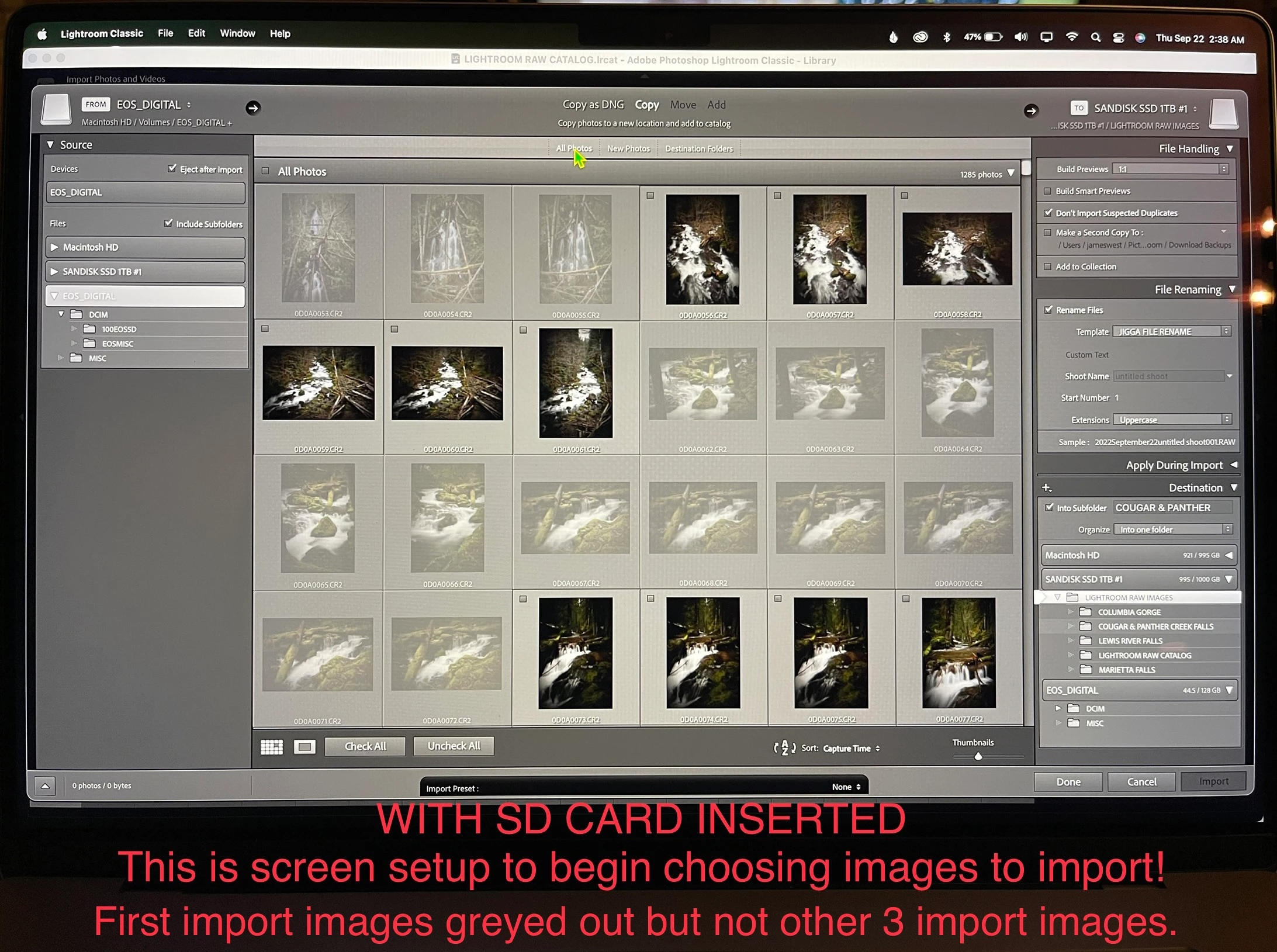
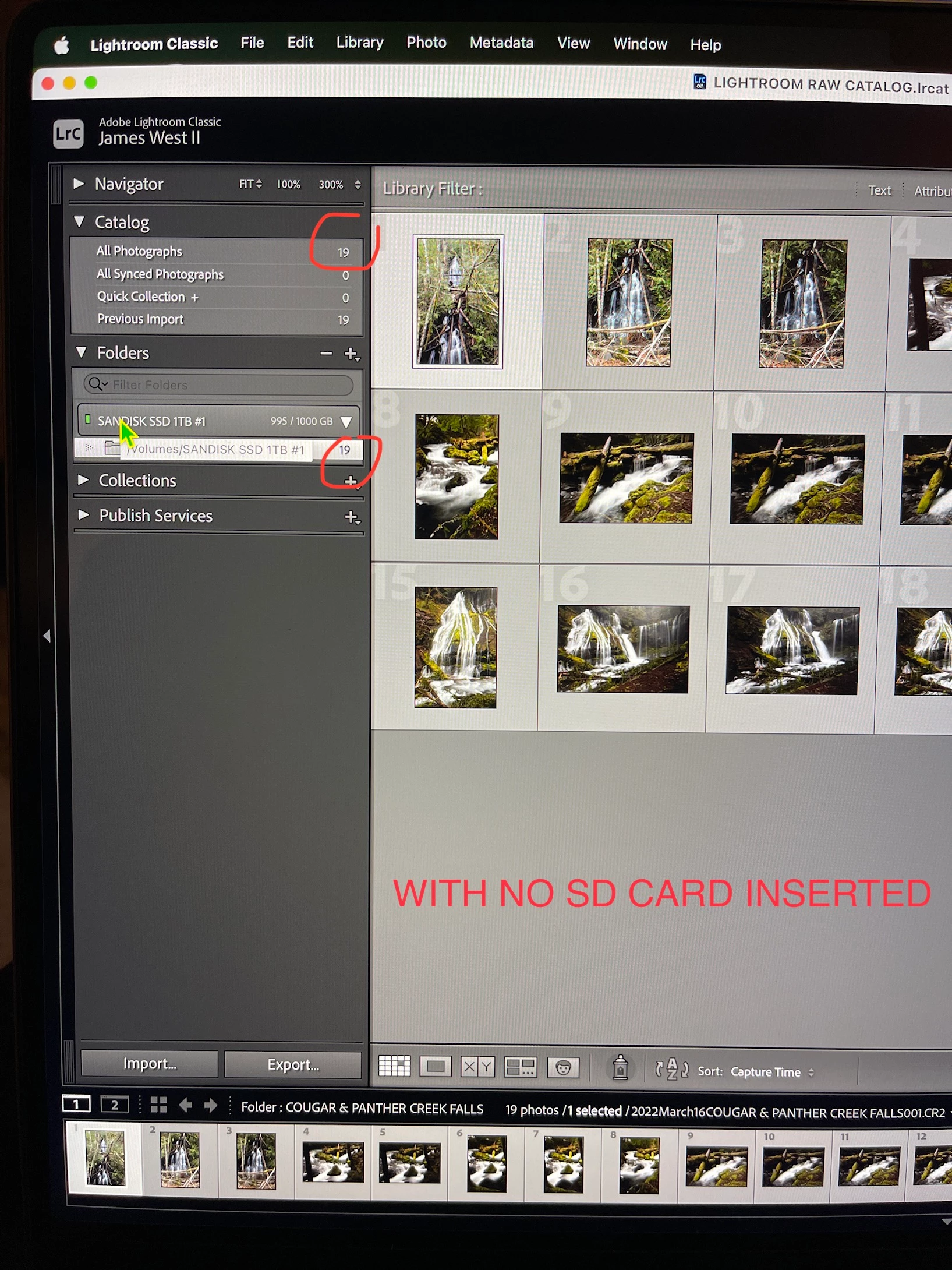
I connect SSD drive, I connect reader and put in sd card, I choose EOS DIGITAL in source in left top panel & check include subfolders. I choose COPY and then choose SANDISK SSD at top right panel. Under FILE HANDLING I choose Don't Import Suspected Duplicates. Under FILE RENAMING I have Rename Files checked and choose the Template I created, I type in the SHOOT NAME, the START NUMBER is 1, EXTENSIONS is uppercase. Under APPLY DURING IMPORT I have Metadata that I set up checked. Under DESTINATION I have Into Subfolder checked and I named my new import. I highlight my main folder called LIGHTROOM RAW IMAGES. I select my images and click Import. All images from the import show up numbers 1-? and I can view them right there. Sd card auto ejects, I quit Lightroom Classic and eject SSD drive, give it a few seconds and unplug it. I later connect SSD drive, open Lightroom Classic, go to left panel and under Catalog and under Folders the only import folder that I made that shows up is the very first one with 19 images in it and the other 3 folders are not there. Show all photos also only shows 19 and the total images I have imported in 4 separate imports totals 60. Also when I connect reader and sd card, the first 19 images are greyed out because of the DON'T SHOW DUPLICATES option being checked but all other images that I have imported are not greyed out. Also notice under DESTINATION when I go to name my new folder next to Into Subfolder, it keeps inputing the name of my very first import. HELP!!!!!!!


    This topic has been closed for replies.

    11 replies

    DdeGannes
    Community Expert
    Community Expert
    September 26, 2022

    Ok I reviewed the thread, in Rob's post Sept 22nd he indicated that you had not selected any images to import. So the files were not imported.

    The advice I provided to synchronize the parent folder prompted the import which in essence is the same as utilizing the "Add option in the import dialog. Hopes this clarification the situation.


    Regards, Denis: iMac 27” mid-2015, macOS 11.7.10 Big Sur; 2TB SSD, 24 GB Ram, GPU 2 GB; LrC 12.5,; Lr 6.5, PS 24.7,; ACR 15.5,; (also Laptop Win 11, ver 24H2, LrC 15.0.1, PS 27.0; ) Camera Oly OM-D E-M1.
    James261772764r0m
    Known Participant
    September 26, 2022

    I explained in a post after his that the image I posted showing that was not me attempting to import from my SSD. I was just showing a screenshot of what it looked like while the SSD was connected and after I clicked import. I was not trying to import images from my SSD since there's none there to import. The images I am attempting to import are transferred over from my old Windows 7 laptop and onto a sd card. There's 26 separate shoots containing 1285 images that I am trying to import into Lightroom Classic into 26 separate folders after purchasing my new MacBook.

    Rob_Cullen
    Community Expert
    Community Expert
    September 26, 2022

    Hi @James261772764r0m  Based on your last post above-

    1) COPY, using FINDER,  the 26 folders from the SD card and place them in your photos heirarchy on the SSD drive.

    2) IMPORT the 26 folders that you copied on the SSD to the Catalog using the [ADD] option.

    3) Rename the files after the Import.


    Regards. My System: Windows-11, Lightroom-Classic 15.0, Photoshop 27.0, ACR 18.0, Lightroom 9.0, Lr-iOS 10.4.0, Bridge 16.0 .
    DdeGannes
    Community Expert
    Community Expert
    September 26, 2022

    A reliable source of info on Lightroom Classic, see the link below.

    https://jkost.com/blog/lightroom-training-videos


    Regards, Denis: iMac 27” mid-2015, macOS 11.7.10 Big Sur; 2TB SSD, 24 GB Ram, GPU 2 GB; LrC 12.5,; Lr 6.5, PS 24.7,; ACR 15.5,; (also Laptop Win 11, ver 24H2, LrC 15.0.1, PS 27.0; ) Camera Oly OM-D E-M1.
    Rob_Cullen
    Community Expert
    Community Expert
    September 24, 2022

    Have been away. Thanks to others in the conversation.

    For screen-clips: Yes, use the [Insert Photos] icon that appears above your message window when you post.


    Now my take on your recent screen-clips.

    1) You ARE importing form the SSD (1TB Drive) and not a camera SD card. This is what your import dialog 'Source' tells me-  "SANDISK SSD 1TB" (including sub-folders)

    2) As suggested by @GoldingD  - When the files already exist on the 1TB Drive (in the COUGAR & PANTHER CREEK FALLS sub-folder) you should be using the [ADD] option at the top of the Import window.

    By setting a [Copy] option with the exact same folder in the Destination panel you are trying to 'copy' the files to the same folder location which I guess LrC is refusing to do.


    For files on a camera SD card- Use [COPY].   (But NOT if they are already on the SSD!)

    For files on a connected (internal or external) hard-drive - Use [ADD].


    If and when you use the [ADD] option to import to the catalog, you would then Rename the files AFTER they have been imported, if desired. (Using your rename template).


    And can i suggest you read the Lightroom-Classic Free LIGHTROOM QUEEN eBOOKs 


    Regards. My System: Windows-11, Lightroom-Classic 15.0, Photoshop 27.0, ACR 18.0, Lightroom 9.0, Lr-iOS 10.4.0, Bridge 16.0 .
    James261772764r0m
    Known Participant
    September 24, 2022

    Rob, I believe I posted a message yesterday that was explaining a clip I posted showing what you are explaining to me. It shows me in the import screen with the SSD connected but no sd card and it shows Extreme SSD under source. I was not doing the import then, I was just showing a different look but did not realize it was looking like I was importing from SSD. I am 100% importing from sd card. Always verifying that it says EOS DIGITAL under source and that I have EOS DIGITAL  highlighted under files. Sorry for the confusion, I did not realize what I made it look like until I posted that clip. TY

    DdeGannes
    Community Expert
    Community Expert
    September 24, 2022

    The folder (name hidden) that contains the 19 imported images shows in the very first screen capture in your original post. See the clip below.


    Right-click on that folder and there should be an option to "show parent folder" click on that option to display the parent.

    Next, post a screen capture so we can see the parent folder.


    Regards, Denis: iMac 27” mid-2015, macOS 11.7.10 Big Sur; 2TB SSD, 24 GB Ram, GPU 2 GB; LrC 12.5,; Lr 6.5, PS 24.7,; ACR 15.5,; (also Laptop Win 11, ver 24H2, LrC 15.0.1, PS 27.0; ) Camera Oly OM-D E-M1.
    James261772764r0m
    Known Participant
    September 24, 2022

    Here it is. TY

    DdeGannes
    Community Expert
    Community Expert
    September 25, 2022

    If you click on that parent folder "Lightroom Raw Images" and right click then click "Synchnorize Folder" you should see the images you can add to your Catalog.

     Let us know what your experience.

    Regards, Denis: iMac 27” mid-2015, macOS 11.7.10 Big Sur; 2TB SSD, 24 GB Ram, GPU 2 GB; LrC 12.5,; Lr 6.5, PS 24.7,; ACR 15.5,; (also Laptop Win 11, ver 24H2, LrC 15.0.1, PS 27.0; ) Camera Oly OM-D E-M1.
    DdeGannes
    Community Expert
    Community Expert
    September 24, 2022

    At James, are you by chance creating an individual Catalog for each import? 
    Just a thought out of the box.

    Regards, Denis: iMac 27” mid-2015, macOS 11.7.10 Big Sur; 2TB SSD, 24 GB Ram, GPU 2 GB; LrC 12.5,; Lr 6.5, PS 24.7,; ACR 15.5,; (also Laptop Win 11, ver 24H2, LrC 15.0.1, PS 27.0; ) Camera Oly OM-D E-M1.
    James261772764r0m
    Known Participant
    September 24, 2022

    No, just one single catalog. Made a main folder on my SSD with the Lightroom Classic catalog as a subfolder in it and then each import being a subfolder within the main folder. Just struggling to see what's wrong. I provided the name of the gentleman I watched through Skill Share so I could do it step by step. The info is in one of my last posts. Thought maybe this would help someone see the exact steps in took since I really liked the way he set things up, it made clear sense to me.

    TY.

    GoldingD
    Legend
    September 24, 2022

    The thread on your posting has gotten long, so the following might have been brought up, my apology's if as such.


    Try an alternative import process/option. This to see if the problem persists with fewer variables. Specifically using Add instead of copy.


    1. Outside of LrC, using your MACOS Finder, create the desired folder that you want your photos in
    2. Using Finder, copy the desired images to that folder
    3. In LrC, in the Import Screen, with the Copy option still selected, turn off into subfolders, and in destination select the folder in the above steps (this to simplify and verify folder location, you may change back later). I state this as a bit if overkill, thing is Add can take on issues with incorrect values selected in Copy, usually this occurs if a previous destination is no longer valid.
    4. Change from Copy, to Add, the right side panel will simplify, as destination should not be a question
    5. Select the correct images, and import.


    What occurs?


    Rob_Cullen
    Community Expert
    Community Expert
    September 22, 2022

    If I can throw in some comments based on your screen-clips:

    1. You do not have any of the 'new' images checked to Import. They need to be ticked in the small box if they are to be imported.  (Select all, check one box)

    2. You do not need to specify 'Into a sub-folder' if you instead-

    3. Highlight the exact folder where you want the files to be copied into.


    Regards. My System: Windows-11, Lightroom-Classic 15.0, Photoshop 27.0, ACR 18.0, Lightroom 9.0, Lr-iOS 10.4.0, Bridge 16.0 .
    James261772764r0m
    Known Participant
    September 22, 2022

    That screen clip was just showing how things look before I would actually choose the images to import, just so people could see how I had it set up, right or wrong. The images were not selected yet. Actually those images you see are part of the 19 greyed out images from first import. So referencing your #2 mark by the Cougar and Panther Creek Falls and next to Into Subfolder was just me naming that folder of 19 images. Then above your #3 mark was the main folder highlighted that it was going into but as a subfolder.

    Rob_Cullen
    Community Expert
    Community Expert
    September 23, 2022

    After I did my first import of 19 files, I then did 3 more separate imports. So all 4 imports were supposed to go as sub folders into my main folder. Not sure if my file pictures showed up or not but I did include them. I followed step by step instructions from a great teacher on Skilshare and my first import was perfect so I did the next 3 the same. I see all imports only on my SSD drive when I go into it. The only one that shows up in Lightroom Classic is the first. Total imports are 4. 
    First - 19

    Second - 12

    Third - 10

    Fourth - 19


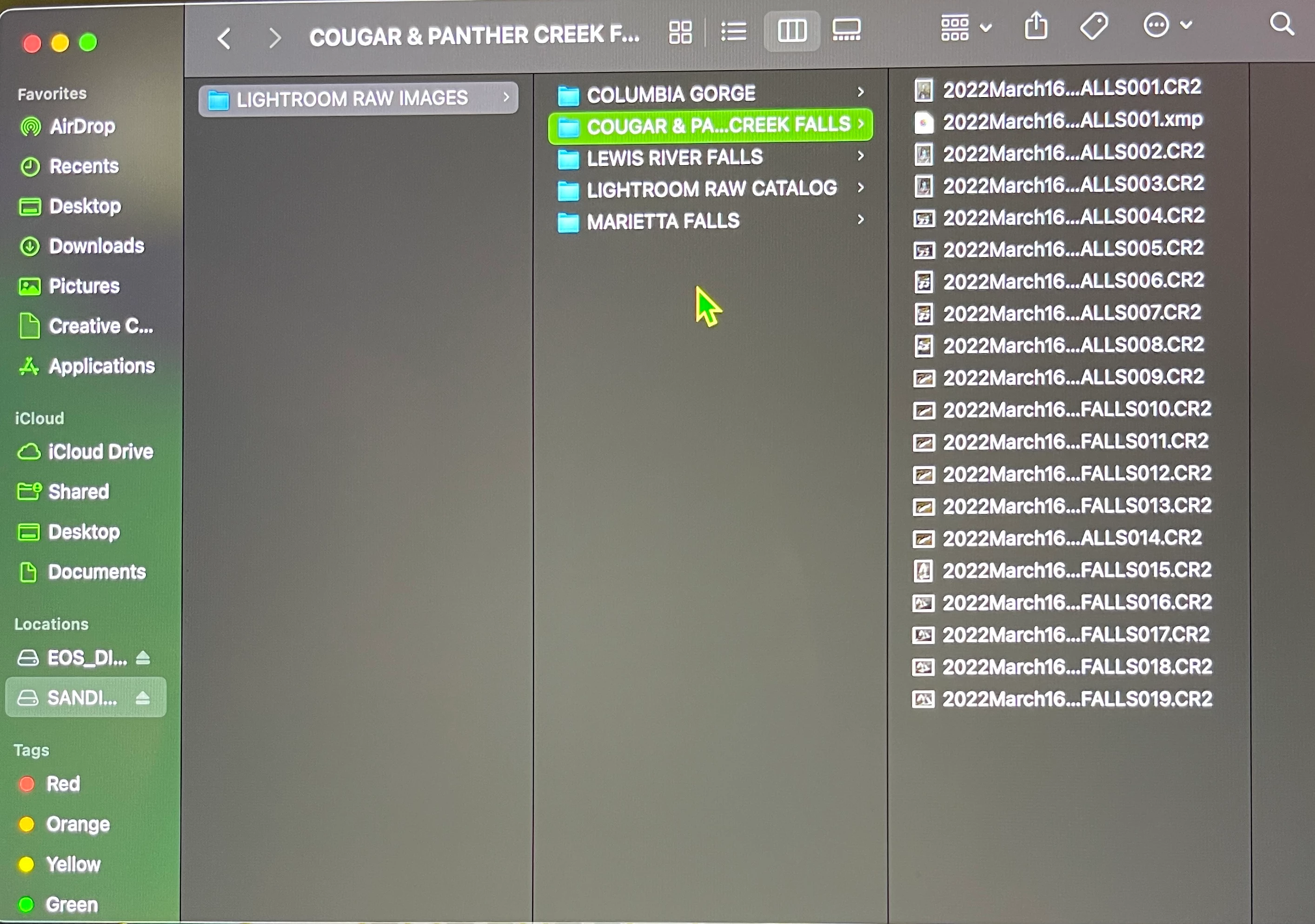
    In Mac Finder- Can you show a screen-clip of the files in folder {COUGAR & PANTHER CREEK FALLS}?

    In the Lightroom-Classic Folder panel can you show us a screen-clip of the folder {COUGAR & PANTHER CREEK FALLS}? And any sub-folders of this?


    Regards. My System: Windows-11, Lightroom-Classic 15.0, Photoshop 27.0, ACR 18.0, Lightroom 9.0, Lr-iOS 10.4.0, Bridge 16.0 .
    GoldingD
    Legend
    September 22, 2022
     I quit Lightroom Classic and eject SSD drive, give it a few seconds and unplug it

    And you are absolutely sure that the import was complete before ejecting that SSD?

    Once that import was started, the Library module should have appeared, and the import progress would have been shown top left.

    James261772764r0m
    Known Participant
    September 22, 2022

    Yes, the status bar was done moving and all images were present on screen. I even went through all of them to double check a few things after each import. Just don't understand why the first import went just the same as the next three but it actually shows up.

    GoldingD
    Legend
    September 22, 2022

    Deleted, after reading, rereading, and rereading, I came to the conclusion that my reply was just so so wrong.

    Legend
    September 22, 2022

    I guess I am going to be picky here to help my brain digest the problem, and ask you to re-write the problem description. One very long paragraph with lots of shouting (lots of capital letters) is very difficult to read, and I haven't even gotten past the first two sentences before I decided not to read further because it was so difficult to read in this format. Please create reasonable paragraphs and explain the problem with less shouting.


    Also, it would be very helpful if you could use the "Insert Photos" icon to include your screen captures, as my web browser cannot open your attachments.

    James261772764r0m
    Known Participant
    September 22, 2022

    I was not using capitals as in shouting, I wrote them just as I have them capitalized in my set up. Also I used the browse files to attach that is offered here for my images. Assumed my explanation was very thorough as to not leave anything out as I have seen many other users get asked to not be vague about the issue they were having.