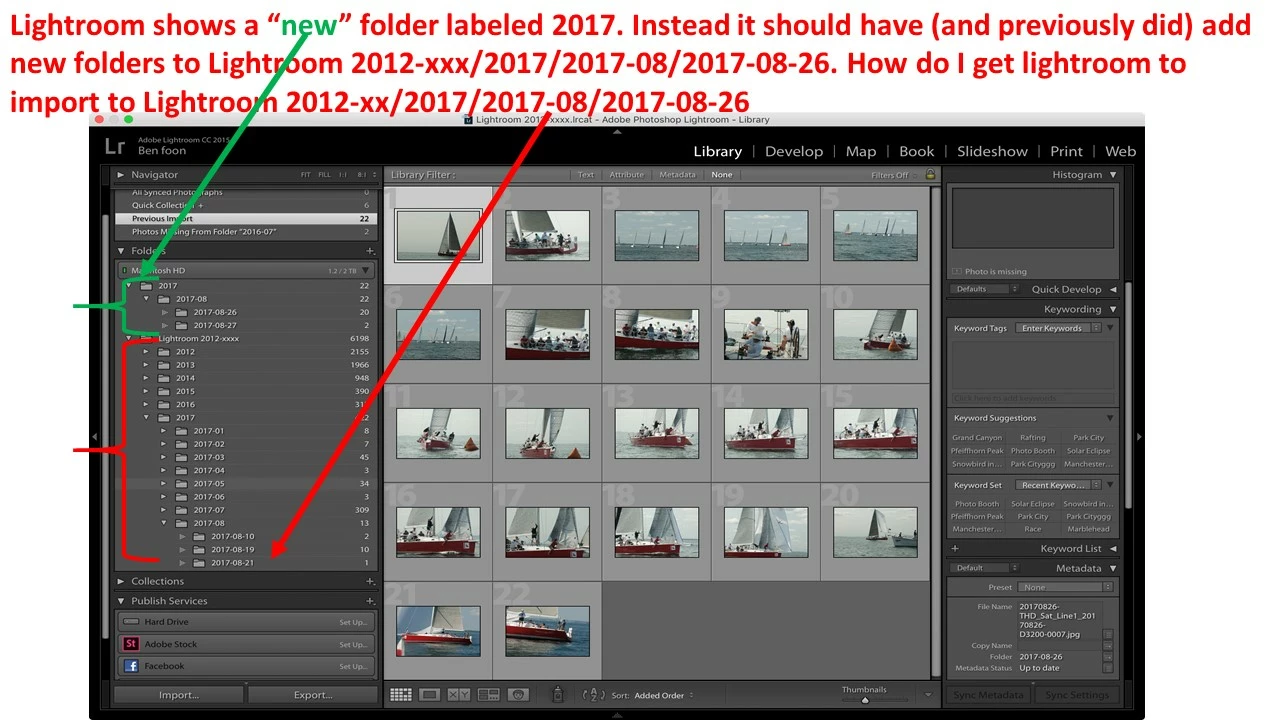
Wow I never would have noticed it. In lightroom the "2017" folder is /User/ben/ however the "Lightroom 2012-xxxx" folder is /User/Ben with a capital "B".
In Mac OS's finder it is with a lowercase "b".
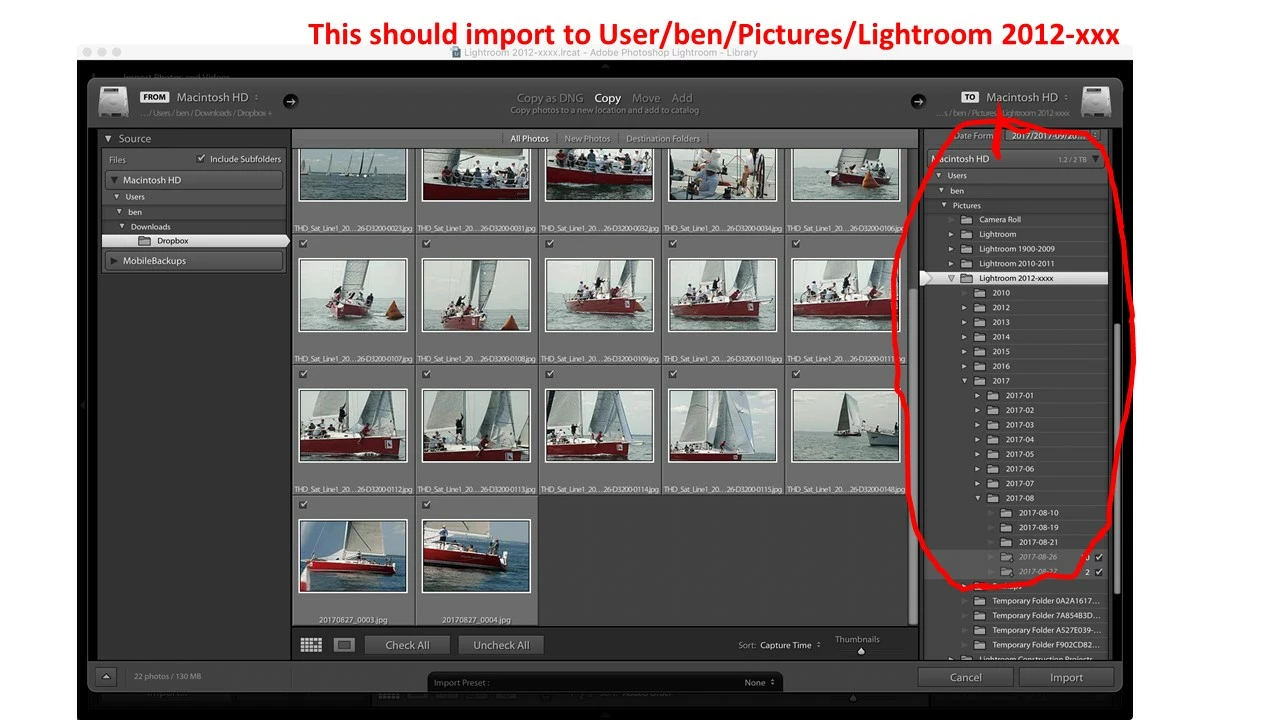
In the right hand side of the import panel when I hover over 2012-xxxx it is a lower case "b".
How do I fix this? If I right click on "Lightroom 2012-xxxx" in Lightroom and update folder location which hopefully will update it to /User/ben (with a lowercase "b"), will all the subfolders in "Lightroom 2012-xxxx" need to be updated? If so that is a lot of updating...
Stephens795262 wrote Wow I never would have noticed it. In lightroom the "2017" folder is /User/ben/ however the "Lightroom 2012-xxxx" folder is /User/Ben with a capital "B". In Mac OS's finder it is with a lowercase "b". In the right hand side of the import panel when I hover over 2012-xxxx it is a lower case "b". How do I fix this? If I right click on "Lightroom 2012-xxxx" in Lightroom and update folder location which hopefully will update it to /User/ben (with a lowercase "b"), will all the subfolders in "Lightroom 2012-xxxx" need to be updated? If so that is a lot of updating... |
If you haven't already fixed it following the links that @wobertc provided, the way to fix this is to get the "Lightroom 2012-xxxx" path using the changed user name of "ben". Update Folder Location from "Ben" to "ben" won't directly work, so we have to do it in two steps, and we do this by the following:
1. Take a catalog backup, just in case something goes wrong (never has yet, but better be safe than sorry).
2. Using Finder create a temporary folder on the Desktop, call it something like "Path Fix".
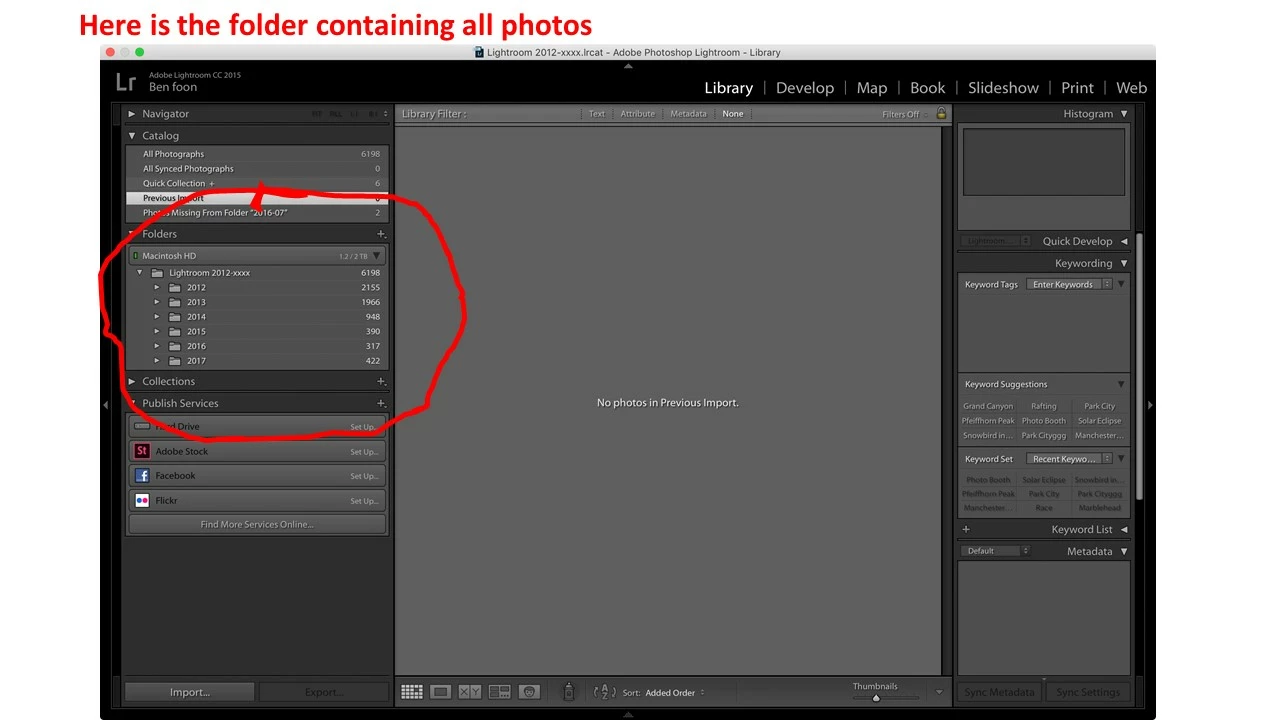
3. In the Folders Panel, right-click on the "Lightroom 2012-xxxx" folder and select Update Folder Location. In the resulting file browser, navigate to and select the "Path Fix" folder. This will change the path of that folder and all the sub-folders, and all the sub-folders will of course be shown as "missing". Don't worry, this is expected. This step eliminates the old "Ben" path from the catalog.
4. Now we switch back....right-click on the "Path Fix" folder in the Folders Panel and again select "Update Folder Location". In the resulting file browser, navigate to and select the "Lightroom 2012-xxxx" folder (which now picks up the correct path using "ben"). You will get a "Merge" warning dialog, because the correct path already exists for the "new" 2017 folder, click on Merge and everything should then slot back into place, the "new" 2017 folder will be merged with the current one, all using the correct path, and of course all the "missing" icons on the sub-folders will disappear.
And that's it. Obviously if anything happens not as I described, please stop at that point and report back so we can figure out what's happened.



 AdChoices