



hyund39164868
Participant
April 1, 2024
Answered

P: (GPU) Develop/Edit view & Export artifacts after 14.4.1 Update (AMD-only) (affects Cr, LrC & LrD)

  • April 1, 2024
  • 139 replies
  • 100165 views

Hi,


Since just now, I've been experiencing a weird bug / crash in Lightroom Classic (on a Mac), where ALL my photos suddenly are fully covered in artefacts in the Develop module.
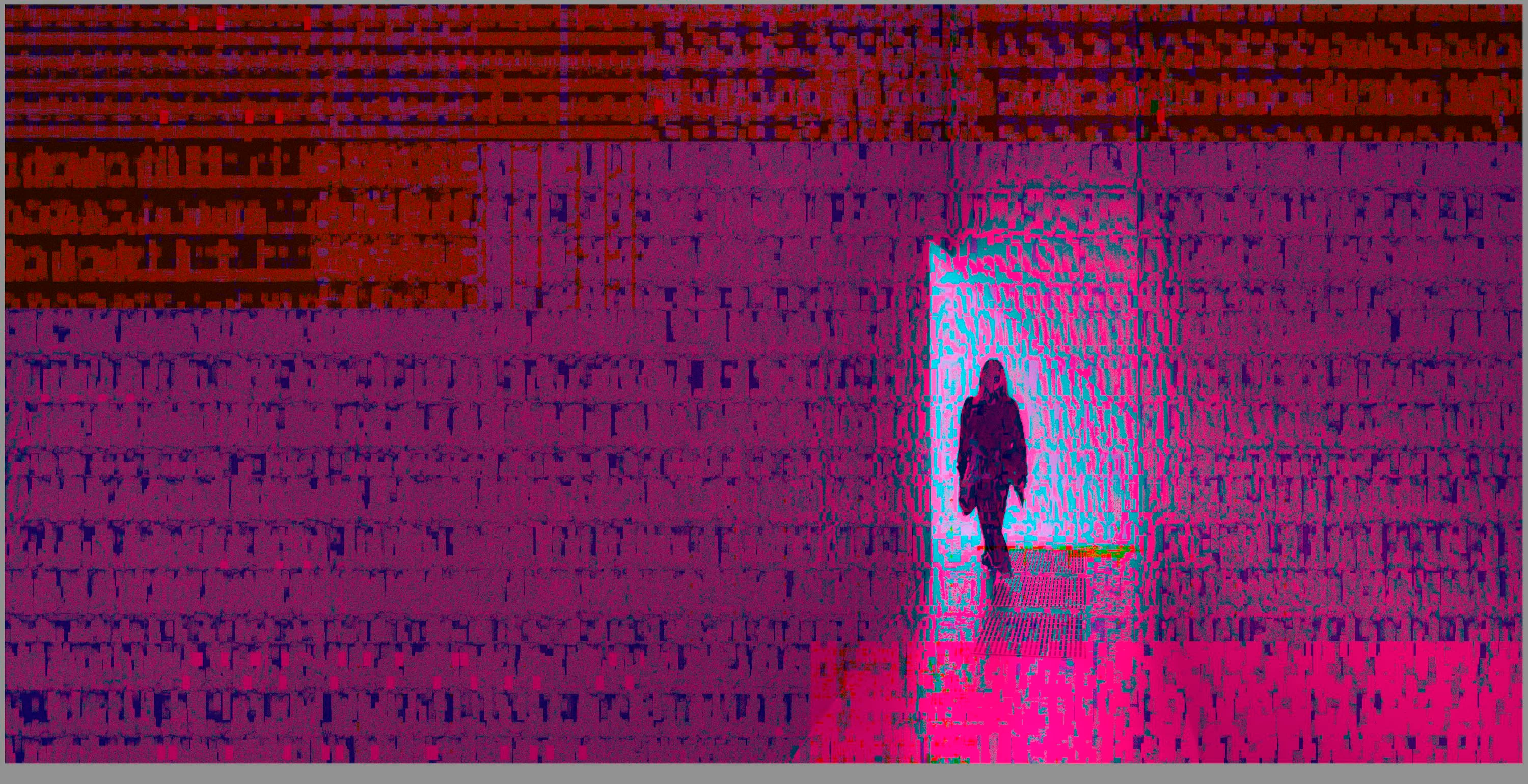
 

(Screengrab from the Develop module in Lightroom Classic)


When I check the linked RAW + JPEG source files in Finder, they all seem ok (they don't look corrupted, nor show any artefacts here), meaning the issue is within Lightroom.
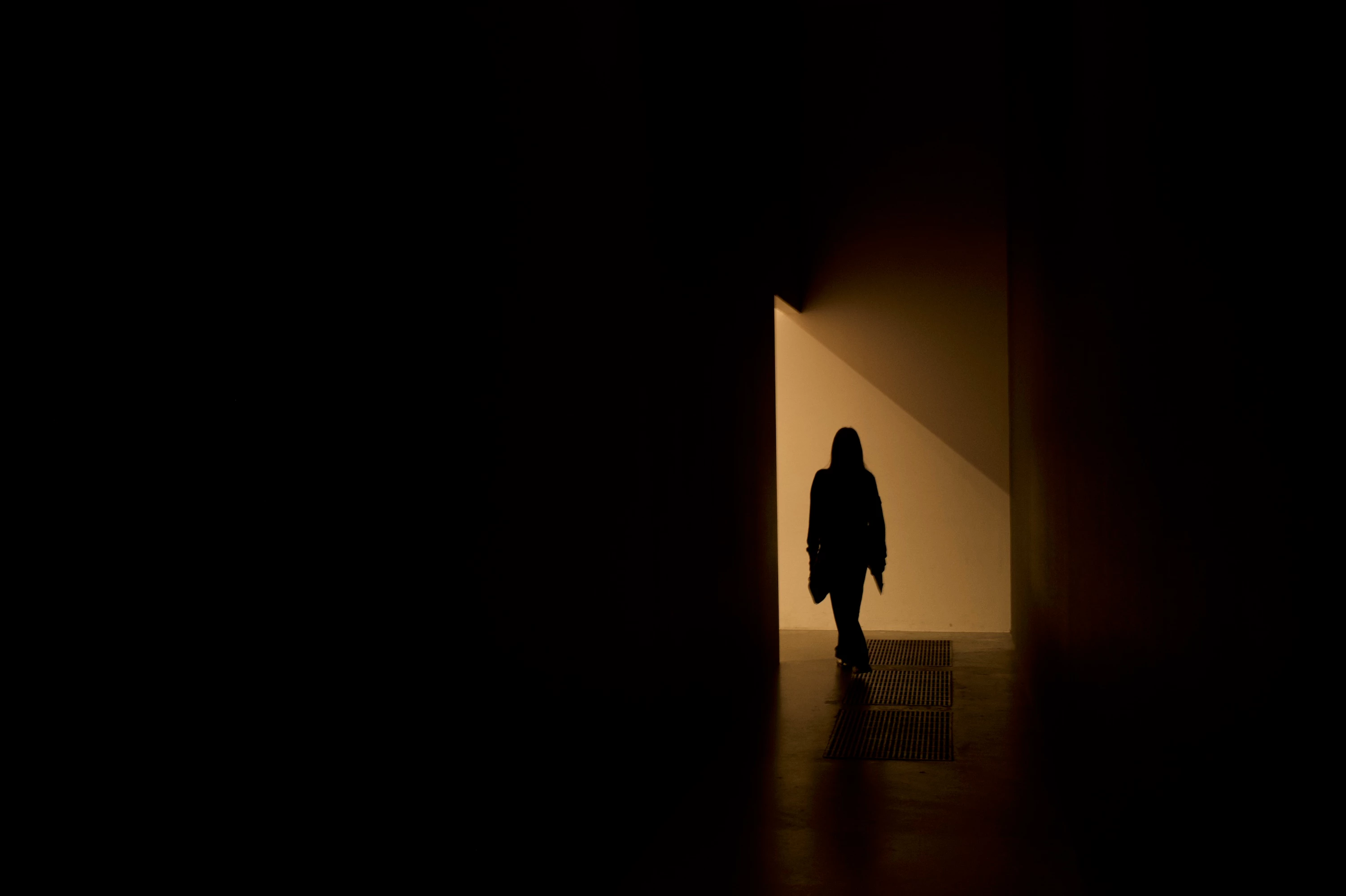
 

(Screengrab from the RAW source file in Finder)


When I export images out of Lightroom (with any setting, edited or even not edited), the artefacts are also present on the export files.
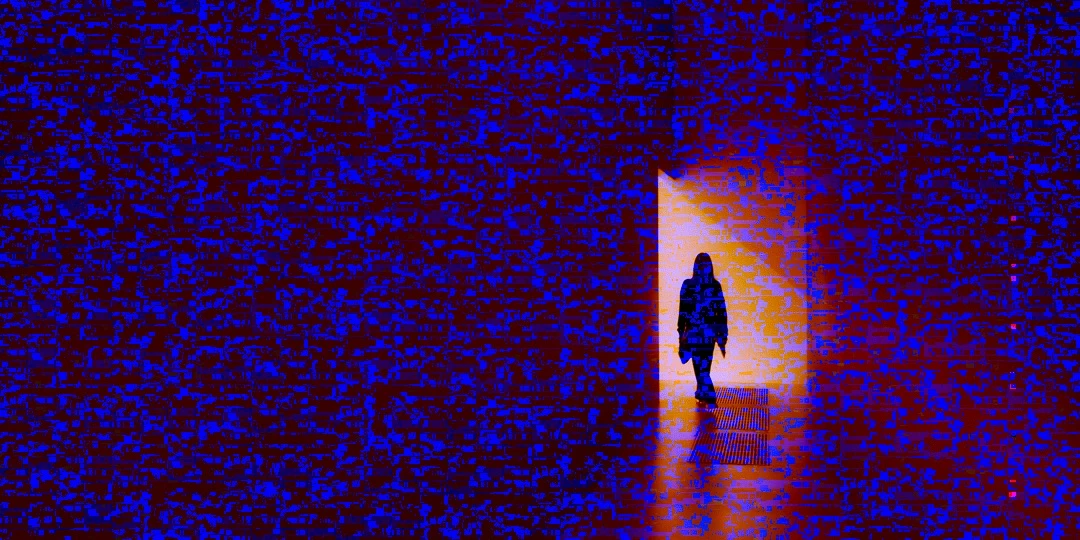
 

(Screengrab from the exported JPG image)


This problem started occuring soon after I applied the new AI noise reduction feature on just ONE (1) photo. 


I already tried:


  • Closing and re-opening Lightroom
  • Shutting down (fully), and restarting the computer after 1 minute
  • Switching the GPU accelrator setting in Lightroom on/off


MY SPECS

  • Lightroom Classic 13.0.1 - Build (202310121438-d2af310c)
  • Macbook Pro 16" - 2019
  • 2,3Ghz 8-core Intel Core i9
  • AMD Radeon Pro 5500M 8GB 
  • 32GB 2667MHz DDR4 memory
  • OS Sonoma 14.4.1


Any help would be greatly appreciated, because this makes the whole software unusable....

Thank you!

139 replies

Legend
August 6, 2024

I use a similar Intel MacBook Pro at work and its plenty fast, although the CPU and Radeon are aging, they still hold their own. Switching to Apple Silicon is going to be the next best move, my (much cheaper) M1 Mac mini at home is quite a bit faster.

Known Participant
August 5, 2024

My LR 16.4 either runs very slowly or crashes on me multiple times. This is particularly true if I try to use the mask tool or the lens blur tool. I'm on a MacBook Pro 2019 and Sonoma 14.5. Thank you.


<Mod: Updated thread Subject line to correct the version number)

dj_paige
Legend
August 5, 2024

I think you mean Lightroom Classic 13.4.


Anyway, what is the make and model of your GPU?

Known Participant
August 5, 2024

Thanks for your quick reply. LR 13.4 ACR 16.4 sorry. Here is additional info: 2.4 GHz 8-Core Intel Core i9. AMD Radeon Pro 5500M 8 GB Intel UHD Graphics 630 1536 MB. 64 GB 2667 MHz DDR4.

Participating Frequently
July 24, 2024

@defaultc1yqic8abtjh its definitely, like the rest of us, your GPU in your Mac. Have you tried disabling GPU in the Lightroom settings? This was a bypass for me and I just made sure I had smart previews made with my imported photos. This gets me by for now until a fix is made.

Legend
July 24, 2024

Help us out a little. What computer/OS do you have? Have you looked at these files in another viewer?

Participating Frequently
July 17, 2024

You might be seeing the jpeg previews embedded in the RAW files. 

Participating Frequently
July 17, 2024

Just to add - if anyone is in a critical situation and need a workaround, please try this as it has worked for me:


My Specs Before I proceed: 

2.3 GHz 8-Core Intel Core i9

AMD Radeon Pro 5500M 4 GB

Intel UHD Graphics 630 1536 MB

16 GB 2667 MHz DDR4

macOS: 14.5 (23F79) (Sonoma)


Workaround

I turned off GPU accelaration (leavng display ticked seemed fine) and made sure to have smart previews made for the files in question. You do this in library module, very easy to do. And make sure you have it ticked in the options that it uses the smart previews for the edit which should give you a good jump in performance. 


This is working for me and I am able to continue working on my jobs. Good luck to you all until the fix drops. 

Participating Frequently
July 17, 2024

Minus the RAM, I have the exact laptop as you and I am also having the eact same issues. I am VERY glad this is a widespread issue, albeit sad there's an issue at all, because I was envisioning having to buy a new laptop or move to my gaming system for edits. 


I noticed fully turning off (minus display tickbox) the GPU option let me edit without corruptions.

Participant
July 16, 2024

I am attempting to use Lightroom Classic to develop film photos. 

I took the photos on a Fujifilm X-T5 with 30mm f2.8 @ f11 ISO125. I have scanned, converted, and edited many hundreds of film frames with this process and this is the first time I am having this issue.

After importing the photos into lightroom I wanted to crop the photos before I converted the negatives using Negative Lab Pro. I opened my usual catalog and when the photos opened in the library tab they seemed normal but when I clicked the develop tab, they became this digital pixel mess. I've added photos with and without Negative Lab Pro conversion. 

I changed the names on the files and deleted the JPEG equivalent before importing the photos. I also imported them directly from the SD card from the camera. I did delete the photos and reimport them but no luck. 

Any clue why this happening?

GoldingD
Legend
July 16, 2024

What MACOS?


Participating Frequently
July 15, 2024

@Lumigraphics- "I'm using a 2019 MacBook Pro with a 4GB AMD Radeon and haven't seen this since the 14.5 update. I just processed and enhanced 28 Canon RAW files and didn't have any issues. So this IS real (I've seen it) but its also intermittent and not affecting everyone."

Yes, we get that, but it's a very nasty bug that affects the Adobe flagship AI features and disabling the GFX acceleration essentially cripples the system performance so for the people it does affect, it really hampers their workflow.  Hopefully Apple does an OS update w/updated driver soon.  

Community Expert
July 15, 2024

>At some point it is not AMD's fault but Adobe's for not properly testing their updates out on what seems to be a pretty common system configuration prior to releasing it.


See RIkk's pinned reply. The problem was caused by the Mac OS 14.4.1 update. Not by any Lightroom update. Adobe cannot fix this as far as I can tell. There really has to be a Mac OS update for this to get fixed unfortunately and unfortunately Apple is not the most responsive in fixing problems in my experience but hopefully Adobe has a way to make sure the APple engineers pay attention to this one.