Sameer K
Community Manager
Community Manager
January 10, 2022
Answered

🔎 Quick Tips: How to give Full Disk Access to Lightroom Classic on macOS

  • January 10, 2022
  • 74 replies
  • 280494 views


How to provide Full Disk Access on macOS


Since macOS 10.14 (Mojave), Apple introduced a new privacy structure to help ensure that all applications obtain user consent before accessing documents, downloads, desktop, iCloud Drive, and network volumes. This has been reinforced in newer versions of macOS. This change prevents unauthorized access to user files and folders.


When Full Disk access & Accessibility permissions are needed, users may be asked to or be required to change the setting in System Preferences > Security & Privacy > Privacy for Lightroom Classic manually.   

While for the File & Folders access, the user is prompted to allow or deny when needed. 


Why provide full disk access to Lightroom Classic?

Insufficient or broken permissions may restrict Lightroom Classic from functioning correctly and break your workflows. All tasks that require access to the computer's storage importing/exporting images, cross-app workflows, reading/writing metadata,  and more, behave unexpectedly. It may also lead to missing images, performance issues, unexpected sync issues, and random app crash on launch or while working on a file. 


Watch this video for the steps:



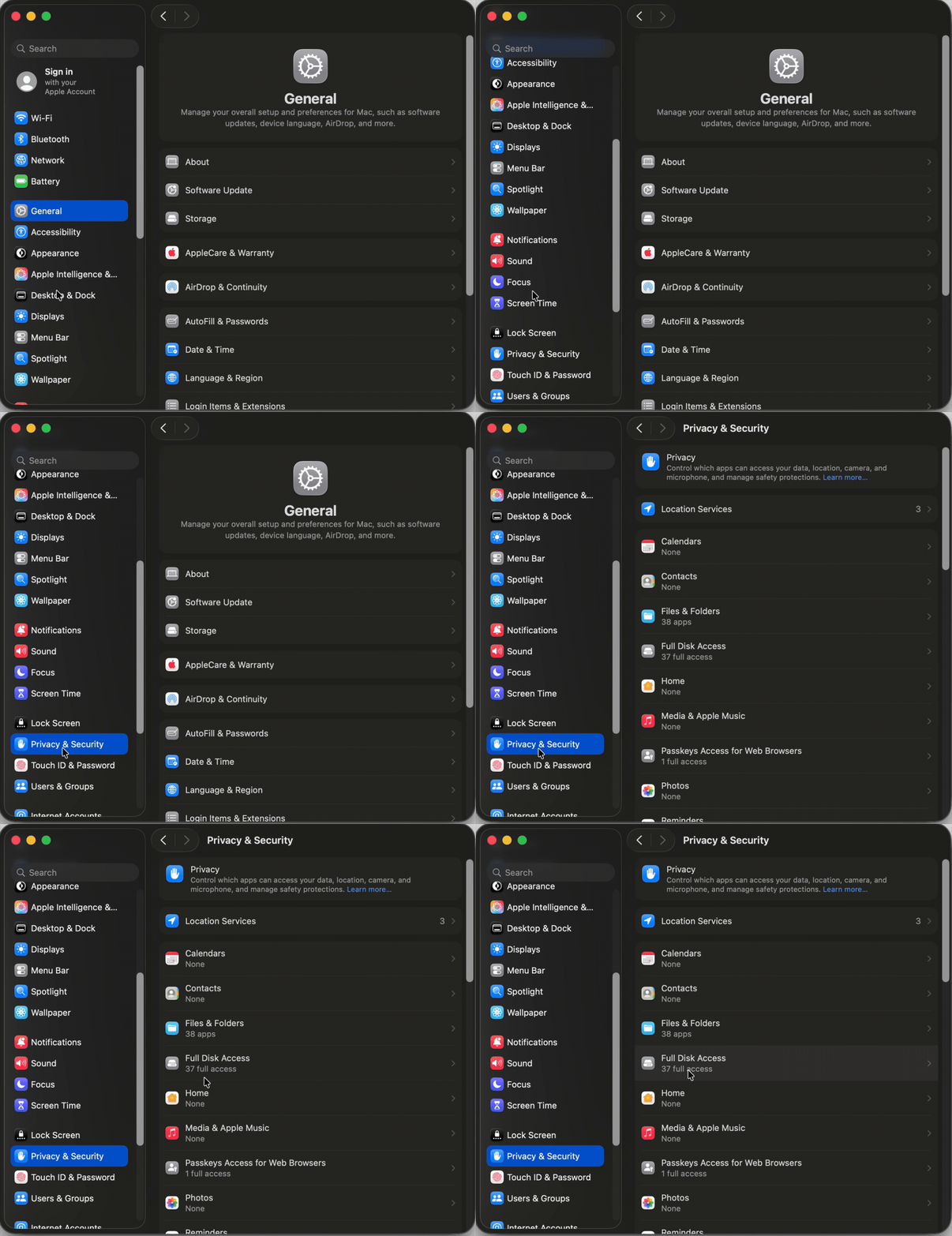
Quick steps to enable full disk access and grant permissions to Lightroom Classic

 Follow these steps to prevent the permissions issues from occurring: 


❶  Go to System Preferences > Security & Privacy > Privacy > Click the Lock icon > Authorize via password > Unlock the lock to allow changes to system settings. 


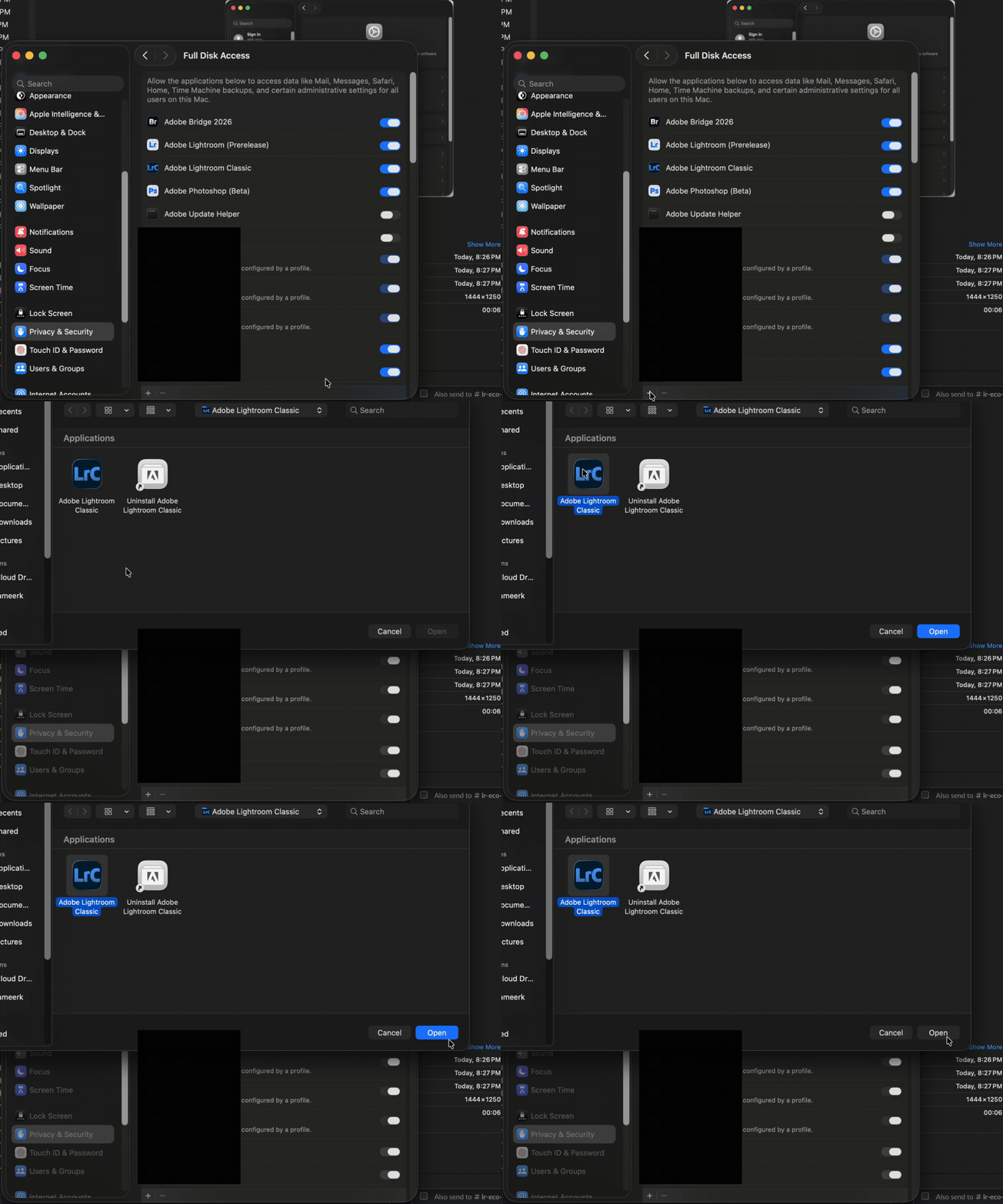
  Add Lightroom Classic by clicking on the (+) button & navigate to the Applications folder on macOS.


  Go to Full Disk Access and add Lightroom Classic by clicking on the (+) button & navigate to the Applications folder on macOS.
Note: Adding Lightroom Classic under Full Disk Access overrides Files and Folders settings. 


  Click the Lock icon to save the changes. Restart your computer to see the applied changes. 


Stay tuned for more tips to come.


Related links:

Lightroom Classic system requirements 

Quick Tips: Optimize LrC preferences for better performance 

Basic troubleshooting steps to fix issues in Lightroom Classic 


74 replies

Participating Frequently
February 20, 2022

Monterey 12.3 beta M1 Macbook Pro

Lightroom Classic 11.2

OWC 6.2.1

When I try to open an existing catalog on external drive Thunderbay I have the following error:

"The Lightroom catalog cannot be used because the parent folder “/Volumes/ThunderBay/2021_Christmas_Card/2021_Christmas_Card” does not allow files to be created within it." This error is reported no matter the particular Lightroom catalog. It goes on to say it is a permissions problem. 


I have determined it is not a permissions problem. This has been confirm both by Apple tech support and Indiana University tech support. 

Further, Lightroom can create a new catalog on Thunderbay and it subsequently opens normally.

Steps I have taken.

1. I have manually reset permissions according to Adobe suggestion before posting here.

2. I have conferred with Apple tech support that determined permission were correct.

3. I called Adobe tech support who refused to talk to me since I got my Lightroom through

Indiana University. Adobe said talk to Indiana University tech support.

4. I spent about two hours with Indiana University tech support and they gave up. They suggested I contact OWC, the manufacturer of the drive.

5. I contacted OWC tech support and followed their instructions to send a tech report from their softwore from my computer. I did. OWC is not familiar with Lightroom. OWC has no solution.


a. I can make a new catelog on the drive and it works properly. 

b. I can copy a catalog that doesn't open from the drive to my Macbook Pro and it opens properly. I can copy the very same file back to the external Thunderbay drive and it won't open.

c. Lightroom can update and open older catalogs from an external drive that is not a raid array.


I conclude that Lightroom has some bug in interfacing with a OWC raid array. 

Adobe tech support won't talk to me and Apple, Indiana University and OWC have given up.


I hope someone reading this has a viable solution.

Jim Brown

Rikk Flohr_Photography
Community Manager
Community Manager
February 20, 2022

Lightroom Catalogs may not be accessed on a non-local drive. 

See: https://helpx.adobe.com/in/lightroom-classic/kb/catalog-faq-lightroom.html 


Rikk Flohr: Adobe Photography Org
Conrad_C
Community Expert
Community Expert
March 28, 2022

@Rikk Flohr: Photography wrote:

Lightroom Catalogs may not be accessed on a non-local drive. 

See: https://helpx.adobe.com/in/lightroom-classic/kb/catalog-faq-lightroom.html 


That is probably not be the right answer. The OWC Thunderbay is a direct-attached storage (DAS) multi-bay storage enclosure, clearly local, not a NAS. It’s called “Thunderbay” because the connection port is Thunderbolt, which is of course a local protocol. The Thunderbay series, and other OWC local storage solutions, are quite popular with creative professionals. It has no network connectivity of any kind.


It does seem like further investigation into their problem is reasonable. I have stored Lightroom Classic images on a similar OWC multi-bay enclosure that connects via USB-C and have not seen this problem.

Participant
February 17, 2022

The dreaded Lightroom Classic "preview unavailable for this file" has struck me now. On Feb 12, my previews upon import showed as normal; on Feb. 16, I began getting the error. Same camera, same SD card, same computer, same everything except LRC. I can only guess that the upgrade to LRC 11.2 broke something. Canon EOS-R, iMac 2020 27" Big Sur 11.6.2. Any fix for this?

Todd Shaner
Legend
February 17, 2022

There was a similar issue reported at the below post. Using an external memory card reader resolved the issue. Suspected that the iMac built-in memory card reader is defective or an OSX update corrupted the device firmware. Try using a different memory card reader.

https://community.adobe.com/t5/lightroom-classic-discussions/lrc-does-not-recognize-any-files-canon-r5-formatted-cards/m-p/12756818#M264838


Participant
February 17, 2022

Thanks for the reply, Todd, but no luck. LRC can read the files and import them fine, it just doesn't show the previews, so I can't see what I'm importing. And as I say, it started after the upgrade to 11.2.

Participant
February 1, 2022

Hello All

Havent imported photos in a while because of work and I upgraded to new Mac OS (Monterey). Ive successfully uploaded 1000s of photos from Fuji XT2 before but LRC doesnt seem to recognize the photo content of my camera anymore. I saw previous posts that its due to the new iOS privacy filters and i preceeded to check mine in System Preferences>Security & Privacy>Files and Folders and the premissions for LRC are checked. Im confused as to whats happening.


I am at a loss why I cannot import photos from my camera into LRC anymore. Help.

cmgap
Community Expert
Community Expert
February 2, 2022

Can you post a screen shot of the message you are getting when you try to import from your camera? Are you connecting your camera to your computer, using a card reader or an internal card reader?

fayed21714066
Participant
March 19, 2022

I have the same problems with Monterey 12.3. After I updated the system, Lightroom photos all went blank. No smart preview or library view. I tried to import photos again, Lightroom only let me import a few , the rest of the photos are in grey. It work on my other computer that has not been updated to Monterey 12.3. 

Participant
January 10, 2022

Hi Every one, i get a big problem from the last version of Lightroom Classic version: 11.1 [ 202112022200-7fd1f998 ]

I am a Wedding Photographer, i am editing every day more than 2000 photos.

I have the problem of Crashing (Interface freezing after 300 editing in Develop, when i copy and paste edit, photo to photo, one by one.

I use Lightroom for years, i got all the version, but never get this problem.

Important the lightroom freeze, but not big crash, i can exit clean, and get save. But its dispointing to have to do exit and reload every 30 min.

All is fast, refresh and no bug, but just freezing after 300 edit copy and paste, Also when i switch photo to photo sometime i get a ghost photo from previous edit for less than an half a second and after its ok, but the ghost view is not confortable when moving photo to photo do i have to call ghostbusters team ???

My Config is :

Lightroom Classic version: 11.1 [ 202112022200-7fd1f998 ]
License: Creative Cloud
Language setting: en-IL
Operating system: Mac OS 12
Version: 12.1.0 [21C52]
Application architecture: arm64
Logical processor count: 8
Processor speed: NA
SqLite Version: 3.36.0
Built-in memory: 16,384.0 MB
Real memory available to Lightroom: 16,384.0 MB
Real memory used by Lightroom: 1,486.1 MB (9.0%)
Virtual memory used by Lightroom: 403,547.5 MB
Memory cache size: 57.1MB
Internal Camera Raw version: 14.1 [ 993 ]
Maximum thread count used by Camera Raw: 5
Camera Raw SIMD optimization: SSE2
Camera Raw virtual memory: 125MB / 8191MB (1%)
Camera Raw real memory: 136MB / 16384MB (0%)
Displays: 1) 3840x2160

Graphics Processor Info:
Metal: Apple M1


Application folder: /Applications/Adobe Lightroom Classic
Library Path: /Users/moshemenagen/Pictures/Lightroom/Lightroom Catalog-v11.lrcat
Settings Folder: /Users/moshemenagen/Library/Application Support/Adobe/Lightroom

Installed Plugins:
1) AdobeStock
2) Aperture/iPhoto Importer Plug-in
3) Facebook
4) Flickr
5) Lightroom to Exposure
6) Nikon Tether Plugin

Config.lua flags: None

AudioDeviceIOBlockSize: 512
AudioDeviceName: $$$/dvaaudiodevice/SystemDefaultAndEffectiveDeviceName=System Default - External Headphones#{comment}DVAAU-4201250: Open the audio hardware preferences page.
AudioDeviceNumberOfChannels: 2
AudioDeviceSampleRate: 48000
Build: LR5x38
CoreImage: true
GL_ACCUM_ALPHA_BITS: 0
GL_ACCUM_BLUE_BITS: 0
GL_ACCUM_GREEN_BITS: 0
GL_ACCUM_RED_BITS: 0
GL_ALPHA_BITS: 8
GL_BLUE_BITS: 8
GL_DEPTH_BITS: 32
GL_GREEN_BITS: 8
GL_MAX_3D_TEXTURE_SIZE: 2048
GL_MAX_TEXTURE_SIZE: 16384
GL_MAX_TEXTURE_UNITS: 8
GL_MAX_VIEWPORT_DIMS: 16384,16384
GL_RED_BITS: 8
GL_RENDERER: Apple M1
GL_SHADING_LANGUAGE_VERSION: 1.20
GL_STENCIL_BITS: 8
GL_VENDOR: Apple
GL_VERSION: 2.1 Metal - 76.3
OGLEnabled: true
GL_EXTENSIONS: GL_ARB_color_buffer_float GL_ARB_depth_buffer_float GL_ARB_depth_clamp GL_ARB_depth_texture GL_ARB_draw_buffers GL_ARB_draw_elements_base_vertex GL_ARB_draw_instanced GL_ARB_fragment_program GL_ARB_fragment_program_shadow GL_ARB_fragment_shader GL_ARB_framebuffer_object GL_ARB_framebuffer_sRGB GL_ARB_half_float_pixel GL_ARB_half_float_vertex GL_ARB_imaging GL_ARB_instanced_arrays GL_ARB_multisample GL_ARB_multitexture GL_ARB_occlusion_query GL_ARB_pixel_buffer_object GL_ARB_point_parameters GL_ARB_point_sprite GL_ARB_provoking_vertex GL_ARB_seamless_cube_map GL_ARB_shader_objects GL_ARB_shader_texture_lod GL_ARB_shading_language_100 GL_ARB_shadow GL_ARB_shadow_ambient GL_ARB_sync GL_ARB_texture_border_clamp GL_ARB_texture_compression GL_ARB_texture_compression_rgtc GL_ARB_texture_cube_map GL_ARB_texture_env_add GL_ARB_texture_env_combine GL_ARB_texture_env_crossbar GL_ARB_texture_env_dot3 GL_ARB_texture_float GL_ARB_texture_mirrored_repeat GL_ARB_texture_non_power_of_two GL_ARB_texture_rectangle GL_ARB_texture_rg GL_ARB_transpose_matrix GL_ARB_vertex_array_bgra GL_ARB_vertex_blend GL_ARB_vertex_buffer_object GL_ARB_vertex_program GL_ARB_vertex_shader GL_ARB_window_pos GL_EXT_abgr GL_EXT_bgra GL_EXT_bindable_uniform GL_EXT_blend_color GL_EXT_blend_equation_separate GL_EXT_blend_func_separate GL_EXT_blend_minmax GL_EXT_blend_subtract GL_EXT_clip_volume_hint GL_EXT_debug_label GL_EXT_debug_marker GL_EXT_draw_buffers2 GL_EXT_draw_range_elements GL_EXT_fog_coord GL_EXT_framebuffer_blit GL_EXT_framebuffer_multisample GL_EXT_framebuffer_multisample_blit_scaled GL_EXT_framebuffer_object GL_EXT_framebuffer_sRGB GL_EXT_geometry_shader4 GL_EXT_gpu_program_parameters GL_EXT_gpu_shader4 GL_EXT_multi_draw_arrays GL_EXT_packed_depth_stencil GL_EXT_packed_float GL_EXT_provoking_vertex GL_EXT_rescale_normal GL_EXT_secondary_color GL_EXT_separate_specular_color GL_EXT_shadow_funcs GL_EXT_stencil_two_side GL_EXT_stencil_wrap GL_EXT_texture_array GL_EXT_texture_compression_dxt1 GL_EXT_texture_compression_s3tc GL_EXT_texture_env_add GL_EXT_texture_filter_anisotropic GL_EXT_texture_integer GL_EXT_texture_lod_bias GL_EXT_texture_rectangle GL_EXT_texture_shared_exponent GL_EXT_texture_sRGB GL_EXT_texture_sRGB_decode GL_EXT_timer_query GL_EXT_transform_feedback GL_EXT_vertex_array_bgra GL_APPLE_aux_depth_stencil GL_APPLE_client_storage GL_APPLE_element_array GL_APPLE_fence GL_APPLE_float_pixels GL_APPLE_flush_buffer_range GL_APPLE_flush_render GL_APPLE_packed_pixels GL_APPLE_pixel_buffer GL_APPLE_rgb_422 GL_APPLE_row_bytes GL_APPLE_specular_vector GL_APPLE_texture_range GL_APPLE_transform_hint GL_APPLE_vertex_array_object GL_APPLE_vertex_point_size GL_APPLE_vertex_program_evaluators GL_APPLE_ycbcr_422 GL_ATI_separate_stencil GL_ATI_texture_env_combine3 GL_ATI_texture_float GL_IBM_rasterpos_clip GL_NV_blend_square GL_NV_conditional_render GL_NV_depth_clamp GL_NV_fog_distance GL_NV_fragment_program_option GL_NV_fragment_program2 GL_NV_light_max_exponent GL_NV_texgen_reflection GL_NV_texture_barrier GL_NV_vertex_program2_option GL_NV_vertex_program3 GL_SGI_color_matrix GL_SGIS_generate_mipmap GL_SGIS_texture_edge_cl


{Thread title edited by moderator}

nikunj.m
Community Manager
Community Manager
January 11, 2022

Hi,


We're sorry about the trouble with Lightroom Classic. Please ensure that Lightroom Classic has the necessary permissions on your Mac by following the steps mentioned below:

1. Go to the System Preferences for your Mac, then Security and Privacy, then select the Privacy tab.

2. Then select Accessibility from the list to the left & check if Lightroom Classic is added to the list with a check mark in front of it.

3. If Lightroom Classic is not a part of the list, please add it by unlocking the window first using the lock at the bottom left, then clicking the + icon & navigating to the Applications folder.

4. Also, grant permissions to Lightroom Classic under Full disk access located in the same list as Accessibility.

5. Once done, restart the Mac & check if it helps.


You can also try disabling the option to Use Graphics Processor from Lightroom Classic by going to Preferences, then Performance. Once done, relaunch Lightroom Classic for the changes to take effect.

To optimize the Preferences of Lightroom Classic, please check: https://helpx.adobe.com/lightroom-classic/kb/optimize-performance-lightroom.html


If the issue persists, you can try to reset the preferences of Lightroom using the steps mentioned here: https://adobe.ly/2JSym5e

Please backup your presets prior to resetting the preferences.


Let us know how it goes!

Regards,

Nikunj

Participant
January 19, 2022

Hi, i made the change in Accessibility from Security and Privacy, it fix the freeze in devellop thanks you, but ghost image continue sometime when switching photo to photo, but not always... depend how many edit i did before, now come after 500 or 600 photos, but i confirm it fix the freeze and no respond from LR devellop modul. Thanks you, please fix this bug in next realease, its a new bug never append before in previous LR.