Sameer K
Community Manager
Community Manager
January 10, 2022
Answered

🔎 Quick Tips: How to give Full Disk Access to Lightroom Classic on macOS

  • January 10, 2022
  • 74 replies
  • 280351 views


How to provide Full Disk Access on macOS


Since macOS 10.14 (Mojave), Apple introduced a new privacy structure to help ensure that all applications obtain user consent before accessing documents, downloads, desktop, iCloud Drive, and network volumes. This has been reinforced in newer versions of macOS. This change prevents unauthorized access to user files and folders.


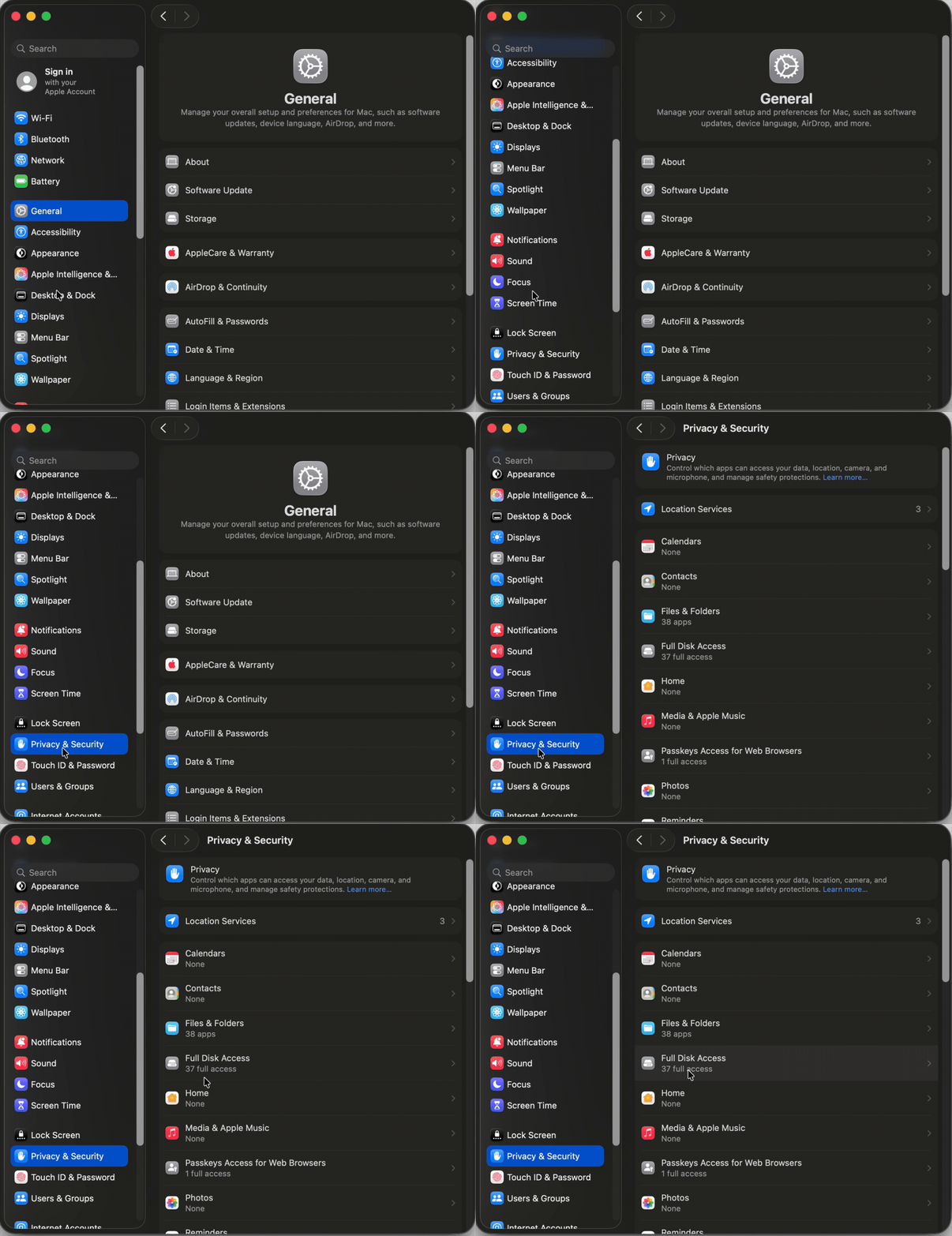
When Full Disk access & Accessibility permissions are needed, users may be asked to or be required to change the setting in System Preferences > Security & Privacy > Privacy for Lightroom Classic manually.   

While for the File & Folders access, the user is prompted to allow or deny when needed. 


Why provide full disk access to Lightroom Classic?

Insufficient or broken permissions may restrict Lightroom Classic from functioning correctly and break your workflows. All tasks that require access to the computer's storage importing/exporting images, cross-app workflows, reading/writing metadata,  and more, behave unexpectedly. It may also lead to missing images, performance issues, unexpected sync issues, and random app crash on launch or while working on a file. 


Watch this video for the steps:



Quick steps to enable full disk access and grant permissions to Lightroom Classic

 Follow these steps to prevent the permissions issues from occurring: 


❶  Go to System Preferences > Security & Privacy > Privacy > Click the Lock icon > Authorize via password > Unlock the lock to allow changes to system settings. 


  Add Lightroom Classic by clicking on the (+) button & navigate to the Applications folder on macOS.


  Go to Full Disk Access and add Lightroom Classic by clicking on the (+) button & navigate to the Applications folder on macOS.
Note: Adding Lightroom Classic under Full Disk Access overrides Files and Folders settings. 
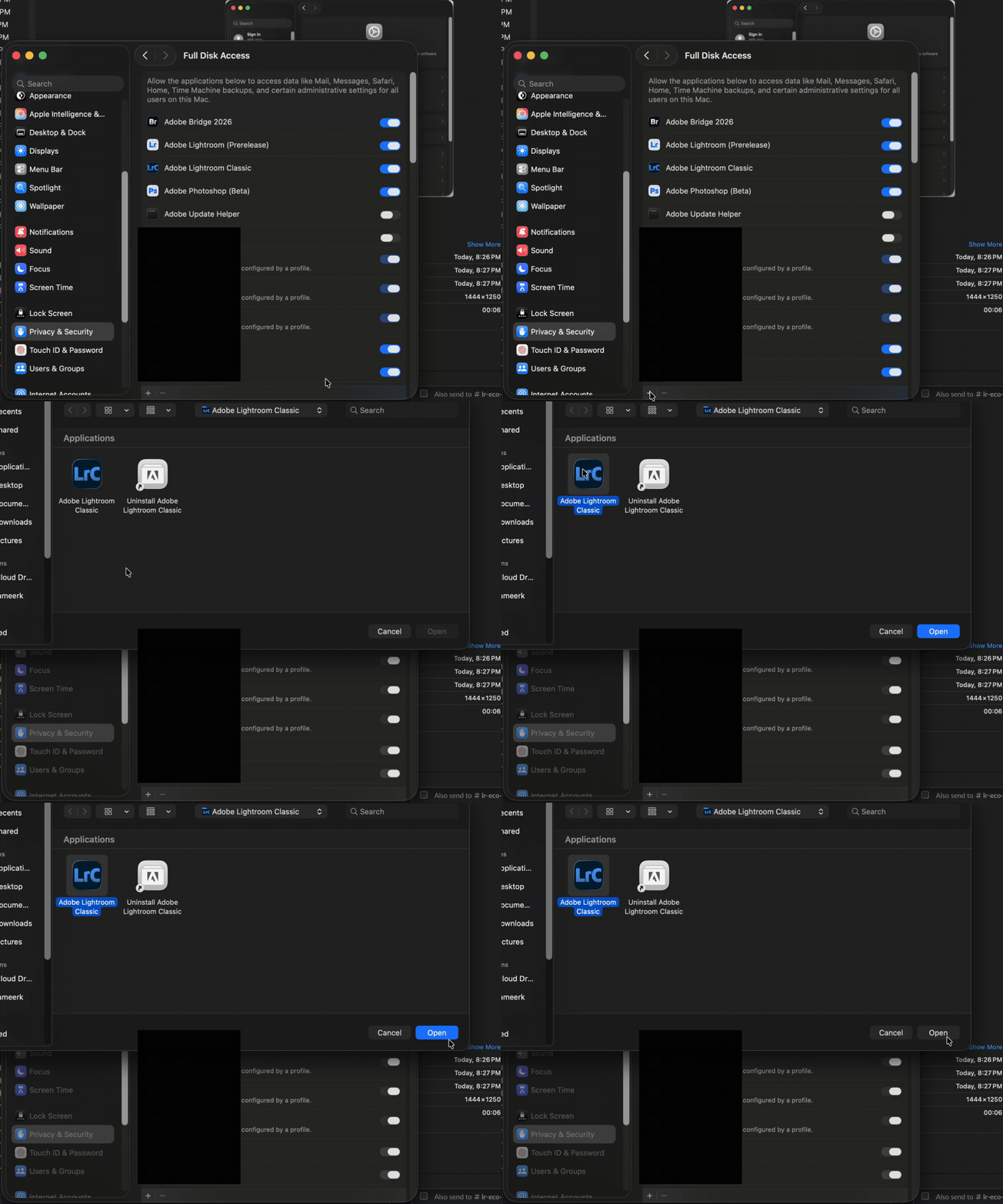


  Click the Lock icon to save the changes. Restart your computer to see the applied changes. 


Stay tuned for more tips to come.


Related links:

Lightroom Classic system requirements 

Quick Tips: Optimize LrC preferences for better performance 

Basic troubleshooting steps to fix issues in Lightroom Classic 


74 replies

Participating Frequently
April 21, 2022

Hi,


Lightroom, for some reason has suddenly stopped detecting files in my external hard drive. It is also not allowing me to import direct from my XQD card.


I'm an iMac user and have just updated the OS to macOS Monterey 12.3.1 (from the previous verion of Monterey). 


Since updating I noticed that most of the files already in LRC had suddenly lost their link, which wasnt a problem as I was about to remove them from Lightroom. But what I did notice was that there were no "!" to say that the photo was missing and allow me the opportunity to locate the missing file.   


When I try to import new images from my external hard drive in to LRC, Lightroom recognises the hard drive (under the Source) and sometimes it even recognises the folders within, but mostly it does not.


Currently it is not recognising the folders inside my hard drive as the first attachment shows.


I have also just noticed that in the import screen it usually defaults to Copy as DNG but today it wants to default to "Add"? When I click "Copy as DNG" I also notice that all my folders (under "Destination" under the external hard drive (LaCie RAID 1)) are no longer showing (or when they do show it no longer recognises the previous folders? And the other thing that I have noticed is that the "include Subfolders" (under Source) seems to uncheck by default...


When LRC does recognise the folders within my hard Drive (under Source / import) and I click on the folder with the images I want to import then LRC tells me that "no photos found." (at this point, I can go into my Hard Drive and see that all of my files are OK and very much accessible).


I have tried to import new images directly from my XQD card and when I do so I get a pop-up telling me that some import operations were not performed (because it is not writable). Again, it's the first time i've had this problem and I'm not sure how to fix it.


I have also tried to drag & drop and again it does not work.


I've spent several hours trying to fix this and it's even got to the point where I even re-installed LRC but the problem still continues. As it stands I can not complete my work.


Ive added a few screenshots to help.


Hope this makes sense and I look forward to a speedy response / fix.


Kind Regards

Martin

JohanElzenga
Community Expert
Community Expert
April 21, 2022

Go to MacOS 'System Settings - Security & Privacy' and add Lightroom Classic to "Full Disk Access". Click on the lock icon to unlock the settings, then click on the plus icon to add Lightroom Classic if it isn't already listed. If it is listed, then just enable the checkbox.


-- Johan W. Elzenga
Participating Frequently
April 21, 2022

Ahhhhh!!!!


Johan, you absolute genius! If I could buy you a beer right now then I would!


I've only been trying to figure this out for almost 6 hours and you helped me to figure this out in less than 6 minutes! 


Thank you so much, it's really appreciated! 😄

Participant
April 21, 2022

Every time I try to export, email or edit in PS certain photos, I get a "File not found" message. When I check the location of the file using Mac Finder, it is exactly where LR thinks it is, same file size and other info. Edit in Photoshop ends up doing nothing, does not even open PS. Within LR, I can print, "Develop" and even use the photo in a book, but when it comes to exporting, whether via email, direct to Hard Drie, or any other means, I can't do it. 

Sameer K
Community Manager
Sameer KCommunity ManagerAuthor
Community Manager
April 21, 2022

Hi John,


Thanks for reaching out. We are here to help.

Could you please confirm the version of macOS and the version of Lightroom Classic and Photoshop? Does this behavior happen with images stored on the external drive only?


You can ensure Lightroom & Photoshop have the permissions needed on the Mac by following the steps suggested below and here with a video (https://bityl.co/BsB1) 

  1.  Go to the System Preferences for your Mac, then Security and Privacy, then select the Privacy tab.  
  2. Then select Accessibility from the list to the left & check if Lightroom is added to the list with a checkmark in front of it.  
  3. If Lightroom is not a part of the list, please add it by unlocking the window first using the lock at the bottom left, then clicking the + icon & navigating to the Applications folder.  
  4. Also, grant permissions to Lightroom under Full disk access found in the same list as Accessibility.
  5. Once done, lock the padlock to save the changes.
  6. Search for Disk Utility from Finder's spotlight search or magnifying glass.
  7. Run 'First Aid' diagnostic on the external drive. Check this to learn more: https://support.apple.com/en-us/HT210898
  8. Restart the computer.


Let us know if this helps,

Thanks!

Sameer K

Participant
April 21, 2022
Thanks. First off, software versions

- Mac OS Monterey 12.3.1
- Lightroom 11.3 / Camera Raw 14.3
- PS 23.3

Photos are stored in an external drive, and backed up automatically to a second external drive.

The problem occurred with only some photos, not all. I have about 12,000 images in my LR Library. Most are saved as DNG, a few are AWR (Sony RAW).

I tried the permissions thing, and it may have done the trick as far as exporting and emailing the photos. However, when I try to do “Edit In Photoshop 2022”, it draws a blank and gives a “disk error” message. On the other hand, if in Photoshop I select “Open” and find the original file on the drive, it will open and edit the photo. So problem partially solved.

Should I do the “permissions” thing for Photoshop as well?

Thanks for the prompt reply.


______________________________
______________________________

John Cate
JohnCatePhotos.com
jwcate@me.com
415-425-8333
Participant
April 19, 2022

Hello,


Lightroom not detecting external hard drive even though its connected and i can access all of my files via Finder.


Even if i want to edit a past project, i receive this "the file could not be found" 


TheDigitalDog
Inspiring
April 19, 2022

You might try running Disk First Aid in Disk utility

In System Preferences, >Security & Privacy, >Full Disk Access, do you see LR listed? If not, do add it and try again.

Author “Color Management for Photographers" & "Photoshop CC Color Management/pluralsight"
Participant
April 19, 2022

I am a longtime LrC user, never had a problem before. Today I encountered this problem: I cannot delete my photos and cannot edit. it reports that filr does not exist. also I am getting an announcement" Lightroom cannot write to the following directories. until this problem is resolved, syncing from lightroommay not function correctly" Please advise. Thank you in advance. My email is [Mod: mail address removed]


[Moderator] 

[personal information removed per policy -  

https://community.adobe.com/t5/adobe-community-professionals/email-signatures-and-personal-information/td-p/4786467 

[This is a public forum, not Adobe support, please do not post personal information] 


johnrellis
Legend
April 19, 2022
Participant
April 18, 2022

When I open LRCC a few pictures load ok but most stay blank - a few have the !mark  I get "There was an unknown error while writing metadata to this photo. Retry?”. The options are ‘Retry Metadata Export’ & when I click on that it says - Photos could not be found on disc, but they are there when I ‘Show in Finder’ (I keep my images on an external HD)

If I click on the other option - Import Settings from Disk - the progress bar on the top left of LR is there but doesn’t move.

The images show in LR Mobile, both on iPhone & iPad

I am using 11.3 on Mac OS 12.3.1


Sameer K
Community Manager
Sameer KCommunity ManagerAuthor
Community Manager
April 18, 2022

Hi Kristy,


Thanks for reaching out. We are sorry for the trouble with Lightroom Classic. We are here to help.


The error is related to file & folder's read & write permissions and drive accessibility.

You can ensure Lightroom has the permissions needed on the Mac by following the steps suggested below:  


  1.  Go to the System Preferences for your Mac, then Security and Privacy, then select the Privacy tab.  
  2. Then select Accessibility from the list to the left & check if Lightroom is added to the list with a checkmark in front of it.  
  3. If Lightroom is not a part of the list, please add it by unlocking the window first using the lock at the bottom left, then clicking the + icon & navigating to the Applications folder.  
  4. Also, grant permissions to Lightroom under Full disk access found in the same list as Accessibility.
  5. Once done, lock the padlock to save the changes.
  6. Search for Disk Utility from Finder's spotlight search or magnifying glass.
  7. Run 'First Aid' diagnostic on the external drive. Check this to learn more: https://support.apple.com/en-us/HT210898
  8. Restart the computer.


Let us know if it works,

Thanks!

Sameer K

Participant
April 18, 2022

Hi Sameer

Yay - thank you so much for your quick & helpful response - it is all running smoothly now which is a great relief. I am so grateful for your help.
Many thanks
Kind regards
Kirsty 
JohnCosterPhotography
Participating Frequently
April 16, 2022

The Lightroom catalog cannot be used because the parent folder “/Volumes/Big LaCie/2022/JC 2022” does not allow files to be created within it.

JohnCosterPhotography
Participating Frequently
April 16, 2022

I have checked the permissions of the folder, as before set, to read and write!

It's the same for all of my catalog's

Known Participant
April 15, 2022

This is what i get now after doing updates. 

The Lightroom catalog cannot be used because the parent folder “/Volumes/8 TB (Mac)/XXX/Photos” does not allow files to be created within it.

Please either fix the folder permissions before continuing or choose a different catalog.


I cannot open LR at all. I checked the System Preferences . This is obviously a bug as it was fine yesterday before I did the updates to MacOS and to Lightroom Classic.

 Please help


cmgap
Community Expert
Community Expert
April 16, 2022

Does Lightroom have Full Disk Access? System Preferences > Security & Privacy > Full Disk Access (checked in the right column)

scubakids
Participant
April 18, 2022

That worked for me!  I was having the exact same problem after updating both!  Thank you.

Participating Frequently
April 15, 2022

Made the mistake of updating to macOS Monterey 12.3.1 and now my Lightroom 11.3 is wrecked, every photo is indicated as missing even though the entire drive and original photos are still avalaible. 


When in 'Develop' all of my presets are gone and each photo says 'file could not be found' even though the originls are all in the same place as they have been for the previous 2 years. Also all of my presets are gone.


When I try to import new .ARW files from my Sony A7iii, the library says 'no photos found'. Never had this issue before. I can import photos in to Lightroom mobile for desktop but not into Lightroom Classic.

Finally - I've seen trouble shooting tips to delete the old preferences to reset it but when I try that the .plst file doesnt even exist.


Can anyone please help? This is so frustrating considering I didnt do any migration or move drives or anything. 

{Moved from Lightroom Cloud to Lightroom Classic Forum by Moderator} 

JohanElzenga
Community Expert
Community Expert
April 15, 2022

That combinations works fine on my machine. Check that Lightroom Classic still has the necessary permissions in MacOS. Maybe the update changed that:


-- Johan W. Elzenga
Participating Frequently
April 15, 2022

Yup, have tried that. They were all checked. I unchecked them, restarted, rechecked them and no change to my original issue.


Additionally, last night as I opened and edited photos in photoshop when I'd try to save them to my external drive, I'd get a save error and was not able to save changes made to the file unless I rename the photo or delete the original file and save again. Is this some kind of permissions issue?  I currently use a Drobo 3C multi-array hard drive to store and edit photos from. 


Seems like updating my OS has caused issues with both permissions in my adobe software and my external drive even though I havent changed any settings or locations of any of my files. Can anyone suggest specific issues I can look up to troubleshoot because I'm no certain where to start to find the cause of this problem.

Participant
April 14, 2022

Got hit with this error after I recently updated Photoshop and Lightroom. Using MacOS

Participant
April 14, 2022

I un-installed and re-installed both applications and I'm still unable to Edit in Photoshop when trying to open from Lightroom. I am able to manually open the Raw files in Photoshop. I'm just not sure why it isn't letting me open Photoshop straight from Lightroom. Makes workflow easy when editing over 1000 photos at once.

Legend
April 14, 2022

Have you checked permissions? Apple has gotten a lot stricter with security settings so you must allow access.

Participant
April 7, 2022

Hi,


I recently updated my OS to macOS Monterey and in doing so cannot access an older catalog in Lightroom Classic. Below is the error message


The Lightroom catalog cannot be used because the parent folder “/Volumes/Seagate (Mac)/XXX/Photos” does not allow files to be created within it.

Please either fix the folder permissions before continuing or choose a different catalog.


I've tried to fix the 'Read & Write' permissions across the corresponding folders but this hasn't fixed the issue. I've also created a new catalog which allows me to save to the hard drive. 


Any suggestions?


johnrellis
Legend
April 7, 2022

Is the volume formatted as NTFS?  (In Finder, right-click it and do Get Info to verify.) Mac can read but not write NTFS volumes, and perhaps you had a third-party NTFS driver that got disabled when you did the Mac OS upgrade.