Sameer K
Community Manager
Community Manager
January 10, 2022
Answered

🔎 Quick Tips: How to give Full Disk Access to Lightroom Classic on macOS

  • January 10, 2022
  • 74 replies
  • 280351 views


How to provide Full Disk Access on macOS


Since macOS 10.14 (Mojave), Apple introduced a new privacy structure to help ensure that all applications obtain user consent before accessing documents, downloads, desktop, iCloud Drive, and network volumes. This has been reinforced in newer versions of macOS. This change prevents unauthorized access to user files and folders.


When Full Disk access & Accessibility permissions are needed, users may be asked to or be required to change the setting in System Preferences > Security & Privacy > Privacy for Lightroom Classic manually.   

While for the File & Folders access, the user is prompted to allow or deny when needed. 


Why provide full disk access to Lightroom Classic?

Insufficient or broken permissions may restrict Lightroom Classic from functioning correctly and break your workflows. All tasks that require access to the computer's storage importing/exporting images, cross-app workflows, reading/writing metadata,  and more, behave unexpectedly. It may also lead to missing images, performance issues, unexpected sync issues, and random app crash on launch or while working on a file. 


Watch this video for the steps:



Quick steps to enable full disk access and grant permissions to Lightroom Classic

 Follow these steps to prevent the permissions issues from occurring: 


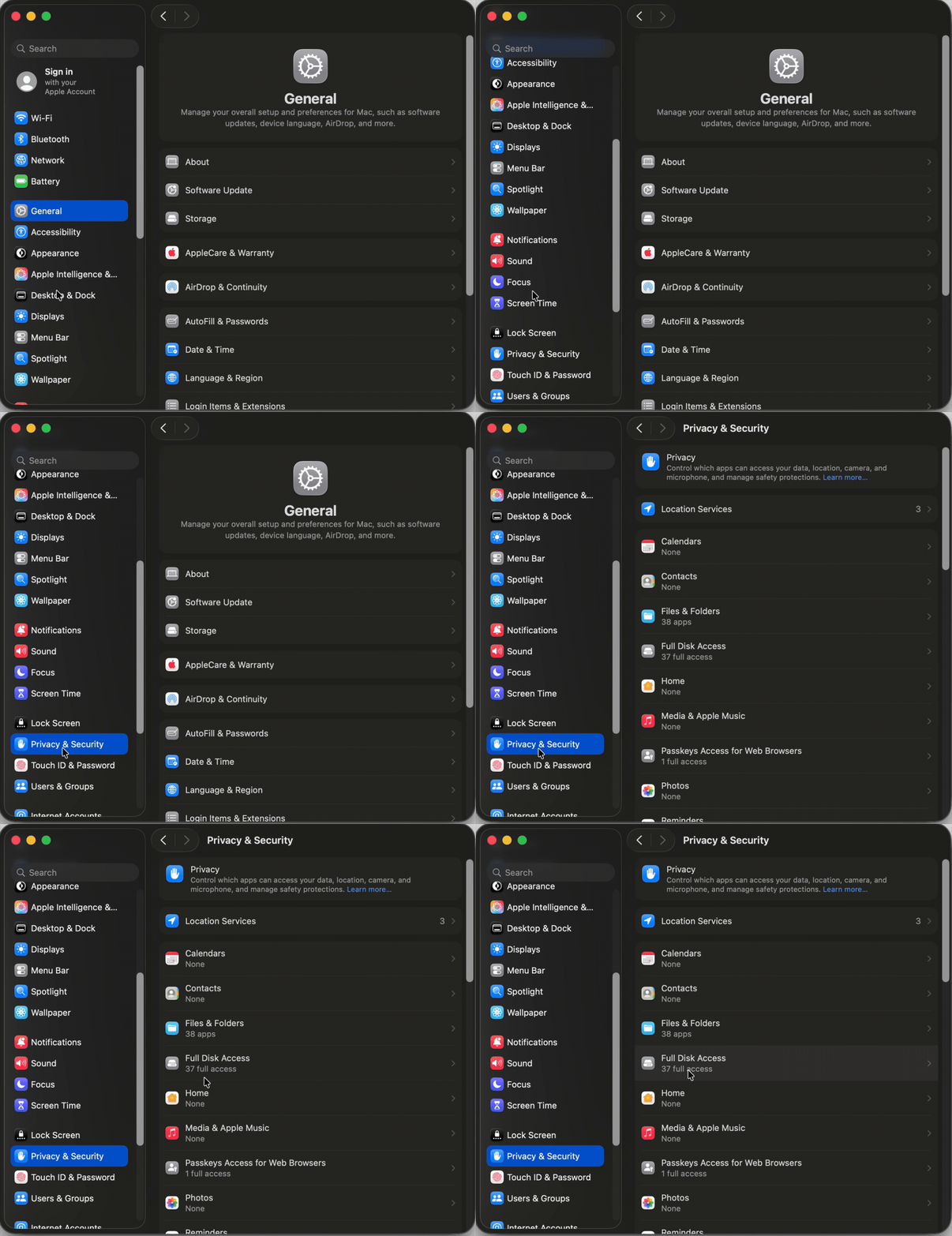
❶  Go to System Preferences > Security & Privacy > Privacy > Click the Lock icon > Authorize via password > Unlock the lock to allow changes to system settings. 


  Add Lightroom Classic by clicking on the (+) button & navigate to the Applications folder on macOS.


  Go to Full Disk Access and add Lightroom Classic by clicking on the (+) button & navigate to the Applications folder on macOS.
Note: Adding Lightroom Classic under Full Disk Access overrides Files and Folders settings. 
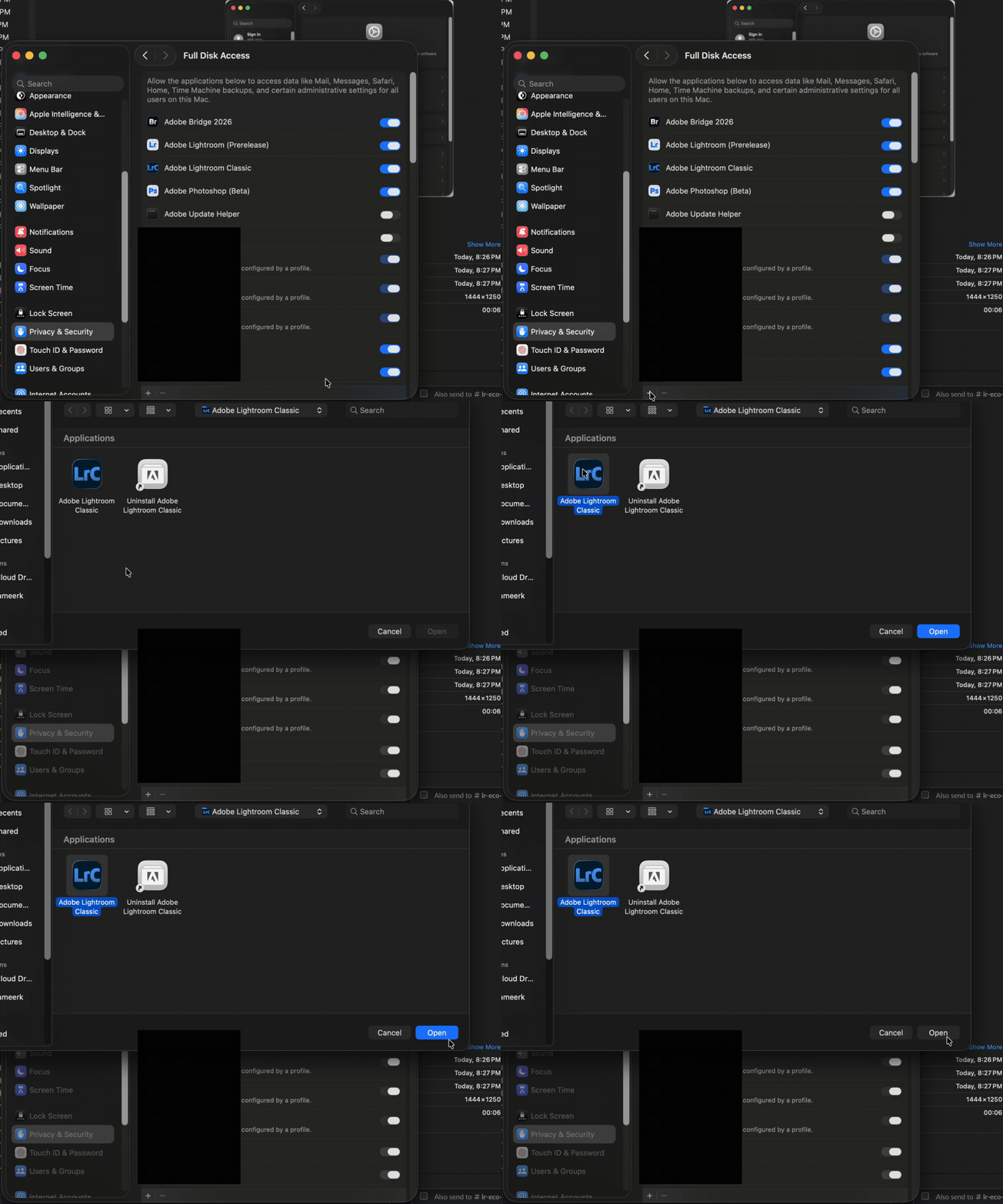


  Click the Lock icon to save the changes. Restart your computer to see the applied changes. 


Stay tuned for more tips to come.


Related links:

Lightroom Classic system requirements 

Quick Tips: Optimize LrC preferences for better performance 

Basic troubleshooting steps to fix issues in Lightroom Classic 



74 replies

Participant
May 1, 2022

Hi, LR classic can no longer locate my catalogue after updating the software on my MacBook Air yesterday (to OS Monterey version 12.3.1).

Does anyone know how I can fix this please?

JohanElzenga
Community Expert
Community Expert
May 1, 2022

First, do this: Go to MacOS 'System Settings - Security & Privacy' and add Lightroom Classic to "Full Disk Access". Click on the lock icon to unlock the settings, then click on the plus icon to add Lightroom Classic if it isn't already listed. If it is listed, then just enable the checkbox.


Then, if Lightroom can still not find its catalog, find it yourself manually. Double click on the catalog file to launch Lightroom. You only should have to do this once. From now on Lightroom knows the location of the catalog again.


-- Johan W. Elzenga
Participant
May 1, 2022

Hurrah!  Thanks so much that has solved the problem.

johnrellis
Legend
April 30, 2022

Consider pinning this at the top of the forum -- it's one of the most frequent issues currently.

simsharala
Participating Frequently
May 5, 2022

How?

johnrellis
Legend
May 5, 2022

Only a moderator can pin a post to the top of the forum.

simsharala
Participating Frequently
April 29, 2022

I get this message:

The Lightroom catalog cannot be used because the parent folder “/Volumes/Fotos Jorge/Lightroom Disco Externo” does not allow files to be created within it.

Victoria Bampton LR Queen
Community Expert
Community Expert
May 1, 2022

Thread moved to Lightroom Classic. 


It sounds like you have some kind of permissions problem. The most likely fix... go to System Preferences > Security & Privacy > Privacy tab > Files & Folders (on the left) > find Lightroom and make sure all of the checkboxes are checked. 

Victoria - The Lightroom Queen
johnrellis
Legend
May 1, 2022

To build on this, Apple changed something in its draconian security rules in Mac OS 12.3.1 and many, many people here are experiencing a range of bad symptoms, requiring LR have Full Disk access (which was never required before). See this article for how to grant Full Disk Access:

https://community.adobe.com/t5/lightroom-classic-discussions/quick-tips-how-to-give-full-disk-access-to-lightroom-classic-on-macos/m-p/12913413

Participating Frequently
April 28, 2022

Hello,

     In one of my catalogues, most of my files are ineditable. I get a pop up that says "file not found" when I try to do any edits. The pop up allows me to click "ok" but offera no other assistance. The thing is, my files aren't missing. The catalogue says the originals are present. The catalogue can locate them in my finder no problem. No names have changed, etc.


    I have updated to the latest release of LR Classic. Using Mac OS Monteray 12.3.1


Thank you

Elisabeth

GoldingD
Legend
April 29, 2022

How about a screenshot from your Library module. The Folders panel is of interest. And preferably in grid mode. I suspect the following applies:


https://www.computer-darkroom.com/lr2_find_folder/find-folder.htm


Participant
April 28, 2022

When I open Lightroom I can look through my photos with no problems in the "Library'' tab but once I switch to the 'Develop' tab I get the error 'The file could not be found'. I do not have the normal error icons that I could click on to show lightroom where they are and restore it. Also when I do 'show in finder' the files are there. In the develop tab I can see the image so it's not the black screen problem I've come across researching my problem. 

I was able to unplug the harddrive, then do the normal 'file could not be found' process, plug the hard drive back in and locate the file but I can't do this for 70,000 images. 

Any suggestions on how to get around this/solve it? Thanks in advance. 


Participant
April 28, 2022

From another discussion and it solved my problem too incase anyone has a similar one. 

https://community.adobe.com/t5/photoshop-ecosystem-discussions/error-quot-could-not-save-as-because-write-access-was-not-granted-quot-in-photoshop-2020-and-macos/td-p/11305263

JenL5  Community Beginner , Dec 04, 2020
System Preferences > Security & Privacy > Privacy tab > Full Disk Access > check box for Adobe PhotoshopThis fixed the problem in Big Sur and probably works for Catalina as well.Good luck.
Participating Frequently
April 27, 2022

Hi,


I'm using Mac 12.3.1 and LR 6.14. I'm storing my images on my external hard drive (LaCie)

I never had issues importing pictures from my LaCie into LR. However, when selecting the the hard drive, after clicking on 'Import' I don't see the folders anymore. Also not when enabling or disabling 'include subfolders'

Since it used to work, and the setup/format of the hard drive didn't change in the meantime, I have no idea what the issue could be.


I've added two screen shots. The 1st displays the view LR. The 2nd is the folder structure in Finder, where selecting and opening the photos is not a problem.

Randy Hufford
Community Expert
Community Expert
April 27, 2022

In Liightroom under folder tab, not import tab, do any folders show up?

Participating Frequently
April 27, 2022

Hi Randy, yes they do, in line with screenshot 2 in my previous message.

Participant
April 27, 2022

All of a sudden Lightroom Classic (version 11.3.1) recognizes my external hard drive, but not my photos. I have a Macbook (MacOS Monterey Version 12.3.1)

-external hard drive works fine on Lightroom, but not classic.

-the name of the hard drive appears on the left sidebar in Lightroom Classic when it's plugged into my Macbook, so Lightroom is recognizing it, but no photos and most of the time no files appear

-Just in case hard drive was corrupt, I transferred all phots to new seagate external hard drive, same result.

-I've uninstalled creative cloud and reinstalled, I've uninstalled Lightroom Classic and reinstalled. 

-Occasionally, the actual file names will appear on the left sidebar list under the hard drive, but mostly, it's just the name of the hard drive. In either case, no photos can be accessed.

-I've shut off the MacBook and restarted it, multiple times. 

-I've used different USB ports on the MacBook, same result no matter which port. 


It seems to be a setting problem, not a problem with the external hard drive. Thanks!


Participant
April 27, 2022

We have the same problem.

johnrellis
Legend
April 27, 2022

Something changed in Mac OS 12.3.1, and many people are finding they need to grant LR Full Disk Access. See these instructions:
https://community.adobe.com/t5/lightroom-classic-discussions/lightroom-catalog-cannot-be-used-because-the-parent-folder-does-not-allow-files-to-be-created-within/m-p/12883223#M270829

Participant
April 26, 2022
I have installed macOS Monterey and when I go to Ligtroom-Classic it cannot find the files. HELP, what can I do?


Sameer K
Community Manager
Sameer KCommunity ManagerAuthor
Community Manager
April 26, 2022

Hi there,


Thanks for reaching out. We are sorry for the trouble. We are here to help.

Could you please confirm the version of Lightroom Classic from Help > About Lightroom Classic? Where are the images stored, and where is the catalog stored on an internal drive or an external drive? Have you tried any troubleshooting steps?


When you launch Lightroom or Adobe apps on macOS Catalina and above, you are prompter to allow permissions by the macOS.

You can ensure Lightroom has the permissions needed on the Mac by following the steps suggested below and here with a video (https://bityl.co/BsB1) or follow the steps below:

  1.  Go to the System Preferences for your Mac, then Security and Privacy, then select the Privacy tab.  
  2. Then select Accessibility from the list to the left & check if Lightroom is added to the list with a checkmark in front of it.  
  3. If Lightroom is not a part of the list, please add it by unlocking the window first using the lock at the bottom left, then clicking the + icon & navigating to the Applications folder.  
  4. Also, grant permissions to Lightroom under Full disk access found in the same list as Accessibility.
  5. Once done, lock the padlock to save the changes.
  6. Search for Disk Utility from Finder's spotlight search or magnifying glass.
  7. Run 'First Aid' diagnostic on the external drive. Check this to learn more: https://support.apple.com/en-us/HT210898
  8. Restart the computer.


Let us know if this helps,

Thanks!

Sameer K

Participant
April 26, 2022
Hi Sameer,

IT WORKED!!
I went to the system-preferences and did what you described.
Easy!
THNKX for your help.

Met vriendelijke groet,
Aatjan

- - - - - - - - - - - - - - - - - - - - - - - - - - - - - - - - -
Aatjan Renders Fotografie

Veemkade 290
1019 HD Amsterdam

+31 6 5318 5422
mail: studio@aatjanrenders.nl
www.aatjanrenders.nl
instagram: aatjanrenders
linkedin: Aatjan Renders
- - - - - - - - - - - - - - - - - - - - - - - - - - - - - - - - -
Participant
April 24, 2022

I just upgraded to the new lightroom classic from lightroom 6. I have thousands of older photo's on my external harddrive and when I try to import them a pop up window says "mac os cannot verify the developer of said raw file, are you sure you want to open it?" when I click yes nothing happens. It won't open, even tho the developer of the file was lightroom 6. The classic thing is photoshop will open it, it also won't import from my canon camera, I have to imort it to lightroom 6 and then open it with the new classic. 

TheDigitalDog
Inspiring
April 24, 2022

In System Preferences, >Security & Privacy, >Full Disk Access, do you see Lightroom listed? If not, do add it and try again.

Author “Color Management for Photographers" & "Photoshop CC Color Management/pluralsight"
Participant
April 24, 2022

Thank you!!! Absolute life saver, it worked! Thank you so much!


Greg Norgaard

RogerG40767081
Inspiring
April 21, 2022

I am having problems with the latest LR Classic version 11.3 which updated last week after the latest Apple OS update.  Now whenever I save new images from camera to a separate external drive I cannot see it in LR to import it (No Photos Found). If I just leave the image folder on my desktop I can then see it but not when I have placed the image folder onto an external drive.  This is a procedure I have followed for some time to keep my HD free but now cannot.  My external drive is called “My Passport” which you can see no images are showing.  I have checked the include subfolders box but still the same and checked prefs/privacy for permissions.  Can anyone assist please?  I am running a iMac with Monterey OS and subscribe to the Adobe photography plan.  Thank you.


GoldingD
Legend
April 21, 2022

On that last screenshot, scroll up to Full Disk Access, it is overkill, but some find including Lightroom Classic, helps.


RogerG40767081
Inspiring
April 22, 2022

Yes.  Success.  Full Disk Access to LR required.  Thanks.