


Known Participant
August 2, 2023
Question

SDK getDevelopSettings() from selected photo and applyDevelopSettings() to other selected photos

  • August 2, 2023
  • 1 reply
  • 991 views

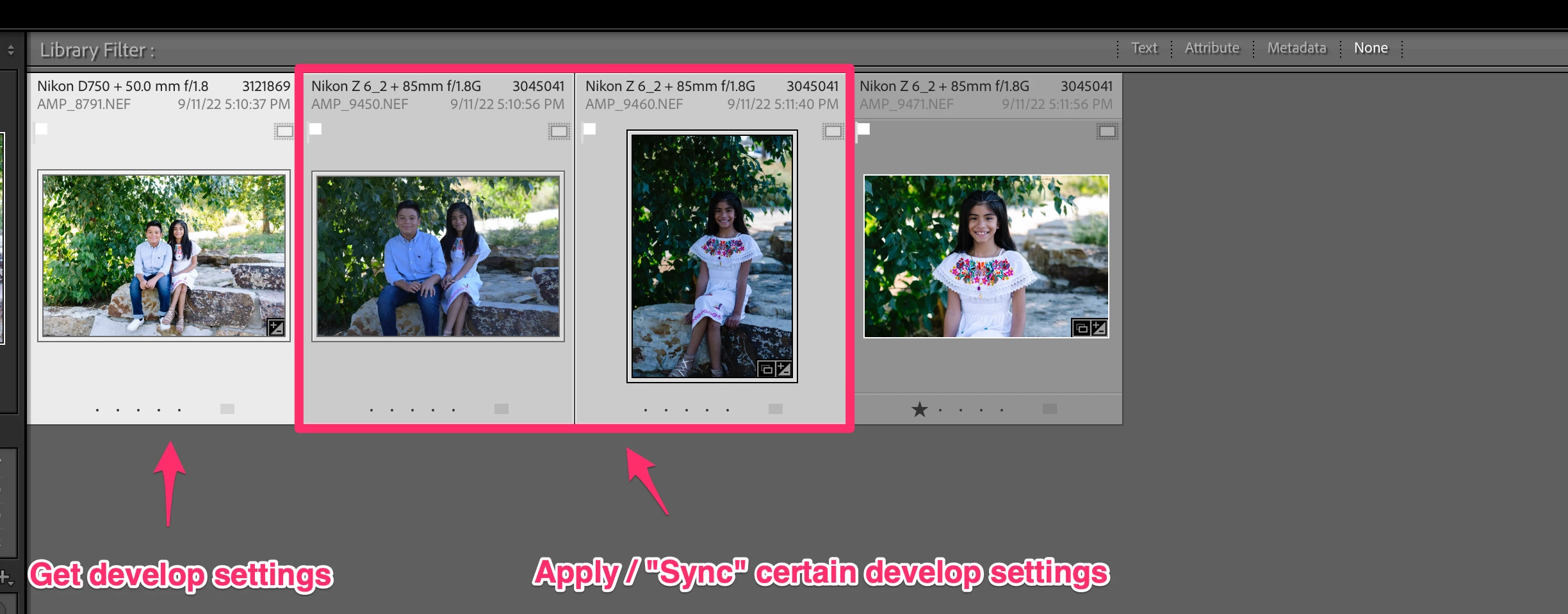
I have figured out how to use photo:getDevelopSettings() and photo:applyDevelopSettings() to make adjustments to one image or a group of images. But I am trying to get the develop settings from the most selected photo and then apply those settings to the remainder of the selected photos. Essentially, I am trying to recreate the Sync functionality that can be done via the UI in a script. I am using this as a starting point to manipulate the applied settings per image based on various criteria of the images.


Please see the screenshot below.


This topic has been closed for replies.

1 reply

johnrellis
Legend
August 2, 2023

Something like this:

local targetPhoto = catalog:getTargetPhoto ()
local settings = targetPhoto:getDevelopSettings ()
for _, photo in ipairs (catalog:getTargetPhotos ()) do
    if photo ~= targetPhoto then 
        photo:applyDevelopSettings (settings)
        end
    end
cwurzbachAuthor
Known Participant
August 2, 2023

Thanks @johnrellis 

johnrellis
Legend
August 24, 2023

With the same camera, I applied another of Adobe's Camera Matching profiles and ran the script:


So in this case - using an older Adobe profile - the SDK reads the profile correctly and has no Look.


I was more than a bit terse in my initial reply, sorry.  Here's my understanding, which probably repeats much of what you already know:


There are two different kinds of profiles, DNG Camera Profiles (binary .dcp files) produced by the DNG Profile Editor, and Enhanced Profiles (.xmp files), created by Camera Raw.


- DNG Camera Profiles are used to implement Adobe Standard and most of the camera-matching profiles. For example, the Adobe Standard profile for the Nikon Z 6II is a .dcp:


/Library/Application Support/Adobe/CameraRaw/CameraProfiles/Adobe Standard/Nikon Z 6 2 Adobe Standard.dcp


The Z 6II's camera-matching profile Camera Flat is also a .dcp:


/Library/Application Support/Adobe/CameraRaw/CameraProfiles/Camera/Nikon Z 6/Nikon Z 6 Camera Flat v2.dcp


- Enhanced profiles implement some of the camera-matching profiles and all of the "creative" profiles such as Vintage 03.  For example the Nikon Z 6II camera-matching profile Camera Bleach is an enhanced profile:


/Library/Application Support/Adobe/CameraRaw/Settings/Adobe/Profiles/Camera/Nikon/Nikon Z 6 2/Nikon Z 6 2 Camera Bleach.xmp


as is the creative profile Vintage 03:


/Library/Application Support/Adobe/CameraRaw/Settings/Adobe/Profiles/Vintage/Vintage 03.xmp


An enhanced profile contains a base DCP (e.g. Adobe Standard), optional Basic-panel Develop settings (e.g. Exposure and Contrast) and up to two LUTs.


I don't know why some camera-matching profiles are implemented as enhanced profiles, while most are DCPs. Naively, they're both implemented using multiple LUTs, which can represent any one-to-one function from pixel color to pixel color.  There's surely some deep technical rationale. 


* * *


Most of the Fujifilm X-T4 camera-matching profiles are implemented as DCPs, though three are implemented as enhanced profiles: Fujifilm X-T4 Camera BLEACH BYPASS.xmp, Fujifilm X-T4 Camera CLASSIC Neg.xmp, Fujifilm X-T4 Camera Sepia.xmp.


Curiously, while the camera-matching DCPs for most cameras are available under:


/Library/Application Support/Adobe/CameraRaw/CameraProfiles/Camera 


none of Fujifilm camera-matching DCPs are stored there. Instead, I believe (with good reason) that they are bundled in the Lightroom applications binaries -- perhaps this was a contractual arrangement between Adobe and Fujifilm.


* * *


In the settings returned by the SDK's photo:getDevelopSettings(), the application of a DCP is indicated with the CameraProfile key:

CameraProfile = "Camera PROVIA/Standard",


The application of an enhanced profile is indicated with both the CameraProfile key, giving the base DCP, and the Look key, providing the develop settings and LUTs of the enhanced profile.  E.g. for the X-T4's Camera Bleach Bypass:

    CameraProfile = "Camera PROVIA/Standard", 
    Look = {--table: 2
        Amount = 1, 
        CameraModelRestriction = "Fujifilm X-T4", 
        Group = {--table: 3
            ["x-default"] = "Profiles"}, 
        Name = "Camera BLEACH BYPASS", 
        Parameters = {--table: 4
            CameraProfile = "Camera PROVIA/Standard", 
            ConvertToGrayscale = false, 
            ProcessVersion = "15.4", 
            RGBTable = "43DFC27F7ECCE0353AC8A37392665980", 
            Version = "15.5"}, 
        SupportsAmount = false, 
        SupportsMonochrome = false, 
        SupportsOutputReferred = false, 
        UUID = "A8177E7D9DCDE45D26DEFB3554ECFA3B"}, 


This is simply the Lua representation of what's in Fujifilm X-T4 Camera BLEACH BYPASS.xmp:

   crs:UUID="A8177E7D9DCDE45D26DEFB3554ECFA3B"
   crs:SupportsAmount="False"
   crs:SupportsColor="True"
   crs:SupportsMonochrome="False"
   crs:SupportsHighDynamicRange="True"
   crs:SupportsNormalDynamicRange="True"
   crs:SupportsSceneReferred="True"
   crs:SupportsOutputReferred="False"
   crs:CameraModelRestriction="Fujifilm X-T4"
   crs:Copyright="Copyright 2020 Adobe Systems, Inc."
   crs:ContactInfo=""
   crs:Version="13.0"
   crs:ProcessVersion="11.0"
   crs:ConvertToGrayscale="False"
   crs:CameraProfile="Camera PROVIA/Standard"
   crs:RGBTable="43DFC27F7ECCE0353AC8A37392665980"


To copy the applied profile, whether it's a DCP or enhanced profile, from one photo to another, it's sufficient simply to copy blindly the CameraProfile and Look keys using photo:applyDevelopSettings().  This will give the same semantics as LR's Sync Settings.  In particular, if the copied profile doesn't support the camera of the target photo, then the target photo's profile will be set to Adobe Standard. 


(I had to figure this out first when deciding whether to retire my Any Preset plugin, then whether the Export LUT plugin could make enhanced profiles, and then when I implemented the Copy Settings plugin.)