nikunj.m
Community Manager
Community Manager
June 16, 2020
Question

Add text watermarks to images using Lightroom desktop

  • June 16, 2020
  • 6 replies
  • 12753 views

We are proud to introduce the option to add text Watermarks to images in Lightroom desktop. This feature already exists in Lightroom Classic, but now it has been added to Lightroom desktop as of version 3.3.


Photographers choose to watermark their images for multiple reasons. It is primarily done to ensure that the images shared with clients or social media are not used or printed without permission. Watermarks can also be used for advertising.


Steps to add watermarks:

Follow the steps below to create a watermark. (The watermark settings sync across the mobile platforms)


❶ Get started 


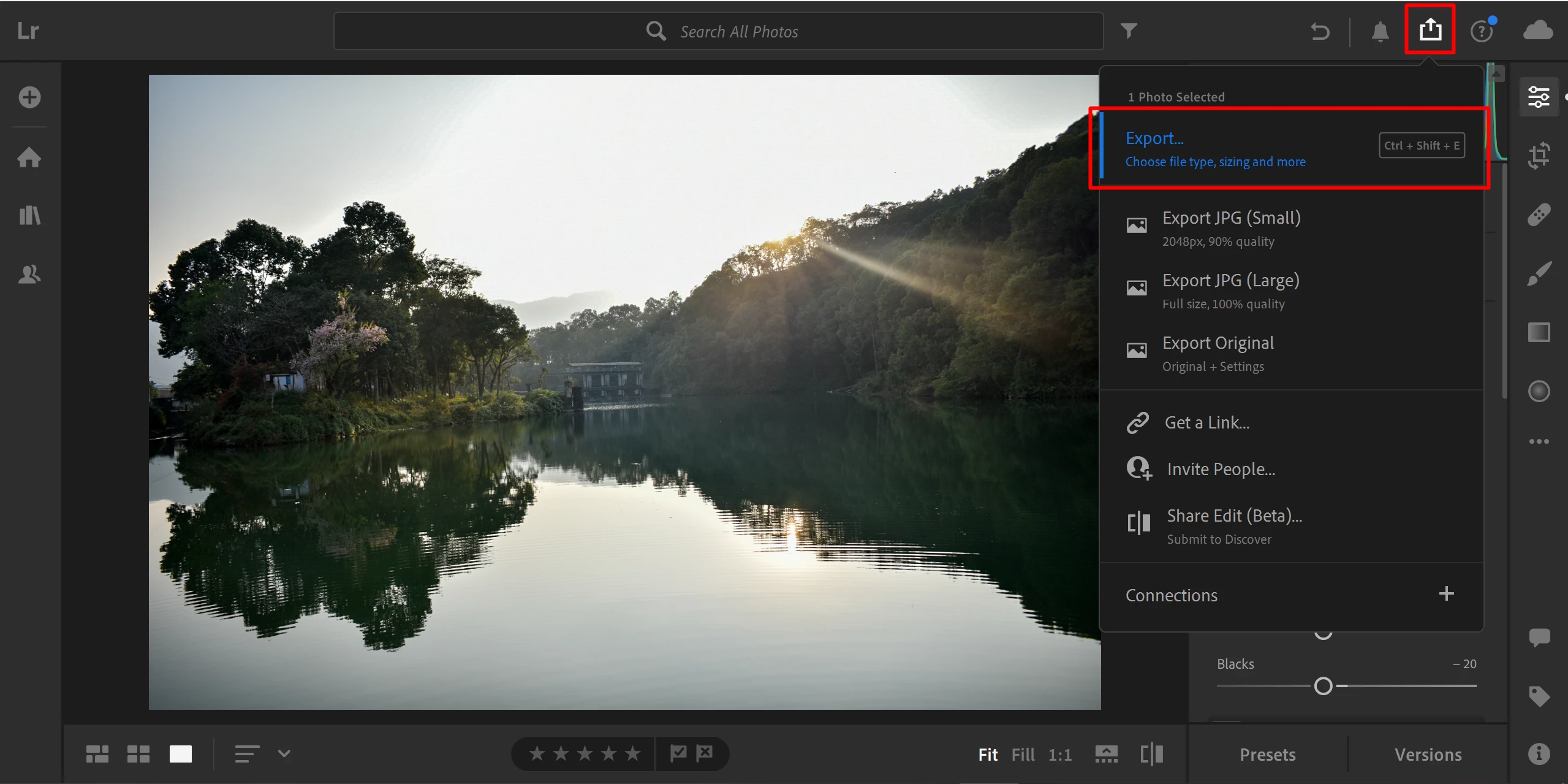
  • Select one or more photos
  • Click the Share icon in the upper-right corner
  • Select Export.


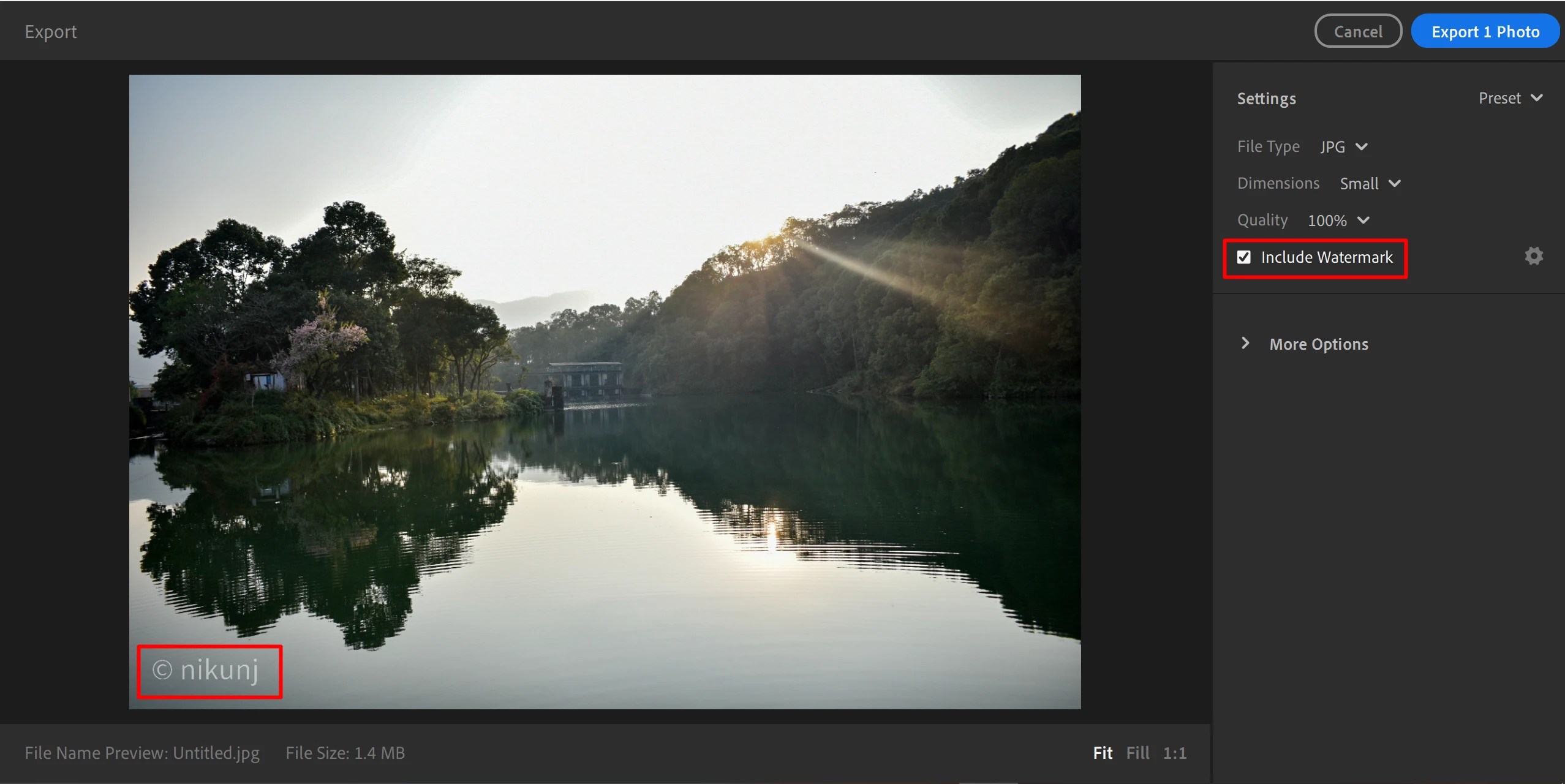
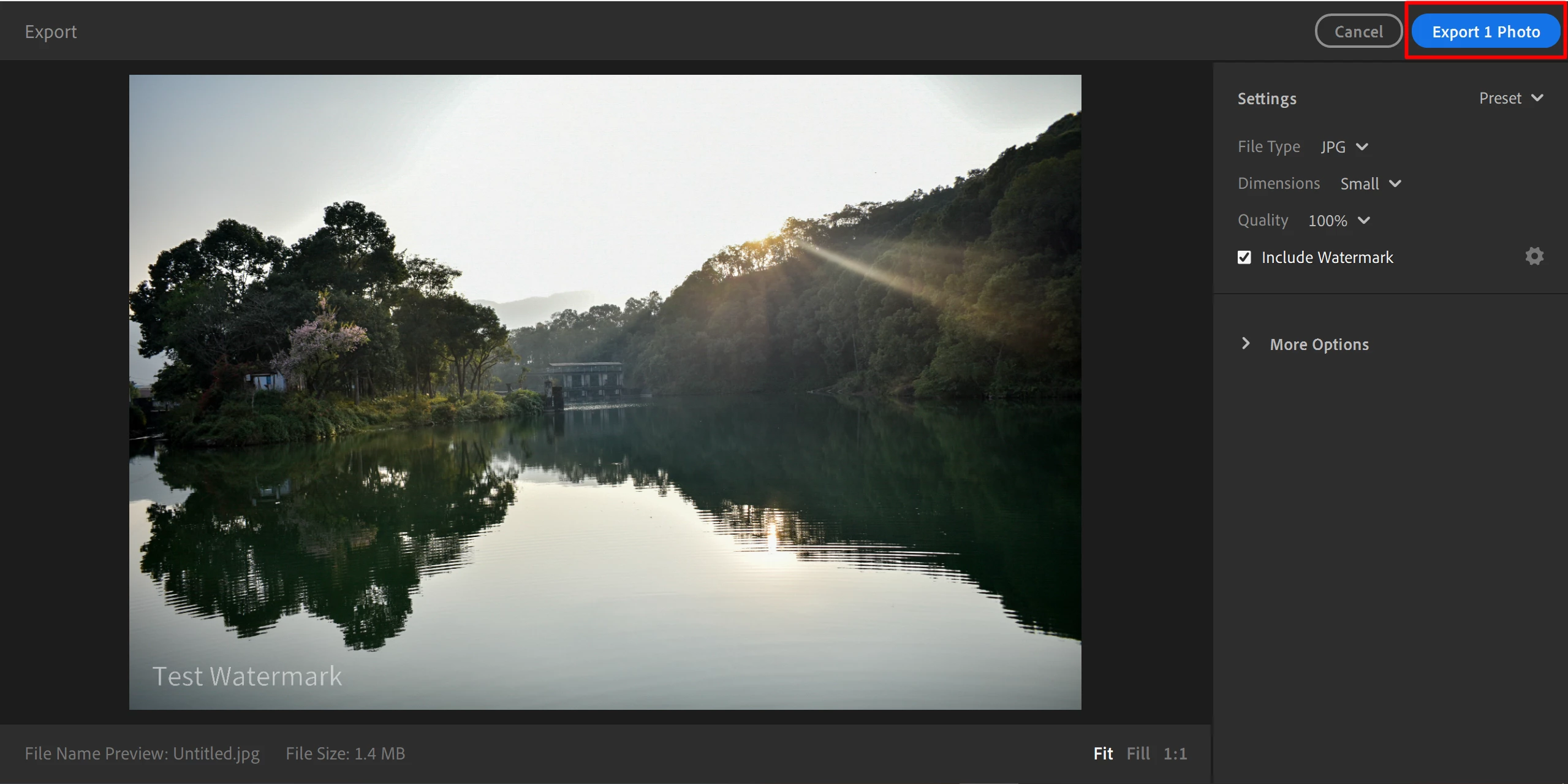
❷ Enable watermark


  • On the Export panel, select Include Watermark.
  • A default watermark of your name is added to your image automatically.


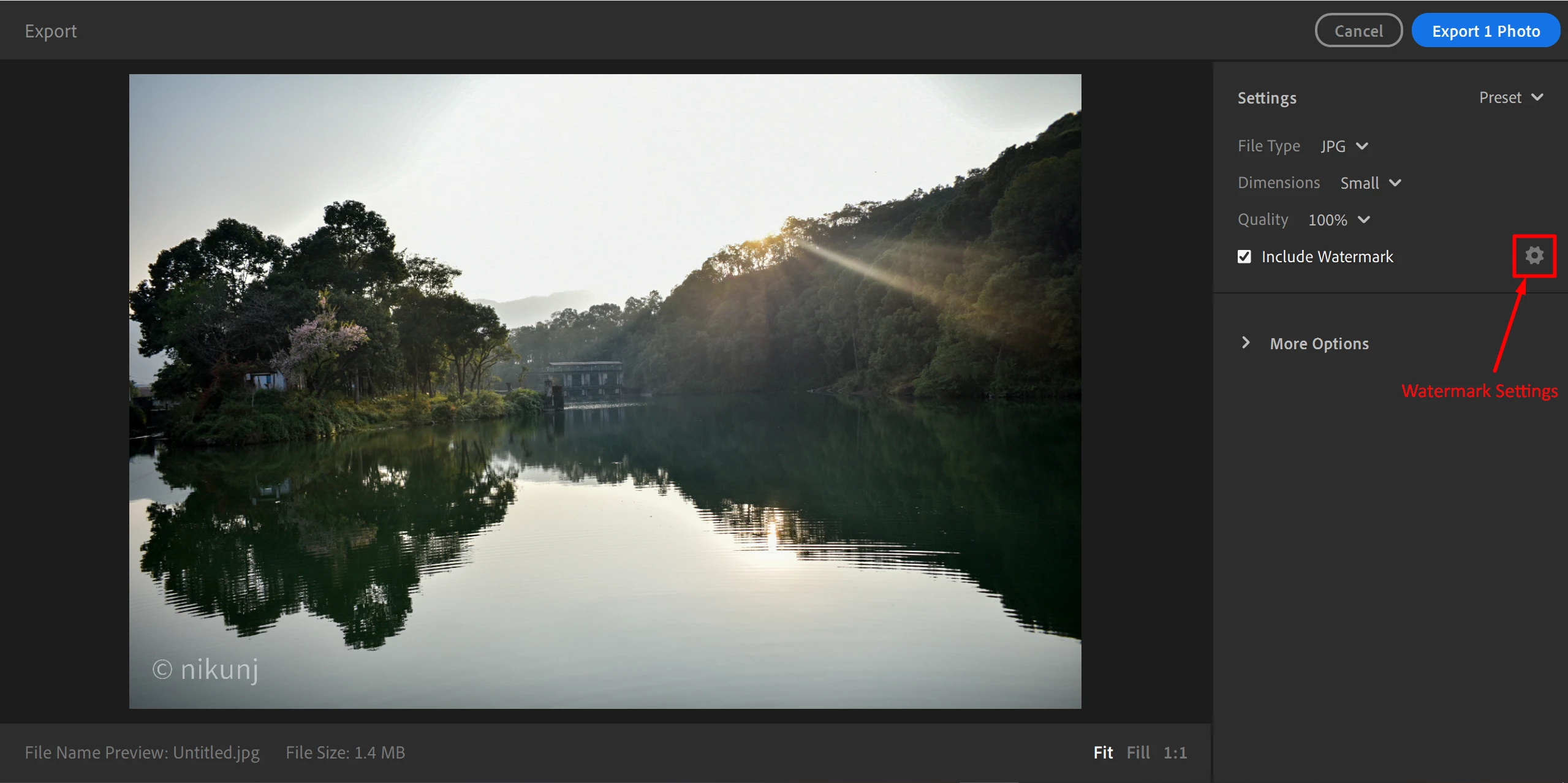
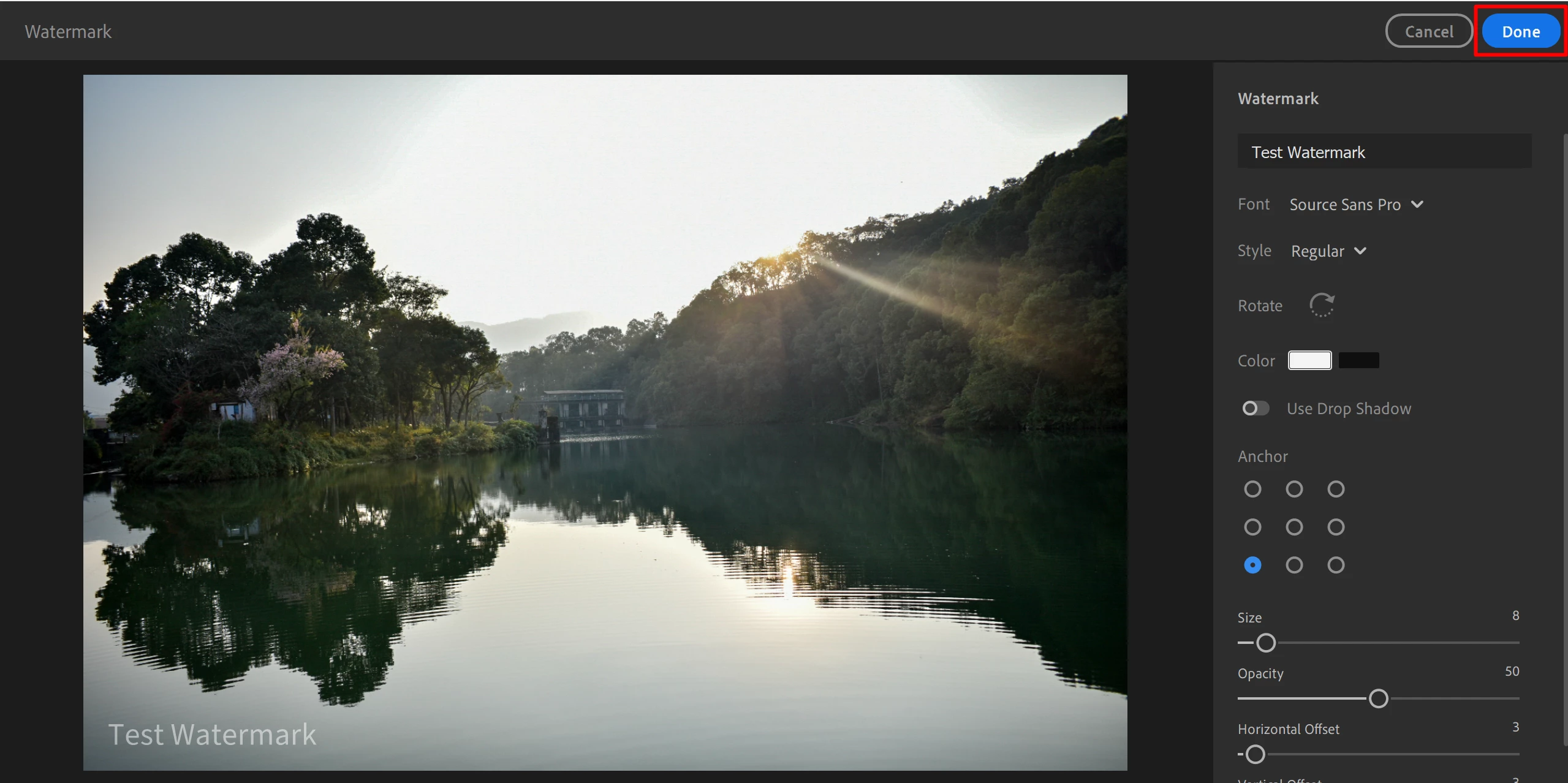
❸ Change watermark settings


  • You can edit the watermark settings such as font, style, color, anchor point, size, and other options by clicking the Settings icon (gear icon) next to Include Watermark.


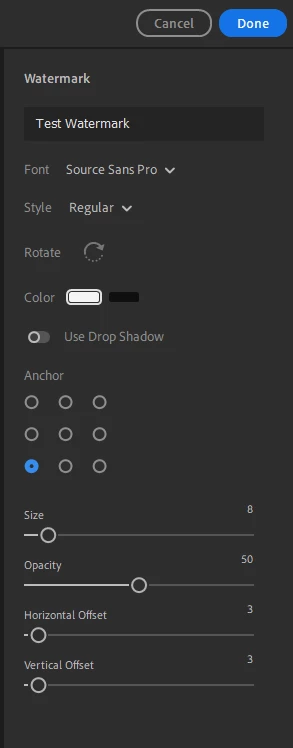
Customize your watermark


  • Enter the text you wish to be displayed as the watermark.
  • Select the Font you want to use from the drop-down list.
  • Note: The watermark will revert to the default font when viewed on your mobile device if your mobile device does not have the font you select.
  • Select the Style from options such as Regular, Bold, Italic, or Bold Italic.
  • You can Rotate the watermark from horizontal to vertical if required.
  • Select between black and white for the text Color.
  • You can add a Drop Shadow to your watermark if you want.
  • Choose where you want to Anchor the watermark on your photo.
  • Click one of the anchor points to see the preview.
  • You can change the font Size of the watermark using the Size slider.
  • Drag the Opacity slider to the right to increase the watermark opacity and to the left to decrease the opacity. You can also add a numerical value to get the opacity you need.
  • You can add Vertical or Horizontal Offset by dragging the sliders or add a numerical value to precisely position your watermark horizontally.


❺ Export the image


  • Once you have finalized the Watermark click on Done.


  • Click on the Export button once you are happy with the rest of the export settings.


Related links:

 https://helpx.adobe.com/lightroom-cc/using/whats-new/2020-3.html#watermark


This topic has been closed for replies.

6 replies

Geese In Flight
New Participant
December 13, 2020

This was working great in Lightroom, but not in Lightroom classic.   The Font appeared low res or "blocky" for me in Classic, so I was using Lightroom for my watermarks, now both versions appear blocky....seems like they won't scale correctly. 

As you can see the appearance changes after clicking "Done" in the editing screen.  


I am very new to Adobe software, so I am not sure if this is a known issue but with all of the amazing features in their software, which work amazingly well, you would think that watermark scaling would be a piece of cake....

I have tried chat support over the past week, but the agents start a conversation but then don't respond.  Later I receive emails apologizing for not finishing the support chat....
A quick Google search for "Adobe Lightroom Blurry watermark", shows this problem as far back as 2015.  

There are some great articles, with workarounds for this problem, but they all require preparation of several images in Photoshop scaled for various export sizes...


New Participant
October 24, 2021

So this watermark feature is only available for photo export, not shared photo albums?


It makes more sense to include it on both formats, and I have just turned to Lightroom CC to share photos directly to clients, but without the watermark on the online ones, I still have to export and upload to Flickr, thus making this change practically pointless!


Adobe Please fix this!

99jon
Legend
July 20, 2020

You should be able to do it in the desktop version, currently Lr 3.3

Choose Export or press Ctrl+Shift+E

In the export dialog put a checkmark in the box for watermark then click the watermark settings icon (see image) and you should be able to amend the text in the box at the top. Then click Done followed by export 1 photo.

McClenahan
New Participant
July 20, 2020

You are correct in that the fonts can be changed. I wrote that I can't use a special font. My logo and my watermark use a specific font that is not included in the list of fonts from which to choose. There's no way to upload that font.


The font is synced with Adobe Fonts, so I'd think it's something that could be implemented within Lightroom. Or give us the ability to upload a transparent PNG file. 

New Participant
October 4, 2020

They need to get onto that feature for graphical watermarks, It can't possibly be that hard, and for the price we pay, I wish they would listen to more community feedback.


I just really hate editing my photos in Lightroom and then having to move over to Lightroom Classic to export them, this completely trashes my workflow.

New Participant
July 16, 2020

The option to edit a watermark is no longer available for me so its stuck on without being able to edit it. 

jupe1407
New Participant
June 23, 2020

I've just migrated over from Lightroom Classic, where I would export images, adding my own graphical PNG watermark. Is this actually not possible on the Cloud-based version? 

McClenahan
New Participant
June 24, 2020

Nope. Nor can you upload a special font.

JP Hess
Inspiring
June 21, 2020

This has nothing to do with a perpetual license. Lightroom Classic is what the perpetual version has evolved into. Lightroom Classic still utilizes a local catalog, stores images locally on the hard drive or other hard drives attached to the computer, and functions much like Lightroom 6. However, it has many new features and supports many additional cameras that were not supported in even the final update of Lightroom 6. Don't start another tirade about perpetual licenses because that ship has sailed. It's a dead horse. If you don't want to subscribe then don't. That's your choice. Adobe has made their choice. Lightroom Classic is the new "local" version. "Lightroom Desktop" is the sort of official term for the desktop version of the cloud version of Lightroom. If you don't like the terminology then blame Adobe. They are the ones who chose to confuse a lot of users.

aegirr
Participating Frequently
June 17, 2020

Something is wrong here. Lightroom Classic is the same as desktop. Maybe you meant the CC-version?

99jon
Legend
June 17, 2020

The Cloud version is Lightroom 3.3 and the other version is Lightroom Classic 9.3


Lightroom Classic has always had watermarking on the desktop. Lightroom has only had watermarking from mobile devices but watermarking on export was introduced yesterday in Lightroom 3.3 for Windows or Mac.

aegirr
Participating Frequently
June 17, 2020

Thanks for the answer. But why on earth did Adobe split Lightroom into CC and Classic? Too much confusion!


By the way, do you think Adobe is thinking about phasing out Lightroom Classic in the future? My theory is that the only reason why the company split Lightroom is to phase out Classic. I hope I am wrong.


Thank you