Participant
March 5, 2023
Answered

P: Lightroom launch mfc140u.dll missing file on Windows

  • March 5, 2023
  • 22 replies
  • 32010 views

Error message, mfc140u.dll file not found when launching, tried reinstalling with no sucess 

Correct answer Sameer K

Welcome to the Lightroom Community. I'll help you figure this out. The mfc140u.dll is part of Microsoft Visual Studio.


Please try these steps & let me know how it goes.
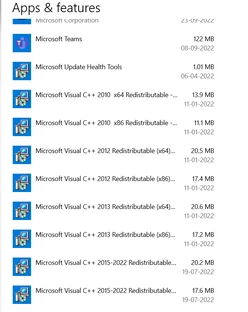
  •  In the Creative Cloud app, press CTRL + ALT + T (Win) to launch Creative Cloud Troubleshooter & select 'Close Creative Cloud and related processes' > click on Go.
  • Go to 'Add or Remove programs' in Windows search & find all the installations of Microsoft Visual C++ Redistributable (all years).


  • Uninstall them completely. Even if there is an option to repair them, please uninstall all the existing MSVC++ packages.
  • Download a fresh package of installers for MSVC++ from this link: Microsoft Learn: Latest Support VC Redist.
  • Right-click the downloaded file and select Extract All.
  • Reinstall all packages (32bit & 64bit) & then restart the computer.

Let me know how it goes from here. Thanks!

Sameer K

22 replies

TSwink
Participant
June 17, 2026

the app will not open.  says the code execution cannot proceed because mfc140u.dll was not found

Per Berntsen
Community Expert
Community Expert
June 11, 2026

You are using Lightroom or Lightroom Classic, but have posted in the Photoshop forum.

If you are using Lightroom (cloud based), post here:
https://community.adobe.com/lightroom-ecosystem-cloud-based-677

If you are using Lightroom Classic, post here:
https://community.adobe.com/lightroom-classic-672

zionsun268
Participant
June 11, 2026
i try to open the latest Lightroom version and this pops up every time. i have the latest windows OS


Rob_Cullen
Community Expert
Community Expert
June 11, 2026

The mfc140u.dll is part of Microsoft Visual Studio. Can I suggest that reinstalling the Visual C packages would restore mfc140u.dll for you.

  • In the Creative Cloud app, press CTRL + ALT + T (Win) to launch Creative Cloud Troubleshooter & select 'Close Creative Cloud and related processes' > click on Go.
  • Go to 'Add or Remove programs' in Windows, search & find all the installations of Microsoft Visual C++ Redistributable (all years).
  • Uninstall them completely. Even if there is an option to repair them, Uninstall all the existing MSVC++ packages.
  • Download a fresh package of Latest Supported installers for MSVC++ from this link: . 
  • https://learn.microsoft.com/en-us/cpp/windows/latest-supported-vc-redist
  • Right-click the downloaded file and select Extract All.
  • Reinstall all packages (32bit & 64bit) & then restart the computer.
     
Regards. My System: Windows-11, Lightroom-Classic 15.3, Photoshop 27.5, ACR 18.3, Lightroom 9.3, Lr-iOS 10.4.0, Bridge 16.0.3 .
Leaseone
Participant
June 10, 2026

I cant open Lightroom Classic -

System error - mfc140u.dll was not found.

I looked online on how to fix it but nothing is working.

Rob_Cullen
Community Expert
Community Expert
May 21, 2026

Try the ‘correct answer’ given in this forum link-


Regards. My System: Windows-11, Lightroom-Classic 15.3, Photoshop 27.5, ACR 18.3, Lightroom 9.3, Lr-iOS 10.4.0, Bridge 16.0.3 .
Participant
May 21, 2026

This same note applies to both Lightroom and Lightroom Classic

Participant
May 21, 2026

I can not open Lightroom Classic. Note" The code execution cannot proceed because mfc140.dll was not found."  

MAP1737
Participant
April 28, 2026

Thanks, this worked for me 👍

PHc
Participant
April 11, 2026

J’utilise windows 1, depuis le 28/02/2026 lightroom classic ne s’ouvre plus avec mfc140u.dll missing.

J’ai corrigé le problème de C++  en le reinstallant. Mais le n’arrive plus à ouvrir lightroom.

Il n’y a aucun message.

J’ai voulu reinstaller lightroom classic . Le fichier télechargé ouvre une page internet

je n’y trouve pas comment installer sur mon PC lightroom classic.

comment faut il faire ?