gloriaj14767310
Participating Frequently
April 30, 2020
Answered

Images resized, but saved as much smaller file than chosen when resized/saved

  • April 30, 2020
  • 6 replies
  • 5777 views

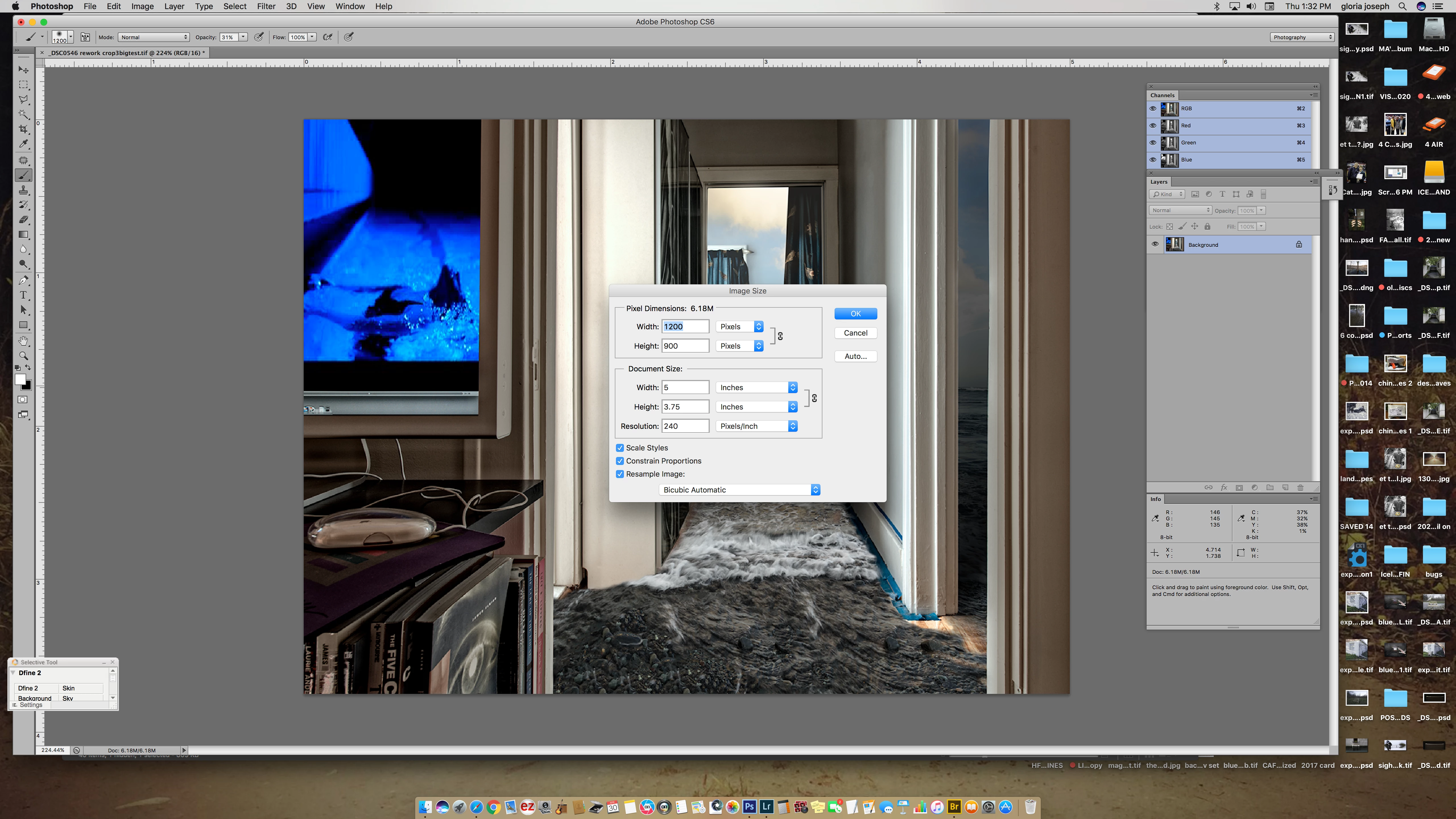
Okay, I'm baffled.  I've resized large photos to upload many times, but.  In P'shop, I do an image resize, and the info is that the file is what I want...., say, under 5 MG, with 1200 minimum width.  Great!  However...when I try to upload this to a site (CaFe', actually)...the file saved is recorded at some different size!...like 800 KB!   What's up with that?....There are no layers, no channels....like, this image, saved at 6.18 mg; but the file is showing as only 809 KB in Bridge, AND when I try to upload.

What am I missing?....is this a simple reset the prefs before launching?....

It is sporadic....=0


[Photo embedded by moderator as requested by c_pfaffenbichler]

This topic has been closed for replies.
Correct answer Conrad_C

Hi Gloria, you said: “I work in ProPhoto work space; CaFe site says send sRGB....(!).”


It’s actually very common for the editing color space to be different than the final submission color space. That’s normal when editing photos for print, web, and other media. We use ProPhoto RGB because it is a nice big color space for editing master images using their full color range, and then we convert down to the specific color spaces that each client requires (sRGB, Adobe RGB, FOGRA39 CMYK, etc.).


Photoshop is built to let you edit in wide color spaces like ProPhoto RGB, and then convert to a client-specific color space like sRGB on export. In a similar way, Photoshop lets you edit using the full uncompressed original format image that has a large file size, and then you convert to a compressed small file size image in a format such as JPEG for upload.


The various Export and Save As commands in Photoshop use that philosophy. I gave some examples in another thread that you should take a look at, click this link: Compressing file size and converting color space for exported JPEG copies. In the examples shown there, you can see how the Export > Export As and the Export > Save for Web (Legacy) let you do both things to the exported copy: Compress the file size down for quick upload and to fit submission requirements, and also convert the color space to sRGB with a simple check box. And the great thing is, since those commands make those changes only to the exported JPEG copies, they do not degrade your original Photoshop files.


So the examples in that link are good ways to create small sRGB copies of your Photoshop files for uploading to a submission form such as Call For Entry/CaFE. Use either Export > Export As or the Export > Save for Web (Legacy) command, and in either of those dialog boxes:

  • Use the file size and image preview as you adjust compression, to balance preserving image quality with achieving a file size under the 5MB requirement for CaFE.
  • Use the pixel width and height to reduce the pixel dimensions to the CaFE requirement of 1200 pixels minimum. (Large originals may end up more than 5MB as a JPEG.)
  • Use the “Convert to sRGB” option to convert the colors to sRGB in the exported, compressed JPEG copy.

6 replies

Per Berntsen
Community Expert
Community Expert
May 1, 2020

So are you uploading files in sRGB or ProPhoto to the CaFe website?

The ProPhoto color space is intended for editing only, use sRGB for images to be posted online.

People might be viewing your work in browsers wihtout color management, or on phones or tablets, and using ProPhoto will in these cases most likely  result in wrong colors. 


sRGB is the "safe" choice. There is no guarantee that other people will see correct colors on their screens, but using sRGB increases the likelihood.

Use Export or Save for Web to create jpgs, and make sure that both Convert to sRGB and Embed profile are checked.

Conrad_C
Community Expert
Community Expert
April 30, 2020

gloriaj14767310 wrote: “In P'shop, I do an image resize, and the info is that the file is what I want...., say, under 5 MG, with 1200 minimum width. Great!”


Is that in Image > Image Size? If so, that number is the size of the image in Photoshop format. But sites like CaFE (if that’s Call for Entry, I use it too) do not want a Photoshop format image, they want you to upload a JPEG format image, right? So...


gloriaj14767310 wrote: “However...when I try to upload this to a site (CaFe', actually)...the file saved is recorded at some different size!...like 800 KB! What's up with that?....There are no layers, no channels....like, this image, saved at 6.18 mg; but the file is showing as only 809 KB in Bridge, AND when I try to upload.”


Is the file you uploaded a JPEG format copy of the image you made using the Save As, Save for Web, or Export As commands? A JPEG is no longer in Photoshop format, it is in highly compressed JPEG format. Because it is highly compressed (for faster uploading), the file size is naturally much smaller than its original Photoshop file. And if you adjust the level of JPEG compression on export, you will see the final file size change depending on the compression setting you chose.


If this is not what you mean, reply again with more details about the file you actually uploaded. Was it Photoshop format or JPEG format?

gloriaj14767310
Participating Frequently
May 1, 2020

AHA!

Yes, frankly, have not have this problem for other situations, so, it seems CaFe is the common denominator here....yes, of course, chosen the largest possible compression size....

Also, I work in ProPhoto work space; CaFe site says send sRGB....(!).   

I haven't, and don't, but of course the uploads look color bad...I've discussed this with museums in the past for entries, and they assure me that they look fine.....so, I haven't also assigned/changed the color profile for the uploads.....Any thoughts, Condrad?...=)

I DID notice yesterday as I changed the size of the image resize....to larger....yes, they did upload fine.  

Your explanation makes total sense.  Back to work!

I almost never use community forums; as often comments are like the "do you even understand" nature.  Not helpful.  Y'all have a great day....=)

Conrad_C
Community Expert
Conrad_CCommunity ExpertCorrect answer
Community Expert
May 2, 2020

Hi Gloria, you said: “I work in ProPhoto work space; CaFe site says send sRGB....(!).”


It’s actually very common for the editing color space to be different than the final submission color space. That’s normal when editing photos for print, web, and other media. We use ProPhoto RGB because it is a nice big color space for editing master images using their full color range, and then we convert down to the specific color spaces that each client requires (sRGB, Adobe RGB, FOGRA39 CMYK, etc.).


Photoshop is built to let you edit in wide color spaces like ProPhoto RGB, and then convert to a client-specific color space like sRGB on export. In a similar way, Photoshop lets you edit using the full uncompressed original format image that has a large file size, and then you convert to a compressed small file size image in a format such as JPEG for upload.


The various Export and Save As commands in Photoshop use that philosophy. I gave some examples in another thread that you should take a look at, click this link: Compressing file size and converting color space for exported JPEG copies. In the examples shown there, you can see how the Export > Export As and the Export > Save for Web (Legacy) let you do both things to the exported copy: Compress the file size down for quick upload and to fit submission requirements, and also convert the color space to sRGB with a simple check box. And the great thing is, since those commands make those changes only to the exported JPEG copies, they do not degrade your original Photoshop files.


So the examples in that link are good ways to create small sRGB copies of your Photoshop files for uploading to a submission form such as Call For Entry/CaFE. Use either Export > Export As or the Export > Save for Web (Legacy) command, and in either of those dialog boxes:

  • Use the file size and image preview as you adjust compression, to balance preserving image quality with achieving a file size under the 5MB requirement for CaFE.
  • Use the pixel width and height to reduce the pixel dimensions to the CaFE requirement of 1200 pixels minimum. (Large originals may end up more than 5MB as a JPEG.)
  • Use the “Convert to sRGB” option to convert the colors to sRGB in the exported, compressed JPEG copy.
Per Berntsen
Community Expert
Community Expert
April 30, 2020

No problem, similar things happen to most of  us from time to time.

Yes, attachments were broken for a while, but have been fixed.

And yes, it's a pain having to save images to see them.

There have been quite a few complaints about this, and there will hopefully be a fix.

Per Berntsen
Community Expert
Community Expert
April 30, 2020

I (not the OP) was referring to the problem with people attatching imnages instead of using Insert Photos.


c.pfaffenbichler
Community Expert
Community Expert
April 30, 2020

I do apologize to both of you, gloriaj14767310 and Per Berntsen, I hadn’t paid enough attention to the avatar and name! 


The attached images can be downloaded again (at least it seems to work for me currently), I just find it inconvenient having to download the images, then view them instead of seeing them on the page right away. 

Per Berntsen
Community Expert
Community Expert
April 30, 2020

Because this appears at the bottom of the text box when you create a new thread, with no mention of the Insert photos button in the toolbar.

Adobe has been notified about the problem, and there will hopefully be a fix in a future forum update.

c.pfaffenbichler
Community Expert
Community Expert
April 30, 2020

What problem? 

Do you understand the concept of lossy compression or even compression in general? 


And there is a button to post images on the Forum directly: 

c.pfaffenbichler
Community Expert
Community Expert
April 30, 2020

Why do so many people attach screenshots instead of simply posting them? 


The 6,18MB indicated in the File Size dialog is the uncompressed size.