
Kbirch
Participant
October 15, 2018
Answered

Scaling Images with shift no longer works after update (20.0)

  • October 15, 2018
  • 75 replies
  • 264293 views

After updating to CC 2019, I am not longer able to scale images evenly simply by holding shift.

I went to keyboard shortcuts and found a "scale" shortcut that was unassigned, so i assigned it to "S" as it simply wouldn't let me assign shift:
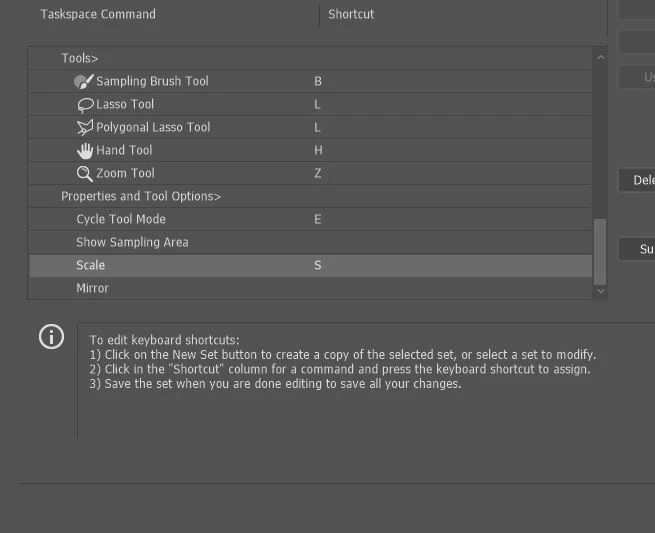
Now it seems to only want to scale evenly and won't let me scale however I want simply by dragging the corner of the image. Sometimes it doesn't go evenly when I transform with Ctrl+T and scales evenly after I press S, but wont let me go back to scaling unevenly.

Any Ideas?

Correct answer John Waller

It's a new feature. The old behaviour has been reversed. Default = proportional (constrain). Shift for non-proportional. Few people see any logic in this change.

Plenty of forum posts on this

Scaling Images with shift no longer works after update (20.0)

CC20 transform tool: Shift doesn't keep Aspect ratio

The new behaviour can be disabled.

To revert to the legacy transform behavior, do the following:

  1. Use Notepad (Windows) or a text editor on Mac OS to create a plain text file (.txt).
  2. Type the text below in the text file:

    TransformProportionalScale 0

  3. Save the file as "PSUserConfig.txt" to your Photoshop settings folder:
    • Windows: [Installation Drive]:\Users\[User Name]\AppData\Roaming\Adobe\Adobe Photoshop CC 2019\Adobe Photoshop CC 2019 Settings\
    • macOS: //Users/[User Name]/Library/Preferences/Adobe Photoshop CC 2019 Settings/

75 replies

Inspiring
October 26, 2018

I resolved this problem by going back to the last stable version - 2017.

October 26, 2018

When you think that people cant get any stupider, but people always find a way to get more stupider. Why would you change something thats been used for decades and so convenient. Another reason I will stop using Adobe products

quaglinoman
Participating Frequently
October 25, 2018

This is what happens when there is a monopoly, Adobe 100% owns the market so if you do not like it....you can go F off as far as they are concerned.

So far I have rolled back to 2018 and will NEVER update to anything more. Everything runs slower,Premiere and after effects? broken, Photoshop? Oh! lets change fundamental hardwired keybindings with no legacy option for funzies!

3rd rate testing team and some devs that come up with ideas like this would have been fired on the spot under my watch. Users need to hack to try get a system usable. I have come to loathe Adobe with all my heart, but this is again, the outcome of a monopoly, forced to pay as no real competing options.

Jiweeon
Known Participant
October 25, 2018

WTF was the point in changing the Transform tool?! There was absolutely nothing wrong with it! I don't see how this is an improvement? It's done nothing but mess up everyones workflow. We are now forced relearn this new way without seeing any benefit. Just because you moved around which buttons perform which tasks, doesn't make the tool better.. you've just rearranged the tool. That's all you've done!

If you really felt the need to mess Transform, why not focus on giving warp more points with handles? You messed with the standardized function of it... it still does the EXACT SAME THING IT DID BEFORE, you've just given it new hotkeys!

Participant
October 24, 2018

I just reset my keyboard shortcuts to default in Photoshop and it worked like normal after that.

Inspiring
October 24, 2018

What is your operating system? I'm on Mac 10.12.6 and didn't have any luck with switching to default.

Thx.

Participant
October 24, 2018

High Sierra 10.13.6

Participant
October 24, 2018

Take note Adobe, stop changing stuff just for sh*ts and giggles! A lot of us have spent years and years getting used to keyboard shortcuts. You wouldn't believe the number of expletives that have come out of my mouth since I updated everything to 2019. Hate to think what else has been changed that I'll soon come across.

daniagon
Participating Frequently
October 24, 2018

I don't think they're necessarily doing it for "sh*ts and giggles"... Just because somethign has always been, doesn't mean it's the most efficient way to do it. I think the change was a good one and should've been like this from the start. Most of the time when resizing, people usually want the proportions constrained. I don't mind having to re-train my muscle memory, but the issue here lies in the lack of consistency. They have applied this change only on certain aspects within Photoshop but all other apps require you to hold Shift to constrain proportions. Also, if you try to resize a SHAPE within Photoshop, you have to hold Shift as well. The lack of consistency is what's not allowing my muscle memory to grasp on to this new habit. If they are going to make this change, I would highly suggest they apply it within ALL programs and aspects... otherwise it's just confusing :\

Inspiring
October 25, 2018

I have to disagree with this because the action of clicking and dragging isn't just used when scaling. You click and drag to make a shape. You click and drag to crop. etc. Many people may want to scale in pro, but the majority of the click & drag an area actions are not wanted to be constrained.

Participant
October 23, 2018

Wow. What a PIA. Thanks for answering tho. I only lost 20 minutes of my life right there. That's why I hate updating so much. Thanks Adobe.

Participant
October 22, 2018

THANK YOU SO MUCH!

Mac users — the Library folder in the described path is hidden by default. Go to the 'View' menu in Finder and enabled viewing it.

Known Participant
October 21, 2018

Lit UX, Adobe. Take the standard, central to your pro userbase’s workflow, and change it arbitrarily. I’m sure the soccer moms, new to Photoshop (torrented care of their pothead kid) will appreciate uniform scale being default though.

Participant
October 19, 2018

Not Photoshop, but Adobe CC 2019 related:

I rely on Bridge to quickly access files, scan images, etc everyday. After upgrading to CC 2019, Bridge went crazy.

It will no longer properly show image/document preview images. Which basically makes Bridge useless.

I did uninstall 2019/reinstall 2018 and 2018 works fine.

I have tried to purge the cache, delete all settings/reset, remove setting files from libraries, etc, etc, etc. but in the end I found 2018 to work.

Not sure if this is an isolated issue, but here's a screen grab of what I now see when trying to use Bridge 2019:

Kbirch
KbirchAuthor
Participant
October 19, 2018

This sucks, but you might want to create a different topic for this one, doesn't seem like it has to do with the same issue.

Go here:

Photoshop

and click "Start a new discussion"  at the bottom of the page