
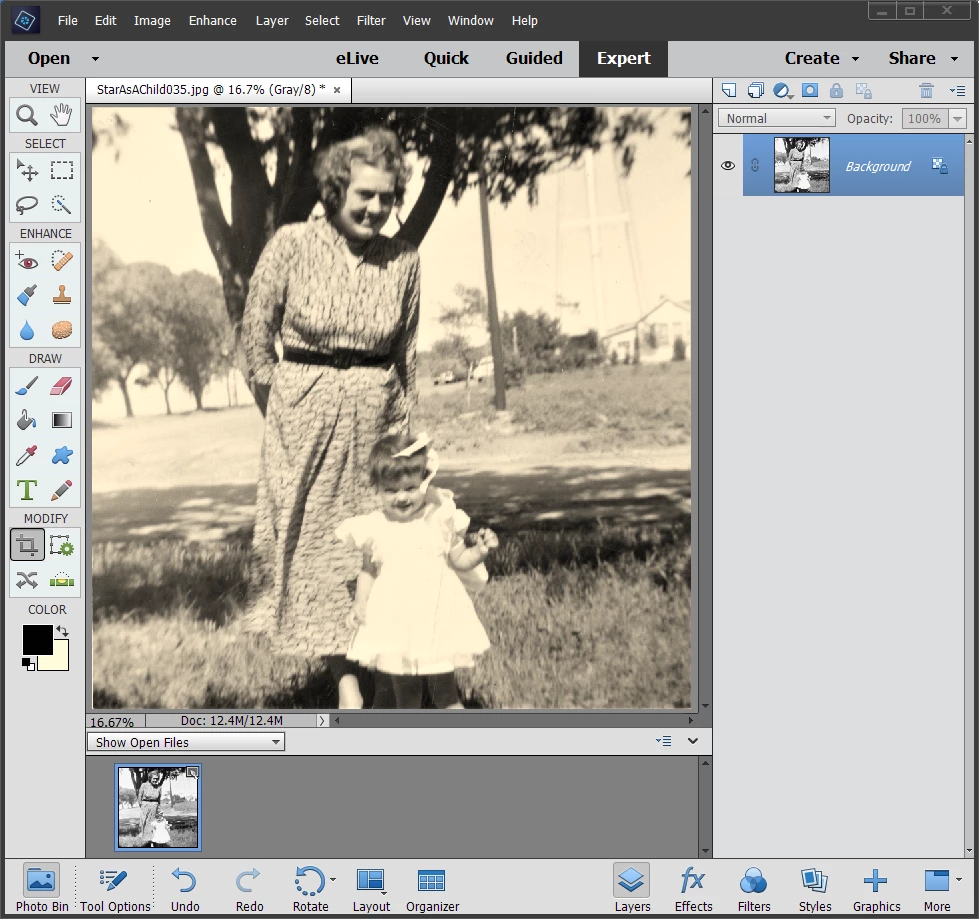
Editing window is showing sepia for B&W pictures
I am trying to "fix" some old pictures that are Black and White. When I view the pictures on my monitor and on other monitors/TV they are B&W, implying that this issue I am discussing is not a monitor profile issue. THE PROBLEM: In Elements 15 the picture displays in the Photo Bin>Show Open Pictures as B&W, BUT in the editing window the picture is slightly Sepia. I cannot remove this tint and I am worried. This issue implies that all pictures in color or otherwise will have a slightly red tone subtracted from them if I edit to the color and temperature in the editing window that looks good to me. I just noticed that the image mode is considered (RGB/8) rather than B&W (no such mode) or Grayscale (Note: the tint is also showing then the Image>Mode is set to Grayscale see picture), the added tint is present on both modes. Is there problem with my Elements 15? Is there a setting that I have failed to adjust? How do I compensate for the added tint in the editing window? WHAT AM I DOING WRONG?


 AdChoices