
Known Participant
April 22, 2020
Answered

Importing into Adobe Elements Organizer 2020 from Windows 10 File Explorer

  • April 22, 2020
  • 8 replies
  • 1627 views

I am converting thousands of slides to digital .pdf’s on to a thumb drive. I then move them to a folder on the C:\ drive to be imported into Organizer.  My steps are:

Import > From files and folders > Get Photos and Videos from Files and Folders  > select the desired images to import  > 


?? What is the difference between “Get Media”  and “Open” ??


SECOND QUESTION:

After importing dozens of images into a variety of folders I get to the last set of images and get an error message:  “18 media files were skipped because they are already present in the catalog” with a list of the files skipped.

When I do a search within Organizer it finds the images but does not indicate where they are located so that I can then move them to the desired folder.

?? How do I find an images file location within Organizer ??
This topic has been closed for replies.
Correct answer Greg_S.

First Question

Rammer47 said:

When I follow the Import sequence outlined above and select one file or all the files then both options, “Get Media” and “Open” function with the same results.


You are correct.  But if you select a folder, the Open button will open the folder and the Get Media button will immediately import the contents of the folder.  Also, if you select a file within a folder, the Open button will be highlighted, although you can also use the Get Media button to import a single file.


Second Question

When you import files into the Organizer, the files remain exactly where they are stored on your computer.  So, the jpg file that is identified in the error message is already in the catalog.  You can search for that file by name, using the keyboard shortcut Ctrl+Shift+K and entering the file name (or part of it).  Once you see the file displayed in the grid, you can select it and use the context menu to Go to folder.  If it is not located in your desired folder, you can click and drag it to another folder, using the Folder Panel.


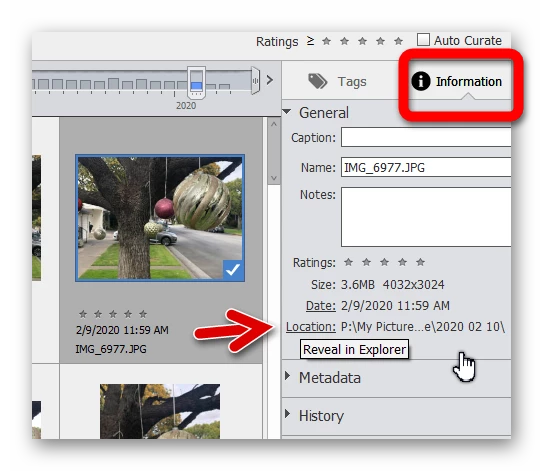
If you see a file in the grid, you can also find its storage Location in the Infomation panel on the right side of the screen. Click on the hyperlink and a File Explorer window will open.

8 replies

Greg_S.
Community Expert
Community Expert
October 27, 2024

@John25865591fe1s, I guess I assumed that you were referring to Elements 2020 which is the subject of this thread.  I realize I may be in error.  So what version of Elements do you have and what OS are you using?

Participant
October 28, 2024

Sorry about that. I'm using Windows 10 and Elements 2024. I just tried Find>All Missing Files. It did not find any of the files, but I noticed while the search was proceeding, I could see the various folders and sub-folders flashing across on the screen. And I noticed that some of the folders that are missing from the catalog DID flash across the screen! So it knows that they exist. But they still don't appear in the catalog list. Thanks for your comments. I don't want to impose too much so don't spend any time on this. I'm very much an amature. 

Greg_S.
Community Expert
Community Expert
October 27, 2024

@John25865591fe1s said:  I am beginning to wonder whether it has something to do with CloudConnect. I prefer to keep my files all on my pc and not to use CloudConnect


I have no idea what CloudConnect you are referring to.  Elements 2020 did not have any Cloud connection.  Please explain.


What happens if you run the Organizer's Find>All Missing Files?

Greg_S.
Community Expert
Community Expert
October 27, 2024

@John25865591fe1s said:  Now, I have many folders and individual files that do not show up in the catalog.


What do you mean by this?  Are the thumbnails of the file showing up in the grid (with a small yellow question mark icon in a corner)?  Or you simply can't find the thumbnail of the file in the catalog?  If the former, the file is considered as missing in the catalog.  If you double-click on the file, a dialog should open and you will be given the opportunity to link the file to the new location on your had drive.  Generally, if you do this with one file, all the remaining files in that folder will be linked automatically.


@John25865591fe1s said:  And then attempted to add the folders to a fresh, empty catalog. It still tells me that they are already in the catalog.

This suggests to me that you have somehow duplicated your files in Windows File Explorer, not moved them.  If you are starting by importing your files into a new catalog, only one copy of a file will be imported and shown in your catalog.


Participant
October 27, 2024

Thank you for responding, Greg. On your first question, I do not see the thumbnails or the folders for this group of imports.  I successfully imported about 16 folders previously and all their files are visible in the catalog -- no problem.  There are another five folders that I have attempted to import, but each time I get a message saying that the files have already been imported. When I search the catalog for individual files (by name) in those folders, they do not show up in the search results. Also, I have de-duped all my photo files on my PC so I really don't think it is a case of Organizer not importing files because they are actually duplicates. As I said, I previously moved some folders around in Explorer and I'm sure that must have caused this. Organizer thinks the folders and files are in my catalog even though they do not appear. There must be some part of the application that keeps track of this and does not get deleted by the fresh install. I am beginning to wonder whether it has something to do with CloudConnect. I prefer to keep my files all on my pc and not to use CloudConnect.  Anyway, thanks for your comments. 

Greg_S.
Community Expert
Greg_S.Community ExpertCorrect answer
Community Expert
April 22, 2020

First Question

Rammer47 said:

When I follow the Import sequence outlined above and select one file or all the files then both options, “Get Media” and “Open” function with the same results.


You are correct.  But if you select a folder, the Open button will open the folder and the Get Media button will immediately import the contents of the folder.  Also, if you select a file within a folder, the Open button will be highlighted, although you can also use the Get Media button to import a single file.


Second Question

When you import files into the Organizer, the files remain exactly where they are stored on your computer.  So, the jpg file that is identified in the error message is already in the catalog.  You can search for that file by name, using the keyboard shortcut Ctrl+Shift+K and entering the file name (or part of it).  Once you see the file displayed in the grid, you can select it and use the context menu to Go to folder.  If it is not located in your desired folder, you can click and drag it to another folder, using the Folder Panel.


If you see a file in the grid, you can also find its storage Location in the Infomation panel on the right side of the screen. Click on the hyperlink and a File Explorer window will open.

Rammer47Author
Known Participant
April 23, 2020

PERFECT! Problem solved. 

I did not know the Ctrl+Shift+K speed key.  

Do you know of a list of other speed keys that work with Adobe Elements?

Thanks for bailing me out. Now I can move on and finish my imports safely.

Greg_S.
Community Expert
Community Expert
April 23, 2020

Many of the KB shortcuts are listed next to the commands in the main menus.  Here are some more links to various shortcuts.

Greg_S.
Community Expert
Community Expert
April 22, 2020

And just to be clear, do not manage your catalogued files outside of the Organizer.  If you use File Explorer to move them they will go missing in the Organizer.

Participant
October 27, 2024

Hi, Greg. I realize that this is over four years old but I thought I would ask you this question as you obviously know Organizer pretty well. I have done the thing that you said not to do. I have moved folders in File Explorer even though they were already included in a catalog. Now, I have many folders and individual files that do not show up in the catalog. No matter what I try, I can't fix this. I have deleted the catalog and completely reinstalled Elements. And then attempted to add the folders to a fresh, empty catalog. It still tells me that they are already in the catalog. I've been working on this for many hours and I can't figure out any way to solve this problem. So my question is -- once I have made this mistake of moving folders in Explorer, what do I need to do to solve that so that the folders and files show up once again in my catalog? Is there some special folder I need to delete? As noted, I even tried completely uninstalling the entire package and that did not solve it. Any advice would be much appreciated. 

Rammer47Author
Known Participant
April 22, 2020

why reply if you don't have a suggestion?

Greg_S.
Community Expert
Community Expert
April 22, 2020

Question 1:  The Open button becomes operative when you select files within a folder.  The Get Media button allows you to import the contents of a folder.  BTW, Elements 2020 does not support most PDF files.  What software are you using to convert the files from slides?


Question 2:  You can right-click on a file in the Media grid and select Go to folder.  That will select the containing folder in the Folders panel.  You can them move the file by click and drag to the correct folder.  Make sure you are in the Tree View of the Folders panel.

Rammer47Author
Known Participant
April 22, 2020

Thank you for your quick and comprehensive response!

RE:  FIRST QUESTION: My bad….   .JPG   NOT  .PDF

However, I still see no distinction between the two choices “Get Media”  and “Open”

When I follow the Import sequence outlined above and select one file or all the files then both options, “Get Media”  and “Open” function with the same results.

SECOND QUESTION:

I understand your answer and have done this when I know where the file is in the Media grid. In my case I am given the error above but no way to find the file in the grid.  The error gives me the .jpg file name:

Thank you for your quick and comprehensive response!

RE:  FIRST QUESTION: My bad….   .JPG   NOT  .PDF

However, I still see no distinction between the two choices “Get Media”  and “Open”

When I follow the Import sequence outlined above and select one file or all the files then both options, “Get Media”  and “Open” function with the same results.

SECOND QUESTION:

I understand your answer and have done this when I know where the file is in the Media grid. In my case I am given the error above but no way to find the file in the grid.  The error gives me the .jpg file name:


The C:/…..  is where I am copying the file(s) from. I must have already imported them but don’t know where they are located. How do I find this .jpg file within Elements Organizer?

And yes I learned the hard way years ago to ONLY move photos within Organizer and NOT File Explorer


Participant
April 22, 2020

Sorry, cannot help you. I don't use the Organizer.