Participant
January 2, 2019
Answered

Audio waveform not showing visually

  • January 2, 2019
  • 47 replies
  • 318448 views

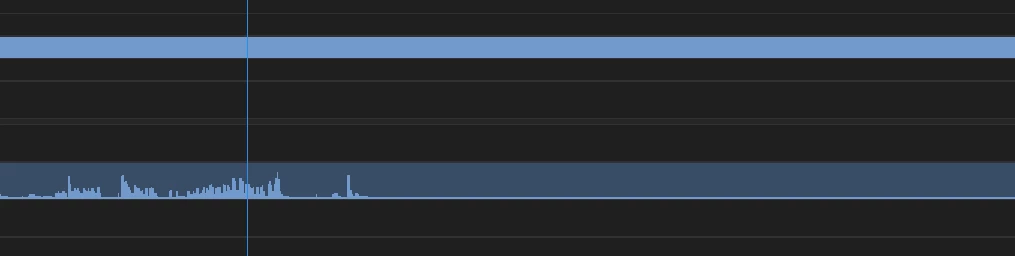
Having issues with this since updating to 2019. Basically, after importing a clip into the timeline everything is as it should be (video plays, audio plays) but the audio waveform does not show up until it's played through so I cannot visually see the audio waves unless I play/skip through the whole clip, which obviously makes editing a lot slower.

Attached an example. Image 1 is the clip just imported to the timeline and image 2 is after playing through a few seconds (as you can see the audio only shows up after I've played through the clip and the remaining audio waves are still blank)

Any help would be appreciated!

Using Windows and Adobe Premiere Pro 2019.

Correct answer just take actioi16874188

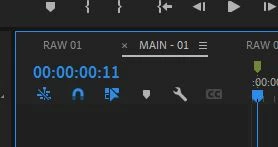
Another option is to click on the timeline display settings button - it's the wrench icon in this pic.... There you'll see an option to turn the waveforms on or off. 

47 replies

frankfuture
Participant
May 24, 2021

From personal experience - Averdahl's solution may work, but I've never resorted to that myself because I actually use preferences to store the state of my editor, and prefer to not mess with it. The simplest solution I've found to work is to renaming the file and importing it again (sometimes more than once). I'm assuming this is a fairly basic cache issue and would be resolved by deleting the faulty preview and re-importing but, jesus mother of god, this should not be incumbent on the user. The fact that even manually invoking Generate Audio Waveform fails to generate a  valid waveform is just baffling.


My experience is that Adobe feeds on user sanity and has had this bug, among oh so many others, around since forever. Moreover, not only does pretty much every single major revision make me want to shoot myself, the absolutely absurd plethora of basic bugs and quirks that keep re-emerging is often mind-boggling on a Bethesda level.


Since these seem to be favorite solutions to various problems on the web:


@adobe : to be clear, I'm not suggesting introducing more bugs to widen the gamut, but if every second issue with your software requires the user to trash their preferences or nuke the cache, move files around, deal with lost work due to instant crashes, unzip and edit the project file, never upgrade, or roll back their drivers or editor, then it just might be time to invest in a better QA team. Or I don't know, maybe at least listen to their damn feedback.


But enough barking up a dead tree: even this basic issue hasn't been fixed in years and I'm confident won't be for years to come.

ZenGeekDad
Inspiring
April 13, 2021

Summary of "Fixes" (Star-Rated, on a 5-star scale):

  1. *** Render & replace.  I and many others here have found this work-around, and it seems the most robust approach, in that is works the most often.  But it's slow, makes extra files, and in rare cases, even this fails.
  2. *** Avoid editing audio tracks in Multicam sequences.  For my own reasons, I often ignore this advice and later regret it.  For example, muting audio track 1 in your multicam sequence, is trouble.  You might think you can just unmute some other track, and thereby still have an audio waveform in your derived sequence.  But the underlying code behind the multicam sequence does some mapping, and this doesn't seem designed to allow us to do these sorts of edits.  You might get audio, or you might not.  If you've done fairly little in the multicam sequence, you might be able to just unmute audio track 1 of the multicam sequence, and the audio waveform in the sequence derived from it may return.  But, the more you edit things in a multicam sequence, the more likely the bug will not be recoverable, by user manual efforts.
  3. ** Clip > Generate Audio Waveform ... is quick to try.  I think this worked for me once in several years.  But mostly no help.
  4. ** Edit > Preference > Audio > check "render audio when rendering video" ... may help.  Default is off.  So try turning on, then re-add your video to you sequence.  Might get lucky.  I have little experience with this one.
  5. * Edit > Preference > Audio > check "automatic audio waveform generation" ... fixes problem only if this was unchecked (and the default is checked), and then only for clips added to timeline after this is rechecked.  Most of time, this was not the problem, so it's not the fix.
  6. * Clear cache & peak files, some think preferrably manually (to be more complete).  This has yet to work for me, and many here report the same non-result.
SimonasVS
Participant
February 20, 2021

What worked for me is:

1. Unlinking Video and Audio

2. Right-clicking on the audio "line"

3. Render and Replace...


rocioribeiromendonca
Participant
January 29, 2021

Try right clicking on the clip on the timeline > Render and Replace. Worked for me. 

SkotLind
Participant
January 31, 2021

this worked for me! Thank you. Thank you. Thank you!

Participant
July 10, 2020

The above solution didnt work for me -as well as most of the other suggestions. I closed PPro, deleted the .pek files, then it regenerated them when i reopened the project. Works like a charm...

Participant
January 22, 2020

I found a vídeo with the solution:
https://www.youtube.com/watch?v=AWi_ezZD0fU

Participant
June 5, 2020

(edit) solved with with explanation donated beforehand in this thread

Participating Frequently
January 14, 2020

Same problem here, almost over a year after first reported. The fact that you have to go whatever extra steps to see a waveform is embarassing. Did anyone at Adobe actually work as an editor? Time spend waiting and troubleshooting just keeps piling up 😞


Render-and-replace option seems to be working so far, thanks for that at least.

Participant
January 22, 2020

I found a vídeo with the solution:
https://www.youtube.com/watch?v=AWi_ezZD0fU

Participant
January 12, 2020

Just easily Right click on you audio track then Render and Replace.

Good luck.

Participating Frequently
January 8, 2020

It's a year later and this is still happening. I had a waveform, zoomed in once and it disappeared, now nothing is bringing it back. This mainly happens for me when I use nested sequences, but all the other clips in the timeline using the same subsequence are displaying properly. Just not the one I actually need to edit, of course.


Combined with the wacky display errors when you apply an ease to alpha animation, Pr 2020's UX continues to be an adventure.

Aukejantje
Participant
January 8, 2020

Go to Preferences > Timeline > Check 'render audio when rendering video'

After that just select the clip and go to Sequence > Render selection.

Hope this works for you as well.

ColtonCM
Inspiring
October 24, 2019

In case anyone wonders in here, I FOUND A FIX. Right-click your audio clip that has no waveform, and click the option that says "Render and Replace." It will spit out the new clip with the audio waveforms in full view. Hope this helps.

owenburgess
Participant
April 22, 2021

This solved the issue for me. Thank you so much!