
Osaka Geoff
Participating Frequently
August 29, 2018
Question

Help!! Premiere Pro CC is changing the color of my imported footage

  • August 29, 2018
  • 29 replies
  • 78486 views

When I import my footage into Premiere, it seems contrast is being added to it. What was properly exposed footage looks like it has crushed blacks and blown out whites. I have not added any effects and there are no master clip effects added. When the footage is in a sequence, I can create an After Effects Composition, and the color returns to normal. I am looking for a solution inside Premiere so I don't have to create AEcomps for every clip. It affects both .mov and .mp4 files.

.mov
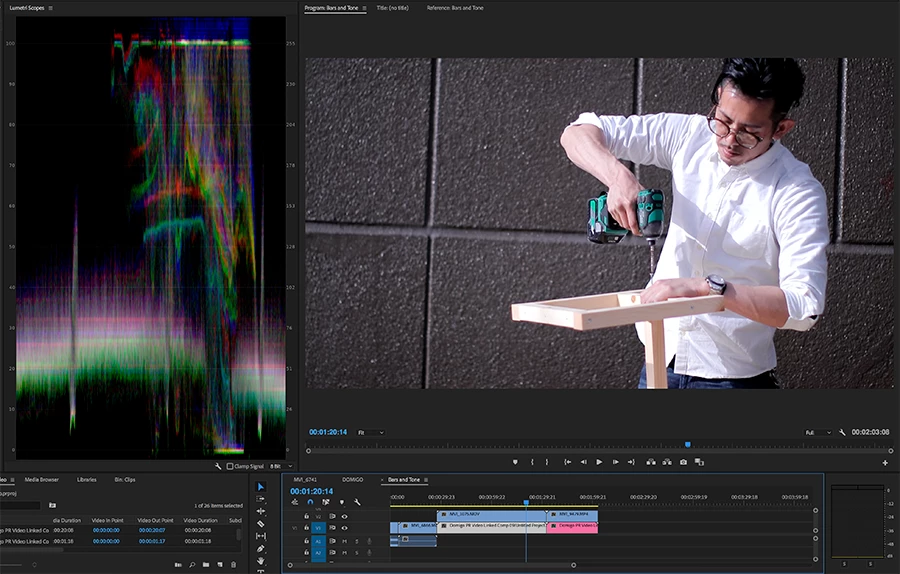
.mov AEcomp
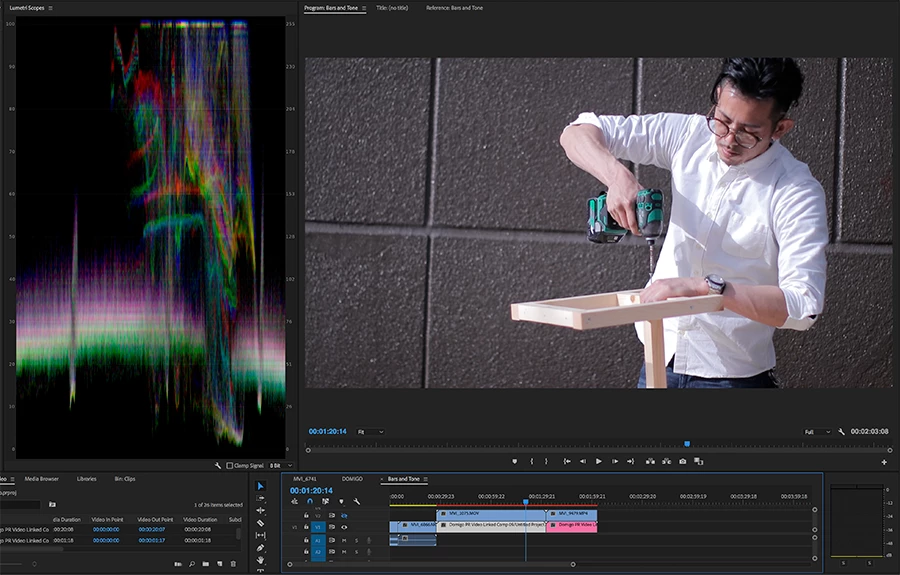
.mp4
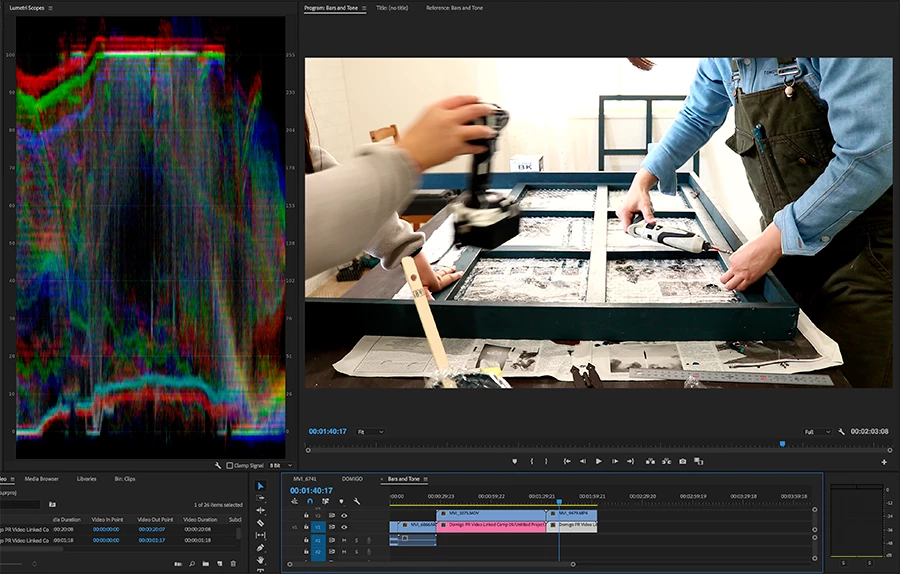
.mp4 AEcomp
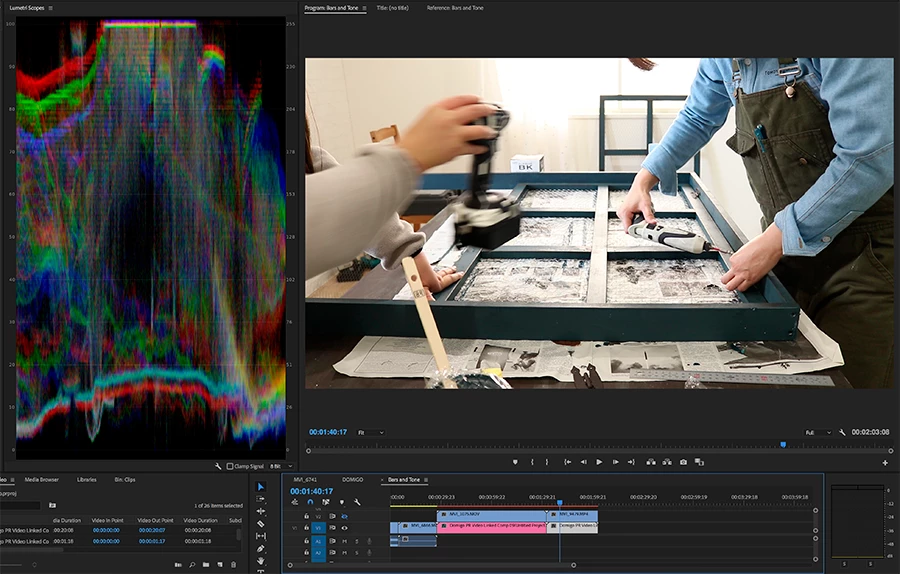
Thank you in advance.

~ Geoff

System:

iMac Pro

High Sierra v.10.13.6

3.2 GHz Intel Xeon W

64 gb 2666 MHZ DDR4

Radeon Pro Vega 56 8176mb

Camera info:

Canon 80d shooting in .mov and .mp4

Premiere Pro CC v. 12.1.2

Update:

I have tried the same video on an iMacbook Pro computer with updated Premiere and AE. There was no issue with the colors. This problem might be specific to Premiere on iMac Pro systems.

I also created a GIF to better demonstrate the difference between footage in Premiere and the same footage routed through After Effects.

https://drive.google.com/file/d/1-ZFROJphhpAwZVc6zOrnCGhAuON5B7_8/view?usp=sharing

After Effects displays the colors correctly. Premiere doesn't. Why is this so?

This topic has been closed for replies.

29 replies

Known Participant
March 30, 2019

Let me give u guys a bit more detail :

1: Imac Pro and premiere..

J7Lqnxz.jpg

Look at the parade and compare it with the second image.. It is exactly the same project..sam e file.. See the parade.. The footage is useless.

You CAN NOT COLOR GRADE… the shadows and hilights are blown.. and you can not bring back the data…

2: Mac Pro Late 2013 with Eizo and premiere

xlRBeYx.jpg

Compare the parade with image 1…

3: Imac Pro and final cut..

wLUbttF.jpg

This is the same machine with 1… Same footage same moment.. it is exactly as seen as the original file.. Compared with Quicktime.

The parade is same with parede in image 2

4: Macbook Pro 2018 and premiere

e6IrjQG.jpg

The parade is same with image 1 and image 2… So it is not a p3 issue.. This problem

is specific to Imac Pro…

Could it be a graphics card issue ?

Radeon Pro Vega 56 8GB

Koray Birand

Known Participant
March 29, 2019

Anyone found a solution.. I am having the exact same problem.. crushed blacks and blown whites.. only with premiere.. not on resolve or finalcut.. i have check my premiere project on a mac pro 13 with eizo image is fine.. checked on a macbook pro 18 image is fine.. only with my imac pro the problem occurs..

i tried the profile fix method but no luck..

Any new suggestions ?

Koray Birand

R Neil Haugen
Legend
March 30, 2019

Kevin-Monahan​ ... please assist?

Neil

Everyone's mileage always varies ...
andreaf47667194
Participant
March 19, 2019

Hi,

Did you tray to uncheck "Enable hardware accelerated decoding" in media preferences?

I had the same problem on my iMac pro and it worked for me

A.

jakeweisler
Participant
March 31, 2019

THIS SOLUTION WORKED FOR ME!! I just went into Premiere's Media Preferences and unchecked "Enable Hardware Accelerated Decoding", restarted Premiere, and it worked!

Osaka Geoff
Participating Frequently
April 1, 2019

jakeweisler​ thank you for your solution. Even though, this solution didn't work for me it seems to have helped others.

Osaka Geoff
Participating Frequently
December 3, 2018

I may have found the solution to this iMac Pro coloring issue. It is not a Premiere Pro issue but an Adobe Color Profile issue.

This is my solution (Mac Only):

Go to ColorSync Utility and run Profile First Aid

Verify and Repair.

I found several profiles needed repair.

If you cannot repair the profiles, which is what happened to me, then please follow this link: I used the solution that has you run the ColorSync Utility through an OS X Terminal Utility command.

How to address ColorSync profile errors in OS X - CNET

"

open the OS X Terminal utility and run the following command:

sudo /Applications/Utilities/ColorSync\ Utility.app/Contents/MacOS/ColorSync\ Utility

When executed, this command will ask for your password, and then launch an instance of the program with full administrative access to the system (do not close the Terminal window while the ColorSync Utility is active or it will close as well). Now run the ColorSync First Aid routine and fix the problematic profiles, which should at least fix those that were not previously addressable.

"

Give this a try and let me know if this works for you.

JRitz

R Neil Haugen
Legend
December 10, 2018

Thank you for posting this! Which could be of great help to many Mac users, of course.

Neil

Everyone's mileage always varies ...
Participant
November 14, 2018

Hello everyone, I have been using the new iMac Pro and have been experiencing these issues regarding an added high contrast from time to time and thought I was going crazy. Has anyone figured out a solution to this, or is it just a bug.... I work on the same exact project on an older iMac and the color is fine, totally matches how it was shot.

My System Info:

iMac Pro

High Sierra v.10.13.6

3 GHz Intel Xeon W

64 GB 2666 MHZ DDR4

Radeon Pro Vega 64 16368 MB

Premiere v.13.0.1 (PICTURED ON THE LEFT)

AfterEffect v.16.0.0 (PICTURED ON THE RIGHT) CORRECT EXPOSURE

Nothing has been added to the footage in premiere, so I cannot understand how its being interpreted this way upon import.

R Neil Haugen
Legend
November 14, 2018

In your new Mac, I'll assume it's a P3 wide-gamut monitor, and you've not set the Preferences option to "enable display color management" ... try that and see if it helps.

Neil

Everyone's mileage always varies ...
Mo Moolla
Legend
November 14, 2018

R Neil Haugen​ the new P3 wide gamuts are awful. I can't stand them. Apple needs to take a lesson from Dell

Participant
September 6, 2018

I'm working at a production company where one of the other editors encountered this problem on import too, and I'm trying to figure out why.


We have 5d3 H264 footage which is correctly exposed. In finder, in Resolve, in After Effects, it all looks fine, with good detail in the shadows.

He imported it into Premiere  by simply dragging the ten files into the browser (12.1.2), and one of the ten files has this heavy added contrast that blows out the highlights and destroys the shadow detail. Just randomly one clip.

What I've checked: Master clip effects are not applied, and all the footage is being interpreted the same way as far as I can see.

I've deleted the files and re-imported, and it looked fine last night, but this morning, all the clips now have the contrast problem.

Lumetri curves can't recover the crushed detail, nor can any low-con LUTs.

I suspect some kind of random bug with how it's deciding footage is legal range or extended range, and just cutting off any value below 16 and above 235. If there's a way to change how Premiere interprets this range on a clip by clip basis, that would help.


Literally never encountered this in previous versions, so I feel like it's a bug.

(edit): I've found an earlier thread here where no solution has been found either. Premiere Pro interprets wrong color space for MP4 files.

chrisw44157881
Inspiring
September 6, 2018

I think that is a separate issue as it only affects .mp4 and doesn't crush the blacks, just rotates the hues around.

For the crushed blacks, if lumetri is unable to recover the blacks, then its either a bug in the interpretation of the file or a bug with lumetri itself.

Can you try another video grade effect to raise the blacks(not lumetri) to confirm this? or a TIFF image to see if its codec related?

or disable high quality playback, or software only playback?

Participating Frequently
September 6, 2018

Hi sorry I deleted the comment because i was about to write a new discussion on this issue. We have tested on 3 separate computers now running 12.1.2 and have been using the inbuilt bars and tone to test the colour shifts to get the following results. Sequence settings are set to Max bit depth and max render, can anyone explain what is occurring here:

GPU enabled no effects:

GPU enabled with 8bit effect and non accelerated effect - camera blur set to 0:

GPU enabled with 32bit effect and non accelerated effect - neat video no effect applied:

GPU Disabled:

Osaka Geoff
Participating Frequently
September 6, 2018

Korin Unka,

Thank you for reposting.

Unfortunately, I don't quite understand what you are doing in each image. Could you provide more detail on how you went about testing. I would like to recreate your test to see if we have the same issue. Up until this point I have not any issues with color shifts when it comes to bars and tone. I have only had shifts with my video clips.

Geoff

Participating Frequently
September 6, 2018

I'm testing whether non accelerated effects do a colour shift. I'm also testing whether disabling my gpu and setting it to software causes a colour shift. I'm using inbuilt bars and tone from premiere pro to do the test so that I can discount whether it's imported footage. With the above screen shots what I have done is created a new "bars and tone" from the within the project tab (right click "New item" > "Bars and Tone"). I then right click on the new bars and tone clip and select "New sequence from clip". That produces the sequence with the bars and tone. From that I have added 3 effects, one is a non accelerated 8 bit effect (Camera blur), The next is a non accelerated 32bit effect (Neat Video Reduce noise"), an accelerated effect "Gaussian Blur". I have disabled all the effects using the option in the top left of the effect (FX). I have then enabled each effect and set the effect so that is doesn't effect the clip, so I have set the Camera Blur to "0". On the above screen shot the camera blur does a colour shift to the bars and tone. I then disabled the camera blur and enabled the "Reduce noise" (32bit non accelerated effect). This effect doesn't effect the clip until you select specific options, as a result I have left it and it produces a colour shift. I then disabled this effect and enabled a hardware accelerated effect (Gaussian Blur) and set that to (0). I got no colour shift. After this I have disable the gpu - "File" > "Project settings" > "renderer" > Set it to "Mercury playback engine software only". This gave me a colour shift. I have done some other tests around rendering the project and the clips in the project and get the same colour shift. What I was testing out is whether it was my footage or whether it was to do with hardware acceleration, the shift is subtle however it is noticeable when you apply it to part of a clip, an example might be a non accelerated transition where the clip changes to the subtle colour shift as it does it's transistion. My current workaround is to not use non hardware accelerated effects or to try and do a secondary colour adjustment. Has anyone encountered this or maybe can point to where I maybe going wrong?

chrisw44157881
Inspiring
September 5, 2018

AE (with color management off) is just following your native monitor color profile by default(usually P3). premiere ignores it.and stays in rec. 709. So, either use color management with AE/view simulate or use a p3 to rec. 709 lut for premiere. one of them will be wrong. you get to choose which. Try to "load a Null/Bypass ICC" in the mac's color profile OS type. Steve Shaw said that is the only way for it to let you customize profiles. I don't have a mac, so I can't verify this.

Osaka Geoff
Participating Frequently
September 6, 2018

Chris,

I have tried setting my monitor to rec.709 with no luck. I did this through my Mac's System Preference Panel. Is there a different method I should be using?

But I must say that with the nature of this issue, I have a hard time believing it is an issue based solely on my monitor's color profile. Just today as I was editing a video, and the colors of some of my clips started flickering between the original color and the high contrast version without being routed through AE. It seems to me that Premiere has the ability to interpret the video colors correctly but is glitching somewhere. Of course this is just my current take on the situation and appreciate your input.

Could you explain to me how I can use color management with AE in Premiere?

Geoff

Osaka Geoff
Participating Frequently
September 6, 2018

This was a comment that disappeared as I was replying to it that mentioned a similar issue when Non Accelerated Effects were applied to the sequence.

"Hi I have had a similar issue in particular when I have upgraded from 12.0.0 to 12.1.2, it seems to occur when you apply non accelerated effects and the timeline goes from the yellow bar to the red one. I have tried it on two different machines and the same issue occurs. I'm not on a Mac but on a PC and it sounds very similar to the issue I have been having. I think if you haven't applied a non accelerated effect to your work recently you might not have noticed the colour shift.

This colour shift still occurs if you lower the effect so that it doesn't effect the image. So an example is setting the camera blur effect to 0, in theory the effect should do anything to the image however toggling the effect on and off shows the shift in the waveform. Non accelerated transitions also produce the colour shift. These aren't limited to only 8bit effects either, I have tried with 32bit effects like neat video and still get the colour shift. I have also rendered these out to make the red line go green and set the sequence to max bit depth and max render. The preview renders are set to cineform 10bit yuv 10bit 3840 x 2160. This still shows the colour shift. I have also exported the project and it gets the colour shift."

While similar, I have the color shift occurring even when I start new projects and import brand new footage with no effects attached to it.

But I am open to the possibility that this is a solution. Is it possible for Non Accelerated Effects be applied automatically without me knowing? If so, is there a way I can stop that from happening?

Geoff

Osaka Geoff
Participating Frequently
September 5, 2018

Update:

I have tried to uninstall and re-install Premiere Pro with no effect. I also recalibrated my screen to Rec.709. with no effect.

Is there anyone out there working with iMac Pro and Canon DSLR footage having similar issues?

R Neil Haugen
Legend
September 5, 2018

I occasionally get this sort of thing on clips from my Panny GH3 on my Win10 system. Yea, nuts, eh?

Neil

Everyone's mileage always varies ...
Osaka Geoff
Participating Frequently
September 5, 2018

Neil,

Thank you for taking a look at my problem.

Is there anything you do to have your footage import correctly?

Geoff