
Inspiring
August 8, 2024
Answered

Severe Banding Issue in Premiere Pro but Not in QuickTime - Need Assistance
  • August 8, 2024
  • 14 replies
  • 1184 views


Hello Adobe Community, 


I'm experiencing a severe banding issue in Premiere Pro that does not occur when I play the same footage in QuickTime. So it isn't an issue with the source video files. I’m editing a project that includes footage captured using the same camera over 6 years since 2018. I have made a previous video that the footage was captured with using the same camera and also edited in Adobe Premiere which makes this banding issue even more odd. I was successfully able to Color grade it and add desired Lumetri additions on my last project. This footage is captured with a Panasonic DVX100b that used a MiniDV tape. I then used a "capture camera" that also uses a MiniDV tape (think family cameras to capture memories back in the film days) to transfer the clips from the film to make a digital file from the footage and not wear down the film heads on the camera in the process. A pretty standard recommended process. This is something i have done for years, starting with a VX1000. This was a lot of work but was all in the name of having that "aesthetic" which is quite popular in the Skate/BMX film making scene.


Here are the specifics of my setup and the problem:

System Information:

  • Device: MacBook Air (2020)
  • Processor: 1.1 GHz Quad-Core Intel Core i5
  • Graphics: Intel Iris Plus Graphics 1536 MB
  • Memory: 16 GB 3733 MHz LPDDR4X
  • OS: macOS Sonoma 14.5
  • Premiere Pro Version: 24.5 (Latest)

Footage Details:

DVX100b Camera Capturing on MiniDV tapes and then converted into digital '.mov' files

  • Format: MPEG-4 (QuickTime) (DVCPRO)
  • Resolution: 720x480 (4:3), at 29.970 FPS
  • Bit Depth: 16 bits
  • File Size: 33 s 834 ms, 24.4 Mb/s bitrate

Issue Description:

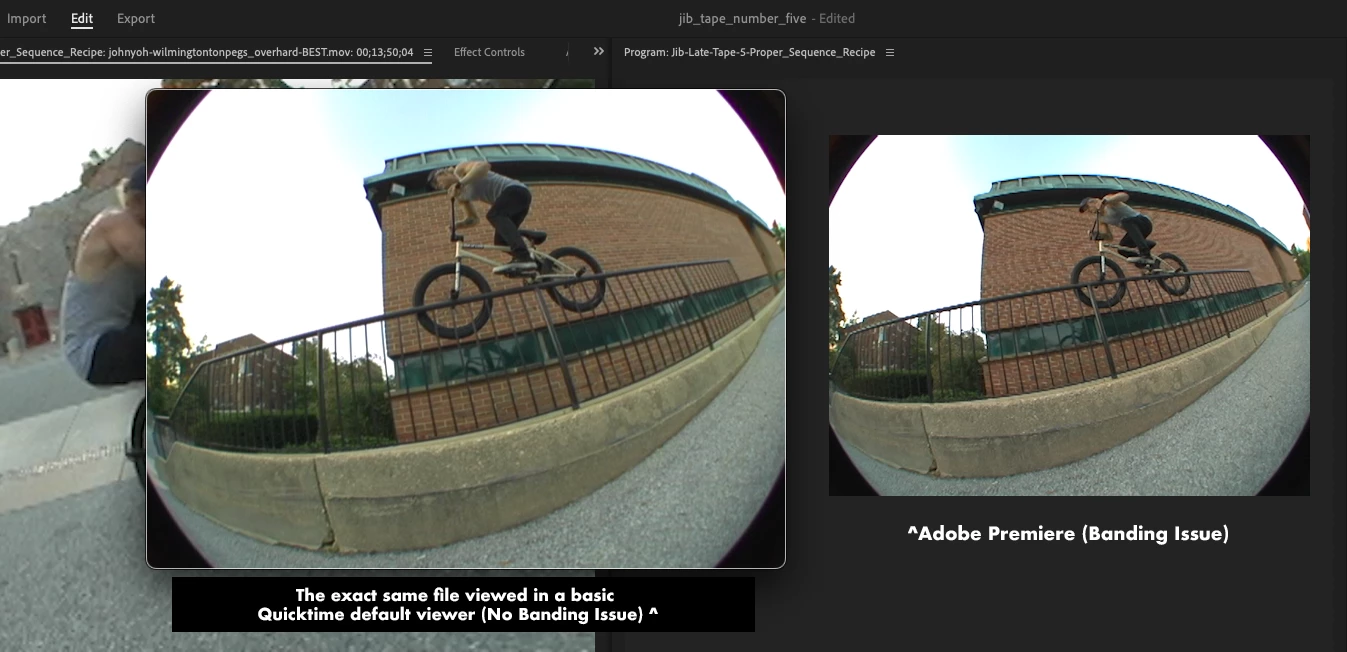
When playing back my footage in Premiere Pro, I experience severe banding that is not present when the footage is played back in QuickTime. The issue persists through various attempts to resolve it, including disabling hardware acceleration.

Troubleshooting Steps Taken:

  1. Created a New Project from Source Clip: Imported the source file directly into a new project, but the banding persisted.
  2. Disabled Hardware Accelerated Decoding: Went to Premiere Pro > Settings > Media, unchecked "Enable hardware accelerated decoding", restarted both Premiere Pro and my MacBook, and created a new project, but the issue remained.
  3. Checked Sequence Settings: Ensured that the sequence settings matched the source clip settings, including codec and frame rate.
  4. System Specs Confirmation: Verified that my system meets the necessary requirements for running Premiere Pro.

Screenshots and MediaInfo + Export video:

Additional Notes:

I would appreciate any assistance or suggestions on how to resolve this issue. It’s crucial for my project, and I’m at a loss on how to proceed further. I have used Premiere for every personal project i have ever made, i don't desire learning a new piece of software like Final Cut and take my editing work that i've done in an XML file there.

I have considered that using Media Encoder may be helpful? If anyone reading this feels that would be the way to go let me know!

Here is the video that i made in 2017 using the same DVX camera and edited it using Premiere Pro:
"Tape" 4 

The idea was that this was to be a follow up to this. I even downloaded this file from that link above from my Vimeo account so i could match the Media Information on the export. I've spent considerable time editing this new project so to find out that it wasn't just a display oddity that needed to be adjusted and is truly based on how Adobe is interpreting the footage is quite dissapointing. Especially since I have used the same technology successfully in the past. This footage that I have accumulated is very important to me and not being able to use it well is hard for me to accept. 

Thanks in advance for any help that I may receive!
Correct answer JonathanSchimpf


@Kevin-Monahan Found out through Reddit that it wasn't even banding.

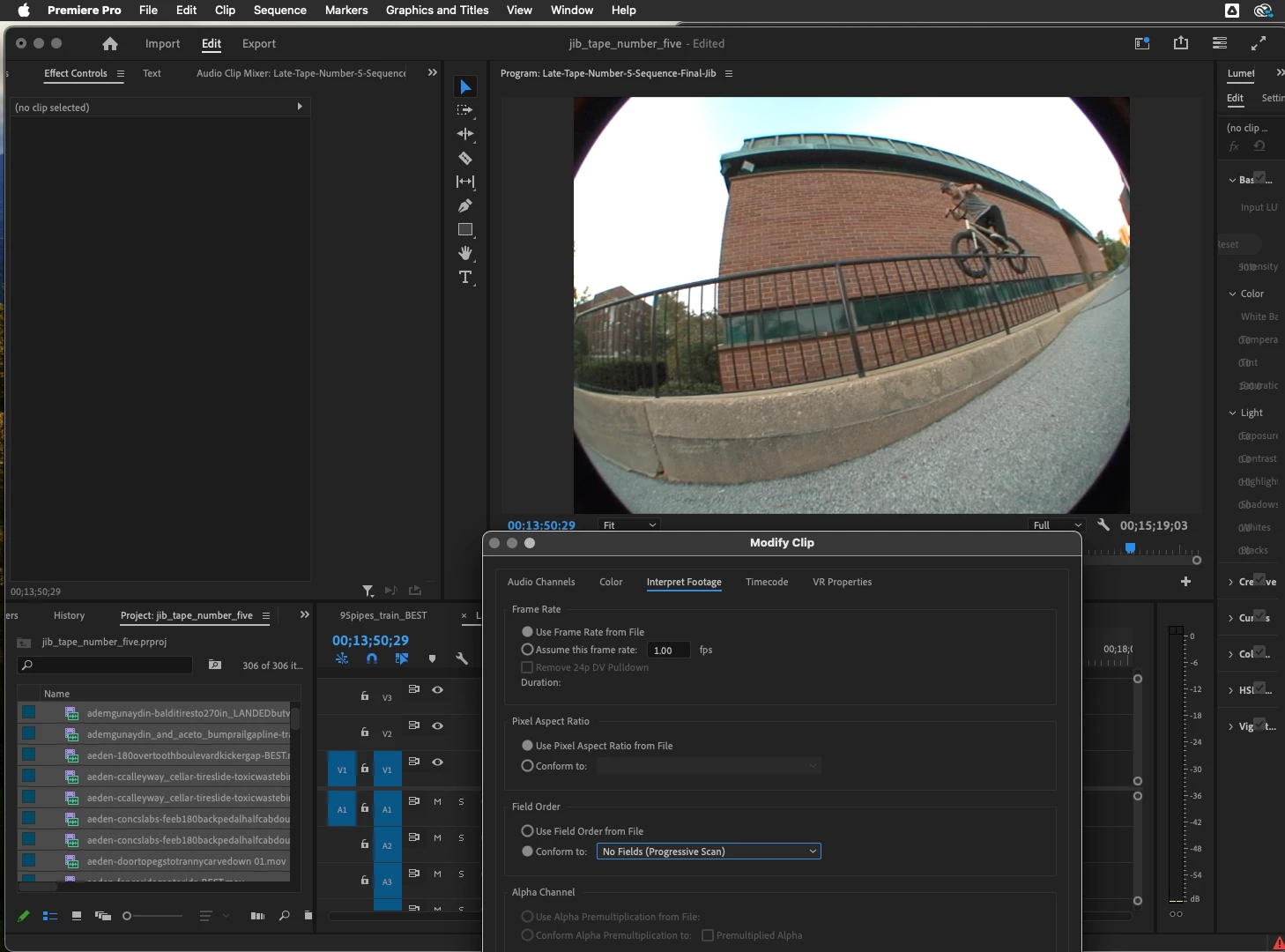
Remedy was --> Select the clip in the Project panel and going to Clip > Modify > Interpret Footage.


When there switching from 'Lower Field First' in the project panel on the actual clips to 'No Fields (Progressive Scan)' did the trick! Not sure how the 'Lower Field First' option was on. That is odd to me. The only thing i changed was sequences attempting to troubleshoot. 

24,944 frames to render!

14 replies

JonathanSchimpfAuthorCorrect answer
Inspiring
August 13, 2024


@Kevin-Monahan Found out through Reddit that it wasn't even banding.

Remedy was --> Select the clip in the Project panel and going to Clip > Modify > Interpret Footage.


When there switching from 'Lower Field First' in the project panel on the actual clips to 'No Fields (Progressive Scan)' did the trick! Not sure how the 'Lower Field First' option was on. That is odd to me. The only thing i changed was sequences attempting to troubleshoot. 

24,944 frames to render!

Kevin J. Monahan Jr.
Community Manager
Community Manager
August 15, 2024

Hello @JonathanSchimpf,

Thanks for reporting back. I'm glad you found a solution. Lower-field first is the normal field dominance setting for the dv importer and NTSC-DV. Keep in mind that most people did not shoot progressive as the option didn't even exist until the Panasonic cameras started appearing on the scene (DVX-100, I believe). So for several years, I recall it was all 29.97 interlaced, lower-field first. It might be an issue that your clip wasn't interpreted correctly on import. I'm glad you have the workflow going now that will drive your project to completion. Good luck!


Cheers,
Kevin

Kevin Monahan - Sr. Community and Engagement Strategist – Adobe Pro Video and Audio
Inspiring
August 12, 2024

@Kevin-Monahan, sorry to keep coming back regarding this, but this issue is really getting to me as I've previously had such smooth experiences with Premiere.

I'm still facing persistent banding issues in Adobe Premiere Pro, which I haven't been able to fix despite trying various sequence settings and rendering methods. This banding appears both within Premiere and in exported files, and interestingly, it does not occur when viewing the files in QuickTime, which suggests the issue is specific to Premiere. I'm hoping the experts here might help identify what I might be missing.

Update on the issue:

Persistent banding in videos, unaffected by changes in sequence settings or rendering methods, visible in both Premiere and exported files.

Troubleshooting Steps Taken:

  1. Initial Sequence Setting (960 x 720):

  2. Adjusted Sequence Setting (720 x 480):

  3. Source File MediaInfo:

  4. Rendering Methods Tried:

    • Description: Both 'Mercury Playback Engine Software Only' and 'Mercury Playback Engine GPU Acceleration - Metal (Recommended)' were unsuccessful.
    • View Renderer Setting Attempts

Current Testing Sequence Settings:

  • Frame Size: 720x480
  • Pixel Aspect Ratio: Square Pixels (1.0)
  • Fields: No Fields (Progressive Scan)
  • Output Codec: Apple ProRes 422

Despite all these settings, the banding is still prominently visible. Any advice on how Premiere might be interpreting these files, or suggestions for further settings or adjustments, would be hugely appreciated. I'm striving to maintain the visual quality consistent with my earlier projects.


Inspiring
August 11, 2024

@Kevin-Monahan below is a screen recording showing that the source file of the video plays in a quicktime default player without showing banding. So there certainly be some alteration needed. It's very odd that a basic video player displays the footage correctly, but a pro tool editor does not. I must have something set up wrong. The example clip screen recording of it playing banding-free:


Screen recording showing that Quicktime does play the clip without displaying banding. 


To make things easier for the developers at Adobe, here's the actual source file where the banding issue clearly shows on the brick wall:

Source file of the clearly visible banding issue on a brick wall that i've been using as an example 

^ Despite that only being 34 seconds, i cannot upload to creative cloud for some reason...


CC says '"filetype not supported" 


I'll gladly upload though. Just let me know!

Inspiring
August 10, 2024

@Kevin-Monahan 

No worries, thank you for making that space and being willing to help me with this. It means alot! I have replies checked so i'll keep a lookout.

Kevin J. Monahan Jr.
Community Manager
Community Manager
August 10, 2024

Hi @JonathanSchimpf,

I've asked the dev team to request an upload space for your file. We're already after hours now, so I have to ask for your patience while they reach out. I hope that's OK.


Take Care,

Kevin

Kevin Monahan - Sr. Community and Engagement Strategist – Adobe Pro Video and Audio
Inspiring
August 10, 2024

**That is the exact format from the exact sequence settings.that CC won't accept as an upload.. Not quite sure how else this can be properly diagnosed.. My bad!

Inspiring
August 10, 2024

I really would love to upload to creative cloud but i just tried a 5-10 second snippet showing the obvious banding snippet and creative cloud would not allow it. Does creative cloud not allow .mp4 files? I thought it was the length but it said 'Some filetype not supported'..


That is the exact format that won't export from the exact sequence settings.. Not quite sure how else this can be properly diagnosed.. My bad!

At any rate here's the shortened clip:


https://drive.google.com/file/d/1Efusmp_W1Et6yxvjiFOZQU_JGUmf7mr9/view?usp=drive_link

Kevin J. Monahan Jr.
Community Manager
Community Manager
August 9, 2024

Yes, I can see the problem, @JonathanSchimpf. I really want to help you, but it is critical that the developers receive a sample. I'm sorry that Creative Cloud will not allow such a large file. I will ask the developers to provide you with an upload location that allows a larger file size. Keep an eye out for an email or a private message here from them.


Sorry for the hassle here.


Thanks,
Kevin

Kevin Monahan - Sr. Community and Engagement Strategist – Adobe Pro Video and Audio
Inspiring
August 9, 2024

https://drive.google.com/file/d/1ESOc6MUDxleqQIMch2HiuuviDBwG_3BS/view?usp=sharing&t=830

Google allows you to share a link that opens the uploaded video at an exact time, here is the export that opens at "13:50" once play is pressed. The banding happens in the entire video on both the timeline and the export anywhere there is a pattern. I've just been using a frame from that clip as an example. The team should be able to download to better diagnose. It must be a codec or something of the sort, because like I said it looks fine when viewed in the basic default QuickTime Player,  but not in Premiere Pro, the best tool for this task. I just need to be steered in the correct direction!

Inspiring
August 9, 2024

I've tried to upload the file to creative cloud and it is too large: 

 That or "Some file type not supported"


but I do have a publicly available Google drive link of an export showing the banding issue.


https://drive.google.com/file/d/1ESOc6MUDxleqQIMch2HiuuviDBwG_3BS/view


I could export a smaller video that has just the clip I've been using as a screen shot example, with the brick wall that is suffering from the banding because of the pattern. The banding is very obvious, the clip is towards the end of the video @ 13:50.


Thanks for that contact information! I will definitely be reaching out.