




Discuss: Async Load of Large Embedded Captions & Restore Embedded Captions from Source
You asked, we listened!
Issue You Raised
Issue 1
Large, long-duration embedded captions took considerable time to import (period of not responding). The larger the amount of caption segments, the longer it would take to import.
Issue 2
FCPXML files imported with embedded captions do not show captions.
Solution Pr Pro Team Implemented
Resolution for Issue 1 (Async Load of Large Captions files)
With Premiere Pro 22.1 Beta, we’ve enabled ability to uncheck “import captions ” preference box to allow users to disconnect captions from the import of AV. If you do not want Captions when importing an embedded Caption, go to Preferences > Media and uncheck “include Captions on import” (it is checked, by default). This Preference will then apply to any newly imported clips (have not been imported prior). If you change the Preference and want existing imported clips to follow the Preference change, you will need to quit Premiere Pro, delete you Media Cache, Media Cache Files and Peak Files folders, then relaunch Premiere and import the clip(s) again.
OR
With Premiere Pro 22.1 Beta, when you import embedded Caption clips, they should import fairly quickly, and you will notice “Scanning Closed Captions” text and progress bar in the lower right of Premiere Pro (same area as where we report Peak File Generation).
The clip will display Media Pending in thumbnails, Source and Program Monitors while scanning is in process. Project panel List View will also list “Pending” in a number of columns (eg: Frame Rate, Media Duration).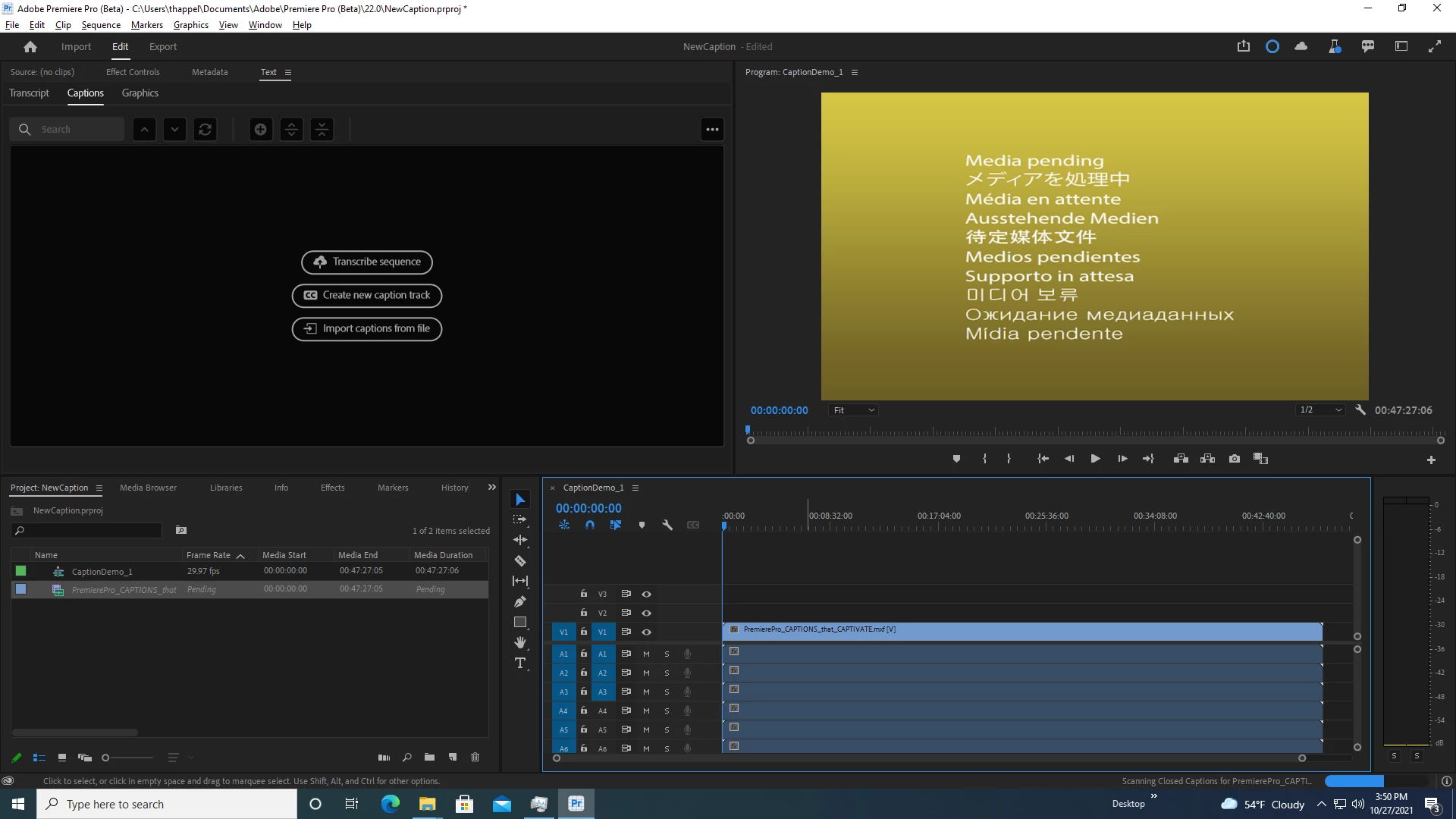
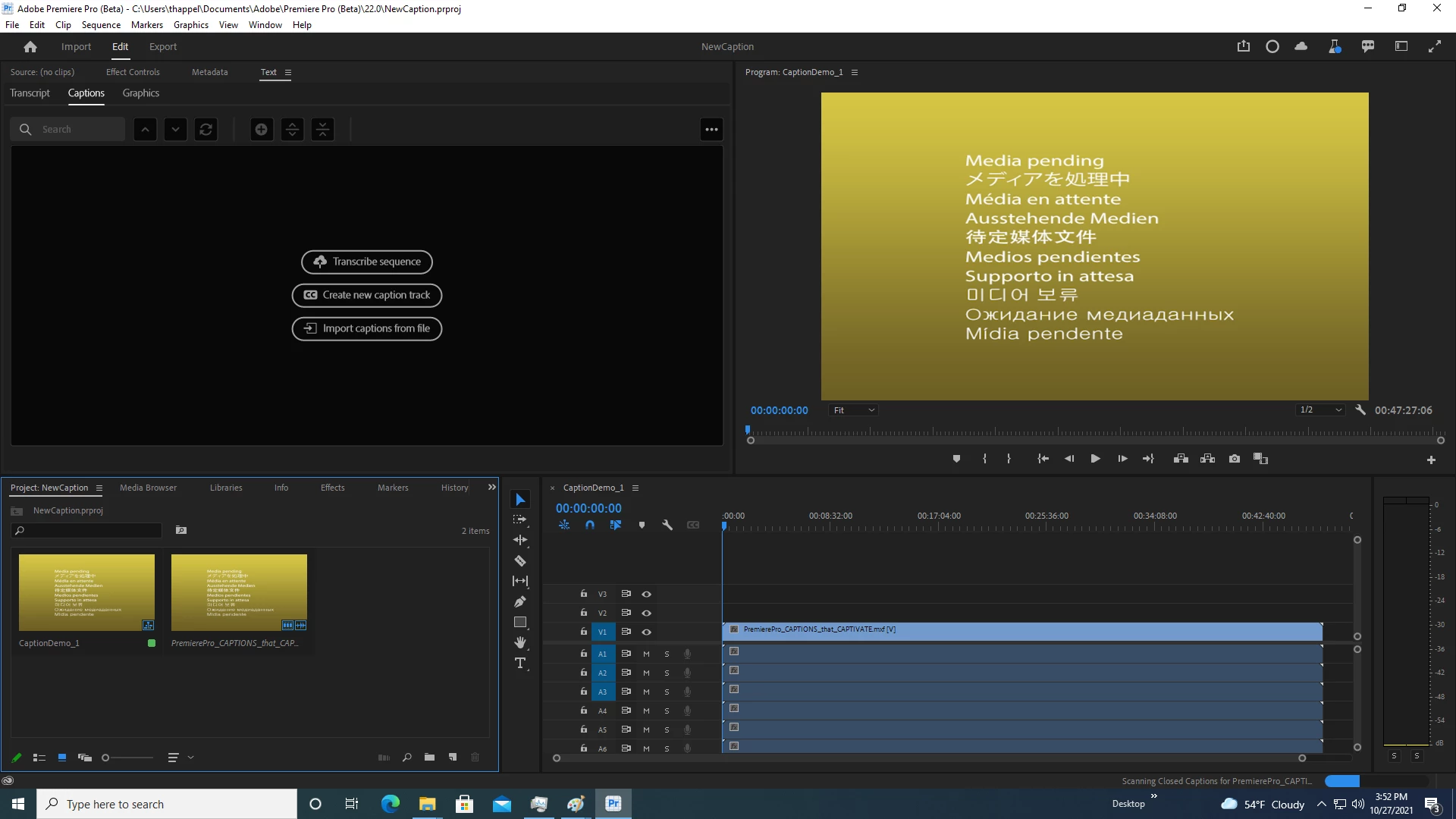
Resolution for Issues 1 and 2 (Restore Captions)
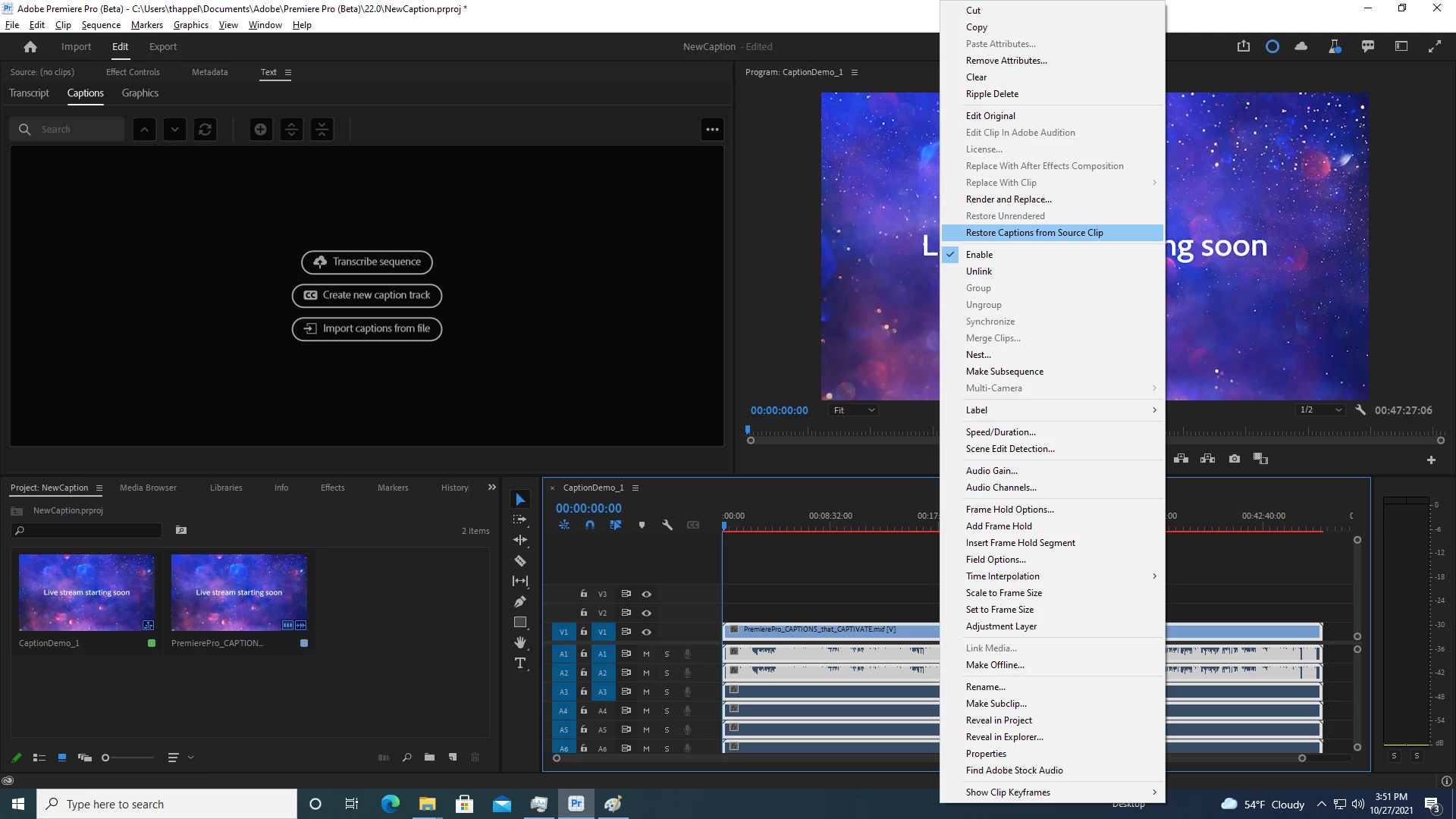
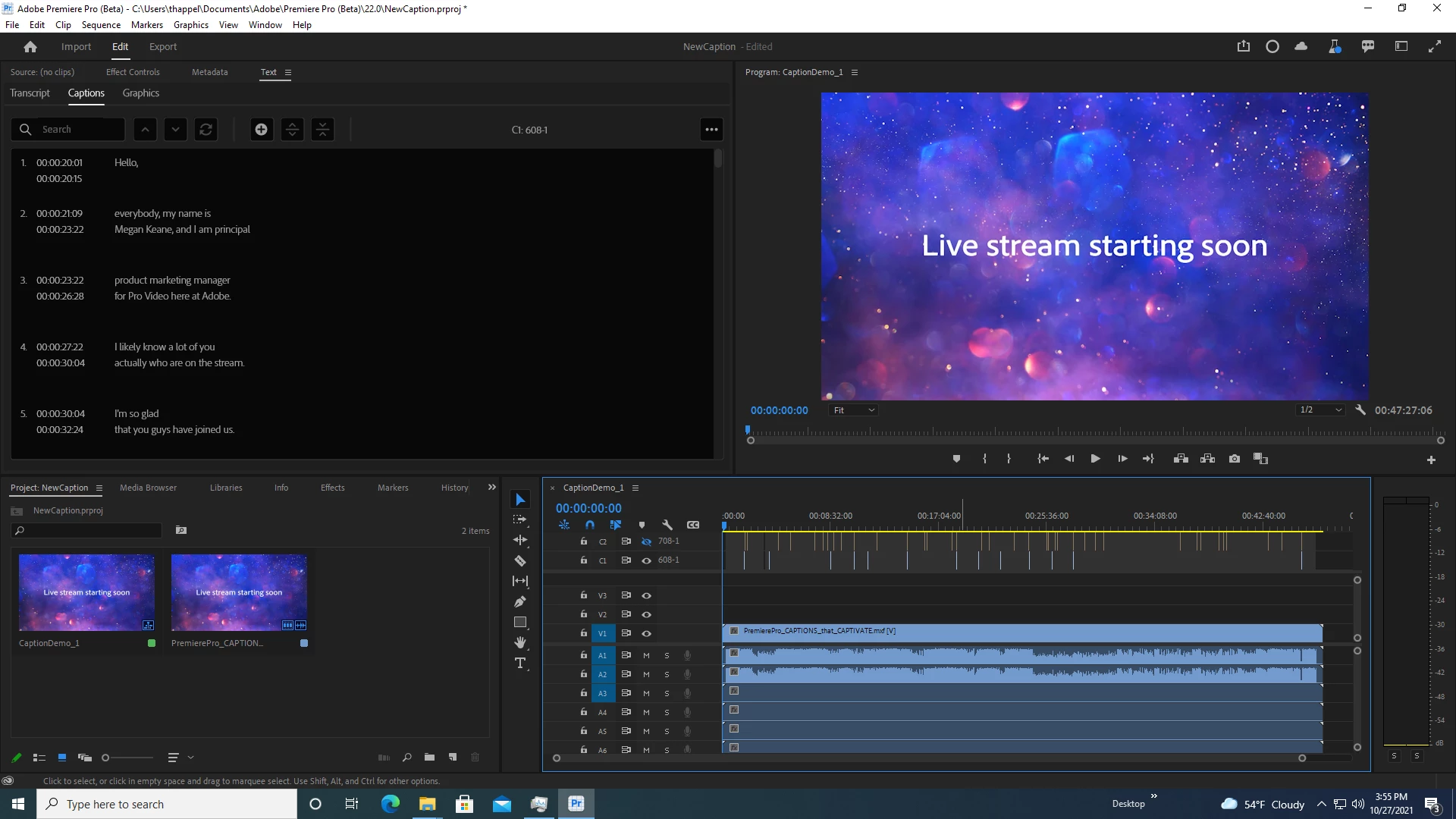
For Sequence that you added while Media Pending, once Scanning is complete, you can right-click on A/V in Timeline Sequence and choose “Restore Captions from Source Clip” (also available under Clip menu and unassigned shortcut). This will add the Caption track(s) from the source clip. This is a per clip action, so if you cut up your embedded Caption into multiple clip segments or added multiple Media Pending clips, then you need to select each one (in the Timeline) that you wish to Restore Captions.
This 'Restore Captions' solution also works for FCPXML files that appear to not have the embedded captions.
We want to know what you think. Please join the conversation below.
 AdChoices