


Convert topic-based glossary to .GLO glossary
Not a question. Just sharing the knowledge I gained from converting our RoboHelp HTML topic-based glossary to RoboHelp HTML's .GLO glossary.
For years we've provided a glossary via a single topic; terms and definitions were presented in 2-column tables - one table for each letter, A-Z, top to bottom. Jump links for each letter at the top of the topic. For various reasons, I've been looking at the .GLO function (I really like the hotspot wizard, but I'm still not sure if it'll create any unintended formatting consequences with our content (thousands of topics)). We have a couple hundred terms and manually copying/pasting them in RoboHelp HTML is NOT something we want to do so I decided to see if I could automate most of the process (particularly since there's a single .GLO file and the guts of the terms/definitions is basic HTML).
What you'll need:
- RoboHelp HTML 10 or RoboHelp HTML 2017 (likely applies to other versions; we have these two so I can verify it worked in both)
- MS Excel (or some spreadsheet application)
- Notepad++ (free)
These are the basic steps. It took a little trial and error so these may not be exact, but there should be enough here.
- Copy/paste terms+definitions from tables in topic to Excel.
- Since our terms+definitions were in tables, the definitions appeared in the same row as the corresponding term, but also in a separate column.
- Insert columns for each HTML tag so you end up with this in each row. This gives you 8 columns:
<glossentry> | <glossterm> | TERM | </glossterm> | <glossdef> | TERM DEFINITION | </glossdef> | </glossentry>
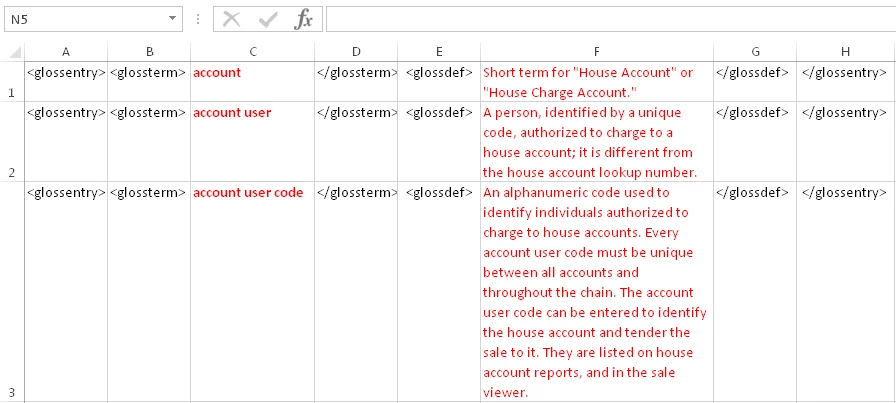
- Copy/paste everything from Excel to Notepad++. Excel automatically inserted tabs between each column (this is good, because it makes it easier to search/replace in Notepad++ to format everything properly (see the next step)).
- Use the Notepad++ replace tool to insert/remove tabs and properly format the line breaks (I had to use the Extended search mode with the \r\n switch) for the .GLO file. (Note: I'm really glossing over exactly what I did - find/replace-wise - to get the raw content (HTML codes, terms, and defs) formatted in standard .GLO format, but if you're reading this you should be able to figure it out - it's very easy.)
- Once you have everything in Notepad++ formatted/looking like the .GLO file, copy/paste it to your .GLO file. The terms/defs should appear in the Glossary editor in RoboHelp HTML.
- IMPORTANT: If nothing appears in the Glossary in RoboHelp HTML and all your open/close <glossentry>, <glossterm>, and <glossdef> tags are correct, you likely have an illegal character within your actual term or definition content. For example, an ampersand will cause this problem. Remove the problem character (view the content in Notepad++, which automatically displays characters like this in a different color) and should be good to go!
 AdChoices