


Participating Frequently
August 23, 2021
Answered

RH 2020 - Linking word documents creates extra folders

  • August 23, 2021
  • 3 replies
  • 318 views

I want to link Word documents to my RoboHelp project - so if I update the Word document, my RH project can be updated accordingly. 
I tried to link a folder on my computer. This folder included some subfolders and Word documents. I linked the documents by right-clicking in the content panel > Link > Link Folder.
This worked. Then, I clicked on one of my Linked Word Documents and selected 'Create/Update Topics'.
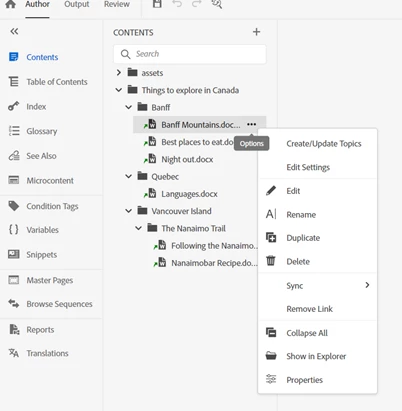
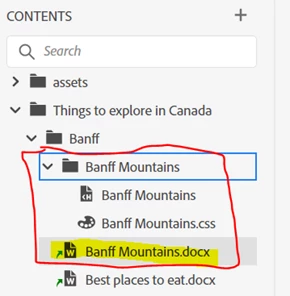
By doing so, the RH Topic was created. But this also created a new folder, with the same name as my Topic & Linked Word Document. 
If I now go to my TOC, I have Folder called 'Banff Mountains' and a Topic called 'Banff Mountains'.
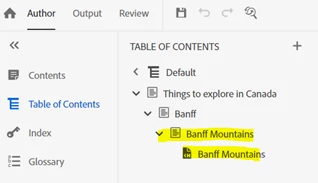
Is there a way that I can create linked Topics without extra folders being created?

Thanks in advance. 



    This topic has been closed for replies.
    Correct answer Peter Grainge

    When answering questions on the forum it's nice to be able to recognise who is asking. Your username doesn't help but you can change it in your profile. It doesn't have to be your real name, just something recognisable. Your choice.


    The folder is created to hold all the supporting files, the CSS, images etc and keep them self-contained. It makes deleting the linked topic easier if required. There is no way to configure it differently.


    If you drag just the topic created from the Contents panel all you should see is the topic. I just checked that. Maybe you dragged the folder? Delete what you see in the TOC and then just drag the topic.

    ________________________________________________________
    See www.grainge.org for free Authoring and RoboHelp Information


    3 replies

    .HannaH.Author
    Participating Frequently
    August 24, 2021

    Thanks @Peter Grainge and @Amebr , much appreciated! I decided to manually update the TOC which works well.

    Community Expert
    August 24, 2021

    Assuming you didn't drag and drop, the folder and topics will have been added by your Word Link Settings (right-click on a doc and select Edit Settings).  It doesn't look like there's a way to exclude the folder, although I'm not sure what "Map Word styles to TOC hierarchy" is supposed to do - it doesn't seem to do anything in my test project, but maybe that's something wrong with my setup.


    I think at the moment you can either live with the folder being added automatically, or turn off the "Add generated topics to Table of Contents" setting and manually add your topics to the toc.

    Peter Grainge
    Community Expert
    Peter GraingeCommunity ExpertCorrect answer
    Community Expert
    August 23, 2021

    When answering questions on the forum it's nice to be able to recognise who is asking. Your username doesn't help but you can change it in your profile. It doesn't have to be your real name, just something recognisable. Your choice.


    The folder is created to hold all the supporting files, the CSS, images etc and keep them self-contained. It makes deleting the linked topic easier if required. There is no way to configure it differently.


    If you drag just the topic created from the Contents panel all you should see is the topic. I just checked that. Maybe you dragged the folder? Delete what you see in the TOC and then just drag the topic.

    ________________________________________________________
    See www.grainge.org for free Authoring and RoboHelp Information


    Use the menu (bottom right) to mark the Best Answer or Highlight particularly useful replies. Found the answer elsewhere? Share it here.