


STLRGA
Inspiring
April 2, 2023
Answered

RH2022 PDF Output for Only One Topic

  • April 2, 2023
  • 3 replies
  • 401 views

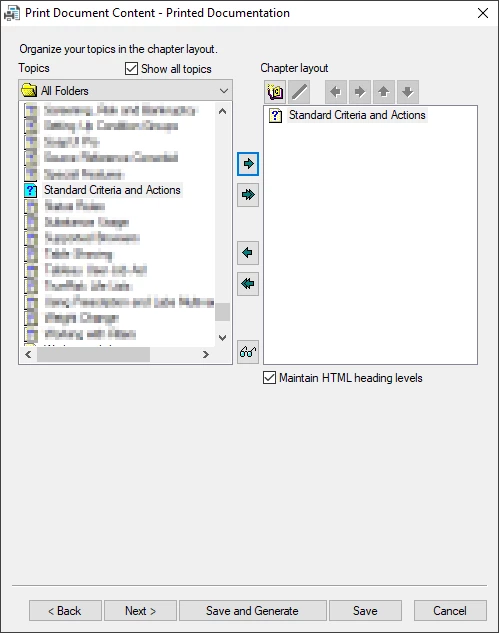
Im am a long time user of RH (Classic), but currently upgrading to RH2022. I am not seeing the ability to easily select what content I want to output to PDF. In "Classic" version there is an option in the Output (second setting screen) configuration that allows for the selection of whatever you want to generate for the output (see screen capture below).

The only way I figured to do this now is by messing with the TOC to incude only one topic and then selecting that in the output. I need to output pdfs of only single topics all the time, so I hope there is just something simple I am missing since I am new to the current UI?

    This topic has been closed for replies.
    Correct answer Peter Grainge

    I am not seeing where there is a real difference in the work if you set things up a bit differently.


    In Classic you went through the SSL, got to the TOC page and changed the topic, then continued to generate.


    In 2022 you would have an additional TOC that you call say PDF Single Topic and you change the topic each time. Then generate the preset. It's the same process but in a different place. You could also have an additional preset if some of the parameters differ from other outputs.


    There is a further optinn that may be easier still. Open the topic in Author view, right click and select Save as PDF.

    ________________________________________________________

    My site www.grainge.org includes many free Authoring and RoboHelp resources that may be of help.


    3 replies

    Peter Grainge
    Community Expert
    Community Expert
    April 3, 2023

    @STLRGA The new UI is very different and it will take you a while. Most of the features are described in the RoboHelp Tour Introduction (grainge.org) on my site. After a couple of weeks you will find it much easier. I now hate going back to Classic.


    Where are the "more steps"? In Classic you changed the topic in the SSL that you had to open to make that change. Now you make the same change in the TOC and go to the Output tab where you just click on the preset (SSL in old money) and click the generate icon. You don't even need to open the preset.


    Easier than either method is this. Open the topic and right click.


    ________________________________________________________

    My site www.grainge.org includes many free Authoring and RoboHelp resources that may be of help.


    Use menu (bottom right) to mark as Best Answer or to Highlight particularly useful replies. Found the answer elsewhere? Share it here.
    Community Expert
    April 3, 2023

    I know this doesn't change your pain at the change, but I actually have been using this workflow in Classic for many years for topic reviews. Perhaps it will help if I describe my setup in more detail. ( I used to use the same method as you, but forgot to change the list too often and end up developing this process. It also made it a bit easier when my work had to be taken on my someone while I was on leave.)


    I set up an SSL specifically for topic reviews with a toc file called "Review_TOC" (and in my case a separate master page which includes a DRAFT watermark). When I want one or more topics reviewed, I open the review toc, delete anything in the toc and drag and drop the required topics into it. I can also do this over time if the review is for changes to a number of related topics or a whole release, for example. Then I generate the SSL, changing the file name to reflect what the review is - I often include the date so I know when it was sent out. Because everything is set up except the content of the toc, it's actually just as quick as stepping through the old dialog box.


    The only gotcha I can think of is if you already have a Review SSL and also need one-off single pages. In that case you might need to set up a separate one-page SSL so you don't accidentally delete an in-progress regular review. But again, that's a one time setup for everything except the toc content.


    Peter Grainge
    Community Expert
    Peter GraingeCommunity ExpertCorrect answer
    Community Expert
    April 2, 2023

    I am not seeing where there is a real difference in the work if you set things up a bit differently.


    In Classic you went through the SSL, got to the TOC page and changed the topic, then continued to generate.


    In 2022 you would have an additional TOC that you call say PDF Single Topic and you change the topic each time. Then generate the preset. It's the same process but in a different place. You could also have an additional preset if some of the parameters differ from other outputs.


    There is a further optinn that may be easier still. Open the topic in Author view, right click and select Save as PDF.

    ________________________________________________________

    My site www.grainge.org includes many free Authoring and RoboHelp resources that may be of help.


    Use menu (bottom right) to mark as Best Answer or to Highlight particularly useful replies. Found the answer elsewhere? Share it here.
    STLRGA
    STLRGAAuthor
    Inspiring
    April 3, 2023

    Thanks for the quick reply, I have marked your answer correct. However, this is unfortunate because it requires more steps that don't seem very intuitive to me. I am finding this with other things with the new verion as well, so I will be posting more issues soon. With this new version, I cannot tell if certain functionality just does not work correct, it is lost functionality or I just don't know my way around very well yet.