



Jared Hess
Legend
August 22, 2023
Answered

RoboHelp 2017 - In PDF generation, how can I avoid getting XE fields polluting my Bookmarks

  • August 22, 2023
  • 2 replies
  • 521 views

Background

Hello RoboHelpers! It's been a while.

  • RH 2017 latest update.
  • Word from Office 365
  • Adobe Acrobat DC 2015

For my work, I have about 40 Microsoft Word *.doc files of varying sizes with thousands of hidden XE fields (Index fields) in them. The Word docs are created from RoboHelp 2017 sections. I need to convert these .doc files into PDF files every six months or so when we publish a new version of our software. I use Adobe Acrobat DC to do the conversion into PDF.


I can convert these Word docs one at a time, and they look just how I want them, as long as I open them up inside Word, one by one, and from the Acrobat add-in menu in Word, I choose Create PDF.


However...


The Problem

In Acrobat DC, if I try to be efficient and convert all the .doc files in a group by using File > Create > Create Multiple PDF Files, then hidden XE index fields on the headings end up polluting my Bookmarks in the Bookmarks pane of my PDF files.


Here's just one example:
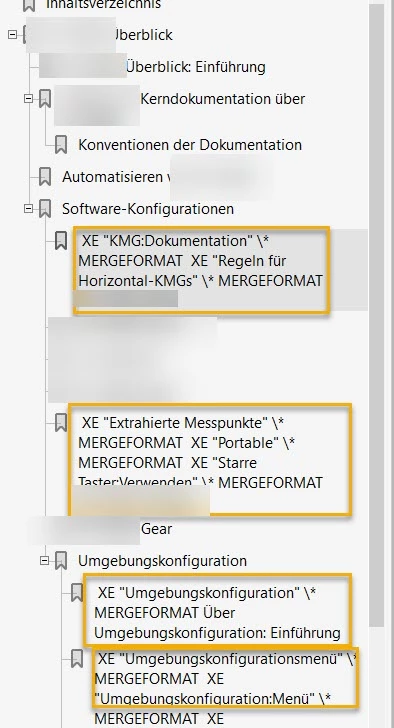
The strange thing is that this seems to occur only with the Bookmarks. The actual topic text in the PDF files is free of the XE entries.


The Question(s)

Does anyone else see this?

How can I prevent my Bookmarks from getting polluted by these XE entries when I generate multiple files like this?


What I've Tried

I've looked at the various settings in Acrobat and didn't see anything that controls this.

I've looked online and found this related post, but couldn't find a solution:

https://community.adobe.com/t5/robohelp-discussions/how-can-i-avoid-having-quot-xe-index-quot-entries-in-the-pdf-bookmarks-frame/m-p/4479430#M86471


Thanks in advance.

    This topic has been closed for replies.
    Correct answer Jared Hess

    Thanks for the offer, frameexpert. I'll consider it if I can't figure it out. I appreciate your willingness to help.


    Hi everyone. I finally got enough time to dig in and figure this out by using my own script to clean this up in Adobe Acrobat Pro DC 2015. In case anyone else is still on an older tech comm suite like I am, and also needs to do this, here are my steps.

    (Note: You can find somewhat related screen captures for some these steps from my earlier post on Aug 25 above.):

    1. Open Adobe Acrobat Pro DC (I'm using version 2015).
    2. From Tools, access the Action Wizard tool.
    3. From the Action Wizard's toolbar, click New Action.
    4. From the Create New Action dialog box, from the the left pane expand More Tools, then select Execute JavaScript.
    5. Click the + (right arrow) button between the two panes to add that action to the Action steps to show pane (the right pane).
    6. From the right pane, click Specify Settings to show a JavaScript Editor.
    7. Paste the script code below into the editor and click OK.
    8. Click Save and a Save Action dialog box appears.
    9. Fill in the Action Name box with a name, like "Clean XE from Bookmarks".
    10. Fill in the Action Description with an description, like "This deletes bookmarks that have Word XE fields in them."
    11. Click Save to save the action with the description and name to the Actions List pane on the right.
    12. From the Actions List pane, click on the Clean XE Bookmarks action you added.
    13. From the action that appears in the right pane, click Add Files to show a Select Files to Process dialog box.
    14. Use this open dialog box to navigate through your file system to a folder that contains additional PDFs that you want to clean up. Select them, and click Open to add them to this action you're about to perform.
    15. Click Start to run the javascript code.


    Script Code I Used


    // This script runs on Adobe Acrobat Pro DC 2015. 
    // It finds and deletes any bookmark from the pdf that 
    // matches the conditions of both having "XE" and "MERGEFORMAT" not work on later versions.
    // Use at your own risk. It works for me and removes my polluted bookmarks. - Jared
    
    function deletePollutedBookmarks(bookmark,condition1,condition2) {
        if (bookmark) {
    
          // Gets the title of the current bookmark
          var bookmarkTitle = bookmark.name;
      
          // Checks if the bookmark title contains both "XE" and "MERGEFORMAT" strings
          if (bookmarkTitle.indexOf(condition1) !== -1 && bookmarkTitle.indexOf(condition2) !== -1) {
            
            // Deletes the current bookmark
            bookmark.remove();
            console.println("Deleted polluted bookmark: " + bookmarkTitle);
            return true; // true indicates that a bookmark was deleted
          }
      
          // Check if the current bookmark has any child bookmarks
          if (bookmark.children && bookmark.children.length > 0) {
            // Recursively check child bookmarks
            for (var i = 0; i < bookmark.children.length; i++) {
              if (deletePollutedBookmarks(bookmark.children[i], condition1, condition2)) {
                // If a bookmark is deleted in the child, return true to indicate the deletion
                return true;
              }
            }
          }
        }
      
        // If no polluted bookmark is found, return false
        return false;
      }
      
      // MAIN PROGRAM starts here
      // First we get the root of the bookmarks tree
      var bookmarkRoot = this.bookmarkRoot;
      
      // We check if bookmarks are available in the PDF
      if (bookmarkRoot) {
        
        // If so, we define the variables
        var deleted;
        var condition1 = "XE";
        var condition2 = "MERGEFORMAT";
    
        // This loop starts checking for affected bookmarks and it continues looping until there are no more found
        do {
            // calls the function and passes the condition parameters into it. The deleted variable gets the "true" result once deletion finishes
          deleted = deletePollutedBookmarks(bookmarkRoot,condition1,condition2);
        } while (deleted);
        console.println("Polluted bookmarks were checked and deleted.");
      } else {
        // If there is no bookmark root
        console.println("No bookmarks available in this PDF.");
      }


    2 replies

    frameexpert
    Community Expert
    Community Expert
    August 25, 2023

    If you can't get rid of them at the source, you can use an Acrobat JavaScript to delete them from the resulting PDF. Here is a script that will delete all bookmarks that start with XE (case-sensitive):

    if (app.viewerVersion >= 10) {
    
    	// Add a toolbutton for the command.
    	app.addToolButton({cName: "DeleteXEBookmarksCmd",
    		cTooltext: "Delete XE Bookmarks",
    		cExec: "deleteXEBookmarks ();",
    		cEnable: "event.rc = (event.target != null);",
    		nPos: -1 });
    
    } 
    else { // 9 or below.
    
    	// Add the command to the Document menu.
    	app.addMenuItem({cName: "AddBookmarkNumberingCmd",
    		cUser:"Delete XE Bookmarks",
    		cParent: "Document",
    		cExec: "deleteXEBookmarks ();",
    		cEnable: "event.rc = (event.target != null);" });
    }
    
    function deleteXEBookmarks () {
    	
    	var bkms, count, i;
    
    	// Create an array for the XE bookmarks.
    	bkms = [];
    	// Get all of the bookmarks that start with XE.
    	getXEBookmarks (this.bookmarkRoot, bkms);
    	
    	// Delete all XE bookmarks.
    	count = (bkms.length - 1);
    	for (i = count; i >= 0; i -= 1) {
    		bkms[i].remove ();
    	}
    }
    
    function getXEBookmarks (bkm, bkms) {
      
    	var regex, i, count, text;
    
    	regex = /^XE/; // Starts with XE.
    	
    	if (bkm.children != null) {
    		// How many children of this bookmark, including the root?
    		count = bkm.children.length;
    		// Process all of the children bookmarks.
    		for (i = 0; i < count; i += 1) {
    			// See if the bookmark starts with XE.
    			if (regex.test (bkm.children[i].name) === true) {
    			    // Push the bookmark onto the array.
    				bkms.push (bkm.children[i]);
    			}
    			// Call this function recursively so all bookmarks are touched.
    			getXEBookmarks (bkm.children[i], bkms);
    		}
    	}
    }
    

    The script requires Acrobat DC Pro and gets installed here (substitute your Windows user name):

    C:\Users\rick\AppData\Roaming\Adobe\Acrobat\Privileged\DC\JavaScripts


    Launch Acrobat DC Pro and click the More Tools icon in the Tools list. Scroll down and click the Add-on Tools icon. You should see the Delete XE Bookmarks command listed at the top.

    Jared Hess
    Legend
    August 25, 2023

    Hi frameexpert,

    Thank you for your response. I didn't know you could manipulate PDF files using Javascript. Interesting. That might be the solution I take. I do have Adobe Acrobat Pro DC (but it might be too old a version). It's version 2015.006.30527.

    I tried your procedure. I didn't have that exact folder structure. Mine has this:

    C:\Users\jared.hess\AppData\Roaming\Adobe\Acrobat\2015

    I tried to create your folder structure and add the .js file as instructed, but I still don't see an Add-on Tools icon. I do see a Javascript icon though.


    Maybe I can get it to work using that somehow?

    frameexpert
    Community Expert
    Community Expert
    August 25, 2023

    Try searching for Add-on Tools in the search bar at the top.

    Community Expert
    August 23, 2023

    Given your workflow at this point is outside RH (in Acrobat DC) then you might be better off asking in an acrobat forum instead. It might be some Acrobat setting that those users might be more familiar with.


    Out of curiosity, what happens if you output to pdf directly from RH? If it works, how about setting up another output and batch generating Word and PDF?

    Jared Hess
    Legend
    August 25, 2023

    Hi Amebr,

    Thanks for your response. You might be right about reaching out to the Acrobat forum.

    Going directly to PDF from RH isn't an option for us because we have to do post-processing cleanup on the printables using a battery of Word macros I've developed over the years. (Also, going directly to PDF results in the same XE pollution problem.)