

chelluvsGod
Inspiring
September 18, 2020
Answered

RoboHelp 2019 New UI - spacing between bulleted list

  • September 18, 2020
  • 3 replies
  • 326 views

I truly do try to investigate on my own before  posting on here.

I have bulleted lists with multiple indentions. This is how one section looks:
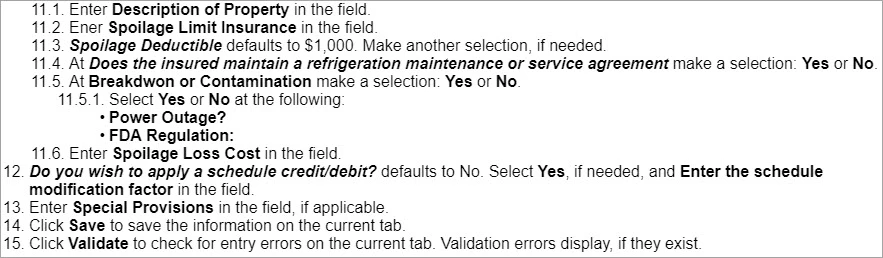
How do I put space betwen each line that isn't as big as doing Shift/Enter?

Thanks so much for everyone's patience with me as I learn this new version of RoboHelp.

This topic has been closed for replies.
Correct answer Peter Grainge

No need to apologise. It's all new and it was a learning curve for all of us. It's what the forum is for.


  1. Click in one of the list items.
  2. Go to Properties > Styles and change the setting to All.
  3. Scroll down and the list style you are using will be highlighted.
  4. Click the pencil icon to edit the style.
  5. The CSS editor opens.
  6. Change Apply Formatting To to Content.
  7. Expand Layout and look for Margin.
  8. Click the chain icon to see all four margins.
  9. Set margin below to whatever you want. Try 6pt to start with or use your preferred unit of measurement.
  10. Click in any of the other margin fields and you will see the change in the preview.
  11. Return to your topic and if it is as you want, save and close the editor.


3 replies

Peter Grainge
Community Expert
Community Expert
September 21, 2020

After a while you find you dislike having to go back to the Classic versions. It's just a familiarity thing.


Use the menu (bottom right) to mark the Best Answer or Highlight particularly useful replies. Found the answer elsewhere? Share it here.
chelluvsGod
Inspiring
September 21, 2020

Awesome! That worked. Thank you so much.

Nothing like chaging the UI to create more steps for the end user. This version of RoboHelp is cumbersome to use. I much prefer the old UI functionality. But, times must change. 🙂

Peter Grainge
Community Expert
Peter GraingeCommunity ExpertCorrect answer
Community Expert
September 19, 2020

No need to apologise. It's all new and it was a learning curve for all of us. It's what the forum is for.


  1. Click in one of the list items.
  2. Go to Properties > Styles and change the setting to All.
  3. Scroll down and the list style you are using will be highlighted.
  4. Click the pencil icon to edit the style.
  5. The CSS editor opens.
  6. Change Apply Formatting To to Content.
  7. Expand Layout and look for Margin.
  8. Click the chain icon to see all four margins.
  9. Set margin below to whatever you want. Try 6pt to start with or use your preferred unit of measurement.
  10. Click in any of the other margin fields and you will see the change in the preview.
  11. Return to your topic and if it is as you want, save and close the editor.


Use the menu (bottom right) to mark the Best Answer or Highlight particularly useful replies. Found the answer elsewhere? Share it here.