
Inspiring
May 8, 2020
Answered

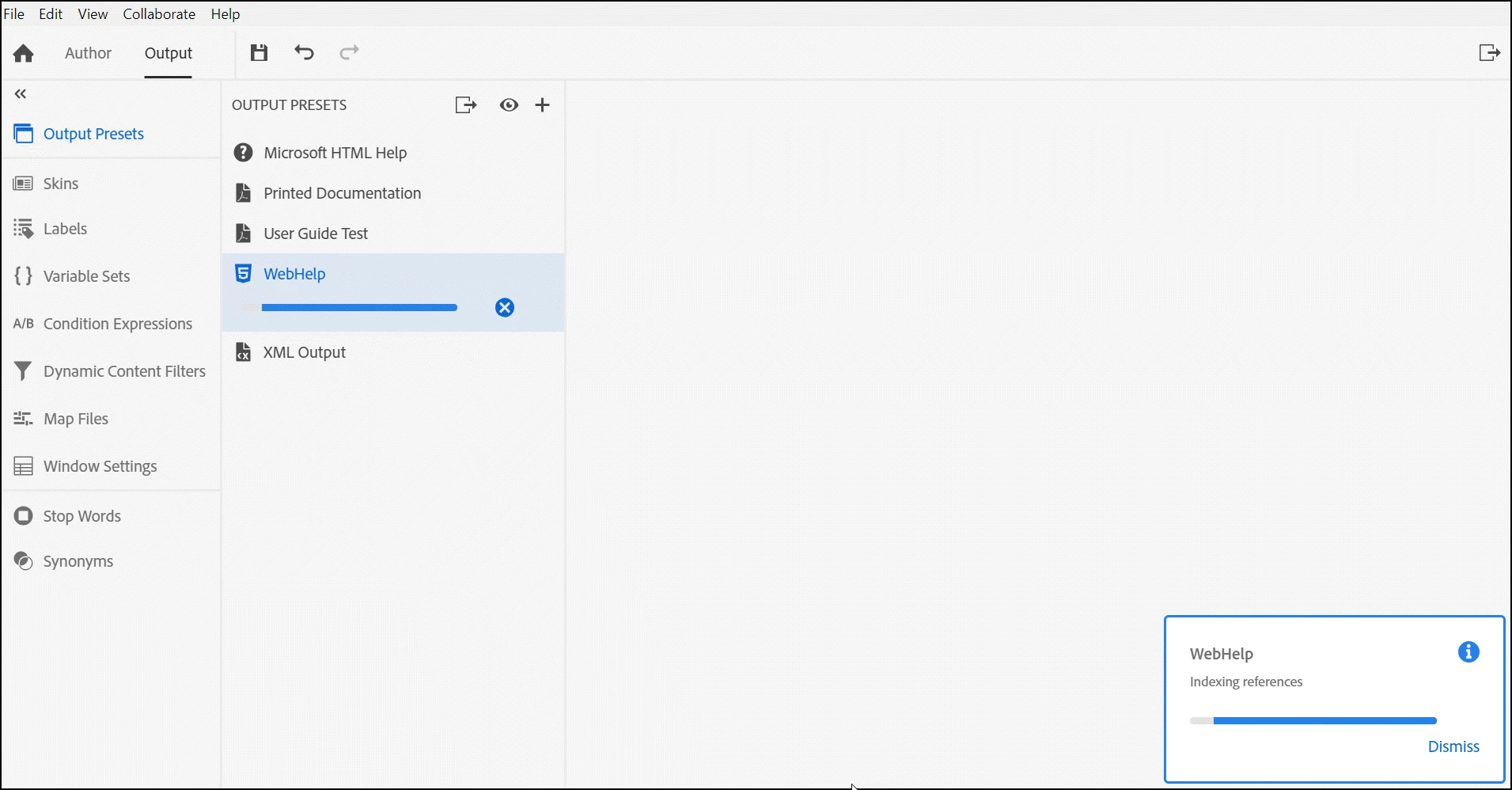
WebHelp project won't generate and hangs on "Indexing references"

  • May 8, 2020
  • 16 replies
  • 880 views

Hi there,


On Wednesday I upgraded to the most current version of RH 2019. I believe (not positive) I was using a version two updates back. My issue is that WebHelp never completes. It hangs on "Indexing references" (image attached). I noticed another posted issue (https://community.adobe.com/t5/robohelp/rh-2019-full-upgraded-robohelp-project-fails-to-generate-indexing-references/td-p/11042112?page=1) that perhaps addresses what I'm experiencing. Problem is, if this is the same issue, I have a TON of image maps in my project that would be exceptionally time consuming to remove. Any thoughts? Many thanks!
This topic has been closed for replies.
Correct answer brendan716

Okay, Peter, here's what I found ... 

The old adage, "when all else fails, reboot," is appropriate here. I was basically able to get it working by following your instructions. However, I needed to reboot between making changes (yes, I know it sounds odd). So, here's what I did in case someone else runs into this issue:

1) Edited the Webhelp Output Presets to use a new skin and select all options under "select files to exclude from search."

2) Saved and closed project.
3) Rebooted machine.

4) Updated and saved new skin.

5) Regenerated Webhelp.

I have not yet worked through each option in "select files to exclude from search" yet.

Thanks much for your assistance.

16 replies

Peter Grainge
Community Expert
Community Expert
May 14, 2020

Yes but that's a known bug. I can't help with that.


Use the menu (bottom right) to mark the Best Answer or Highlight particularly useful replies. Found the answer elsewhere? Share it here.
Inspiring
May 14, 2020

Yes, I got it to work, but there's still something amiss with leaving the "select file types to exclude from search" unchecked.

Again, I really appreciate your help.

Peter Grainge
Community Expert
Community Expert
May 14, 2020

If I have reread this correctly, you had resolved the problem and the thread only continued because I raised the possibility of me having messed things up by adding a second CSS. In the event, that had not happened so all is now OK. Correct?


Use the menu (bottom right) to mark the Best Answer or Highlight particularly useful replies. Found the answer elsewhere? Share it here.
Peter Grainge
Community Expert
Community Expert
May 13, 2020

Phew! At least that's not an issue. It's late here so let me read the thread again in the morning.


Use the menu (bottom right) to mark the Best Answer or Highlight particularly useful replies. Found the answer elsewhere? Share it here.
Inspiring
May 13, 2020

Peter, I'm only seeing one style sheet in my report.

Peter Grainge
Community Expert
Community Expert
May 13, 2020

To check what CSS is applied, look in the Topic List report.


If more than one, fix it in the topic source code or Topic Properties.


Use the menu (bottom right) to mark the Best Answer or Highlight particularly useful replies. Found the answer elsewhere? Share it here.
Inspiring
May 13, 2020

Uh oh. 

I'm not seeing two CSSes applied. Perhaps I'm missing something? When I look in the CSS output folder (WebHelp/assets/CSS) I only see one.

While I definitely appreciate your offer of me sending files to you for fixing, my corporate policy will not allow it.

Peter Grainge
Community Expert
Community Expert
May 13, 2020

Just to add that if you don't have a find and replace tool to strip out the extra CSS and if you can share the project, then one of my F&R tools seems to do the job.


If you can share it, then see the Contact page on my site and send the project as instructed there. Do make sure you include a link to this thread and please do not email the project direct.


Use the menu (bottom right) to mark the Best Answer or Highlight particularly useful replies. Found the answer elsewhere? Share it here.
Peter Grainge
Community Expert
Community Expert
May 13, 2020

You might not thank me when you read this. I have found to my own cost, if that's any consolation, that applying a CSS from the Topic List adds it to a project but does not and, as far as I can see, cannot remove a CSS.


Also the Find and Replace tool would not find the line with the CSS link I wanted to remove. I think it should be possible to write a regular expression that would do it but in this instance it was easier to just edit the topics.


A quick and dirty method of working with two CSS files applied so that you do not get the cascading effect would be to open the CSS you don't want and in source view just delete all the content. That way whilst it is still linked, it's not doing anything.


Needless to say I have taken this up with Adobe. I won't be suggesting that fix until a better method is found. My apologies.


As to the various search options, I found it only helped if all options were selected. The cause is known and will be fixed in the next update. I don't know when that will be.


Keep us posted with progress.


Use the menu (bottom right) to mark the Best Answer or Highlight particularly useful replies. Found the answer elsewhere? Share it here.
brendan716AuthorCorrect answer
Inspiring
May 13, 2020

Okay, Peter, here's what I found ... 

The old adage, "when all else fails, reboot," is appropriate here. I was basically able to get it working by following your instructions. However, I needed to reboot between making changes (yes, I know it sounds odd). So, here's what I did in case someone else runs into this issue:

1) Edited the Webhelp Output Presets to use a new skin and select all options under "select files to exclude from search."

2) Saved and closed project.
3) Rebooted machine.

4) Updated and saved new skin.

5) Regenerated Webhelp.

I have not yet worked through each option in "select files to exclude from search" yet.

Thanks much for your assistance.