Hi Mike
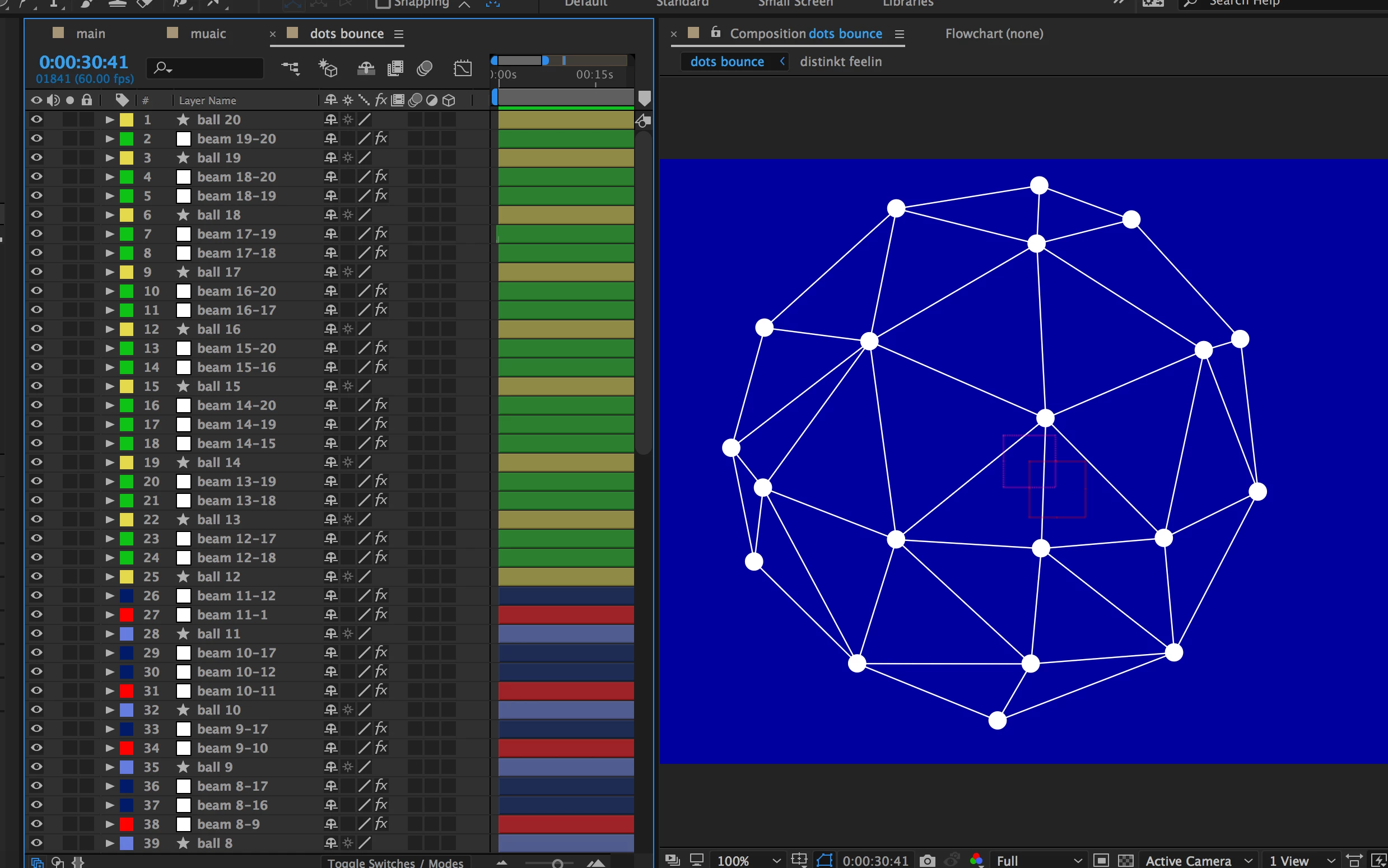
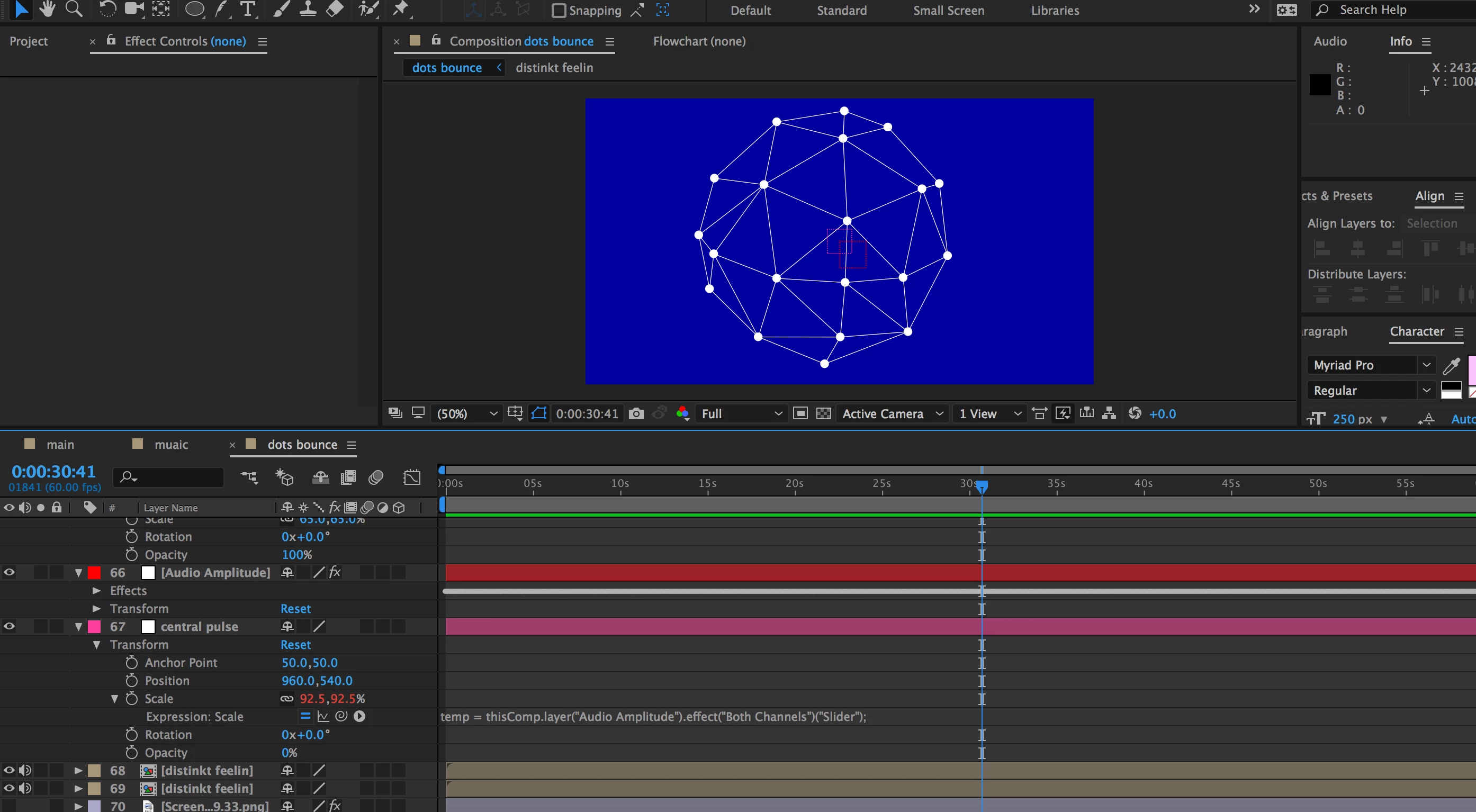
Yes you are exactly right. I want the dots to move on an axis between the centre of the comp and their original position if this is possible. As they are positioned in a ring shape I want them to wiggle outwards using an axis from the centre of the comp and their original position, and I would like them to move in relation to the audio. My apologies for being somewhat vague.
OK, I was feeling generous... here's a solution - I hope ; )
This expression assumes that your dot layers are not parented to any other layer.
1. Audio layer. [menu] Animation > Keyframe Assistant > Convert Audio to keyframes.
2. Paste this expression onto your first dot layer position property:
audioMin = 0;
audioMax = 50;
maxMove = 100;
radius = 500;
audioAmp = thisComp.layer("Audio Amplitude").effect("Both Channels")("Slider");
compCentre = [thisComp.width/2, thisComp.height/2];
objPos = thisLayer.position - compCentre;
Len = length(objPos);
Angle = radiansToDegrees(Math.atan2(objPos[1],objPos[0]))
move1 = linear(Len, 0, radius, 0, maxMove);
move2 = linear (audioAmp, audioMin, audioMax, 0, move1);
LenW = Len + move2;
objPos2 = [ LenW * Math.cos(degreesToRadians(Angle)), LenW * Math.sin(degreesToRadians(Angle))] + compCentre
NOTE:
You'll need to copy this to each of your dot layers - but before you do you, adjust the values on the first four lines:
audioMin = the minimum audio level to create any dot movement ;
audioMax = the maximum audio level to create dot movement ;
(look at the graph editor value graph for the audio amplitude 'both channels' property to decide on these values - vertical scale)
maxMove = the maximum amount of dot movement ;
radius = the radius of the outermost dot's position from comp centre ;
3. Once you've set the above values copy the expression to all the other dot layers.
Preview and report back.... : )

 AdChoices