Copy link to clipboard
Copied
Hi everyone!
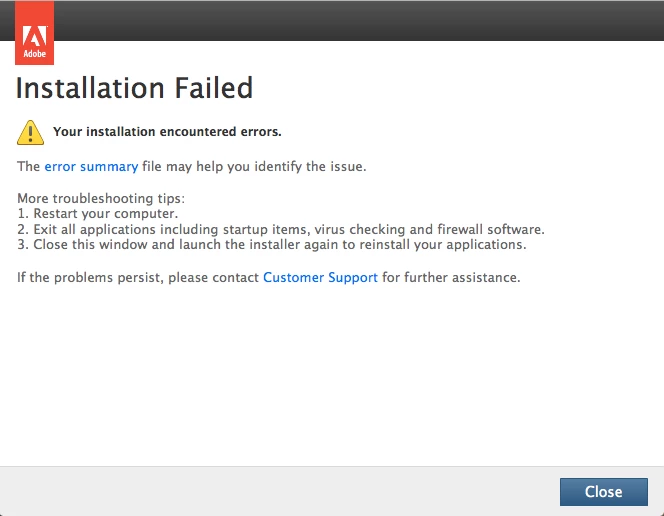
I can't install any Adobe product. Installation stucks at 1% and a screen pops up saying "Your installation encountered errors".

I have tried everything to fix it, removed all Adobe components. But no luck. Adobe Creative Cloud Cleaner Tool doesn't help too, even in silent mode.
Macbook Air (Mid 2013)
OS X 10.11.1
In this case , we will perform clean removal and re-installation process.
Follow below Steps:
1) Trash Adobe apps from Applications .
2) Trash below mentioned folders from Applications > Utilities.
3) Trash Adobe folders from below locations.
Adobe folders will be present inside Application Support folder.
~/Library/Application Support/ [ User Library ]
1) Right click on Finder icon and select "Go-To" Folder option.
2
Copy link to clipboard
Copied
Click on Error Summary option and post exact error message or screenshot .
Copy link to clipboard
Copied

It opens this page in safari and then forwards to Adobe Product System Requirements page.
Copy link to clipboard
Copied
Follow below steps :
Launch Activity Monitor and Force Quit all Adobe and setup related processes like Creative Cloud , CoreSync , AAMUpdater , Setup , Install
Step 1)
Click on the Finder and look for the options listed next to Apple Icon located at the top left corner of the Desktop screen and click on "Go" menu button and select "Utilities" option.
(Applications>Utiliites)
Locate Adobe Creative Cloud and Adobe Application Manager folder under Utilities window and trash both folders.
Step 2)
Trash Adobe Creative Cloud folder from Applications as well.
Step 3)
1) Right click on Finder icon and select "Go-ToFolder " option.
2) You will get a text box, type-in below command and then hit 'Return' key.( Do not miss ~ symbol)
~/library
3)Then navigate to Application Support>Adobe.
Open Adobe folder and trash folders named AAMUpdater and OOBE.
Step 4)
1) Right click on Finder icon and select "Go-To" Folder option.
2) You will get a text box, type-in below command and then hit 'Return' key.
/library
3)Then navigate to Application Support>Adobe.
Open Adobe folder and trash folders named AAMUpdater ,Adobe Application Manager and OOBE.
Step 5)
Click on the below link and download & run Adobe Cleaner tool :
Select the option "Adobe Application Manager for Mac OS X 10.6" and then click on "Clean up Selected" .
http://download.macromedia.com/SupportTools/Cleaner/mac/AdobeCreativeCloudCleanerTool.dmg
Step 6)
1) Right click on Finder icon and select "Go-To Folder" option.
2) You will get a text box, type-in below command and then hit 'Return' key.
/Tmp
It will open TMP folder.
Trash all the contents present inside Tmp folder , those are temporary files you can trash it.
Step 7)
Click on the below link and download Adobe Application Manager and install the same :
http://download.adobe.com/pub/adobe/creativesuite/cc/mac/ApplicationManager9.0_all.dmg
Once the installation process is completed, installation box will disappear, then open Applications folder and locate Adobe Application manager launch icon , double click on it and update .
Once the update is completed. it will launch Adobe Creative Cloud app .
Then try to install CC apps again and check.
Copy link to clipboard
Copied
Thanks for support, but it didn't work. I think the problem is in Illustrator, which got stuck and can't be deleted from the Cleaner Tool. When I click to clean that up, it just quits and does nothing.

Copy link to clipboard
Copied
If the Illustrator is not working . You may perform complete removal and reinstallation process.
Or you can also try to install via Root account ,
Let me know if you had installed any Adobe apps which are working fine.
Copy link to clipboard
Copied
I have removed Illustrator and all Adobe applications. None of them I can install now.
Copy link to clipboard
Copied
In this case , we will perform clean removal and re-installation process.
Follow below Steps:
1) Trash Adobe apps from Applications .
2) Trash below mentioned folders from Applications > Utilities.
3) Trash Adobe folders from below locations.
Adobe folders will be present inside Application Support folder.
~/Library/Application Support/ [ User Library ]
1) Right click on Finder icon and select "Go-To" Folder option.
2) You will get a text box, type-in below command and then hit 'Return' key.( " Do not miss ~ symbol " )
~/library
It will open User Library folder.
3)Then navigate to Application Support.
Open Application Support folder and rename/trash Adobe folder.
/Library/Application Support/ [ System Library ]
1) Right click on Finder icon and select "Go-To" Folder option.
2) You will get a text box, type-in below command and then hit 'Return' key.
/library
It will open System Library folder.
3)Then navigate to Application Support.
Open Application Support folder and rename/trash Adobe folder.
Then Run Adobe Cleaner tool and select Clean All option .
http://download.macromedia.com/SupportTools/Cleaner/mac/AdobeCreativeCloudCleanerTool.dmg
Then reinstall Adobe Creative Cloud app and try to install CC apps again and check.

Copy link to clipboard
Copied
Thank you very much. It worked!
Copy link to clipboard
Copied
Glad to hear that ![]()
You are most welcome.
Copy link to clipboard
Copied
Thanks ! Really interesting...
Copy link to clipboard
Copied
You are welcome .
Copy link to clipboard
Copied
Do not miss to rename/ trash any of the folder I had mentioned .
Renaming is Equivalent to trashing .
Like for example , you can simply rename Adobe folder to Adobe-old.
Link for CC Installer :
https://ccmdls.adobe.com/AdobeProducts/KCCC/1/osx10/CreativeCloudInstaller.dmg
Copy link to clipboard
Copied
I did as well as you wrote up there, and it's working just fine now! Thanks dude.
Get ready! An upgraded Adobe Community experience is coming in January.
Learn more