Hi Bontempos
There isn't a way to selectively sync only certain folders but I can suggest a few ideas in relation to your question.
When the file sync service is running, it is designed to keep both files locally in the Creative Cloud files folder on your computer and online within your Creative Cloud files storage synchronized. If you add a file to the folder on your computer, it gets uploaded to the storage online. If you uploaded a file through a browser to the storage, it gets downloaded to Creative Cloud files folder on your computer. If you removed a file from the Creative Cloud files folder on your computer, it gets moved to the Archive online. If you deleted a file online, it gets moved to the trash on your computer. The service keeps the content the same at both locations.
Browse, sync, and manage Adobe Creative Cloud assets
You can simply turn off the service from the Creative Cloud app preferences though to disable the synchronization. That would allow you to delete the local content if you wanted and you could still manually download files from the storage using a browser if needed.
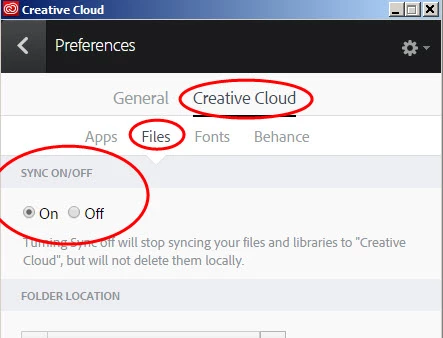
However, there are also a few other dependencies that rely on the sync service too that would get disabled. So you might not want to go that route, if they are also something you use. The other dependencies are
- Libraries and using the Library panel within the desktop programs
- Typekit fonts
- Marketing assets within the Creative Cloud app
Note sure if that helps or not,
Best,
- Dave

 AdChoices