Participating Frequently
June 21, 2019
Answered

Dark boxes show up around logos/images in printed file

  • June 21, 2019
  • 4 replies
  • 69563 views

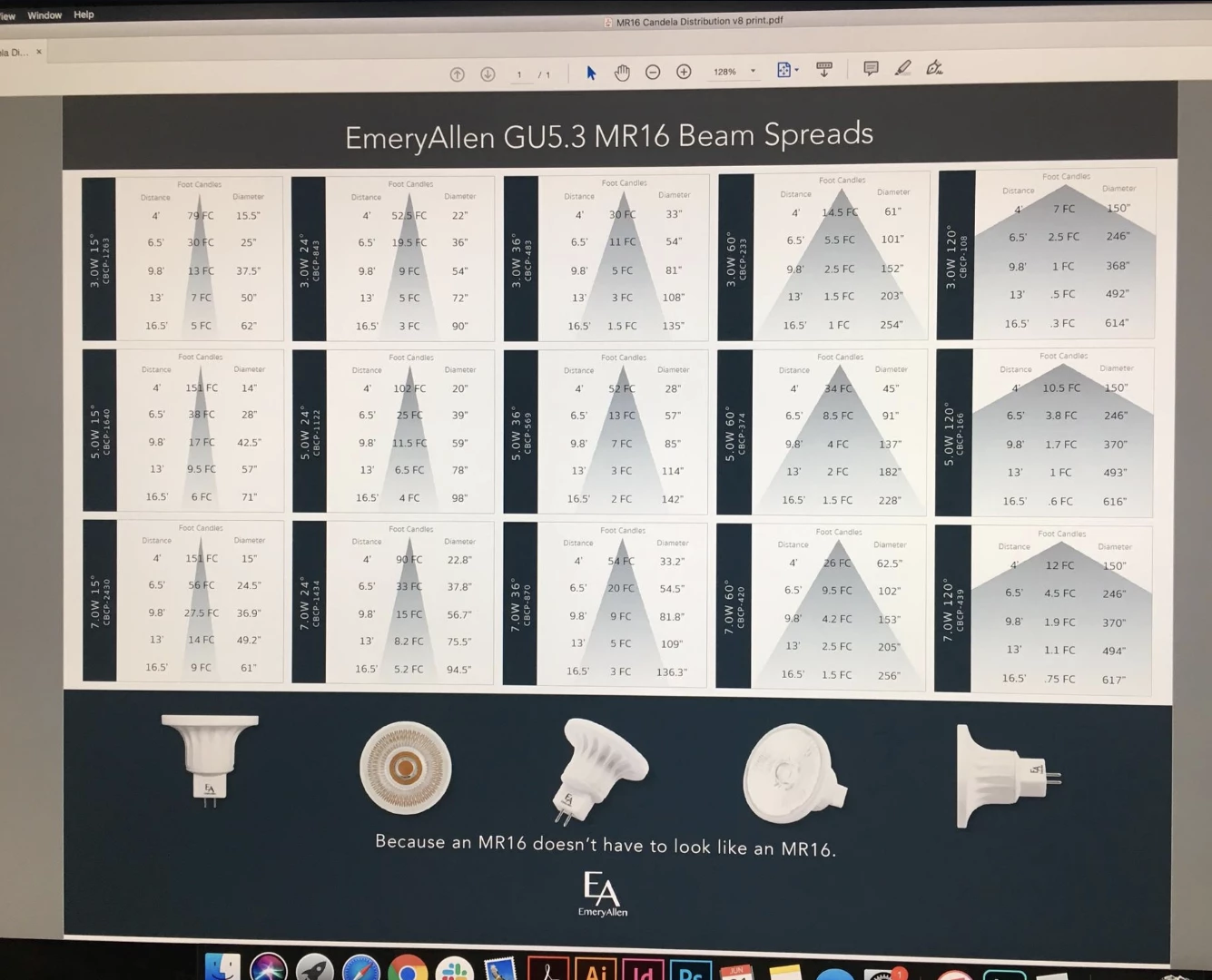
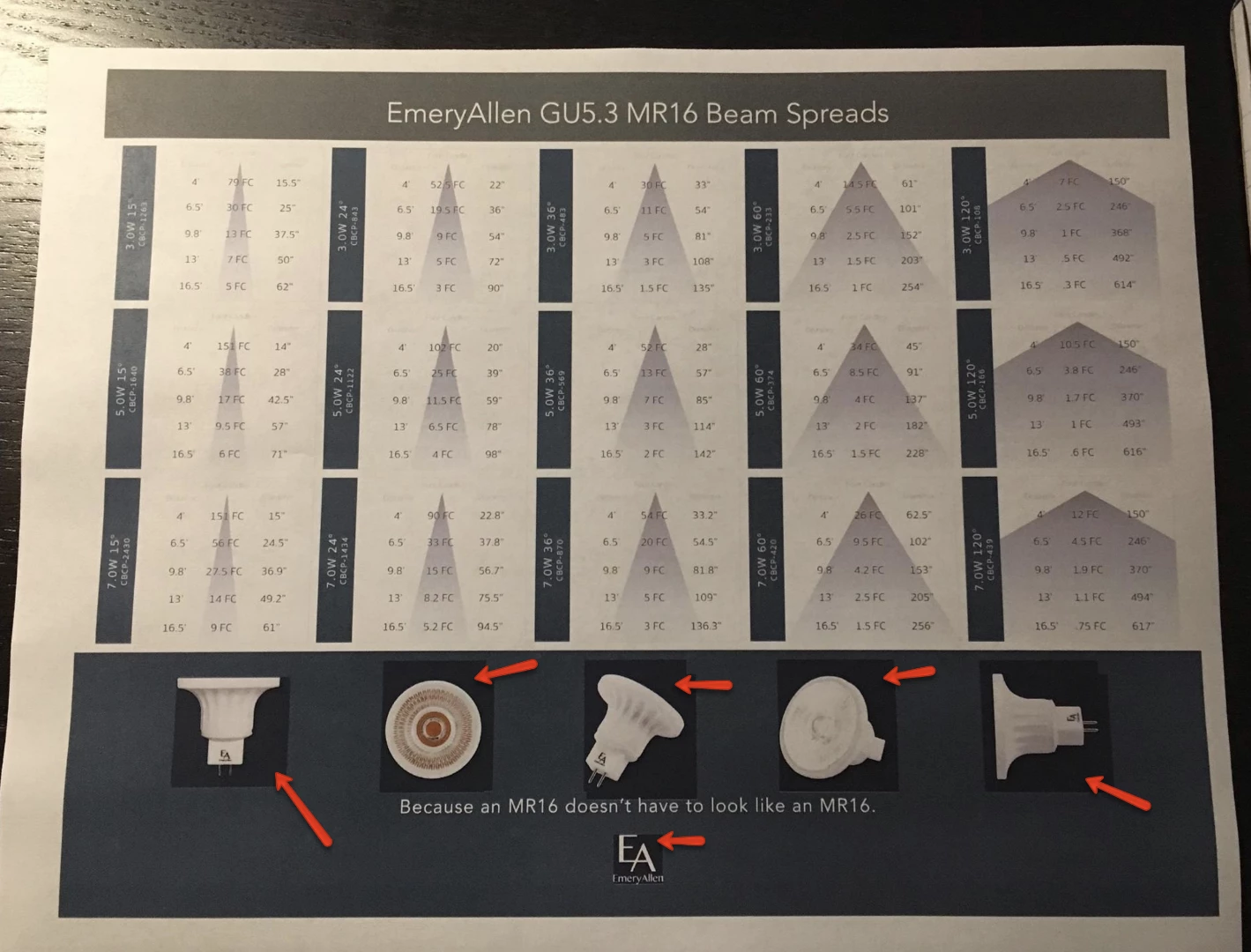
I'm running into an issue that I can't seem to figure out.. hopeful someone might be able to offer some guidance. I've got my Indesign file looking the way I want it to on the computer, but when I go to export it to PDF and then print from that file, I get these undesirable dark boxes around my graphics.. see pictures. What's strange is if I print directly from InDesign, it looks correct. Why would that be happening? Is there a setting that I'm missing? I've set the export to PDF X1A and set the output to 'Convert to Destination' and it doesn't seem to make a difference. Why would it look different from the PDF when printed? but look fine when printed directly from InDesign?

Thanks,
Paul
    Correct answer rob day

    This is a common problem with composite printers with RGB drivers, where the print driver doesn't handle transparency flattening and or color conversions correctly.

    When printing out of Acrobat try checking Print>Advanced>Print As Image

    4 replies

    rob day
    Community Expert
    rob dayCommunity ExpertCorrect answer
    Community Expert
    June 24, 2019

    This is a common problem with composite printers with RGB drivers, where the print driver doesn't handle transparency flattening and or color conversions correctly.

    When printing out of Acrobat try checking Print>Advanced>Print As Image

    Participating Frequently
    June 24, 2019

    thanks! this fixed it.

    Inspiring
    June 23, 2019

    IF NOT interested in history THEN GOTO M1

    Okay, the handling of Black or Gray or Grayscale in Adobe programs has been

    always a great mess:

    https://forums.adobe.com/thread/1564258

    In fact, it's correct in Photoshop, but not in InDesign (there is no Grayscale),

    and therefore Export as PDF is for Grays widely uncertain.

    M1:

    About the actual problem:

    The background of the images and the large background rectangle are using

    different blacks.  Black can be Grayscale with any Tone Reproduction Curve:

    Gamma or Dot Gain, or Photoshop's Black Ink (ISOCoated v2 eci, for example),

    or Gray converted from AnyRGB to AnyCMYK, a huge number of possibilities,

    and going from RGB to CMYK it can be Rich Black (CMYK) or K-only Black.

    Hopefully we don't have to discuss, how JPEG compression modifies the file

    content further.

    What's to do? One possibility:

    Choose your CMYK space, for instance ISOCoated v2 eci, as recommended

    by the service provider.

    Convert the images to CMYK, extract the background (Magic Wand) and fill

    it with a well specified CMYK black (it's not even clear whether  the image

    backgrounds had been identical before).

    Use in InDesign exactly the same CMYK black for the background rectangle.

    Then export without image compression as PDF/X-1a.

    No, PDF/X-4 doesn't contribute any magic problem solution concerning the

    Grays.

    The only reason for using PDF/X-4 could be the visible gradients in the page,

    if these were produced by Illustrator by procedural shading* (PostScript origin).

    PDF/X-1a would replace this procedural shading by immediate rasterization,

    in this case agreeable.

    * The rasterization depends on the final output device.

    Best regards --Gernot Hoffmann

    barbara_a7746676
    Community Expert
    Community Expert
    June 23, 2019

    Have you tried exporting as PDF/X-2010?

    Derek Cross
    Community Expert
    Community Expert
    June 23, 2019

    Shouldn‘t that be PDF/X-4, or has a new version come out?

    barbara_a7746676
    Community Expert
    Community Expert
    June 23, 2019

    Yes, at last a new version.

    Legend
    June 21, 2019
    carmenmills.design
    Participant
    April 4, 2024

    This fixed my issue!! Just needed to rasterize all my linked files!! Thank you!!