


Pamaro22
Participating Frequently
August 27, 2012
Answered

How do I turn off snapping to some sort of invisible grid in InDesign?

  • August 27, 2012
  • 8 replies
  • 121019 views

In the last few upgrades of Indesign something has stumped me. When I move or scale objects there is snapping to some sort of invisible grid. This happens when I move or scale something with my mouse but not when I move something with the the up and down arrow keys (I set the keyboard increments to a very small setting and that works). I've tried troubleshooting this problem by playing with the settings for guides and grids under the "view" menu, changing preferences for units and increments and guides and pasteboards, anything I can think of. Nothing turns this snapping off and it is impossible to do percision alignment when scaling because I can't scale with the up and down arrow keys, only the mouse and other input devices. I have been using InDesign for a long while so I am a relatively advaced user but I haven't been able to figure this one out.
Correct answer Alec Molloy

Alex, as I mentioned earlier I did have pixels as the units of measurement in my old document. Does choosing pixels create an automatic "snap-to" situation in the document?

Peter, snap to the grid was still turned off. In past situation for previous version of InDesign when some things in a document got corrupt, I was able to resolve the problem by pasting the stuff into a new document. I forget what the particular problems were but creating a new document and pasting stuff in it from the old document fixed it. Don't know if this is the case here.


Sorry, I totally missed that part of your answer.

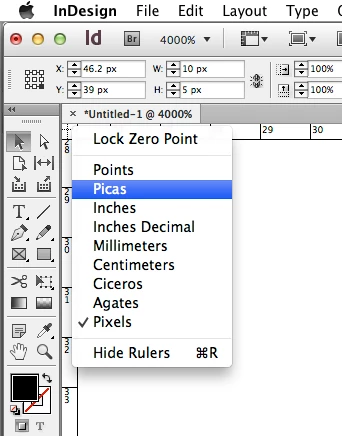
Yes, if you have selected pixel as your unit of measurement, objects will snap to the pixel grid. It is entirely possible to have objects be placed outside of this grid, but when moving them around they will snap to the grid.

How did you go about changing the units of measurement for the document? If you aren't you should try (with rulers on) right clicking on the box in the top left hand corner where the rulers meet and selecting a different unit of measurement. I usually work in picas.

8 replies

New Participant
October 12, 2024

turning off smart guides worked for me! it stops the snapping from any other object
View > Grids & Guides > Smart Guides

New Participant
June 14, 2024

This is what worked for me.
Go to Preferences> Units and increments> 
Under Ruler Units, change Horizontal: and Vertical: from pixels to something else, like inches for instance.
Hope this helps.


sierragroup4@comcast.net
New Participant
August 19, 2023

Can someone remove this thread is ffrom 2012 WTH!!!!!

James Gifford—NitroPress
Brainiac
August 19, 2023

Every post here is dated and it takes little effort to look at a thread, recent posts and versions mentioned to realize it may not be relevant to a current-day question. But there's not much reason to purge threads just because they're old.


I am much more irritated by the terabytes of info out there, mostly in individual blogs and sites where there's no excuse for it, that is undated. It's maddening to read whole how-to and instructional articles that turn out to have less to do with current systems, software and sites than one on how to do spell-checking in WordPerfect Release 4.


(This outdated garbage mode is endemic in e-book, e-publishing, EPUB and Kindle, wasting huge amounts of time and effort by new and novice users who don't know better until hours have been wasted trying to get a decade-old method to work.)


Sorry you wasted a whole minute on this. 🙂

Known Participant
September 15, 2023

This outdated garbage saved my day 🙂

These little quirks of InDesign/Adobe really do my head in.

New Participant
March 20, 2023

I had the same problem, solved by changing the increment

New Participant
October 31, 2022

It was driving me crazy too. I couldn't get the pen tool to work the same way it does in Illustrator and Photoshop. Go to View>Grids and Guides and turn off any snap to in there. 


New Participant
March 26, 2018

I read through this thread and tried everything with no success... so I took a deep dive into the InDesign menu and eventually found a solution to this issue:

Edit-> Preferences -> Units & Increments

Then play around with the settings under Keyboard.  Setting everything to 1 or 0p1 worked for me.

mattm75712837
New Participant
November 23, 2015

Also one thing I just realized is that you have to change both the horizontal and vertical axis increments. I learned this trick where you right click on ruler and can change increments in illustrator, indesign, and photoshop without going to preferences. But yeah, changing from pixels to inches solved it for me also. thanks


matt

Alec Molloy
Inspiring
August 27, 2012

Have you tried turning off "Snap to Document Grid" already?

Also, what unit of measurement do you work in?

Pamaro22
Pamaro22Author
Participating Frequently
August 27, 2012

Thanks. "Snap to document grid" has been off so that's doesn't seem to be it. I'm now working in pixels but there is no change in the snapping when I change the units.

Peter Spier
Community Expert
August 27, 2012

Is it possibly snapping to another object?