Participant
December 29, 2018
Answered

how to insert paragraph number with object in indesign

  • December 29, 2018
  • 3 replies
  • 1416 views

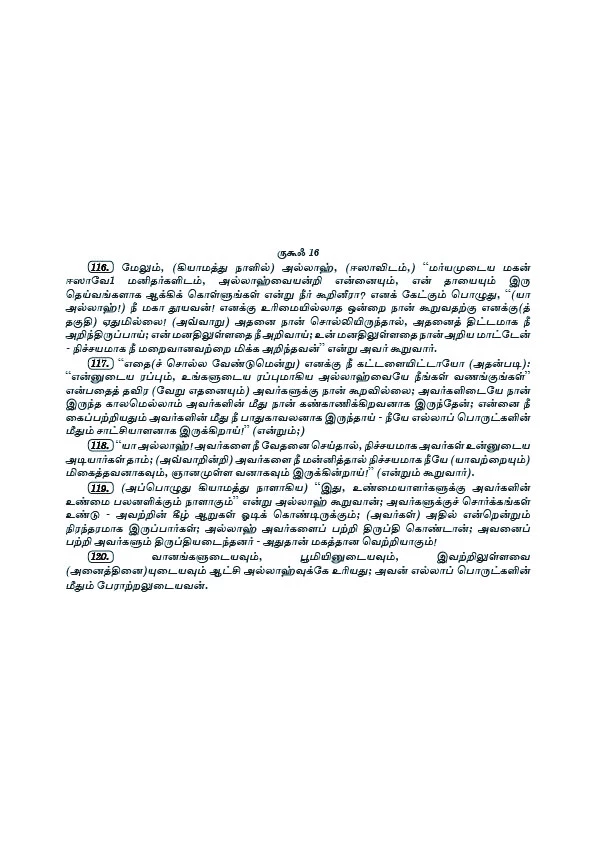
I want this type Starting Numbering option (with Object Rectangle )
This topic has been closed for replies.
Correct answer vladan saveljic

have you solved your problem?

3 replies

vladan saveljic
vladan saveljicCorrect answer
Inspiring
December 31, 2018

have you solved your problem?

Participant
January 6, 2019

Thank You

Please send full video us tutorial and it will be in Cs5 ME version

vladan saveljic
Inspiring
January 7, 2019

I have InDesign CC 2019

(in your first post you did not indicate the version of your indesign. Unfortunately in your indesign CS5 there is no paragraph border options)

This is an example. Naturally you can change all values as you wish.

You have to create:

1. character style leading 0

2. paragraph style "Text" (2.1; 2.2; 2.3)

3. paragraph style "Numbers" (3.1; 3.2; 3.3)

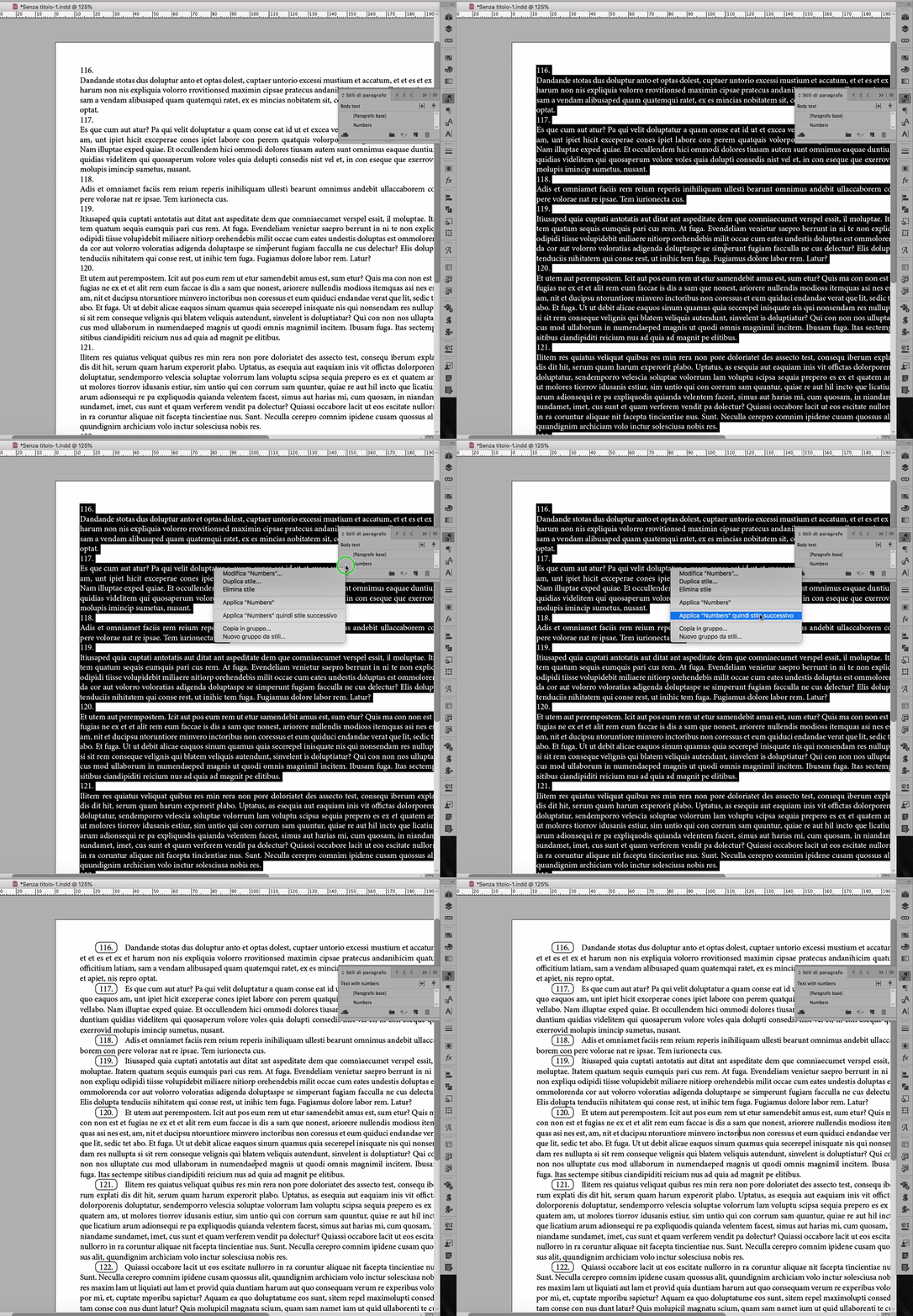
Take a look the screenshot bellow (then ask if you need further assistance)

(time required 5 minutes)

__________________________

1.

2.1

2.2

2.3

3.1

3.2

3.3

at the and select your text > right click on paragraph style "Numbers" > clic "Apply "Numbers" and then "next style"

pixxxelschubser
Community Expert
Community Expert
December 29, 2018

Hi mohamedm77257362

Please show an example with one- and with two- and with three- and with four-digit numbering.

Community Expert
December 29, 2018

Hi Mohamed,

there is no fully automatical way to achieve this with an anchored rectangle.

I also assume that you also have numbers with one or two digits instead of three like shown in your screenshot.

An automatic solution would also take care of that and change the width of the frame accordingly.

So I would suggest not an anchored rectangle, but an anchored text frame holding the auto number plus a second character to trigger the numbering where the width of the frame is done automatically using a text frame option ( InDesign CS6 and above ).

From my German InDesign CC 2019 showing the text frame options:

Baseline settings of the first line in the frame using Cap Height:

Automatic width only:

What you now can do is a GREP Find/Change action to find the start of a paragraph with a distinct applied paragraph style and replace the found start with the contents of the clipboard. To make it more convenient you should also apply a character style to the anchored object and do your GREP Find with character style [None] only. This could be necessary if you later add a paragraph without the numbering and try to find a paragraph that is not starting with a number.

Find first character at the beginning of a paragraph:

(^.)

With formatting Character Style: [None]

With formatting Paragraph Style where you want to add that anchored text frame.

Change to the formatted contents of your clipboard plus the found character:

~c$1

So basically you would format and anchor a text frame with an auto numbering style where auto numbering is numbering on between stories. You cut the anchor character of that text frame ( do not cut the text frame, just the anchor character! ) to the clipboard and run the GREP Find/Replace action from above.

That's all you can do with InDesign without using or writing a script.

A semi-automatic way.

It could happen that after the GREP change text or character screen redraw is a bit odd like seen in the screenshot below.

Could be a text redraw bug: The following text is obscuring the inline anchored text frame. That should not be possible without using negative values for kerning, but as you can see below it happens:

But do not worry. Just save the document with a new name, close and reopen it.

The redraw issue is going away:

Also note that InDesign added a blank character between the anchored object and the beginning of the text in the paragraph.

You could find/replace that character with a reasonable fixed width white space perhaps in a second step.

For InDesign versions below CS6 I have no good solution but doing a custom script.

For details of formatting see into this IDML file you can download from my Dropbox account:

Dropbox - AutoNumbering-with-Anchored-TextFrame-CC-2019-AFTER-REPLACING.idml

Regards,
Uwe